Gunnar Peipman's ASP.NET blog

ASP.NET, C#, SharePoint, SQL Server and general software development topics.

Sponsors

News


Programming Blogs - Blog Catalog Blog Directory


Links

Social

September 2008 - Posts

SharePoint for Developers: 3.2 Hands-on - getting list items

>> SharePoint for Developers - Table of contents

To read data from list we have to get reference to list first. SPWeb has lists collection we can use to find the list we are interested in. Following code example shows how to get instance of list.


SPWeb web = SPContext.Current.Web;

SPList list = web.Lists["MyList"];


List, as we can remember, is something like table and something like collection. List has its definition, fields collection and items collection. So, if we want to print out titles of all items in list we can iterate through items collections of list.


private static void PrintItemTitles()

{

    string strUrl = "http://localhost:8099/";

    using (SPSite site = new SPSite(strUrl))

    {

        using (SPWeb web = site.OpenWeb())

        {

            SPList list = web.Lists["MyList"];

            SPListItemCollection items = list.Items;


            foreach (SPListItem item in items)

                if (item != null)

                    Console.WriteLine(item.Title);

        }

    }

}


To get item from list we have the following options:

  • asking item directly from collection,
  • asking item by id,
  • querying list to get an item.

Asking item directly from items collection is very resource expensive. If you need one item from large list and you know its numeric ID or GUID then you should never ask item directly from collection. The reason is very simple - to get item from collection by its index then collection must be filled with items first. And if collection is filled you have suddenly all the list items in memory. It is not very nice surprise if list has about 50.000 documents.


SPListItem item = list.Items[itemIndex];


The other option is to get item by its ID. This is done by GetItemById() method.


SPListItem item = list.GetItemById(itemIndex);


If you know item GUID then you can use GetItemByUniqueId() method that works like previous one but uses GUID instead of numeric ID.


SPListItem item = list.GetItemByUniqueId(itemGuid);


These methods are not such resource eaters as asking the whole items collection. Behind the scenes it creates query that returns data only for list item with specified ID and if list item is found then it is constructed and returned.

NB! If you ask Items collection form list then every time all list items will be asked and constructed again. The results are not cached. If you use Items collection then ask it only once - like I did in the previous code example where item titles were printed to console.

I just mentioned querying and you may ask if you can do more with querying than just ask item from list by its ID. Of course, you can. You can query lists by different criterias and we will cover this in next blog entri in this serie.

ForEach method and blonde me

I want to tell you about List<T>.ForEach method and one of my famous blonde moments when I was debugging faulty code. LINQ makes it easy to query collections and that's why I like it a lot. Today is friday and weekend is coming. Let's relax and have some fun on me. Here's one proof how n00b I can be :)

Well, there was a simple code that readed updated information from outer sources and suddenly there was faulty source that stopped updating process. The code was something like this.


var sources = GetSources();


try

{

    sources.ForEach(a => UpdateListCache());

}

catch(Exception ex)

{

    Log(ex.ToString());

}


Why this process stopped?

Well, it turns out that update method of source proxies had no exception handling and first exception that occured stopped the ForEach. So, if you see something similiar and think what may be the problem then check the method that is called in ForEach method to find out what's going on there.

Posted: Sep 26 2008, 03:26 PM by DigiMortal | with 5 comment(s)
Filed under: , ,
ProBlogger

problogger Recently I readed a book titled as ProBlogger: Secrets Blogging Your Way to a Six-Figure Income. Authors of this book are Darren Rowse and Chris Garrett - the veterans of commercial blogging business. Darren is also owner of the famous ProBlogger site and b5media.

ProBlogger book is about how to make money with blogging. Blogging can be also full-time job and sometimes it can make you rich. Usually it doesn't as there are not very much people who have patience enough to build the blog, grow social networks and study the social media for years before blog turns to be profitable.

The book contains very good common blogging tips that every blogger should know. We can also find advices about how to build money making blogs, how to monetize and promote them. And it was good surprise to me to find also some real money numbers that popular blogs are making.

ProBlogger book covers also simpler money making options than building a commercial blog or blog network. You can find tips about how to start paid writing. Also topics of trading the domains and existing blogs are covered.

If you are deeply interested in making money with blogging or you want to find out some new exciting tips and tricks about blogging then this books is for you.

Posted: Sep 26 2008, 08:16 AM by DigiMortal | with 5 comment(s)
Filed under:
Professional SharePoint 2007 Web Content Management Development


Professional SharePoint 2007 Web Content Management Development: Building Publishing Sites with Office SharePoint Server 2007 (Wrox Programmer to Programmer)
One great SharePoint book in my company bookshelf is titled as Professional SharePoint 2007 Web Content Management Development: Building Publishing Sites with Office SharePoint Server 2007. This book is written by famous SharePoint guru Andrew Connell and in my opionion it is one of those very useful books about SharePoint you must have. So, let's see what we can find from this book.
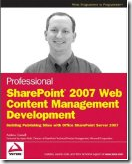
Although reading the title it seems that everything there turns around web content management it is not so. This book covers also many other SharePoint topics. Everything you can find from this book is targeted to developers. This book is not another manual based reference to SharePoint - it is book that helps you solve many problems you may face when developing SharePoint sites. I have to admin that content management focus in this book is still very strong, so don't buy this book if you need to make some complex workflows to work.

If you want to know more about SharePoint, study how content management is built up in SharePoint and at same time you also want a load of good tips for developers then go and buy this book. You won't regret, I promise!

Table of contents

  • Foreword.
  • Introduction.
  • Chapter 1: Embarking on Web Content Management Projects.
  • Chapter 2: Windows SharePoint Server 3.0 Development Primer.
  • Chapter 3: Overview of Web Content Management in Microsoft Office SharePoint Server 2007.
  • Chapter 4: SharePoint Features and the Solution Framework.
  • Chapter 5: Minimal Publishing Site Definition.
  • Chapter 6: Site Columns, Content Types, and Lists.
  • Chapter 7: Master Pages and Page Layouts.
  • Chapter 8: Navigation.
  • Chapter 9: Accessibility.
  • Chapter 10: Field Types and Field Controls.
  • Chapter 11: Web Parts.
  • Chapter 12: Leveraging Workflow.
  • Chapter 13: Search.
  • Chapter 14: Authoring Experience Extensibility.
  • Chapter 15: Authentication and Authorization.
  • Chapter 16: Implementing Sites with Multiple Languages and Devices.
  • Chapter 17: Content Deployment.
  • Chapter 18: Offline Authoring with Document Converters.
  • Chapter 19: Performance Tips, Tricks, and Traps.
  • Chapter 20: Incorporating ASP.NET 2.0 Applications.
  • Index.
DocumentShow extension for SharePoint

We finished today one interesting SharePoint extension. We call it DocumentShow extension and it allows you to show HTML files in document library as slide show. In our case the customer wanted to show some reports on large LCD screen located in one of his office rooms.

Here on the right you can see my MS Paint marketing image for this extension and like all my art work it may insult marketing people. So be extremely careful if you show this piece of art to them.

The point of DocumentShow extension is simple. After deploying DocumentShow solution you can see new menu item in list actions menu: View Slide Show. Clicking on this item new window will be opened and it starts to show HTML documents from this document library.

Each HTML document is shown given amount of seconds and then the next file is taken. If last file is shown then it starts over from first file. Meanwhile it checks if there are new files in server and the list of files is updated. Simple to install and simple to use.

Let me, please, know what you think about this extension.

Posted: Sep 24 2008, 07:17 PM by DigiMortal | with 7 comment(s)
Filed under:
SharePoint for Developers: 3.1 Hands-on - connecting to SharePoint and using elevated rights

>> SharePoint for Developers - Table of contents

In previous post of this serie, SharePoint for Developers: 3. Introduction to SharePoint Data Structures, I described some basic points of SharePoint data structures. In this post we will see how to use these data structures and how to create custom field types. The next hands-on post will stop on custom field type and it will give you very good example about how fields work in SharePoint.

NB! I have a long-long posting ready with code samples but it is too long to be piublished as one posting. I will post it as practical posts for previous posting that describes theory. I think it is better for you if every posting has one concrete topic.

Test application

But let's start with basic stuff and let's play with lists a little bit. So, let's open Visual Studio and create a new ... guess what ... console application! It is not some bad joke. We need something to run our code and display some information. There is no point to create web parts or custom pages we have to deploy to our server just to get sone output. Console application is also great example about how to write external utilities that interact with SharePoint.

Also add reference to Microsoft.SharePoint assembly. By default it is located in the following folder:

C:\Program Files\Common Files\Microsoft Shared\Web Server Extensions\12\ISAPI\

Connecting to SharePoint

To access SharePoint data from outside world we have to options - we can use SharePoint API to access SharePoint options and we can use SharePoint web services to access data remotely. In this post we will use SharePoint API to access data locally.

There are two objects we need to use to get access to data. First we make connection to site collection and then we have to ask site we are interested in. There is a little terminological mess you should know. Site Collection is called site on API level (SPSite) and Site is called web (SPWeb). You have to keep in mind this little shift when writing code using SharePoint API.

The following code connects to existing SharePoint site and opens the root web. Then it prints out the titles of all lists it can access.


using System;

using Microsoft.SharePoint;


namespace MyTestApp

{

    class Program

    {

        static void Main(string[] args)

        {

            string strUrl = "http://localhost:8099/";

            using (SPSite site = new SPSite(strUrl))

            {

                using (SPWeb web = site.OpenWeb())

                {

                    foreach (SPList list in web.Lists)

                        Console.WriteLine(list.Title);

                }

            }

        }

    }

}


There is one important rule: you must always dispose SharePoint objects soon as they are not used anymore. These objects are very expensive in the mean of resources and the shorter you keep them alive the better performance your code has. The "using" clause does exactly what we need - as soon as object is not used it will be immediately disposed.

Running code in elevated privileges

Everything you with SharePoint objects is done in the context of current user. There are scenarios when you need for some tasks much higher permissions than has the user running the code. You may face this need when writing wev parts for public sites where you want to use some lists or features that are not accessible to anonymous users.

To get our code run using elevated rights we need to add reference to Microsoft.SharePoint.Security assembly. The path of required DLL is as follows:

C:\Program Files\Common Files\Microsoft Shared\Web Server Extensions\12\ISAPI\Microsoft.SharePoint.Security.dll

Now we can use SPSecurity object that contains everything we need to run code in elevated rights.


using System;

using Microsoft.SharePoint;


namespace MyTestApp

{

    class Program

    {

        static void Main(string[] args)

        {

            var sec = new SPSecurity.CodeToRunElevated(

                        delegate() { PrintLists(); });

            SPSecurity.RunWithElevatedPrivileges(sec);

        }

        static void PrintLists()

        {

            string strUrl = "http://localhost:8099/";

            using (SPSite site = new SPSite(strUrl))

            {

                using (SPWeb web = site.OpenWeb())

                {

                    foreach (SPList list in web.Lists)

                        Console.WriteLine(list.Title);

                }

            }

        }

    }

}


Now we can print out our lists also in lower priviligese than thealmighty administrator ones. You have to be very sure what you are doing when running code in elevated privileges because the account used for this is the SharePoint system account and it can do practically everything that can be done on API level.

SharePoint for Developers: 3. Introduction to SharePoint Data Structures

>> SharePoint for Developers - Table of Contents

The first two entries in this serie gave you some first overview of SharePoint and development environment. Now it is time to go serious.

Data in SharePoint is different than in our usual object-oriented applications. If we want to deal with data in SharePoint we have to understand how data is organized there. This is one of the key points to successful SharePoint projects. 

SharePoint Lists

SharePoint represents data as lists (SPList) that contain items (SPLitItem). In this point we can compare SharePoint lists with database tables where we have rows and columns. But there is one huge difference that makes our first approaches to zero - there is nothing static. We feel ourselves strong when we have database tables and classes and we know that each change there is another development, test and deployment task.

In SharePoint we doesn't have such a static model - users can add new columns to lists and delete existing ones. Also they can change the type of columns. This is all something new we don't see on our OO applications. SharePoint list item is like dynamic object that has some properties on one day and another properties on another day. Okay, there are some properties that never change and that are always there (unique ID-s of lists, fields and list items).

To get better picture about SharePoint lists let's compare them with database tables and classes from object-oriented programming. If you find this table somehow strange then read some introductions about O/R-mapping - you can find many interesting ideas and also understand why I made this kind of comparison.

Database

OO language

SharePoint

Table Class List
Column Property Field or Site Column
Row Object List Item

NB! This comparison is not official. It is not even exact comparison. I provided this table just to help to get your minds clear. Also you can get some clue about how to handle SharePoint data objects in the terms that are more familiar to you.

List Templates and Forms

The table above is not really very exact. There is mentioned no list templates. In SharePoint every list you create is created by some list template. Lists by itself are called list instances as they are independent of their template and may be changed radically. After creating list I can remove some columns I don't need and add some new columns. As a result this list is not like it's template anymore.

Because users are able to create the lists by their own they need also forms to show and manipulate data in lists. Each SharePoint list has forms collection. Forms provide users with different views like detail view and edit view of list item. It is also possible to define custom forms as SharePoint is heavily using ASP.NET infrastructure.

When creating a new list from template then all default forms related to that list are copied to list's Form folder. List template defines also forms templates and during the creation of list the so-called instances of forms are created. Developers can customize and modify these forms using SharePoint Designer and that's why copies of list template forms are made.

SharePoint Fields

Now let's see how SharePoint implements fields. Fields, like database columns, have type. There are base types and also complex types that are made up from different parts. By example - hyperlink field has URL and description part.

You have to understand at this point that in SharePoint the fields are something wider than database columns or class properties. Besides types SharePoint fields have also definitions for different views that depend on context where fields are shown. By example, we have to let user somehow to insert data to fields. Also we want user to be able to see fields values in lists and detail views. We have to provide all these views with our custom field types.

Here is the list of views we can provide with fields:

  • list edit view - used when adding field to list or when editing field in list design view,
  • edit view - used with list items when user wants to edit data,
  • list view - used when field is shown in list,
  • details view - used when field is shown in list item details view,
  • designer view - used when field is shown in designer (SharePoint Designer by example).

I will show you how to create your custom fields in next entry of this serie.

Content Types

There are many good things in OO and some of these good things are adopted to SharePoint's dynamic world. SharePoint has Content Types. Content Type is site wide type that is usable in different lists. Content Types are made up of Site Columns. Site Columns are columns that are defined separately from lists and list templates. It is possible to use Site Columns with Content Types and also with existing lists.

By example, we can define Content Type called Contract and bind it to different document libraries. This Content Type defines all the fields we need to make some list item or document to be Contract. When inserting new Contract to list or when editing some existing Contract, SharePoint shows on editing form only the fields that are defined for Contract.

Content Types are hierarchycal in SharePoint and they also represent Content Type inheritance. Base Content Type is called System and no custom Content Types may inherit from it. When defining custom Content Type we have to take some Content Type as a base and extend it. Usually it is Item or Document.

When comparing to OO the Content Types are somehow comparable to interfaces. They can be inherited from each other and each list can implement more than one Content Type.

Content Type Id-s

There is one crucial thing related to Content Types - their ID-s. Content Type ID is not GUID like other objects have. It is mix of different GUID-s and it contains also all the inheritance information. All GUID-s that Content Type contains are separated by 00. If ContentType doesn't contain 00 it is one of the system Content Types.

When Content Type is applied to list then there will be new Content Type with new ID. If you need to know what is the exact Content Type then you should ask the parent Content Type from SharePoint API. Why such a mess?

Think about how Content Types work and you understand that it is not mess at all. Users can change also Content Types that are already applied to some lists. And if user doesn't want to reflect changes made to Content Type to lists then there will be two different set of same content type. Somehow we need a way to keep original and applied Content Type separated because they mey be different.

Now you should have some overview of SharePoint data structures and you also know how these things are built up on logical level. We will have some practice in next entry of this serie. Also I will cover Content Types in later entries.

SharePoint for Developers: 2. Development Environment

>> SharePoint for Developers - Table of Contents

Before going to deep dive let's put up development environment. In this blog entry I will tell you how to put everything up and what tools we are using for which tasks. Well, if you read further then you have something to do for couple of evenings. Let's start!

I will give you not very short overview about what one must do to get development environment up'n'go. There are many good guides about SharePoint development environment installation and I will give you links to these materials. This entry describes the overall process and you can also find here some of my advices.

NB! It is also possible to avoid the installation hell described here. You can download MOSS2007 virtual hard disc, install Visual Studio and use it. You have one problem - this is time limited installation and when it expires you have to start from beginning again.

Virtual Machine

As a first thing you need an installation of Windows Server 2003 or newer. I don't have many computers in my company and that's why I use Microsoft Virtual PC to run SharePoint and its development environment. If you are using Windows Vista then turn off Aero and other needless cool features - they eat too much resources.

As a first thing download Virtual PC 2007 and install it to your machine. It is free and you don't have to buy any licences. After installing Virtual PC you have to create virtual machine for Windows Server installation. Make sure you give enough resources to virtual machine because SharePoint and development tools is not a small game to play.

If it is possible give 2GB RAM and about 16GB disk space to your virtual machine. It should be enough if you don't download any installation images to your virtual hard disc.

Now install Windows Server and virtual machine add-ons (you can find add-ons installation from Virtual PC menu). Also install Microsoft Loop-back Adapter so you can access your virtual machine from host machine.

As a last thing before installing SharePoint you should enable remote desktop access to your virtual machine. It is real pain to use your virtual machine through Virtual PC window. Remote Desktop access is much better and more convenient to you because you don't have to remember special key combinations for your everyday moves.

When everything is done make a back-up copy of current state - if you miss something when going through next steps you should create new virtual machine from zero again.

SharePoint and Visual Studio

If you prefer to use Windows SharePoint Services 3.0 then you can download it and install it on your Windows Server. If you want to develop for WSS3.0 and MOSS2007 you need MOSS2007 image. You can get it from MSDN Library subscribers downloads section. Now, here the fun begins.

Before SharePoint you need also to install IIS and SQL Server. You can find very detail guide from SharePoint Reporter Blog entry How to Create a MOSS 2007 VPC Image: The Whole 9 Yards. There is also MSDN Library article Setting Up Development Environments for the 2007 Microsoft Office System.

NB! Be specially careful when dealing with Active Directory. There are some dangerous steps in AD installation that may ruin your installation when some of these steps fails.

NB! After installing Windows it is recommended to let it download and install all updates it needs. Same goes for SharePoint - after installation let it install updates. Don't forget backup copies before these steps.

If you are using Visual Studio 2008 then you don't have to install utilities required by Visual Studio 2005 environment (separate installation of .Net Framework 2.0 and .Net Framework 3.0 and Workflow extensions). You may also install Visual Studio 2008 SP1 and .Net Framework 3.5 SP1.

Don't forget to make back-up copy after every important step. As I told you before - if something goes very wrong you can always start from last good state if you have backup. As a last thing that is related to Visual Studio 2008, you have to install Visual Studio Extentsion for Windows SharePoint Services (VSeWSS) 1.2.

SharePoint SDK-s

There are also two SDK-s you may need because these SDK-s contain valuable information about SharePoint development and also code examples:

After installing SDK-s make sure everything works as expected. If everything is okay then make a backup copy of your virtual hard disc.

SharePoint Designer

SharePoint has two different ways how to get many things done - it is possible to develop and it is possible to customize. We are using Visual Studio 2008 for development and SharePoint Designer for customization. These two activities are not comparable because they are totally different.

Customizations are made to SharePoint site instances. So, if you create a new site then you have to manually apply those modifications also to new site. On Visual Studio it is possible to use SharePoint API, create templates and activation features that can also modify existing sites. Also there are customizations you can do directly through your browser.

Many tasks are very unconvenient to do on Visual Studio and this is the place where SharePoint Designer and browser based customizations will save you a lot of time - just do those modifications, take them from SharePoint and add appropriate definitons to your Visual Studio project.

You can download SharePoingt Designer from MSDN Library subscribers downloads section.

If everything works make a backup copy again.

Source Control

As a last thing you want to be sure you don't lose your work when you are somehow able to crash the virtual machine. Visual Studio can use Visual Source Safe as source control system. Also, Visual Studi can be client to Team Foundation Server.

If you are using CVS or SVN then you can also find plug-ins for Visual Studio. I am using TamTam CVS and AnkhSVN. These plug-ins need some CVS or SVN client and I will recommend you TortoiseCVS and TortoiseSVN. If you need CVS or SVN server then you can consider CVSNT or VisualSVN Server.

When you have source control support installed then it is time to make a backup again. Put this backup somewhere you can always take it when some accident happens.

Now you have SharePoint development environment with everything you need for development tasks and starting from next entries of this serie we are going serious on SharePoint topics.

ASP.NET Dynamic Data

ASP.NET Dynamic Data is one of those technologies I have been keeping eye on. With .Net 3.5 and Visual Studio 2008 SP1 is fully available. Let's see how it works and how we can use it.

We need two things - Visual Studio project (Dynamic Data Entities Web Site) and database with data. You should run Visual Studio as administrator because otherwise you may face the problems related to permissions.

Dynamic Data Web Site

There is more than one template for dynamic data, I just picked the on I liked. You can use also the other templates if you like. By example, there is also template for LINQ To SQL.

When creating new web we will get solution like shown on the picture at right. Almost everything we need to manage the data is there and almost done for us.

What we are missing is data. We need the database and after getting one we have to connect it to our project. When connection is successfully made we need to create a data model to our project.

Database

I created simple database on MS SQL Server. You can see the diagram of this database on the following screenshot.

If you want to use your own database then feel free to do so. Just make sure you don't have self-referencing tables because ADO.NET Entity Data Model can't understand these kind of relations (I got many mysterious errors when using self-referencing tables).

When using your own database make sure this database has relations. Otherwise you may miss half of the fun.

Data Model

As a next step we have to make our database understandable to dynamic data engine. I am using ADO.NET Data ENtity Model and all stuff told here goes for this. To keep this point short, you have to follow these steps to get data model done.

  1. Add App_Code folder to your project.
  2. Click right mouse button on it and select Add New Item...
  3. Select ADO.NET Entity Data Model as element type and click button Add.
  4. Insert parameters that wizard asks you and click button Finish.

If everything went as expected you have now data model in your project with source code that can handle the model. As a result you see something like this.

As you can see we have classes representing the tables in our database. The Names of the properties match the names of appropriate fields in database.

Note. To get this nice model as an image there was no need to make a screenshot and extract class diagram from it. Visual Studio designer lets you save model as image file. The list of image formats seemed to me very similiar to MS Paint's one.

Binding Model To Dynamic Data

As a next thing we have to tell dynamic data engine about our data model. Otherwise it has no idea that we have some data here we want to manage.

During the creation of web project also Global.asax file was created. It contains a protion of code already and some long comments. These comments are there to help LINQ To SQL guys getting things work.

Global.asax contains static method called RegisterRoutes(). To make dynamic data engine aware of our data model we have to update this method a little bit. Add the following lines of code to the end of this method.

var context = new ContextConfiguration(){ScaffoldAllTables = true};
model.RegisterContext(typeof(myEntities), context);

myEntities is the name of model created in previous section. If your model has different name then use your model's name here instead of mine. Now try to compile the project to see if everything is okay on code level. If compilation succeeded we can start watching some nice pictures we have.

Dynamic Data User Interface

If project compiling succeeded then you can run the web project and look what dynamic data has to offer. You can click on screenshots below to see images in original size.


Main page of dynamic data site. No problem with designing UI - it is
all done automatically for us.


Data entry form for organizations.


List of organizations. As you can see there are also links to view 
invoices related to selected organization.


If we have organizations defined we can filter invoices list by organization. 

Conclusion

It took only couple of minutes to get dynamic data site up'n'go. Data management environment is generated automatically and we don't have to write more code than th eone that sais to dynamic data engine where it can get the data. You can use dynamic data projects to manage databases with simpler structure - couple of minutes and you have browser based data management interface for your database. Just don't forget to put it behind passwords if you plan to use it over internet.

SharePoint for Developers: 1. Introduction

>> SharePoint for Developers - Table of Contents

This is the first entry of my SharePoint for Developers serie. I asked from developers if they need something like this and they said yes. First entry is introduction and after reading it you will understand where SharePoint stands and what kind of problems it tries to solve.

What is SharePoint?

The easiest way to get some clue is to look at the word SharePoint. As we can see there are two important things mentioned - sharing and point. So, using a name we can say that SharePoint may be a place where we can share something with each other. And it is true - SharePoint is system that enables users to share different information. And it is ideal for enterprise when there is one well organized information point where users will find all information they need.

Sharing and information publishing is not all that SharePoint has to offer. When doing our job we have to communicate with other people - colleagues, customers and business partners. Every piece of information we share with each other may contain something important that lives in the context of some business activity. When we are talking about making contract we may generate important information about how this contract should be done. But as far as this information is in our mailboxes or in our heads this information is not 100% useful for our businesses. To solve this problem SharePoint gives us also everything we need for effective communication.

It is possible to make other systems communicate with SharePoint. Using SharePoint web services it is possible to automate data integration between SharePoint and other systems. Also it is possible to integrate external databases and web services with SharePoint. We can add here tight Microsoft Office integration too and guess what? No we have put SharePoint in the middle of our business data!

SharePoint versions

SharePoint has three (current) main versions:

  • Windows SharePoint Services 3.0,
  • Microsoft Office SharePoint Server 2007 Standard Edition,
  • Microsoft Office SharePoint Server 2007 Enterprise Edition.

WSS 3.0 is free version of SharePoint and it offers the base data structures, services and pages. One can download it and install on Windows 2003 server or better for free - no additional licence fees are required. This version of SharePoint is used under all the other versions, so understanding WSS 3.0 is mandatory.

The other versions of SharePoint are not free and they need appropriate licenses. MOSS2007 Standard extends WSS3.0 with powerful features like Web Content Management sites, multilingual content support, search services and many other things. Enterprise Edition gives us Business Data Catalog, Excel Services and some more powerful things we can use in larger corporate solutions.

In this serie we will stop mainly on WSS3.0 stuff. I'm still no very sure if it is an good idea to cover also MOSS2007 specifics here. Maybe it is better to write another serie that is focused purely on MOSS2007.

Development problems

As developers we are very ironic when somebody tells about silverbullets in our field - maybe these bullets exists in management world, but we are the ones whose time and blood is the price of all those bullets. SharePoint has also something for us - we can extend it like we want. But as long as we know and follow the rules. This is the most complex part of SharePoint development because SharePoint has highly dynamic data structures, very general way how to extend the environment and also some hard limits we have to know.

Many developers go mad when they hear about next SharePoint project. They don't want to go through this hell again. Usually these guys spend their time by hacking, not studying, thinking and developing. SharePoint development expects developers who are able to study and understand how things are built and why things are like they are. Otherwise the projects will fail.

Let's solve those problems!

I try to give you as good overview of successful SharePoint development as I can. I hope you are after reading my series able to develop more integral and natural solutions for SharePoint. You are always free to ask me questions in comments and of course - I am also opened to any kind of criticism as long as it helps me make entries of this serie better.

More Posts