Creating DotNetNuke Modules using a Web Application Project (WAP)
When creating a DNN module, you have the option to choose from the web site project (WSP), or a web application project (WAP). I prefer the web application project approach, and I'll explain it for developers who are new to module development, or unfamiliar with the WAP approach for developing modules.
There are two major reasons why I feel WAP is generally better than WSP for DNN module development.
1. Conciseness - the project contains only your module's code, nothing more. Separating your module from the DNN web site itself in Visual Studio really helps with performance and maintainability.
2. Compiled - I like having the code compiled into an assembly. This makes it easier for me to build a module package and distribute. I like to use a NAnt script for each module that creates the packages for me. The WAP project style lends itself to this approach.
If you'd like to give it a try - here are the steps involved.
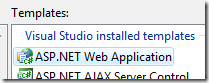
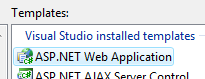
- Create a new WAP project, or alternatively, use a C# DNN Module WAP Template
- Place the root of the project in the DesktopModules directory of your DNN development web site's file system (e.g. ..\DesktopModules\MyModule\)

- Set the project to build the assembly and place it in the "bin" directory of the DNN web site

- Set the project to launch your DNN web site (e.g. http://localhost/DotNetNuke) when you F5/run.

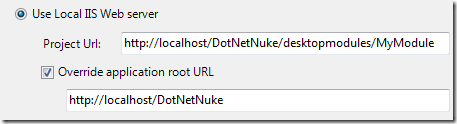
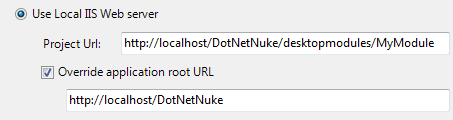
- In order for Visual Studio to know about your development web site, make sure to set your project to use your IIS server, and set the Override application root URL to the root of your web site. When you do this, Visual Studio knows that paths starting with "~" are really pointing to the DNN web site, and not just to your project. This makes it possible to include controls from within the DNN site, like the DNN Label or URL control.



After your module is set up, you can import it (by importing the .dnn manifest file) into your development site, and run any database scripts that the module may have. Your module is now fully integrated into your DNN site.
TIP: to debug the module, you may find it helpful to "attach to process" in Visual Studio while you already have the web site running in a browser. This saves you from having to launch the web site multiple times.