Troubleshooting the MVC installer for Visual Studio 2010 Beta 1
Today, MVC for Visual Studio 2010 Beta 1 was announced. You can find more details about it on Phil’s post. For the better part of the last month I’ve done little except churn out new installers for MVC, so I’m really happy to finally see one of them going out the door instead of heading to my recycle bin. The first thing you will probably notice when running the new installer, apart from the version number being 1.1, is that it is now a self-extracting EXE as opposed to just being a single MSI.
This change came about as we started to integrate MVC into the setup code of Visual Studio 2010. Including MVC required us to make changes to our own setup code and as a result we ended up with two MSIs; one for the runtime and another for the tooling components. This solved the problem of including MVC in post Beta 1 versions, but we still had to provide an out of band (OOB) installer for Beta 1 while keeping the CTP releases for the next version of MVC in our sights as well.
Chaining two MSIs so that the first installer calls msiexec to install the second is impossible because Windows Installer prohibits running installs in parallel (at least on versions prior to 4.5). We examined various options to provide a simple user experience for installing the two MSIs on Beta1. Downloading separate MSIs was never really an option because as we start making CTP releases of the next version we don’t want users to end up with the runtime component of one preview and the tooling component of another release.
The first attempt produced a chained installer (bootstrapper) using the setupbld.exe utility provided by WiX 3.0. It works really well, but did not quite fit our needs. For those of you that are using WiX to author setup programs, the roadmap for version 3.5 includes a new utility called Burn that will provide rich functionality for creating chained setup programs. Even though we ended up throwing this installer away it did have some benefits and we upgraded our build scripts to the latest version of WiX.
Attempt number two saw the creation of a the self-extracting EXE using the GenerateBootstrapper task and relies on some of the ClickOnce functionality used to describe the products and packages that comprise the installation manifest. To keep things simple, our EXE does not download the individual MSIs from a server. Instead, we just included them within the EXE.
I could have completed the second installer much sooner. In December when we were wrapping up RC1 we began looking at servicing scenarios for MVC using Windows Update (WU) and Microsoft Update (MU). As part of the investigation I split the MSI and created a self-extracting EXE. Eventually the effort was abandoned since we felt confident that we could service MVC by releasing a patch should the need arise and it was a better fit for MVC’s OOBness. I packed the code away just in case something changed for RTM, but soon after 1.0 was released I deleted it to get my machine cleaned out in preparation for the next version of MVC (note to self: Never throw away code).
Because our installation methodology has changed, troubleshooting failed installations is slightly different compared to MVC 1.0, but I hope to provide some useful tips on where to find information when things do go wrong.
What does the new installer do?
When you run AspNetMVC1.1_VS2010.exe it will extract a number of files to a randomly named folder under %temp% (usually located at AppData\Local\Temp). In my case the files were extracted to AppData\Local\Temp\VSDC164.tmp\. Within this folder you will find subfolders that are created for each MSI in the bootstrapper’s manifest. The following files should be present in either the root folder or one of the subfolders:
- AspNetMVC1.1.msi
- VS2010ToolsMVC1.1.msi
- Setup.exe
- Eula.rtf
Once the files are extracted, Setup.exe simply installs each MSI sequentially by calling msiexec using the /i and /q options.
When the EXE fails you should see a dialog similar to the one below. Note that I expanded the Details section (and sanitized some information).
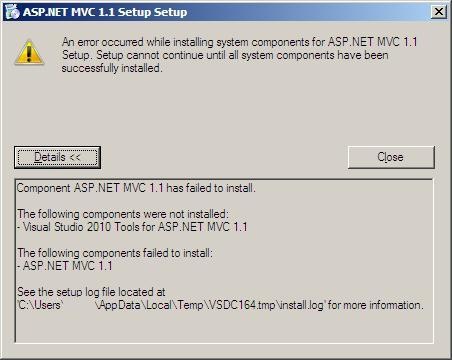
Take note of the log file being mentioned at the bottom of the dialog. This file is generated by the bootstrapper, not msiexec. The file is not too interesting, but does tell a sad tale about how msiexec is invoked:
Installing using command 'C:\Windows\SysWOW64\msiexec.exe' and parameters ' -I "C:\Users\*\AppData\Local\Temp\VSDC164.tmp\MvcRuntime\AspNetMVC1.1.msi" -q '
As you can see, the EXE simply performs a silent install and does not create a verbose log file. The default MSI log file generated by the bootstrapper contains very little information. In fact, if the install fails, you probably won’t see more than the excerpt below. This error was induced by running an unsigned installer on Windows Server 2008 and the installation failed when it tried to run NGEN on the unsigned System.Web.Mvc assembly.
Error 1937. An error occurred during the installation of assembly 'System.Web.Mvc,version="1.1.0.0",culture="neutral",publicKeyToken="31BF3856AD364E35",processorArchitecture="MSIL"'. The signature or catalog could not be verified or is not valid. HRESULT: 0x80131045. assembly interface: IAssemblyCacheItem, function: Commit, component: {32E5FFC3-0CDC-43C1-A5F8-62CAF64F3064}
=== Logging stopped: 6/5/2009 10:03:51 ===
Can you get more verbose logs? Yes. To do that, simply add the entry below to your registry and run the EXE again. For more details on the various options you can consult this KB article.
Key: HKEY_LOCAL_MACHINE\SOFTWARE\Microsoft\Windows\Installer
Value Name: Logging
Type: REG_SZ
Data: voicewarmupx
The MSI log file that’s produced by this registry entry is extremely verbose. Remember to remove the registry entry when you are done because Windows will continue to produce log files whenever you install a product and this may impact on install times for large products. One drawback of using this approach to create log files is that you end up with a totally random file name. For example, when I ran the EXE, the log that was produced was located in AppData\Local\Temp\MSI4ced1.LOG. The easiest way to find the log is to look at the timestamps of the files. For the more adventurous amongst us, delete all the MSI*.LOG files in %temp% before running the setup program.
Analyzing Install Logs
The Windows Installer 4.5 SDK provides a utility, wilogutl.exe, that can be used to analyze install logs. Simply launch the EXE, open the log file and click on the Analyze button. It won’t always solve your installation problems, but it’s always good to have another tool at the ready to troubleshoot problems. If nothing else, the tool can assist you to quickly step through a log and identify all the points of failure. The utility provided the following feedback for the log file from my failed installation.

Ultima Ratio
There is one final option available to troubleshoot a failed installation. Recall that when run, the EXE first extracts all the MSI files to your %temp% folder. Simply install the MSIs separately; runtime first, then the tooling components. Although this will not make any failures disappear, it should make it easier for you to determine which component (runtime or tools) is responsible for the installation failure.
Known Issues and Improvements
As much as I hate to admit it, there are some problems with the installer. While testing the installer it was discovered that even if you don’t have Visual Studio installed you will still get an entry under ARP for Microsoft Visual Studio 2010 Tools for ASP.NET MVC 1.1. The reason for this is that the bootstrapper does not check whether Visual Studio is installed. The MSI on the other hand does perform this check. However, when the MSI fails to detect a valid version of Visual Studio, it only disables some features inside the MSI, hence the entry under ARP still appears because the MSI does complete. Kudos to our testers for discovering this. We have a fix ready to address the problem, but schedules prohibited it from going into the build we released.
Noticed the double “Setup” in the error dialog I showed earlier? I’ve rewarded myself by opening a bug just for this.
I’m also not too happy about requiring users to tweak the registry to get verbose setup logs. Suffice it to say that I am looking at ways to introduce a static location, or at the very least a static log filename, so that users will not need to fiddle with the registry in upcoming CTP releases of MVC. My initial investigation seems to indicate that we might run into OS dependencies for this, but let’s see what can be done.
Have fun with the installer and let us know if you run into problems.