Visual Studio paste without changing IDs in Source View

When pasting a snippet of HTML into the Visual Studio source window, Visual Studio will automatically change the IDs to the default naming convention (TextBox1, etc.).

image

Most of the time though I do not want this to happen since I purposely want to have that ID copy exactly as is since it makes things easier for me when changing the name.  For example, it is easier to change FirstNameTextbox to LastNameTextbox than to change TextBox1 to LastNameTextbox.

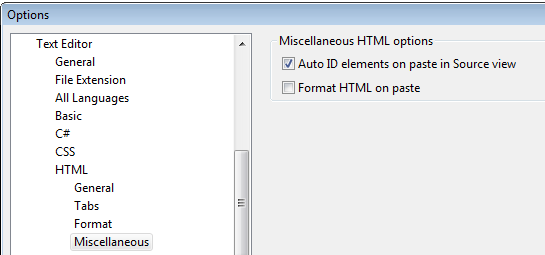
There is an option to turn the Auto ID elements on paste off.  It can be found in:

Tools > Options > Text Editor > HTML> Miscellaneous > Auto ID elements on paste in Source view.  Uncheck the box to turn this feature off.
image

Now Visual Studio will leave my IDs alone:

image

Michael Campbell of SQL Server Audits pointed this out to me a couple weeks ago.

Published 27 August 2009 09:31 PM by Jeff Widmer
Filed under:

Comments

# Onder Arslan said on 28 August, 2009 06:13 AM

Nice Tip, thanks.

# Josh Schwartzberg said on 28 August, 2009 08:27 AM

Reminds me of my post 5 years ago that I believe ended up creating this feature: weblogs.asp.net/.../48011.aspx

# Mikael Lundin said on 28 August, 2009 11:41 AM

Oh my. Thanks! That ID-thing has annoyed me for years!

# Raj Kaimal said on 28 August, 2009 01:02 PM

Thanks for the tip!

# Twitter Trackbacks for Visual Studio paste without changing IDs in Source View - Jeff Widmer's Blog [asp.net] on Topsy.com said on 29 August, 2009 03:41 AM

Pingback from  Twitter Trackbacks for                 Visual Studio paste without changing IDs in Source View - Jeff Widmer's Blog         [asp.net]        on Topsy.com

# Sheron said on 03 September, 2009 09:10 PM

I had done this once long ago. But couldn't find the option in my VS setup... Thanks for reminding! :-)

# Denis Gladkikh said on 04 September, 2009 01:05 AM

Если вставлять фрагмент HTML кода (точнее XHTML) в окне редактирования исходного

# goodbyeforms said on 28 December, 2009 07:41 PM

Thanks!  Finally I got frustrated enough to Google it - and found your helpful post.

# takitani said on 24 March, 2010 03:31 AM

niceeeee tip !!!!

# Ronny said on 06 July, 2011 10:17 PM

Thanks! I thought I was going crazy.

# anonymoose said on 05 October, 2011 01:16 PM

Also, the "Show all settings" check box at the bottom of the options window has to be checked to see this.

Leave a Comment

(required) 
(required) 
(optional)
(required) 

Search

Go

This Blog

News

Syndication