Top 10 DOS Batch tips (Yes, DOS Batch...)
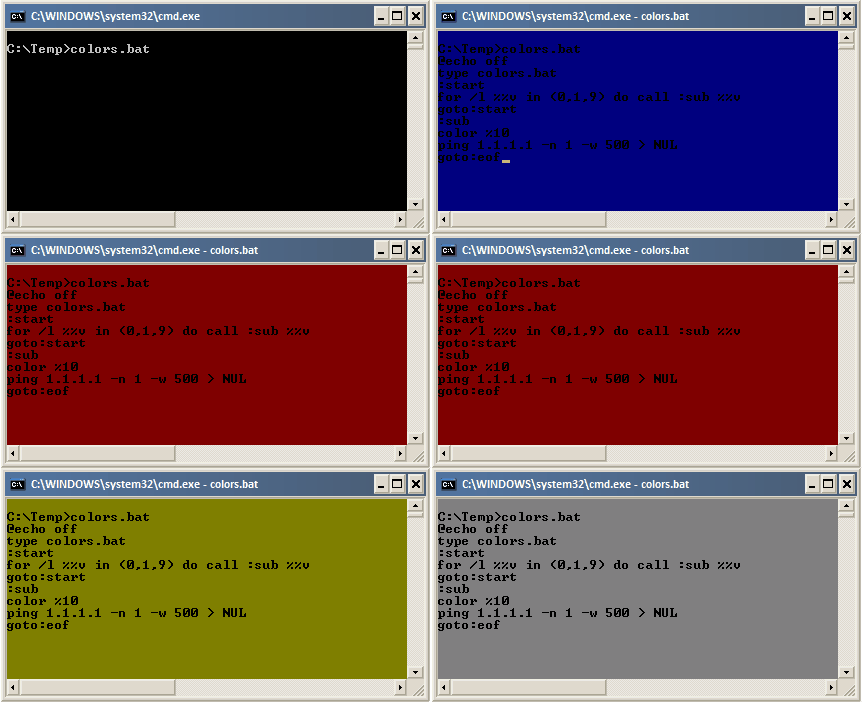 PowerShell's great. I'm fired up about the opportunity to use .NET objects from simple scripts. I'll admit I'm still getting up to speed with it, but I'm totally sold on PowerShell.
However, it's not installed on a lot of servers I work with, and I still do a lot of my "clumsy developer attempting DBA and network admin" tasks from DOS Batch files. You can do quite a bit with DOS Batch - the silly fact is the my most popular posts (by a huge margin) are some batch scripts to allow running IE7 and IE6 on the same computer.
So, by way of tribute to the dying art of the DOS Batch file, I present my top ten batch file tricks:
- Use PUSHD / POPD to change directories
Read Scott Hanselman's writeup on PUSHD. The basic idea is that it keeps a stack, so at the simplest level you can do something like this:
PUSHD "C:\Working Directory\"
::DO SOME WORK
POPD
That allows you to call the batch file from any directory and return to the original directory when you're done. The cool thing is that PUSHD can be nested, so you can move all over the place within your scripts and just POPD your way out when you're done.
- Call FTP scripts
This sample prompts for the username and password, but they can of course be hardcoded if you're feeling lucky.
set FTPADDRESS=ftp.myserver.com set SITEBACKUPFILE=FileToTransfer.zip set /p FTPUSERNAME=Enter FTP User Name: set /p FTPPASSWORD=Enter FTP Password: CLS > script.ftp USER >>script.ftp ECHO %FTPUSERNAME% >>script.ftp ECHO %FTPPASSWORD% >>script.ftp ECHO binary >>script.ftp ECHO prompt n :: Use put instead of get to upload the file >>script.ftp ECHO get %SITEBACKUPFILE% >>script.ftp ECHO bye FTP -v -s:script.ftp %FTPADDRESS% TYPE NUL >script.ftp DEL script.ftp - Read from the registry
You can make creative use of the FOR command to read from and parse a registry value (see my previous post for more info).
FOR /F "tokens=2* delims= " %%A IN ('REG QUERY "HKEY_LOCAL_MACHINE\SOFTWARE\Microsoft\Microsoft SQL Server\Instance Names\SQL" /v SQL2005') DO SET SQLINSTANCE=%%B - Run SQL Commands
You can call OSQL (or SQLCMD on servers with SQL 2005 installed) to execute SQL commands:osql -E -d master -Q "BACKUP DATABASE [%DATABASENAME%] TO DISK = N'D:\DataBase\Backups\%DATABASENAME%_backup' WITH INIT , NOUNLOAD , NAME = N'%DATABASENAME% backup', NOSKIP , STATS = 10, NOFORMAT" - Check if a file or folder exists
I used this to do a quick and dirty check to see if a Windows Hotfix had been installed in my IE7 Standalone scripts:
IF EXIST %SystemRoot%\$NtUninstallKB915865$\ GOTO KB_INSTALLED ECHO Installing Hotfix (KB915865) to allow tab support START /D "%~dp0/Installation/Update/" xmllitesetup.exe - Pause execution for a number of seconds
There are different ways to do this from within a batch file, all with their tradeoffs. I use a ping to an invalid IP address with a timeout. The best way to do this is to find an invalid IP address and then pint it, but 1.1.1.1 is a pretty safe bet:
ECHO Waiting 15 seconds PING 1.1.1.1 -n 1 -w 15000 > NUL - Use defaults for optional parameters
It's not really easy to check for a missing parameter. You have to use something like "IF dummy==%1dummy", which will only be true if %1 is empty. So, for example, here we're allowing a user to supply an application path via the third parameter, and defaulting it if it's missing. By the way, beware the IF syntax. The line spacing makes a difference, so this is one that I just copy and paste to avoid figuring it out every time.
IF dummy==dummy%3 ( SET APPLICATIONPATH="C:\Program Files\MyApp\" ) ELSE ( SET APPLICATIONPATH = %3 ) - Process each file matching a pattern in a directory
I previously posted a script which iterates all files named *.bak in a directory and restores them on the local instance of SQL Server. Here's an excerpt:
PUSHD %BACKUPDIRECTORY% FOR %%A in (*.bak) do CALL :Subroutine %%A POPD GOTO:EOF :Subroutine set DBNAME=%~n1 ::RUN SOME OSQL COMMANDS TO RESTORE THE BACKUP GOTO:EOF - Use batch parameter expansion to avoid parsing file or directory info
Batch file parameters are read as %1, %2, etc. DOS Command Extensions - available on Windows 2000 and up - add a lot of automatic parsing and expansion that really simplifies reading filenames passed in as parameters. I originally put this at the top of the list, but I moved it because I figured the insane syntax would drive people off. I wrote a simple batch script that shows some examples. I think that makes it a little more readable. Stick with me, I think this is one of the best features in DOS batch and is worth learning.
First, here's the batch file which just echos the processed parameters: - Learn from the masters
By far, my favorite resource for DOS Batch trickery is the Batch Files section of Rob van der Woude's Scripting Pages. He's got some good PowerShell resources, too.
@echo off
echo %%~1     =      %~1
echo %%~f1     =      %~f1
echo %%~d1     =      %~d1
echo %%~p1     =      %~p1
echo %%~n1     =      %~n1
echo %%~x1     =      %~x1
echo %%~s1     =      %~s1
echo %%~a1     =      %~a1
echo %%~t1     =      %~t1
echo %%~z1     =      %~z1
echo %%~$PATHATH:1     =      %~$PATHATH:1
echo %%~dp1     =      %~dp1
echo %%~nx1     =      %~nx1
echo %%~dp$PATH:1     =      %~dp$PATH:1
echo %%~ftza1     =      %~ftza1
Now we'll call it, passing in "C:\Windows\Notepad.exe" as a parameter:
C:\Temp>batchparams.bat c:\windows\notepad.exe
%~1     =      c:\windows\notepad.exe
%~f1     =      c:\WINDOWS\NOTEPAD.EXE
%~d1     =      c:
%~p1     =      \WINDOWS\
%~n1     =      NOTEPAD
%~x1     =      .EXE
%~s1     =      c:\WINDOWS\NOTEPAD.EXE
%~a1     =      --a------
%~t1     =      08/25/2005 01:50 AM
%~z1     =      17920
%~$PATHATH:1     =
%~dp1     =      c:\WINDOWS\
%~nx1     =      NOTEPAD.EXE
%~dp$PATH:1     =      c:\WINDOWS\
%~ftza1     =      --a------ 08/25/2005 01:50 AM 17920 c:\WINDOWS\NOTEPAD.EXE
As I said, the syntax is completely crazy, but it's easy to look them up - just type HELP CALL at a DOS prompt; it gives you this:
%~1 - expands %1 removing any surrounding quotes (")
%~f1 - expands %1 to a fully qualified path name
%~d1 - expands %1 to a drive letter only
%~p1 - expands %1 to a path only
%~n1 - expands %1 to a file name only
%~x1 - expands %1 to a file extension only
%~s1 - expanded path contains short names only
%~a1 - expands %1 to file attributes
%~t1 - expands %1 to date/time of file
%~z1 - expands %1 to size of file
%~$PATH:1 - searches the directories listed in the PATH environment variable and expands %1 to the fully qualified name of the first one found. If the environment variable name is not defined or the file is not found by the search, then this modifier expands to the empty string
The modifiers can be combined to get compound results:
%~dp1 - expands %1 to a drive letter and path only
%~nx1 - expands %1 to a file name and extension only
%~dp$PATH:1 - searches the directories listed in the PATH environment variable for %1 and expands to the drive letter and path of the first one found.
%~ftza1 - expands %1 to a DIR like output line
In the above examples %1 and PATH can be replaced by other valid values. The %~ syntax is terminated by a valid argument number. The %~ modifiers may not be used with %*
What about you? Got any favorite DOS Batch tricks?