Clarification on Updating DefaultLocation in an MSI
Back in February, I did a blog post on how to change the default location for an Application installed via an MSI. Thanks to a comment from Joe Marcelino, it wasn’t clear where to find the “DefaultLocation” field to change that. Here’s a quick how-to on finding the field.
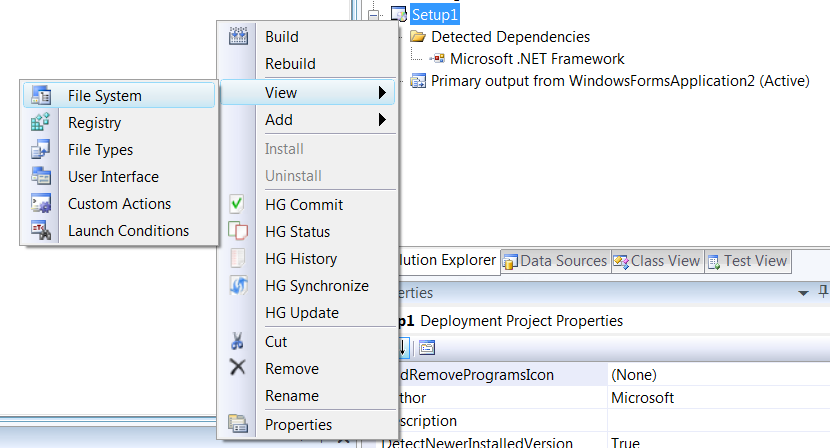
1. Right-click on your Setup project in Solution Explorer and select “View” and then “File System”:
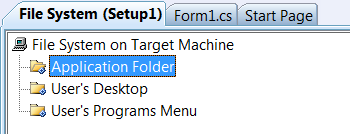
2. In the window that opens up, under “File System on Target Machine”, select “Application Folder”:
3. Now, look at the “Properties” window and you’ll see the DefaultLocation property:
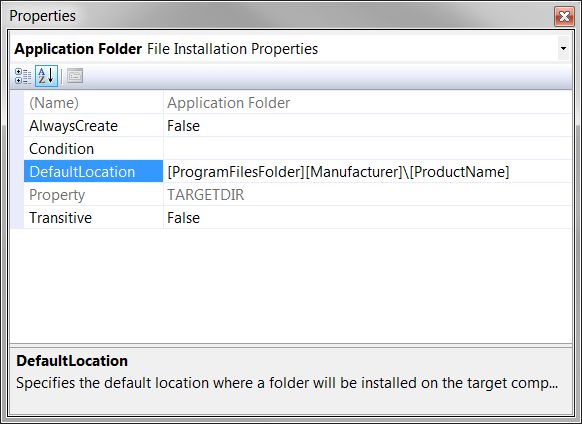
Now you can use any of the settings defined in MSDN to change where the application is installed.