How to Customize SharePoint Forms - Part 2

In my previous post, I discussed various options available with developers/power-users to modify out-of-the-box SharePoint list forms, with a mix of client-side and server-side approaches. However, options available to end-users are limited very limited on UI.

In continuation of same series, I'd quickly introduce you to my preferred server-side approach which is not only a better implementation but is far usable by users of your SharePoint site, and is UI-based, without worrying about what's under the hood.

You can download provided release to readily use it against your SharePoint sites/lists. Here is an example of end result:
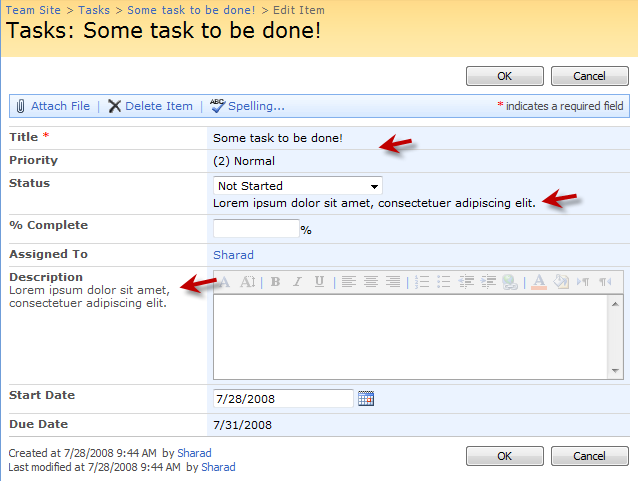
Modified Edit Form for Tasks List 

Form Customization Requirements

Some of the prime requirements are for custom Forms on UI are:

  1. Modify out of the box Forms - New, Edit, and Display - to selectively choose fields that are available on each form.
  2. On Edit form, from fields marked available, select some to be read-only. You want user to be able to see its value, but make it non-editable.
  3. Do not unghost out-of-the-box forms for sake of form customization.
  4. Be usable on both, Windows SharePoint Services v3.0 and SharePoint Server 2007.

Solution Approach - List Form Settings

Taking example of tips from my previous posts for using Rendering Templates to enhance default UI and controls, I've created new controls to intercept default Forms and set required form configuration on server-side before they are rendered to browser. I've also taken examples from some nice implementations on Codeplex by Bewise and DBedarf, and came up with something more usable to my preference and various enhancements.

Solution is to build a SharePoint Feature to provide a Application Page linked from List-Settings to edit the configuration of current list pertaining to various Form types. Save that configuration in RootFolder Property-Bag of current list. Override the Rendering Template for ListForm and CompositeField (FormSettings.ascx) to replace our custom controls so that we can intercept the rendering on the fly using the configuration we saved in property bag - selected by list administrator.

Following list types are enabled by Feature: Custom Lists, Announcements, Contacts, Issues, Events, Links, Tasks, and Project Tasks list.

Get Started with Form Settings

Download OfficeToolbox.SharePoint.Lists v1.0 from Codeplex or at SharePoint Toolbox at MSDN Code. Unzip the archive and run Setup.exe on your Server box where you want to install or try. Go to "Central Admin > Application Management > Manage Web Application Features" and activate the Feature.
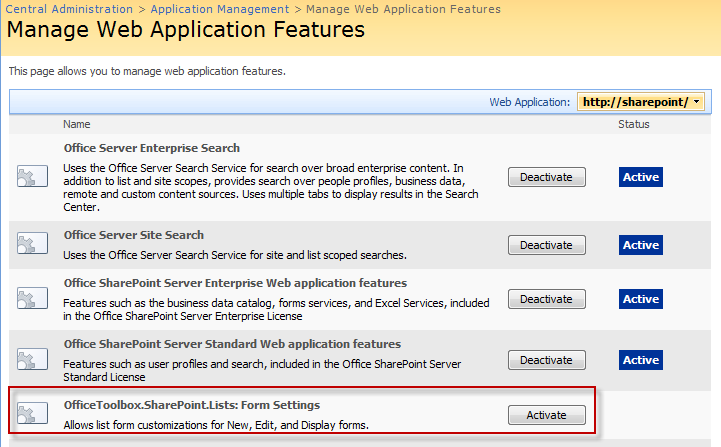
image

Now go to your list settings of applicable lists on any site under the above web-application. Click "Form Settings".
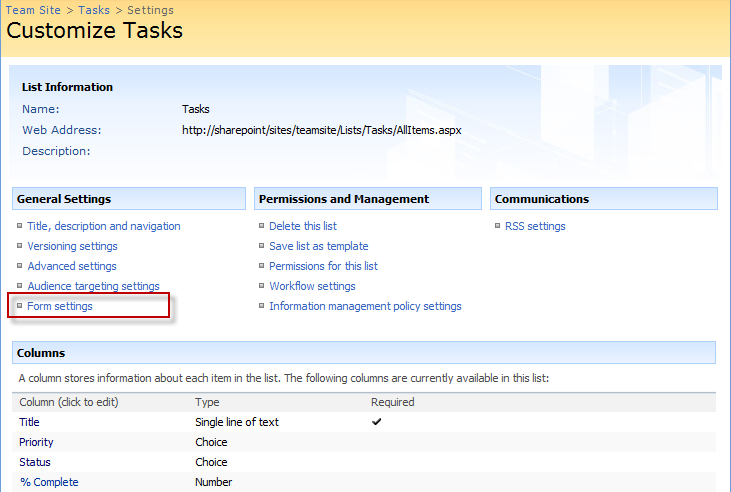
image 

From settings page, you can show/hide fields across New, Edit, and Display forms. For Edit form, you can also mark selected fields as read-only... should you want to stop your users from editing some information. You can also decide the location of field's description - next to field Label or next to control itself (default).
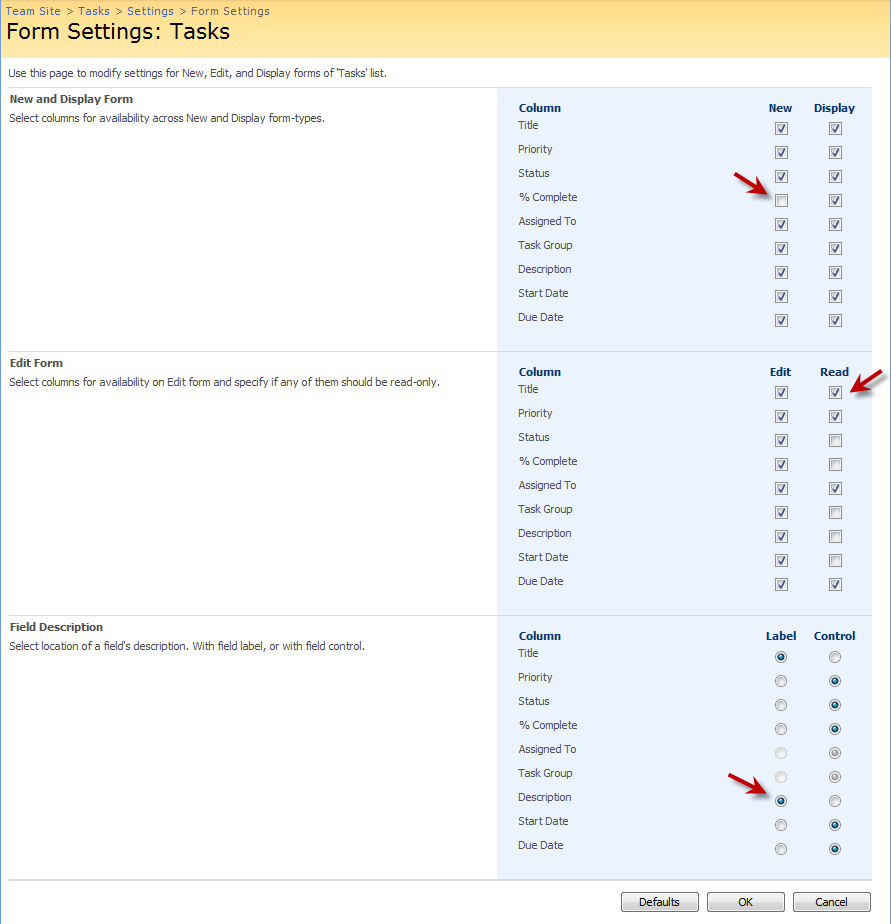
Form Settings

Having selected above, you get following Edit form... for example.
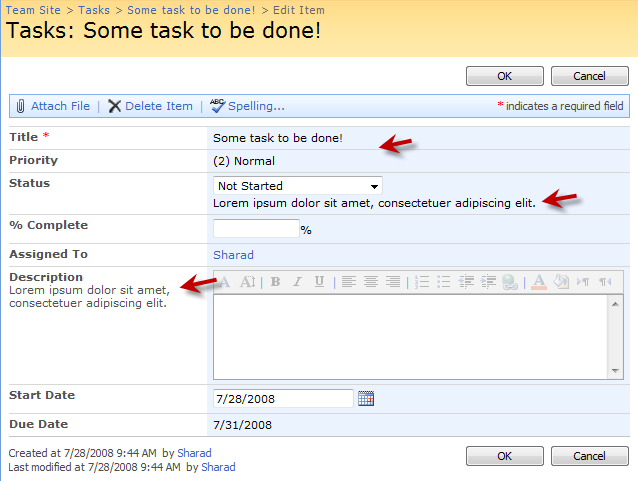
Modified Form

Above gives you significant control over specific fields on a form to better control the lifecycle of information of your lists, resulting in not on better quality of data (saving wrong edits) but better usability/adoption by being able to communicate that information isn't available for editing once created. (edit form: read only).

Advantages of server-side Form customizations

In my previous post in series, I suggested various approaches available to modify forms, either client-side or using SharePoint Designer. While the come with their limitations, server-side has various advantages.

  1. Power to the users, no dependency on Developers - once implemented; better usability.
  2. Server-side implementation comes with advantages of managed code, SharePoint feature (roll-back, scoping etc), central manageability etc.
  3. No unghosting of forms, just in line with SharePoint APIs.

Speaking of disadvantages and future-scope, there are present limitations that there is no scope of forms/settings for individual SharePoint groups or audience. Flexibility of conditionally marking a field editable, while read-only by default. There can be various additional possibilities for enhancements, and I'm just hoping that we see far greater possibilities with forms in SharePoint 2009!!!

That's all for now, hope you find it useful. Do send in your suggestions for improvements.

-- Sharad

Download: OfficeToolbox.SharePoint.Lists v1.0 from Codeplex.

Published Tuesday, July 29, 2008 1:00 AM by eJugnoo

Comments

# How to customize rendering of SharePoint list form fields - Part 1 - Sharad Kumar

Pingback from  How to customize rendering of SharePoint list form fields - Part 1 - Sharad Kumar

# Links (7/29/2008) « Steve Pietrek - Everything SharePoint

Pingback from  Links (7/29/2008) « Steve Pietrek - Everything SharePoint

# re: How to Customize SharePoint Forms - Part 2

Thursday, August 07, 2008 4:14 AM by AlexO

One of the better solutions out there to acommplish this task. The only problem is that it doesn't seem to work on existing lists. For me it only works with new lists (created after the feature was installed and activated).

# re: How to Customize SharePoint Forms - Part 2

Thursday, August 07, 2008 4:19 AM by AlexO

Oops, just realised that it doesn't work with Document lists. Please ignore my earlier comment. Cheers.

# re: How to Customize SharePoint Forms - Part 2

Friday, August 08, 2008 1:07 AM by eJugnoo

AlexO, Please note:

"Following list types are enabled by Feature: Custom Lists, Announcements, Contacts, Issues, Events, Links, Tasks, and Project Tasks list."

I chose to not include Document Lists for their forms integration with Office, or anything else we might end up compromizing. You can however edit Elements.xml of Feature to include your list types, and de-activate/re-activate the Feature. It should work.

-- Sharad

# re: How to Customize SharePoint Forms - Part 2

Monday, August 11, 2008 11:12 AM by MarkP

Excellent work. A quick question, when I've used this on one of my lists it's worked great except for two columns which are both disabled under the Field Description section but both have the Label value set. However the label still appears under the control.

Both of these fields are UserFields. Is this the problem?

# re: How to Customize SharePoint Forms - Part 2

Monday, August 11, 2008 11:28 AM by eJugnoo

Mark,

Due to a minor bug, by default, on a new list the label are set under Title of field, and I have explicitly disabled changing that for UserField control. It should instead have loaded them next to Control, and will be fixed soon.

Note: There isn't a simple way to seperate Desciption of UserField control and its fixed next to control. Hence the intent to keep it disabled - but with correct default setting, coming in next release.

Happy that you liked it. Would like to know what else you think would be useful to control for forms?

- Field order, per Form type.

- Field appearance, per Audience/Role/User/Group.

- ...?

Thanks

# re: How to Customize SharePoint Forms - Part 2

Monday, August 11, 2008 12:20 PM by MarkP

Looking forward to the next release :)

As for ideas for the future, of the top of my head (not sure how feasible these are), I can add;

* Fields only visible based on Audience, Role, etc (I think this is what you refering to above).

* Certain fields availble based upon an action defined in a QueryString, e.g. the same list can be used but based upon a QS value, only certain fields are editable/shown. Might be usful for workflow where poeple along the way are required to complete different fields and you don't want them confused by all the other fields.

* Custom validation of fields, e.g. data validation, is this date entered after today or today + 5 days, etc

If I think of anything else I'll be sure to let you know.

Thanks,

Mark

# re: How to Customize SharePoint Forms - Part 2

Monday, August 18, 2008 8:41 AM by Benjamin

I would like to edit a "Project Tasks" list, which is not included.

I took a look into the sourcecode, but I'm not very familiar with sharepoint developement and I can't seem to figure out what to edit...

# re: How to Customize SharePoint Forms - Part 2

Tuesday, August 19, 2008 10:33 AM by Pid

Well looks good...

One feature that would be nice.... Sharepoint doe not show the description of the field during display mode (they're only showed during edit) , is there a way to configure that ? Let's say that you put on the Field descrption something like a checbox "Show on Diplay Form".

Another thing that I also miss in sharepoint is the ability to show only x charachters of the value of a Text field in the "allItems". Let's say a have a news list.. but I don't want to have an abstract field in it, yet I would like to show the first 50 characters of the news in the AllItems.

There are plenty of Ideas right now on my mind that could be done with this toolbox!

Good stuff!

# re: How to Customize SharePoint Forms - Part 2

Wednesday, August 20, 2008 7:06 PM by ryan shell

sharad,

take a bow. this tool is great. thank you!

# re: How to Customize SharePoint Forms - Part 2

Saturday, September 06, 2008 6:26 PM by Travis

For some reason It does not seem to be working for me. The install seemed to work as expected and I can activate the application, but when I go to the list it does not show up?  Any suggestions on what I might be missing.

# re: How to Customize SharePoint Forms - Part 2

Thursday, September 11, 2008 4:59 AM by arunabha

nice post it helped me lot......

# re: How to Customize SharePoint Forms - Part 2

Monday, September 15, 2008 1:12 AM by Paul Culmsee

If only you could make this audience targeted, I wouldn't need to use my javascript method.

Great work - if you nail that issue then its the perfect solution

# re: How to Customize SharePoint Forms - Part 2

Wednesday, September 17, 2008 2:19 PM by Sharad Kumar

Paul,

I think that can be nailed in due time. but first I'm aiming to give custom server-side validators to be configurable on Form Settings, based on Field values and custom rules.

That's coming...

# re: How to Customize SharePoint Forms - Part 2

Wednesday, October 15, 2008 12:41 PM by Gillian

Travis - did you activate the feature for the correct web app? Go back to Central Admin and check... I hadn't even seen the web app dropdown and had just activated it for the wrong web app.

HTH,

Gillian

# re: How to Customize SharePoint Forms - Part 2

Tuesday, October 21, 2008 7:16 AM by Guillaume

Hi,

thanks for this feature. Can you explain the method do you use for make an readonly input in the edit form.

I have download the source code in codeplex, but I have not find the method in the code.

The date of your release and the date of last source code is different in codeplex, maybe it's for this reason that I don't find the code.

My objectif is to transform the field in read only depending on the state.

Thanks,

Guillaume

# re: How to Customize SharePoint Forms - Part 2

Thursday, November 20, 2008 8:36 PM by Charlie Girdosky

Sharad,

Form Settings is the single most productive feature in Sharepoint.  I have successfully used it in application projects and it allows me to use ootb functionality of newform.aspx,dispform.aspx and editform.aspx instead of having to develop custom forms in SPD.  It works has worked flawlessly for me and is the single most important tool besides SPControl Deployment Wizard in my tool kit.

I do have one comment about using Javascript. When Form Settings hides a field in a ootb form, the field is not rendered in the html so I can't set a default value from a query string.  I still use javascript to set the value and hide the string.

I do have some nice to haves.

- Form Settings by Content Type. this would be nice to have but I have been able to work around this most of the time.

- The ability to attach validation code to fields

- What I would really like to have however is a dynamic form generator that can place fields and tags, in relative locations on the screen. based on table information on a sharepoint list.  Sort of a poor mans InfoPath.

Many Thanks for your Excellent Tool

Charlie

# re: How to Customize SharePoint Forms - Part 2

Friday, December 05, 2008 3:05 AM by Avaneet

I got the logic how you are hiding a field. But i did not find the logic to make a field read only. I really need this. Please help.

# re: How to Customize SharePoint Forms - Part 2

Tuesday, December 09, 2008 9:53 AM by Faizal

Today i downloaded your tool, Its helps me lot and cut down lots of development time....

Keep it up... we are looking more stuff from you....

# re: How to Customize SharePoint Forms - Part 2

Thursday, January 08, 2009 2:21 PM by Pinky

Great work, Sharad!

One of my 2009 wishlist is the ability to hide a field based on user role/permission. (e.g., admin fields).  I'm sure you've heard this before....

# re: How to Customize SharePoint Forms - Part 2

Tuesday, January 13, 2009 4:24 PM by Babu

Great Help - Thanks Sharad

I want to find out if Data from SQL table can be integrated lookup in the List Columns

And also - can we write the data back to SQL Table

Appreciate your help

Thank you

# re: How to Customize SharePoint Forms - Part 2

Wednesday, January 14, 2009 10:28 AM by eJugnoo

Hello everyone, greetings for new year!

I regret for the silence in between, and many thanks to all of your feedback here and direct mails. I hadn't expected that it will be recieved this well by SharePoint community. Lot of users/developers reached to me directly, asking for enhancements.

I've been busy lately, and haven't had chance to dust-off the code and enhance (or even share on codeplex). I hope to do that in near future, and there are two features that are on top of my mind:

1. Form Validations... not just things like regex validation, but also validation based on related fields.

2. Audience Targetting and/or Field Security... to limit specific fields (view/edit/create), based on who they are.

Those of you who may have tried, would know that Form Validations is ambitious - given the limitations.

At this time, I do not have timeline to commit to. Please come back, or subscribe through RSS.

Cheers

--Sharad

# re: How to Customize SharePoint Forms - Part 2

Wednesday, January 14, 2009 10:33 AM by eJugnoo

Babu,

It seems that you need to try BDC (Business Data Catalog) connection to your SQL Table. BDC comes with MOSS Enterprise.

-- Sharad

# re: How to Customize SharePoint Forms - Part 2

Wednesday, January 14, 2009 10:36 AM by eJugnoo

Thanks Charlie, I like the idea of Form Settings per Content-Type. I'd consider that.

--Sharad

# re: How to Customize SharePoint Forms - Part 2

Wednesday, January 14, 2009 10:43 AM by eJugnoo

Pid, to show field description in Display mode... you have to likely override the default rendering template for Display form, just like I talked about in my previous post on Form customizations and also implemented in Form-Settings above for Edit form, where-by location of description can be modified.

Hope it works.

--Sharad

# re: How to Customize SharePoint Forms - Part 2

Thursday, January 29, 2009 10:29 AM by Chuck

Looks great, but I am getting an error running setup. Also if I use the stsbatch file I can see the solution in Solution Management, but is does not appear in the Manage Farm Features screen. Any ideas?

# re: How to Customize SharePoint Forms - Part 2

Thursday, January 29, 2009 10:48 AM by Chuck

Found the problem on the error, the zip file had a incomplete wsp.

# re: How to Customize SharePoint Forms - Part 2

Saturday, February 07, 2009 3:47 PM by Jerry Tookmanian

Great stuff!  Can you please update the source code in CodePlex to match this article and the 7/28/2008 release?

Thanks!!

# re: How to Customize SharePoint Forms - Part 2

Wednesday, February 18, 2009 4:57 AM by Simon Duschek

Hi Sharad,

first of all ... great tool!!! Thanks a lot.

Perhaps you can also implement some properties regarding the attachments of an item. For example hiding them or not to be able to delete them (kind of read-only) but with the possibility to add new attachments.

Best greetings from Germany,

Simon

# re: How to Customize SharePoint Forms - Part 2

Thursday, February 26, 2009 5:23 AM by Thomas

Hi Sharad,

Great post.

I have the following question: I installed the Office.Toolbox and enabled the feature in Sharepoint Central Admin. All works fine. But know I am not having the "Form settings" under General Settings.

Can a german installation of MOSS be the problem?

# re: How to Customize SharePoint Forms - Part 2

Thursday, February 26, 2009 11:27 AM by eJugnoo

Well, that may be the case Thomas. I work with English, and haven't tested with alternate language. Also no other user - English user likely - reported such a problem.

--Sharad

# re: How to Customize SharePoint Forms - Part 2

Thursday, March 05, 2009 4:54 PM by sridhar chinta

Thank you so much sharad you made my day

# re: How to Customize SharePoint Forms - Part 2

Friday, March 06, 2009 10:40 AM by PBryant

I would like to clarify if this only works on new forms created after this feature is installed and activated or if I am missing something.

Thanks

# re: How to Customize SharePoint Forms - Part 2

Wednesday, March 18, 2009 10:36 PM by Shaf

Is it possible to include a radio button conditional statement in a form, so that if the user selects Yes, the particular field becomes mandatory otherwise becomes optional?

# re: How to Customize SharePoint Forms - Part 2

Wednesday, April 01, 2009 9:53 AM by Chad

This is an awesome tool.  However, it doesn't work with Wiki Libraries.  I'd like to see the code extended to cover those library types as well.  I'm running WSS 3.0.  

[I think I just turned into one of those whinny users who complain about a cool tool when it doesn't do what they want ;)]

# re: How to Customize SharePoint Forms - Part 2

Thursday, April 09, 2009 3:49 PM by Reddy

Hi Sharad,

   I downloaded the code but i am unable to see 'OfficeToolbox.SharePoint.Lists' Feature under 'Manage Web Application Features' in Central Admin.

Please help!!

Thank you

# re: How to Customize SharePoint Forms - Part 2

Wednesday, April 29, 2009 9:07 AM by Christine Lisi

I want to add the "Audience" field to a form, thus allowing users to choose which audience can see the post.  How can I accomplish this?

# re: How to Customize SharePoint Forms - Part 2

Wednesday, April 29, 2009 9:13 AM by clisi

I want to add the "Audience" field to a couple of forms (in the Employees Activities Site Template) thus allowing users to choose who can see their post.  I don't think this tool will accomplish this.  Can anyone help?

# re: How to Customize SharePoint Forms - Part 2

Friday, May 01, 2009 12:28 PM by Jeanese Carriere

This is a great, but does not seem to work on the service requests in the Help Desk template.  Is there a workaround to get it to work?

# re: How to Customize SharePoint Forms - Part 2

Thursday, May 21, 2009 3:05 AM by praveen

Hi Steve,

 Iam using custom aspx form(developed in vs.net) in content types for edit/desplay. When i edit the list item the form will open but the form fields are not getting binded.

              How to bind the form fields when a item is edited

Thanks,

Pravyn

# re: How to Customize SharePoint Forms - Part 2

Tuesday, May 26, 2009 4:46 PM by David Bracht

We currently installed this and it is working great, but we have a deployment with thousands of lists and it looks as though we will have to go to each single one and enable the form settings.  Is there an automated way to set every list to use these settings without touching each one?

# re: How to Customize SharePoint Forms - Part 2

Wednesday, May 27, 2009 11:37 AM by eJugnoo

David,

This is enabled at Web-App level. Once activated, all sites (hence lists within) automatically get this. Now every list has different columns, and you have to (designers/admins of each site/list) gets to decide which columns are to be visible/hidden/read-only. I don't think its ever a case that, say, you'll hide Title column from all lists in all sites across!

If I've misunderstood, do you mean that you'd rather want this to be available on a per list-template basis. You get to centrally decide, say, Contacts list when used in any site in a farm/web-app should have specific settings configured centrally. If that's what is wished for... it's not what it does today.

Thanks for taking interest.

-- Sharad

# re: How to Customize SharePoint Forms - Part 2

Thursday, June 11, 2009 4:17 AM by Thomas Runds

Hi Sharad,

I like your tool and actually found it while having issues with one of the 40 "Fantastic" templates (Help Desk Template from MS). It seems and it makes me sad that the 40 templates are not as fantastic as they sound. However, we went ahead and modified the template to our 80% satisfaction. Today I changed a desprcition for one field and all of the sudden this field shows up the newitem form (which it did not before hand). All attempts to hide the field failed, even using this tool (patrikluca.blogspot.com/.../hide-list-fields-upon-creation-of.html).

Now I saw a comment within your blog that somebody tried to use your tool to hide/modify a field for the HelpDesk template as well and had no success doing so.

Do you have by any chance an update/response to that question? Are the MS templates so complicated?

With best regards

Thomas

# re: How to Customize SharePoint Forms - Part 2

Thursday, June 11, 2009 11:05 AM by eJugnoo

Hi Thomas,

It would be interesting to know in which case you aren't able to hide a field.

Tool exploits a property in base class at runtime, IsFieldExcluded, when iterating all fields visible to a list. There has to be a reason why that proprty is not being repected in your (templates) case.

There may be a case of modified/unghosted forms via SPD etc. I'm simply assuming until you can give me specifics of which form/list within Helpdesk template, so I can reproduce.

In worst case you may want to consider JavaScript approach I discussed in part - I. Also Paul Clumsee talks about the approach rather "cleverly". Checkout...

www.cleverworkarounds.com

--Sharad

# re: How to Customize SharePoint Forms - Part 2

Wednesday, July 01, 2009 12:53 AM by Jegan

I have installed and activated the feature in central administrator, but i cant see "Form settings" in list settings, for any list.

Leave a Comment

(required) 
(required) 
(optional)
(required)