Tuesday, December 07, 2010 10:11 AM srkirkland

Simple MSBuild Configuration: Updating Assemblies With A Version Number

When distributing a library you often run up against versioning problems, once facet of which is simply determining which version of that library your client is running.  Of course, each project in your solution has an AssemblyInfo.cs file which provides, among other things, the ability to set the Assembly name and version number.  Unfortunately, setting the assembly version here would require not only changing the version manually for each build (depending on your schedule), but keeping it in sync across all projects. 

There are many ways to solve this versioning problem, and in this blog post I’m going to try to explain what I think is the easiest and most flexible solution.  I will walk you through using MSBuild to create a simple build script, and I’ll even show how to (optionally) integrate with a Team City build server.  All of the code from this post can be found at https://github.com/srkirkland/BuildVersion.

Create CommonAssemblyInfo.cs

The first step is to create a common location for the repeated assembly info that is spread across all of your projects.  Create a new solution-level file (I usually create a Build/ folder in the solution root, but anywhere reachable by all your projects will do) called CommonAssemblyInfo.cs.  In here you can put any information common to all your assemblies, including the version number.  An example CommonAssemblyInfo.cs is as follows:

using System.Reflection;
using System.Resources;
using System.Runtime.InteropServices;
 
[assembly: AssemblyCompany("University of California, Davis")]
[assembly: AssemblyProduct("BuildVersionTest")]
[assembly: AssemblyCopyright("Scott Kirkland & UC Regents")]
[assembly: AssemblyConfiguration("")]
[assembly: AssemblyTrademark("")]
 
[assembly: ComVisible(false)]
 
[assembly: AssemblyVersion("1.2.3.4")] //Will be replaced
 
[assembly: NeutralResourcesLanguage("en-US")]


Cleanup AssemblyInfo.cs & Link CommonAssemblyInfo.cs

For each of your projects, you’ll want to clean up your assembly info to contain only information that is unique to that assembly – everything else will go in the CommonAssemblyInfo.cs file.  For most of my projects, that just means setting the AssemblyTitle, though you may feel AssemblyDescription is warranted.  An example AssemblyInfo.cs file is as follows:

using System.Reflection;
 
[assembly: AssemblyTitle("BuildVersionTest")]

Next, you need to “link” the CommonAssemblyinfo.cs file into your projects right beside your newly lean AssemblyInfo.cs file.  To do this, right click on your project and choose Add | Existing Item from the context menu.  Navigate to your CommonAssemblyinfo.cs file but instead of clicking Add, click the little down-arrow next to add and choose “Add as Link.”  You should see a little link graphic similar to this:
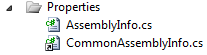
image

We’ve actually reduced complexity a lot already, because if you build all of your assemblies will have the same common info, including the product name and our static (fake) assembly version.  Let’s take this one step further and introduce a build script.

Create an MSBuild file

What we want from the build script (for now) is basically just to have the common assembly version number changed via a parameter (eventually to be passed in by the build server) and then for the project to build.  Also we’d like to have a flexibility to define what build configuration to use (debug, release, etc).

In order to find/replace the version number, we are going to use a Regular Expression to find and replace the text within your CommonAssemblyInfo.cs file.  There are many other ways to do this using community build task add-ins, but since we want to keep it simple let’s just define the Regular Expression task manually in a new file, Build.tasks (this example taken from the NuGet build.tasks file).

<?xml version="1.0" encoding="utf-8"?>
<Project ToolsVersion="4.0" DefaultTargets="Go" xmlns="http://schemas.microsoft.com/developer/msbuild/2003">
    <UsingTask TaskName="RegexTransform" TaskFactory="CodeTaskFactory" AssemblyFile="$(MSBuildToolsPath)\Microsoft.Build.Tasks.v4.0.dll">
        <ParameterGroup>
            <Items ParameterType="Microsoft.Build.Framework.ITaskItem[]" />
        </ParameterGroup>
        <Task>
            <Using Namespace="System.IO" />
            <Using Namespace="System.Text.RegularExpressions" />
            <Using Namespace="Microsoft.Build.Framework" />
            <Code Type="Fragment" Language="cs">
                <![CDATA[
            foreach(ITaskItem item in Items) {
              string fileName = item.GetMetadata("FullPath");
              string find = item.GetMetadata("Find");
              string replaceWith = item.GetMetadata("ReplaceWith");
              
              if(!File.Exists(fileName)) {
                Log.LogError(null, null, null, null, 0, 0, 0, 0, String.Format("Could not find version file: {0}", fileName), new object[0]);
              }
              string content = File.ReadAllText(fileName);
              File.WriteAllText(
                fileName,
                Regex.Replace(
                  content,
                  find,
                  replaceWith
                )
              );
            }
          ]]>
            </Code>
        </Task>
    </UsingTask>
</Project>

If you glance at the code, you’ll see it’s really just going a Regex.Replace() on a given file, which is exactly what we need.

Now we are ready to write our build file, called (by convention) Build.proj.

<?xml version="1.0" encoding="utf-8"?>
<Project ToolsVersion="4.0" DefaultTargets="Go" xmlns="http://schemas.microsoft.com/developer/msbuild/2003">
    <Import Project="$(MSBuildProjectDirectory)\Build.tasks" />
    <PropertyGroup>
        <Configuration Condition="'$(Configuration)' == ''">Debug</Configuration>
        <SolutionRoot>$(MSBuildProjectDirectory)</SolutionRoot>
    </PropertyGroup>
 
    <ItemGroup>
        <RegexTransform Include="$(SolutionRoot)\CommonAssemblyInfo.cs">
            <Find>(?&lt;major&gt;\d+)\.(?&lt;minor&gt;\d+)\.\d+\.(?&lt;revision&gt;\d+)</Find>
            <ReplaceWith>$(BUILD_NUMBER)</ReplaceWith>
        </RegexTransform>
    </ItemGroup>
 
    <Target Name="Go" DependsOnTargets="UpdateAssemblyVersion; Build">
    </Target>
 
    <Target Name="UpdateAssemblyVersion" Condition="'$(BUILD_NUMBER)' != ''">
        <RegexTransform Items="@(RegexTransform)" />
    </Target>
 
    <Target Name="Build">
        <MSBuild Projects="$(SolutionRoot)\BuildVersionTest.sln" Targets="Build" />
    </Target>
 
</Project>

Reviewing this MSBuild file, we see that by default the “Go” target will be called, which in turn depends on “UpdateAssemblyVersion” and then “Build.”  We go ahead and import the Bulid.tasks file and then setup some handy properties for setting the build configuration and solution root (in this case, my build files are in the solution root, but we might want to create a Build/ directory later).  The rest of the file flows logically, we setup the RegexTransform to match version numbers such as <major>.<minor>.1.<revision> (1.2.3.4 in our example) and replace it with a $(BUILD_NUMBER) parameter which will be supplied externally.  The first target, “UpdateAssemblyVersion” just runs the RegexTransform, and the second target, “Build” just runs the default MSBuild on our solution.

Testing the MSBuild file locally

Now we have a build file which can replace assembly version numbers and build, so let’s setup a quick batch file to be able to build locally.  To do this you simply create a file called Build.cmd and have it call MSBuild on your Build.proj file.  I’ve added a bit more flexibility so you can specify build configuration and version number, which makes your Build.cmd look as follows:

set config=%1
if "%config%" == "" (
   set config=debug
)
set version=%2
if "%version%" == "" (
   set version=2.3.4.5
)
%WINDIR%\Microsoft.NET\Framework\v4.0.30319\msbuild Build.proj /p:Configuration="%config%" /p:build_number="%version%"

Now if you click on the Build.cmd file, you will get a default debug build using the version 2.3.4.5.  Let’s run it in a command window with the parameters set for a release build version 2.0.1.453.

image

image 

Excellent!  We can now run one simple command and govern the build configuration and version number of our entire solution.  Each DLL produced will have the same version number, making determining which version of a library you are running very simple and accurate.

Configure the build server (TeamCity)

Of course you are not really going to want to run a build command manually every time, and typing in incrementing version numbers will also not be ideal.  A good solution is to have a computer (or set of computers) act as a build server and build your code for you, providing you a consistent environment, excellent reporting, and much more.  One of the most popular Build Servers is JetBrains’ TeamCity, and this last section will show you the few configuration parameters to use when setting up a build using your MSBuild file created earlier.  If you are using a different build server, the same principals should apply.

First, when setting up the project you want to specify the “Build Number Format,” often given in the form <major>.<minor>.<revision>.<build>.  In this case you will set major/minor manually, and optionally revision (or you can use your VCS revision number with %build.vcs.number%), and then build using the {0} wildcard.  Thus your build number format might look like this: 2.0.1.{0}.  During each build, this value will be created and passed into the $BUILD_NUMBER variable of our Build.proj file, which then uses it to decorate your assemblies with the proper version.

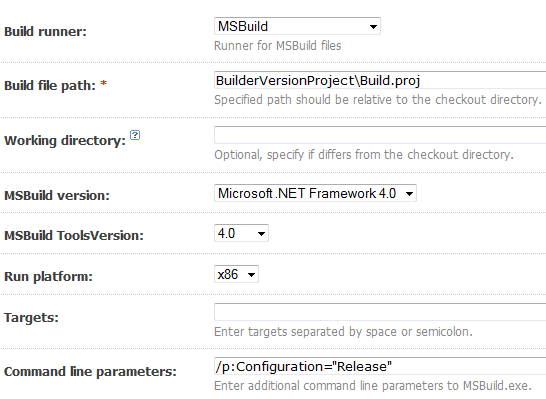
After setting up the build number, you must choose MSBuild as the Build Runner, then provide a path to your build file (Build.proj).  After specifying your MSBuild Version (equivalent to your .NET Framework Version), you have the option to specify targets (the default being “Go”) and additional MSBuild parameters.  The one parameter that is often useful is manually setting the configuration property (/p:Configuration="Release") if you want something other than the default (which is Debug in our example). 

Your resulting configuration will look something like this:

[Under General Settings]

image

[Build Runner Settings]

image 

Now every time your build is run, a newly incremented build version number will be generated and passed to MSBuild, which will then version your assemblies and build your solution.


A Quick Review

Our goal was to version our output assemblies in an automated way, and we accomplished it by performing a few quick steps:

  1. Move the common assembly information, including version, into a linked CommonAssemblyInfo.cs file
  2. Create a simple MSBuild script to replace the common assembly version number and build your solution
  3. Direct your build server to use the created MSBuild script

That’s really all there is to it.  You can find all of the code from this post at https://github.com/srkirkland/BuildVersion.

Enjoy!

Filed under: , , , ,

Comments

# re: Simple MSBuild Configuration: Updating Assemblies With A Version Number

Wednesday, December 08, 2010 3:52 AM by Slava Agafonov

Nice post, I make same task with additional DLL with such logic, but nice idea to have everything in one place.

# re: Simple MSBuild Configuration: Updating Assemblies With A Version Number

Thursday, December 23, 2010 10:04 PM by fred

How to do this in a webdeployment dproject (wdproj) and set the version of the referenced projects and the asp.net page assemblies?

# re: Simple MSBuild Configuration: Updating Assemblies With A Version Number

Wednesday, February 15, 2012 12:36 AM by Prasad

Nice. It solved one of my major problem!

# Version in my assembly | Jisku.com - Developers Network

Monday, September 17, 2012 9:37 AM by Version in my assembly | Jisku.com - Developers Network

Pingback from  Version in my assembly | Jisku.com - Developers Network

# re: Simple MSBuild Configuration: Updating Assemblies With A Version Number

Sunday, November 04, 2012 12:42 PM by icon collection

<a href=bloodties.clan.su/.../2009-04-10-100 What talented idea</a>

# re: Simple MSBuild Configuration: Updating Assemblies With A Version Number

Monday, December 10, 2012 8:17 PM by iconeye.cmo

By WebOsPublisher

Информационный портал о мотоциклах NovostiMoto.Info: Всё о мотоциклах,мото новости / тест-драйвы /выставки / новости с соревнований

Пользователи &raquo; unclesamus &raquo; Всё о мотоциклах на NovostiMoto.Info

@import url(/templates/Moto/css/jordan.css);

@import url(/templates/Moto/css/accessorial.css);

Загрузка. Пожалуйста, подождите...

навигация

Главная

Тест-драйв

Обзоры

Новинки

Выставки

Новости и события

Соревнования

авторизация

   Здравствуйте:Гость !

Регистрация

Напомнить пароль?

Статистика

Автомобильные новости - Машина.ком

особняк рябушинского в Москве

Реклама

   Архив новостей

   популярные публикации

   Наш опрос

     Июнь 2011 (1)Май 2011 (3)Апрель 2011 (2)Март 2011 (6)Февраль 2011 (4)Декабрь 2009 (135)Ноябрь 2009 (349)Октябрь 2009 (40)

У вас есть мотоцикл ?

Есть, и не один Есть Собираюсь купить Был когда-то Нету

Всё о мотоциклах на NovostiMoto.Info &raquo; Пользователи &raquo; unclesamus

Пользователь: unclesamus

Полное имя: unclesamusДата регистрации: 22 марта 2012 16:45Последнее посещение: 6 июня 2012 13:05Группа:    Посетители Рейтинг:

0

Место жительства: JewellНомер ICQ: 611860808 Немного о себе:toolbar-icons.com/find/bell-push-icons.htm - Bell-Push IconsКоличество публикаций:     0 <>Просмотреть все публикации ] <rss></rss>

Количество комментариев: 0 <>Последние комментарии ]<>скрыт от просмотра ] <>написать ПС ]

Добавить новость

Расширенный поиск

Общая статистика

Обратная связь

Новое на сайте

Последние новости

Главная

Регистрация

Правила сайта

2009 &copy;  All Rights ReservedDesign &copy; 2009. Скачать бесплатно

# re: Simple MSBuild Configuration: Updating Assemblies With A Version Number

Thursday, December 13, 2012 2:45 PM by icons

P.S. Please review our <a href="http://archive.devcourse.com">design portfolio</a> for Doors2012.

Simple Icons As Smart Features Of Minimalistic Design

Simple icons are created not to make the design exquisite but rather minimal and modern. Lightweight simple web icons are supposed to be designed to improve website user interaction.Minimalistic web design as a prevalent trendMinimalistic design means simplicity and lightweight elements such as simple web icons. It eliminates complex wordings, figures, textures and patterns. Less even means more in some areas and to some extent. Web design is exactly that area.Minimalistic design is quite an unexpected trend nowadays. High modern technologies frequently lead to the loss of simplicity. Blending minimalistic website design with CSS3 and HTML5 is becoming more popular and makes you believe that combining simple elegance and usability is the formula for your website success. Simple does not necessarily mean primitive. Website with simple design often contain brave and off-color effects and actively use CSS and Ajax.Among significant features of the modern simple web design are the following:

grid based design;

simple icons;

light shading and reserved color transition

light texture of patterns and backgrounds (often transparent like)

more empty or white space;

simple shapes and figures, clear lines;

less amount of various bright colors

clear and readable typography;

Simple web icons major featuresSimple icons are among the principal features of minimalistic design. Moreover, simple web icons and other design elements should be used moderately. One of the keys is minimizing icons use in general. Simple website icons are supposed to be used where they are absolutely necessary and eliminated where it is possible. Optional simple icons are to be refrained from repetition or eluded. They may serve multiple functions.Limited amount of color, reserved shades, clear elements, soft lighting are being used for simple web icons design. Simple icons are built out of elegant and simple elements which odn't distract website visitors from the main navigation and website idea.The following rules for simple icons design can be outlined:

minimal usage of duplication

less amount of graphical elements

maximum intuitive clarity

clear typography in simple web icons

less icons

Some useful tips for creating a minimalistic design with simple web iconsAdditionally to simple site icons themselves lightweight background textures and patterns are important for the design and content perception. The eyes should focus on the website content or some main blocks but not on the background pattern or image itself. So the background should be of a light simple shade making it secondary compared with the foreground items like simple web icons.Clear typography is another prominent feature of the lightweight and clear design. Simple icons names (if there are any) should be precise, meaningful anr equivalent to their function. Headings placed on simple website icons should be of readable font and large enough for easy reading. Clear hierarchy should be followed as well.Enough white or empty space is helpful for creating a great clean simple web icons design. Extra spaces keep elements separate and thus more readable and easier to work with. Some extra space between simple icons will do your design no harm at all.Speaking about the minimalistic trend in general it is not entirely minimal. Despite its great amount of whtie space there are still some simple icons, light textures, neat styles and bold fonts. Minimal is not exactly the same as simple. Initially minimal meant plain typographic excluding images and styling. But modern design requires something more than black text on white background to make the website distinguish among thousands of other plain websites. Reducing design elements to the most essential items you can add more zest to your website layout with some unusual coloring, catchy simple web icons, half-transparent and lightweight textures and patterns.Simple is often used as a synonym of smart. While creating the modern website design you should keep in mind the eternal truth stating that genius lies in simplicity. Simple icons look great and professional especially for a clean business style design.

# NuGet package build a solution of projects &laquo; candor developer

Pingback from  NuGet package build a solution of projects &laquo; candor developer

# Displaying Assembly Version Info in EPiServer CMS 6.0 R2 &laquo; Anders G. Nordby

Pingback from  Displaying Assembly Version Info in EPiServer CMS 6.0 R2 &laquo; Anders G. Nordby

# re: Simple MSBuild Configuration: Updating Assemblies With A Version Number

Friday, March 22, 2013 3:53 AM by ebevprf@gmail.com

In actual fact searching for homes which specifically have these includes may severely limit the number of search results and may result in no search results at all when these features are searched with a typical price selection.

# re: Simple MSBuild Configuration: Updating Assemblies With A Version Number

Friday, May 10, 2013 2:00 AM by kfwkwfjwr@gmail.com

Deliver increased pleasures for customers. Drive increased traffic aimed at your web. Rewrite the actual content articles in addition to distribute to internet websites for your own personal websites. Place your own headline and face round the Private label rights along with advertise your own self additionally a person site.

# re: Simple MSBuild Configuration: Updating Assemblies With A Version Number

Wednesday, May 15, 2013 1:01 PM by xigoyfje@gmail.com

Do you want entry to lots of enlightening for a variety of topics? Would you always like to produce helpful knowledge to other individuals and also make money? Better still, all with no really writing and also exploring just about every ,Burberry Women! Obviously you can locate every information about the online world through searching each and every niche individually. It is terrific as soon as the work have been accomplished?

# re: Simple MSBuild Configuration: Updating Assemblies With A Version Number

Thursday, May 16, 2013 11:06 AM by luokhqrqb@gmail.com

Personal brand Legal rights for as well as Private lable rights E is truly a very quickly escalating niche amongst world-wide-web savvy founders,Burberry. No matter whether you might be a brand-new comer to be able to profit via the internet or have been popular some time,Burberry Watch, PLR are something you require to make a look at.

# re: Simple MSBuild Configuration: Updating Assemblies With A Version Number

Friday, May 17, 2013 5:20 PM by pcvkzbid@gmail.com

Deliver increased pleasures for customers. Drive increased traffic aimed at your web. Rewrite the actual content articles in addition to distribute to internet websites for your own personal websites. Place your own headline and face round the Private label rights along with advertise your own self additionally a person site.

# re: Simple MSBuild Configuration: Updating Assemblies With A Version Number

Sunday, May 19, 2013 3:17 PM by ovismerxm@gmail.com

Deliver increased pleasures for customers. Drive increased traffic aimed at your web. Rewrite the actual content articles in addition to distribute to internet websites for your own personal websites. Place your own headline and face round the Private label rights along with advertise your own self additionally a person site.

Leave a Comment

(required) 
(required) 
(optional)
(required)