ASP.NET MVC Tip #9 – Create a GridView View User Control
In this tip, I show you how to build an ASP.NET MVC View User Control that accepts a set of database records and renders the records in an HTML table automatically. The advantage of using a View User Control is that you can customize the rendering of particular columns.
In yesterday’s tip, I explained how you can create a new HTML helper that renders a set of database records in an HTML table. In other words, I showed one method for simulating a GridView control in ASP.NET MVC. In today’s tip, I am going to show you a second method of simulating a GridView.
In today’s tip, I explain how you can simulate a GridView control by using an ASP.NET MVC View User Control. An ASP.NET MVC View User Control is similar to an ASP.NET User Control with one important difference. Just like an ASP.NET MVC View, a View User Control can accept strongly typed view data. We are going to create a View User Control that accepts IEnumerable view data.
The GridView View User Control is contained in Listing 1.
Listing 1 – GridView.ascx (vb)
1: <%@ Control Language="VB" AutoEventWireup="false" CodeBehind="GridView.ascx.vb" Inherits="Tip9.GridView" %>
2: <%@ Import Namespace="System.Reflection" %>
3: 4: <%-- Show the Headers --%>
5: <table class="gridView">
6: <thead>
7: <tr>
8: <% For Each prop As PropertyInfo In Me.Columns%>
9: <th><%= prop.Name %></th>
10: <% Next%>
11: </tr>
12: </thead>
13: 14: <%-- Show the Rows --%>
15: <tbody>
16: 17: <% For Each row In Me.Rows%>
18: <tr class="<%= Me.FlipCssClass( "item", "alternatingItem") %>">
19: 20: <%-- Show Each Column --%>
21: <% For Each prop As PropertyInfo In Me.Columns%>
22: <td>
23: <% Dim typeCode = Type.GetTypeCode(prop.PropertyType)%>
24: 25: 26: <%-- String Columns --%>
27: <% If typeCode = typeCode.String Then %>
28: 29: <%= GetColumnValue(row, prop.Name)%>
30: 31: <% End If%>
32: 33: <%-- DateTime Columns --%>
34: <% If typeCode = typeCode.DateTime Then%>
35: 36: <%= GetColumnValue(row, prop.Name, "{0:D}")%>
37: 38: <% End If%>
39: 40: 41: <%-- Decimal Columns --%>
42: <% If typeCode = typeCode.Decimal Then%>
43: 44: <%= GetColumnValue(row, prop.Name, "{0:c}") %>
45: 46: <% End If%>
47: 48: 49: <%-- Boolean Columns --%>
50: <% If typeCode = typeCode.Boolean Then%>
51: <% If Me.GetColumnValue(row, prop.Name) = True Then%>
52: <input type="checkbox" disabled="disabled" checked="checked" />
53: <% Else%>
54: <input type="checkbox" disabled="disabled" />
55: <% End If%>
56: <% End If%>
57: 58: 59: <%-- Integer Columns --%>
60: <% If TypeCode = TypeCode.Int32 Then%>
61: 62: <%= GetColumnValue(row, prop.Name)%>
63: 64: <% End If%>
65: 66: </td>
67: <% next %>
68: </tr>
69: <% next %>
70: </tbody>
71: </table>
72: 73: Listing 1 – GridView.ascx (c#)
1: <%@ Control Language="C#" AutoEventWireup="true" CodeBehind="GridView.ascx.cs" Inherits="Tip9.Views.Home.GridView" %>
2: <%@ Import Namespace="System.Reflection" %>
3: 4: <%-- Show the Headers --%>
5: <table class="gridView">
6: <thead>
7: <tr>
8: <% foreach (PropertyInfo prop in this.Columns)
9: { %>
10: <th><%= prop.Name %></th>
11: <% } %>
12: </tr>
13: </thead>
14: 15: <%-- Show the Rows --%>
16: <tbody>
17: 18: <% foreach (object row in this.Rows)
19: { %>
20: <tr class="<%= this.FlipCssClass( "item", "alternatingItem") %>">
21: 22: <%-- Show Each Column --%>
23: <% foreach (PropertyInfo prop in this.Columns)
24: { %>
25: <td>
26: <% var typeCode = Type.GetTypeCode(prop.PropertyType); %>
27: 28: 29: <%-- String Columns --%>
30: <% if (typeCode == TypeCode.String)
31: { %>
32: 33: <%= GetColumnValue(row, prop.Name)%>
34: 35: <% } %>
36: 37: <%-- DateTime Columns --%>
38: <% if (typeCode == TypeCode.DateTime)
39: { %>
40: 41: <%= GetColumnValue(row, prop.Name, "{0:D}")%>
42: 43: <% } %>
44: 45: 46: <%-- Decimal Columns --%>
47: <% if (typeCode == TypeCode.Decimal)
48: { %>
49: 50: <%= GetColumnValue(row, prop.Name, "{0:c}") %>
51: 52: <% } %>
53: 54: 55: <%-- Boolean Columns --%>
56: <% if (typeCode == TypeCode.Boolean)
57: { %>
58: <% if ((bool)(this.GetColumnValue(row, prop.Name)))
59: { %>
60: <input type="checkbox" disabled="disabled" checked="checked" />
61: <% }
62: else63: { %>
64: <input type="checkbox" disabled="disabled" />
65: <% } %>
66: <% } %>
67: 68: 69: <%-- Integer Columns --%>
70: <% if (typeCode == TypeCode.Int32)
71: { %>
72: 73: <%= GetColumnValue(row, prop.Name)%>
74: 75: <% } %>
76: 77: </td>
78: <% } %>
79: </tr>
80: <% } %>
81: </tbody>
82: </table>
83: Notice that the GridView.ascx file contains two loops. The first loop iterates through the table headers and the second loop iterates through the table rows.
A series of IF statements are used to display a particular column. Depending on the type of column -- Integer, String, Decimal, DateTime, Boolean – a different template is used to display the column value. For example, in the case of a Boolean column, a checkbox is used to display the column value (see Figure 1). You can, of course, customize the appearance of any of these columns by modifying the HTML.
Figure 1 -- GridView
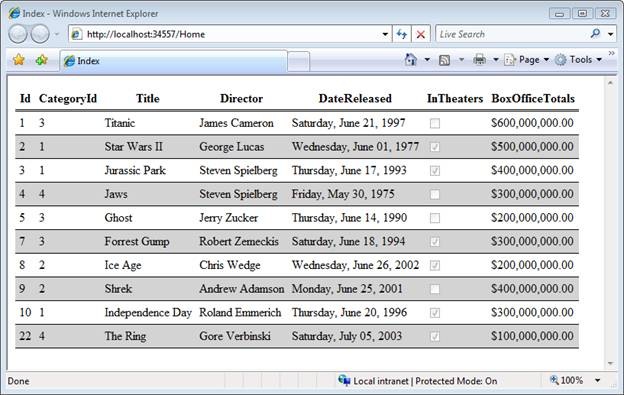
The code-behind file for the GridView View User Control is contained in Listing 2. Notice that the View User Control has a generic constructor that accepts IEnumerable view data. It also exposes several utility properties and methods. For example, the Columns property returns information about all of the database table columns (this information is retrieved through reflection). The Rows property returns all of the database table rows.
Listing 2 – GridView.ascx.vb (vb)
1: Imports System.Reflection
2: 3: Partial Public Class GridView
4: Inherits System.Web.Mvc.ViewUserControl
5: 6: 7: Protected ReadOnly Property Columns() As PropertyInfo()
8: Get
9: Dim e As IEnumerator = ViewData.Model.GetEnumerator()
10: e.MoveNext()11: Dim firstRow As Object = e.Current
12: If firstRow Is Nothing Then
13: Throw New Exception("No data passed to GridView User Control.")
14: End If
15: Return firstRow.GetType().GetProperties()
16: End Get
17: End Property
18: 19: Protected ReadOnly Property Rows() As IEnumerable
20: Get
21: Return ViewData.Model
22: End Get
23: End Property
24: 25: 26: Protected Function GetColumnValue(ByVal row As Object, ByVal columnName As String) As Object
27: Return DataBinder.Eval(row, columnName)
28: End Function
29: 30: Protected Function GetColumnValue(ByVal row As Object, ByVal columnName As String, ByVal format As String) As Object
31: Return DataBinder.Eval(row, columnName, format)
32: End Function
33: 34: 35: Dim flip As Boolean = False
36: 37: Protected Function FlipCssClass(ByVal className As String, ByVal alternativeClassName As String) As String
38: flip = Not flip
39: Return IIf(flip, className, alternativeClassName)
40: End Function
41: 42: 43: End Class
Listing 2 – GridView.ascx.cs (c#)
1: using System;
2: using System.Collections;
3: using System.Collections.Generic;
4: using System.Linq;
5: using System.Web;
6: using System.Web.UI;
7: using System.Web.Mvc;
8: using System.Reflection;
9: 10: namespace Tip9.Views.Home
11: {12: public partial class GridView : System.Web.Mvc.ViewUserControl<IEnumerable>
13: {14: protected PropertyInfo[] Columns
15: { 16: get 17: { 18: var e = ViewData.Model.GetEnumerator(); 19: e.MoveNext();20: object firstRow = e.Current;
21: if (firstRow == null)
22: {23: throw new Exception("No data passed to GridView User Control.");
24: }25: return firstRow.GetType().GetProperties();
26: } 27: } 28: 29: protected IEnumerable Rows
30: {31: get { return ViewData.Model; }
32: } 33: 34: 35: protected object GetColumnValue(object row, string columnName)
36: {37: return DataBinder.Eval(row, columnName);
38: } 39: 40: protected object GetColumnValue(object row, string columnName, string format)
41: {42: return DataBinder.Eval(row, columnName, format);
43: } 44: 45: 46: bool flip = false;
47: protected string FlipCssClass(string className, string alternativeClassName)
48: { 49: flip = !flip;50: return flip ? className : alternativeClassName;
51: } 52: 53: } 54: }You can use the GridView control in a View Page by calling the Html.RenderUserControl() method. The View Page in Listing 3 renders the GridView View User Control. Notice that the page contains a CSS Style Sheet. This Style Sheet is used to customize the appearance of the table rendered by the GridView. For example, the alternating CSS class is used to format alternating GridView rows.
Listing 3 – Index.aspx (vb)
1: <%@ Page Language="VB" AutoEventWireup="false" CodeBehind="Index.aspx.vb" Inherits="Tip9.Index" %>
2: 3: <!DOCTYPE html PUBLIC "-//W3C//DTD XHTML 1.0 Transitional//EN" "http://www.w3.org/TR/xhtml1/DTD/xhtml1-transitional.dtd">
4: 5: <html xmlns="http://www.w3.org/1999/xhtml" >
6: <head id="Head1" runat="server">
7: <title>Index</title>
8: <style type="text/css">
9: 10: 11: .gridView
12: {13: border-collapse: collapse;
14: } 15: 16: .gridView th, .gridView td
17: {18: padding: 5px;
19: } 20: 21: .gridView th
22: {23: border-bottom: double 3px black;
24: } 25: 26: .gridView td
27: {28: border-bottom: solid 1px black;
29: } 30: 31: .alternatingItem
32: {33: background-color: lightgrey;
34: } 35: 36: </style>
37: </head>
38: <body>
39: <div>
40: 41: 42: <%= Html.RenderUserControl("~/Views/Home/GridView.ascx", ViewData.Model) %>
43: 44: </div>
45: </body>
46: </html>
Listing 3 – Index.aspx (C#)
1: <%@ Page Language="C#" AutoEventWireup="true" CodeBehind="Index.aspx.cs" Inherits="Tip9.Views.Home.Index" %>
2: 3: <!DOCTYPE html PUBLIC "-//W3C//DTD XHTML 1.0 Transitional//EN" "http://www.w3.org/TR/xhtml1/DTD/xhtml1-transitional.dtd">
4: 5: <html xmlns="http://www.w3.org/1999/xhtml" >
6: <head runat="server">
7: <title>Index</title>
8: <style type="text/css">
9: 10: 11: .gridView
12: {13: border-collapse: collapse;
14: } 15: 16: .gridView th, .gridView td
17: {18: padding: 5px;
19: } 20: 21: .gridView th
22: {23: border-bottom: double 3px black;
24: } 25: 26: .gridView td
27: {28: border-bottom: solid 1px black;
29: } 30: 31: .alternatingItem
32: {33: background-color: lightgrey;
34: } 35: 36: </style>
37: </head>
38: <body>
39: <div>
40: 41: 42: <%= Html.RenderUserControl("~/Views/Home/GridView.ascx", ViewData.Model) %>
43: 44: </div>
45: </body>
46: </html>
The view data is supplied by the controller in LIsting 4. This controller happens to use a LINQ to SQL query to retrieve the database data. However, the GridView is perfectly compatible with data retrieved through ADO.NET, NHibernate, or whatever. The GridView expects IEnumerable data. As long as you pass the GridView something that is IEnumerable, it will be happy.
Listing 4 -- HomeController.vb (vb)
1: Public Class HomeController
2: Inherits System.Web.Mvc.Controller
3: 4: Private _db As New MovieDataContext()
5: 6: Function Index()
7: Return View(_db.Movies)
8: End Function
9: 10: End Class
Listing 4 -- HomeController.cs (C#)
1: using System;
2: using System.Collections.Generic;
3: using System.Linq;
4: using System.Web;
5: using System.Web.Mvc;
6: using Tip9.Models;
7: 8: namespace Tip9.Controllers
9: {10: public class HomeController : Controller
11: {12: private MovieDataContext _db = new MovieDataContext();
13: 14: 15: public ActionResult Index()
16: {17: return View(_db.Movies);
18: } 19: } 20: }I prefer the method of displaying a grid of database data described in this blog entry over the method described in yesterday’s tip. Unlike the method used in yesterday’s tip, today’s method enables you to completely customize the appearance of the GridView.
You can download the code for the GridView by clicking the following link. The download includes the code in both C# and VB.NET versions.