Visual Studio 2010 Addin: Setting a class breakpoint
Introduction
There comes a time in the life of every .NET developer when
you need Visual Studio to do something that
can only
be described as a "class breakpoint": a quick command to set
a breakpoint on every access to a class.
Unfortunately, after googling this concept, you'll
find out that there's no easy way to accomplish this in
Visual Studio.
In this article I present an addin that
I created, which adds this and another similar command to
the debug menu of the
development environment:
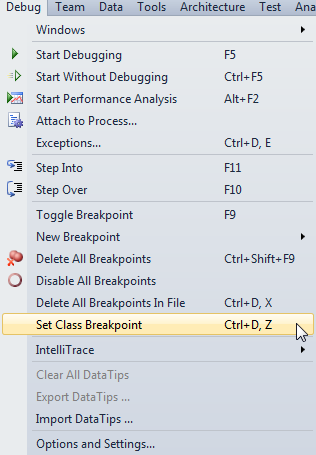
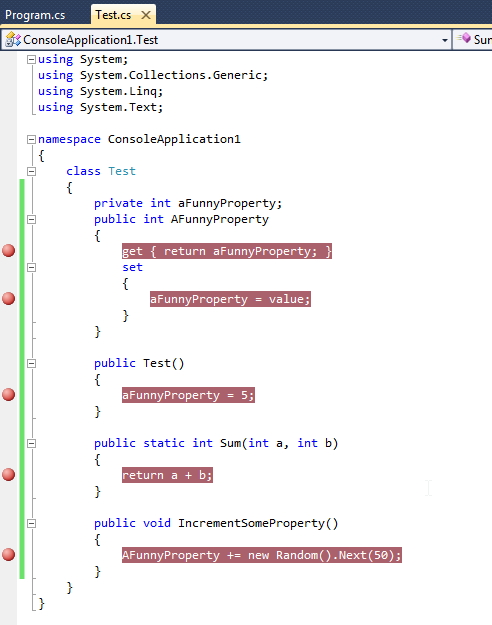
When the command is activated, it sets a breakpoint on every function and property of every class in the current document:
This addin can be downloaded here: Installer | Source code
Also, note that this addin is
language agnostic, meaning that it will work for C#, Visual
Basic, and even native C++ applications.
In the rest of the article I'll show the basic steps to create a simple addin for Visual Studio 2010.
Creating an addin project
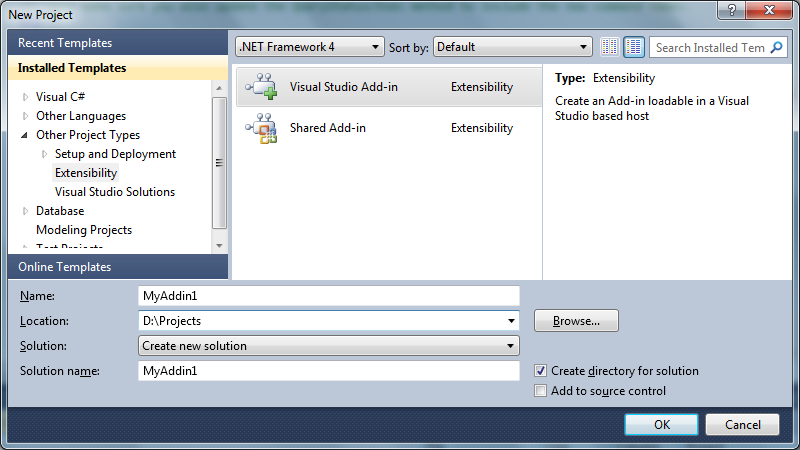
Visual Studio makes it easy to create an addin project by
providing a template. In the New project dialog,
select Other project types, extensibility, Visual
Studio Add-In.
You'll see that a very simple project
is created, with the core logic around a class named
Connect. This class manages
the lifecycle of the addin
through the methods OnConnection, OnDisconnection, etc.
The class field _applicationObject holds a DTE2 object
through which we communicate with the environment.
Handling events
In this particular case we want to add a command to the
Debug menu after a solution is loaded. Therefore, we will
need
to wait until a solution is loaded. All the
solution events are exposed through the
DTE2.Events.SolutionEvents object:
    _solutionEvents = _applicationObject.Events.SolutionEvents;
    _solutionEvents.Opened += new _dispSolutionEvents_OpenedEventHandler(OnSolutionOpened);

    _solutionEvents.AfterClosing += new _dispSolutionEvents_AfterClosingEventHandler(OnSolutionClosed);
There's a minor caveat here. I'm keeping the reference to
the SolutionEvents object in a field of the Connect class.
If I didn't do this, the SolutionEvents object would
be deleted by the garbage collector, and the events would
never
be raised.
Adding commands
Once that we handle the opening event, we need to add the command to the user interface:
    object[] contextGUIDS = new object[] { };
    Commands2 commands = (Commands2)_applicationObject.Commands;
    string debugMenuName = "Debug";
    //Place the command on the debug menu.
    //Find the MenuBar command bar, which is the top-level command bar holding all the main menu items:
    Microsoft.VisualStudio.CommandBars.CommandBar menuBarCommandBar =
        ((Microsoft.VisualStudio.CommandBars.CommandBars)_applicationObject.CommandBars)["MenuBar"];
    //Find the Debug command bar on the MenuBar command bar:
    CommandBarControl debugControl = menuBarCommandBar.Controls[debugMenuName];
    CommandBarPopup debugPopup = (CommandBarPopup)debugControl;
    _command =
        commands.AddNamedCommand2
        (
            _addInInstance,
            "CommandName",
            "Text to show in the menu",
            "Description of the command",
            true,
            Type.Missing,
            ref contextGUIDS,
            (int)vsCommandStatus.vsCommandStatusSupported + (int)vsCommandStatus.vsCommandStatusEnabled,
            (int)vsCommandStyle.vsCommandStylePictAndText,
            vsCommandControlType.vsCommandControlTypeButton
        );

    _command.AddControl(debugPopup.CommandBar, 1);
This code grabs the Debug menu and adds the command with the
specified parameters. This code should be wrapped in a
try-catch block to handle cases when the command
already exists in the menu.
We can also add a keyboard
shortcut to the command in the following way:
_command.Bindings = "Text Editor::ctrl+d, z";
Here "Text Editor" defines the scope of the shortcut. For more information see http://msdn.microsoft.com/en-us/library/envdte.command.bindings.aspx
Browsing the code
Visual Studio automatically parses the current document and
exposes a nice interface to browse the code. A code document
contains a tree of code elements. Each code element
can be a namespace, a class, a method, etc, and it contains
a
collection of child code elements in it. The root
code elements can be accessed in this way:
CodeElements elementsInDocument = this._applicationObject.ActiveDocument.ProjectItem.FileCodeModel.CodeElements
To show the browsing algorithm, here's a recursive
method that shows how to get all the classes in the current
document:
    private static void RecursiveClassSearch(CodeElements elements, List<CodeClass> foundClasses)
    {
        foreach (CodeElement codeElement in elements)
        {
            if (codeElement is CodeClass)
            {
                foundClasses.Add(codeElement as CodeClass);
            }
            RecursiveClassSearch(codeElement.Children, foundClasses);
        }
    }
Managing breakpoints
Managing breakpoints is very straighforward. The interface
exposed through this._applicationObject.Debugger.Breakpoints
is pretty self descriptive, and it contains
functionally to add, remove and browse through breakpoints.
Installer
Once you finished you addin, the best way to distribute it
is to use a Visual Studio Installer project. An addin
consists
of only two files: an *.AddIn xml file and a
dll. The easiest way to distribute them is to install them
in the same
directory, anywhere on the target machine
(might be in ProgramFiles), and to add that directory to the
addins directories
of Visual Studio. The latter can be
done easily with a registry key: In the registry editor
window of your installation
project, add a string key
at
"HKLM\Software\Microsoft\VisualStudio\10.0\AutomationOptions\LookInFolders"
with the name
[TARGETDIR] and a descriptive name in
the value. The installer will resolve the [TARGETDIR]
placeholder at runtime.
Download
This addin can be downloaded here: Installer | Source code
CodePlex project
Here's the CodePlex site for this project: http://breakall.codeplex.com
Conclusions
In this article I presented a useful addin for Visual Studio and I also showed how to create customs addins. For more information on creating addins you can visit the MSDN: http://msdn.microsoft.com/en-us/vstudio/ff677564. I hope you find the addin useful as I do (maybe I'll publish a second version in the future) and I hope to see your great addins soon!
Thanks for reading!
Alfonso Cora