WebGrid Helper with Check All Checkboxes
Introduction:
WebGrid helper
is one of the helper of ASP.NET Web Pages(WebMatrix)
technology included in ASP.NET MVC 3. This helper is very
easy to use and makes it very simple to display tabular data
in your web page. In addition to displaying tabular data, it
also supports formatting, paging and sorting features. But
WebGrid helper does not allow you to put raw html(like
checkbox) in the header. In this article, I will show you
how you can put html element(s) inside the WebGrid helper's
header using a simple trick. I will also show you how you
can add the select or unselect all checkboxes feature
in your web page using jQuery and WebGrid helper.
Description:
To make it easy to add this feature in any of your web page, I will create an extension method for the WebGrid class. Here is the extension method,
01 |
public
static
IHtmlString
                                  GetHtmlWithSelectAllCheckBox(
this
WebGrid webGrid, string
tableStyle = null,
|
02 |
string
headerStyle = null, string
footerStyle = null, string
rowStyle = null,
|
03 |
string
alternatingRowStyle = null, string
selectedRowStyle = null,
|
04 |
string
caption = null, bool
displayHeader = true, bool
fillEmptyRows = false,
|
05 |
string
emptyRowCellValue = null, IEnumerable<WebGridColumn> columns = null,
|
06 |
IEnumerable<string> exclusions = null, WebGridPagerModes mode =
WebGridPagerModes.All,
|
07 |
string
firstText = null, string
previousText = null, string
nextText = null,
|
08 |
string
lastText = null, int
numericLinksCount = 5, object
htmlAttributes = null,
|
09 |
string
checkBoxValue = "ID")
|
10 |
{
|
11 |
12 |
var newColumn = webGrid.Column(header: "{}",
|
13 |
format: item => new
HelperResult(writer =>
|
14 |
{
|
15 |
writer.Write("<input class=\"singleCheckBox\"
name=\"selectedRows\" value=\""
|
16 |
+
item.Value.GetType().GetProperty(checkBoxValue).GetValue(item.Value, null).ToString()
|
17 |
+ "\" type=\"checkbox\" />"
|
18 |
);
|
19 |
}));
|
20 |
21 |
var newColumns = columns.ToList();
|
22 |
newColumns.Insert(0, newColumn);
|
23 |
24 |
var script = @"<script>
|
25 |
|
26 |
if (typeof jQuery == 'undefined')
|
27 |
{
|
28 |
document.write(
|
29 |
unescape(
|
30 |
""%3Cscript src='http://ajax.googleapis.com/ajax/libs/jquery/1.6.2/jquery.min.js'%3E%3C/script%3E""
|
31 |
)
|
32 |
);
|
33 |
}
|
34 |
35 |
(function(){
|
36 |
37 |
window.setTimeout(function() {
                                  initializeCheckBoxes();  }, 1000);
|
38 |
function initializeCheckBoxes(){
|
39 |
40 |
$(function () {
|
41 |
42 |
$('#allCheckBox').live('click',function ()
                                  {
|
43 |
44 |
var isChecked =
                                  $(this).attr('checked');
|
45 |
$('.singleCheckBox').attr('checked',
                                  isChecked  ? true: false);
|
46 |
$('.singleCheckBox').closest('tr').addClass(isChecked
                                  ? 'selected-row': 'not-selected-row');
|
47 |
$('.singleCheckBox').closest('tr').removeClass(isChecked
                                  ? 'not-selected-row': 'selected-row');
|
48 |
49 |
});
|
50 |
51 |
$('.singleCheckBox').live('click',function ()
                                  {
|
52 |
53 |
var isChecked =
                                  $(this).attr('checked');
|
54 |
$(this).closest('tr').addClass(isChecked  ?
                                  'selected-row': 'not-selected-row');
|
55 |
$(this).closest('tr').removeClass(isChecked
                                  ? 'not-selected-row': 'selected-row');
|
56 |
if(isChecked &&
                                  $('.singleCheckBox').length ==
                                  $('.selected-row').length)
|
57 |
$('#allCheckBox').attr('checked',true);
|
58 |
else
|
59 |
$('#allCheckBox').attr('checked',false);
|
60 |
61 |
});
|
62 |
63 |
});
|
64 |
}
|
65 |
66 |
})();
|
67 |
</script>";
|
68 |
69 |
var html = webGrid.GetHtml(tableStyle,
                                  headerStyle, footerStyle, rowStyle,
|
70 |
alternatingRowStyle, selectedRowStyle,
                                  caption,
|
71 |
displayHeader, fillEmptyRows,
                                  emptyRowCellValue,
|
72 |
newColumns, exclusions, mode,
                                  firstText,
|
73 |
previousText, nextText, lastText,
|
74 |
numericLinksCount, htmlAttributes
|
75 |
);
|
76 |
77 |
return
MvcHtmlString.Create(html.ToString().Replace("{}",
|
78 |
"<input type='checkbox'
                                  id='allCheckBox'/>"
) + script);
|
79 |
80 |
}
|
This extension method accepts the same arguments as the WebGrid.GetHtml method except that it takes an additional checkBoxValue parameter. This additional parameter is used to set the values of checkboxes. First of all, this method simply insert an additional column(at position 0) into the existing WebGrid. The header of this column is set to {}, because WebGrid helper always encode the header text. At the end of this method, this text is replaced with a checkbox element.
In addition to emitting tabular data, this extension method also emit some javascript in order to make the select or unselect all checkboxes feature work. This method will add a css class selected-row for rows which are selected and not-selected-row css class for rows which are not selected. You can use these CSS classes to style the selected and unselected rows.
You can use this extension method in ASP.NET MVC, ASP.NET Web Form and ASP.NET Web Pages(Web Matrix), but here I will only show you how you can leverage this in an ASP.NET MVC 3 application. Here is what you might need to set up a simple web page,
Person.cs
1 |
public
class
Person
|
2 |
{
|
3 |
public
int
ID { get; set; }
|
4 |
public
string
Name { get; set; }
|
5 |
public
string
Email { get; set; }
|
6 |
public
string
Adress { get; set; }
|
7 |
}
|
IPersonService.cs
1 |
public
interface
IPersonService
|
2 |
{
|
3 |
IList<Person> GetPersons();
|
4 |
}
|
PersonServiceImp.cs
01 |
public
class
PersonServiceImp : IPersonService
|
02 |
{
|
03 |
public
IList<Person> GetPersons()
|
04 |
{
|
05 |
return
_persons;
|
06 |
}
|
07 |
08 |
static
IList<Person> _persons = new
List<Person>();
|
09 |
10 |
static
PersonServiceImp()
|
11 |
{
|
12 |
for
(int
i = 5000; i < 5020; i++)
|
13 |
_persons.Add(new
Person { ID = i, Name = "Person"
+ i, Adress = "Street, "
+ i, Email = "a"
+ i + "@a.com"
});
|
14 |
}
|
15 |
}
|
HomeController.cs
01 |
public
class
HomeController : Controller
|
02 |
{
|
03 |
private
IPersonService _service;
|
04 |
05 |
public
HomeController()
|
06 |
: this(new
PersonServiceImp())
|
07 |
{
|
08 |
}
|
09 |
10 |
public
HomeController(IPersonService service)
|
11 |
{
|
12 |
_service = service;
|
13 |
}
|
14 |
15 |
public
ActionResult Index()
|
16 |
{
|
17 |
return
View(_service.GetPersons());
|
18 |
}
|
19 |
20 |
[HttpPost]
|
21 |
public
ActionResult Index(int[] selectedRows)
|
22 |
{
|
23 |
return
View(_service.GetPersons());
|
24 |
}
|
25 |
26 |
}
|
Index.cshtml
01 |
@model IEnumerable<WebGridHelperCheckAllCheckboxes.Models.Person>
|
02 |
@{
|
03 |
ViewBag.Title = "Index";
|
04 |
Layout =
                                  "~/Views/Shared/_Layout.cshtml";
|
05 |
var grid = new WebGrid(source: Model);
|
06 |
}
|
07 |
<h2>Index</h2>
|
08 |
09 |
<style>
|
10 |
.selected-row{
|
11 |
background: none repeat scroll 0 0
                                  #CACAFF;
|
12 |
color: #222222;
|
13 |
}
|
14 |
.not-selected-row{
|
15 |
background: none repeat scroll 0 0
                                  #FFFFFF;
|
16 |
color: #000000;
|
17 |
}
|
18 |
.grid
|
19 |
{
|
20 |
border-collapse: collapse;
|
21 |
}
|
22 |
.grid th,td
|
23 |
{
|
24 |
padding : 10px;
|
25 |
border: 1px solid #000;
|
26 |
}
|
27 |
</style>
|
28 |
29 |
@using (Html.BeginForm())
|
30 |
{
|
31 |
<fieldset>
|
32 |
<legend>Person</legend>
|
33 |
@grid.GetHtmlWithSelectAllCheckBox(
|
34 |
tableStyle: "grid", checkBoxValue:
                                  "ID",
|
35 |
columns: grid.Columns(
|
36 |
grid.Column(columnName: "Name"),
|
37 |
grid.Column(columnName: "Email"),
|
38 |
grid.Column(columnName: "Adress")
|
39 |
))
|
40 |
<p>
|
41 |
<input
type="submit"
value="Save"
/>
|
42 |
</p>
|
43 |
</fieldset>
|
44 |
}
|
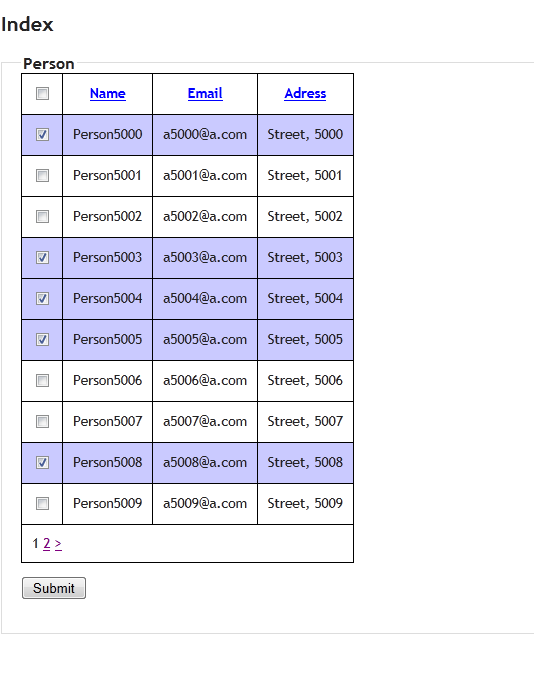
Now just run this application. You will find the following screen,
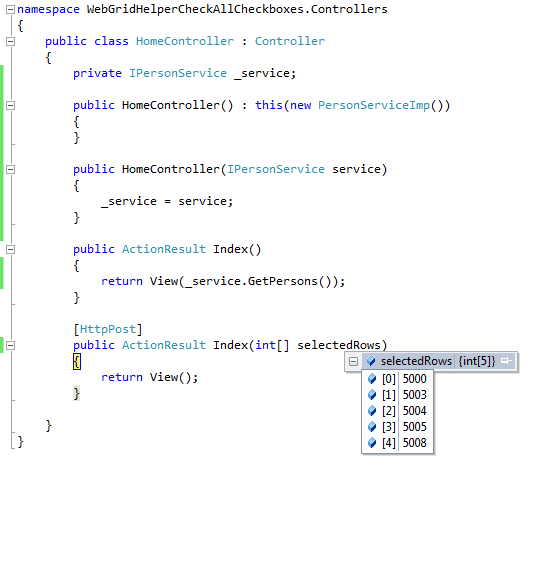
Select all or some rows of your table and submit them. You can get all the selected rows of your table as ,
Summary:
In ASP.NET MVC 3, you can utilize some helpers of ASP.NET Web Pages(WebMatrix) technology, which can be used for common functionalities. WebGrid helper is one of them. In this article, I showed you how you can add the select or unselect all checkboxes feature in ASP.NET MVC 3 application using WebGrid helper and jQuery. I also showed you how you can add raw html in WebGrid helper's header. Hopefully you will enjoy this article too. A sample application is attached.