Looking Forward to Window Clippings 2.1

I haven’t been able to work on Window Clippings too much over the last month as I’ve been focusing on my day job as well as other projects such as a new column for MSDN Magazine starting next month. I am however planning the 2.1 release of Window Clippings and thought I’d quickly let you know what’s tentatively in store! As always your feedback is very much valued and helps drive the direction of this product.

This is mostly a minor release (as indicated by the version number) but there are a few new features/improvements that folks have requested. Check out the following screenshot illustrating the capture screen’s new context menu.
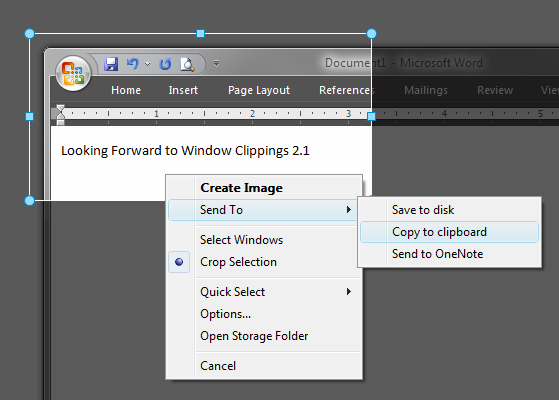
As you can see, I’ve added a few more convenience functions that folks have requested.

The new “Send To” submenu allows you to override the default action sequence and instead direct the captured image to a single “Send To” action. This is handy if you’re frequently needing to change the destination of your images and don’t want to reconfigure Window Clippings every time.

You should also notice the addition of “Open Storage Folder” that was previously only available from the notification icon’s context menu.

The selection mode is now persistent. So if you change the selection mode from “Select Windows” to “Crop Selection”, the next time you open the capture screen it will default to “Crop Selection”.

This release will also likely include a few more built-in add-ins. Currently I’m considering providing a built-in version of the “Add watermark” .NET add-in that I released as a sample add-in with source code. I’m also considering providing a “Send to Amazon S3” add-in that will automate the process of sending images to Amazon’s S3 storage service.

Other than those features and improvements it will include a variety of minor bug fixes and performance improvements that I have made along the way.

I look forward to hearing what you think of this upcoming release.

© 2007 Kenny Kerr

Published Wednesday, June 27, 2007 1:27 PM by KennyKerr
Filed under:

Comments

# re: Looking Forward to Window Clippings 2.1

Thursday, June 28, 2007 5:06 AM by Steve Crane

I encountered a problem at home the other day.  Perhaps it is already catered for in some way, but if not you might consider some way to cater for this in the next release.

I prefer to use a hotkey to initiate clipping and have configured Ctrl+PrtScn as my hotkey.  This works fine on my computer at work but not so well on the one at home.  The reason is that while I have a Microsoft Natural Ergonomic Keyboard 4000 at work I have an earlier Microsoft Natural Keyboard at home, and they differ in their handling of the PrtScn/ScrLk/Pause keys.  These are the keyboards with the F-key values printed on the front faces of the keyboard allowing normal people to use them as traditional function keys while others (presumably there are some) use the functions (help, redo, undo, etc.) printed on the key tops.  To get the traditional funtion key bahaviour the F Lock key needs to be engaged.  The problem is that while the later keyboards have prevented the F Lock from affecting the PrtScn/ScrLk/Pause keys and the PrtScn key works regardless of its state, this is not true of the earlier keyboards.  On the earlier keyboards the PrtScn key only registers when the F Lock key is off.  As I always have it on this means I need to disengage the F Lock to make a clipping and then reengage it again.  These extra key strokes negate the benefit of having a hotkey.

One way I can see of getting around this would be to allow the user to choose any hotkey they wish but perhaps you have a better way of getting around the problem.

# re: Looking Forward to Window Clippings 2.1

Thursday, June 28, 2007 10:25 AM by KennyKerr

Steve: thanks for the feedback! Those older F-lock keyboards are a real pain. I now only use the Natural 4000 and it’s great.

One solution for using an alternative hotkey is to create a shortcut to WindowClippings.exe on your desktop. Open the Properties window for the shortcut and set the hotkey on the Shortcut tab. You can then launch Window Clippings with whatever hotkey you wish.

# re: Looking Forward to Window Clippings 2.1

Friday, June 29, 2007 6:16 PM by Steve Crane

Thanks Kenny, that sounds like a good workaround.

# re: Looking Forward to Window Clippings 2.1

Sunday, July 01, 2007 2:39 AM by Andrew

I've been using Window Clippings for a few days now and I love it, but I'd like to suggest some options for controlling filenames. I've always configured my screen capture program of choice to name the file after the date and time of capture, and it would be really nice to have Window Clippings do the same. Great program, though.

# re: Looking Forward to Window Clippings 2.1

Friday, July 27, 2007 6:22 AM by Maximilian Z.

I bought Window Clippings 2.0.28 - it's a great tool.

However I am using the "Crop or expand selection" feature many more times than the "select window" feature.

I am missing an option where I can set the "Crop or expand.." as default.

Further it would be great to be able to also select non-rectangular screen areas by simply drawing with the mouse. The Microsoft Tablet Snipping Tool (www.microsoft.com/.../overview.mspx) is great at that. Unfortunately not working on non-tablet-pcs.

# re: Looking Forward to Window Clippings 2.1

Friday, July 27, 2007 12:32 PM by KennyKerr

Max: thanks for the feedback. Saving the default selection mode is already in the upcoming 2.1 release. Freehand selection is also in the works.

# re: Looking Forward to Window Clippings 2.1

Friday, August 24, 2007 5:14 AM by Dan Maharry

Hi Kenny,

I got Clippings v2.0.28 and its great. However, I've been trying to take a screenshot of the view you get in Visual Studio when you're drag-docking, say, Solution Explorer to a different area of the VS main window. Five 'icons' appear which you drag your cursor onto to auto dock the explorer window. Try as I mgith though with the various clippings options, I can't figure out how to get a capture with those five icons showing? Any tips?

Thanks, dan

# Scott Hanselman's Computer Zen - Scott Hanselman's 2007 Ultimate Developer and Power Users Tool List for Windows

Pingback from  Scott Hanselman's Computer Zen - Scott Hanselman's 2007 Ultimate Developer and Power Users Tool List for Windows

# re: Looking Forward to Window Clippings 2.1

Sunday, August 26, 2007 3:35 AM by KennyKerr

Dan Maharry: do you mean something like this?

This takes advantage of a number of Window Clippings 2.0 features including some which require registration.

First you need to set the “Delay before capture” option on the Image tab. This gives you a few seconds *after* you selected the desired windows to set up the “scene” appropriately. You then select both the Solution Explorer as well as Visual Studio’ main window using the Ctrl key to include them both. Then you begin the capture by double-clicking or right clicking and selecting “Create Image”. The countdown timer will begin and be visible at the bottom-right corner of your work area. This corresponds to the “Delay before capture” setting. Now hold down the mouse on the Solution Explorer title bar to activate the position icons in Visual Studio and wait for the timer to reach zero. At this point the image will be capture.

Hope that helps.