Razan Paul Blog

Explaining thoughts and findings is a great way to learn
Emulating Synchronous Web Service Call in Silverlight 3

As we know, only option for web service calling in Silverlight is asynchronous and Silverlight framework does not provide any API for synchronous call. In this post, i will show how we can emulate synchronous web service call using the default asynchronous web service call mechanism of Silverlight.

One simple idea to solve this problem is sleeping UI thread after web service call until result back. But it will block UI thread. So Dispatcher will be blocked and UI will be freeze. No interaction will be possible with the Silverlight UI. So blocking the UI thread is not the Solution.

To solve this problem, i have performed asynchronous service calling in a worker thread and blocked the worker thread until result is retrieved. Result is send to the UI thread using Dispatcher.invoke to Update UI. To block the worker thread until the result is retrieved from the web service, I have used thread synchronization mechanism AutoResetEvent. For emulating synchronous web service call, the following code has been used.

   1: public partial class MainPage : UserControl
   2:    {
   3:        private  AutoResetEvent autoResetEvent = new AutoResetEvent(false);
   4:        public MainPage()
   5:        {
   6:            InitializeComponent();
   7:            StartServerTimeUpdatingSyncronosly();
   8:        }
   9:        private void StartServerTimeUpdatingSyncronosly()
  10:        {
  11:            try
  12:            {
  13:                Thread thread = new Thread(new ThreadStart(UpdateTimeSyncronosly));
  14:                thread.Start();
  15:            }
  16:            catch (Exception ex)
  17:            {
  18:                MessageBox.Show(ex.Message, "SynchronousWebServiceCalling", MessageBoxButton.OK);
  19:            }
  20:        }     
  21:        private void UpdateTimeSyncronosly()
  22:        {
  23:            SynchronousWebServiceCalling.ContentServiceReference.ContentServiceClient contentServiceClient = new SynchronousWebServiceCalling.ContentServiceReference.ContentServiceClient();
  24:            contentServiceClient.ReturnServerTimeCompleted += new EventHandler<SynchronousWebServiceCalling.ContentServiceReference.ReturnServerTimeCompletedEventArgs>(ReturnServerTimeCompleted);
  25:            string message = "Retrieving new server time...";
  26:            while (true)
  27:            {
  28:                this.Dispatcher.BeginInvoke(new Action<string>(DisplayBusyMessage), message);
  29:                contentServiceClient.ReturnServerTimeAsync();
  30:                autoResetEvent.WaitOne();
  31:            }
  32:        }
  33:        void ReturnServerTimeCompleted(object sender, SynchronousWebServiceCalling.ContentServiceReference.ReturnServerTimeCompletedEventArgs e)
  34:        {
  35:            this.Dispatcher.BeginInvoke(new Action<string>(DisplayTime), e.Result);         
  36:            string message = "New server time is retrieved";
  37:            this.Dispatcher.BeginInvoke(new Action<string>(DisplayBusyMessage), message);
  38:            System.Threading.Thread.Sleep(5000);
  39:            autoResetEvent.Set();
  40:        }
  41:        private void DisplayTime(string time)
  42:        {
  43:            tblTime.Text = time;
  44:        }
  45:        private void DisplayBusyMessage(string message)
  46:        {
  47:            StatusLabel.Text = message;
  48:        }
  49:    }

Here AutoResetEvent plays an important role to implement this. It has a method WaitOne. According to MSDN, WaitOne blocks the current thread until the current instance receives a signal. So in the worker thread, we call WaitOne() after calling the web service method to block the worker thread until the result of web service operation is received. When the result of web service operation is received in ReturnServerTimeCompleted method, Set() method of AutoResetEvent is used to signal the worker thread so that next consecutive web service call can be made.

You can download the sample code from here. Hope this will save some of your time.

A simple Text Marquee Control in Silverlight
marq1

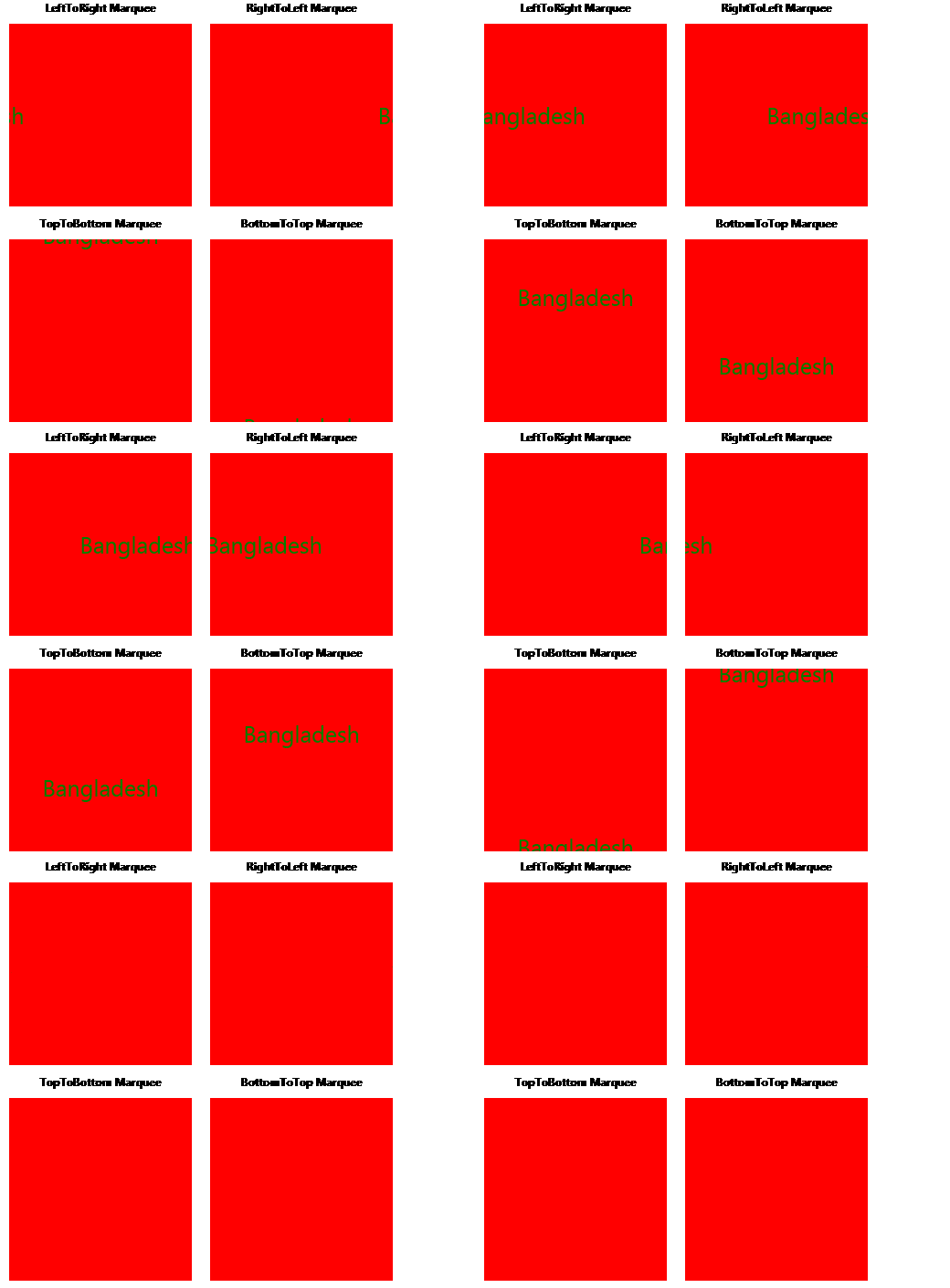
A Silverlight text marquee is a scrolling piece of text displayed either horizontally across or vertically down your container. Here i will describe how I came up to make a marquee text control using Canvas and TextBlock. This marquee text control scrolls text in Left to right, right to left, top to bottom and bottom to top. The following three techniques are used to achieve marquee animation:

Negative Positioning in canvas: If we set negative value to any of the positioning property of Canvas: Left, Right, Top and Bottom for an UIelement , Canvas draws that UIelement outside of Canvas area.

Clip Geometry: In WPF, if you set the value of the ClipToBounds property of canvas to true, Canvas will clip its children when they go outside of Canvas.But there is no ClipToBounds property of canvas.Every UIelement has a Property named clip, which is Geometry type. You can set any geometry used to define the outline of the contents of an element. Only the area that is within the region of the geometry will be visible. Portion of UIelement outside the geometry will be visually clipped in the rendered layout. To clip the marquee when they go outside of Canvas (container), I have used rectangle geometry as clip geometry of the Canvas.

Changing Position of UIelement continuously: By changing continuously any of the canvas positioning property Left and Top, we can get moving text. Here marquee text control is a user control consists of TextBlock and canvas.

The XAML of marquee text control is in the following:

   1: <UserControl x:Class="SilverlightMarqueeText.MarqueeText"
   2:     xmlns="http://schemas.microsoft.com/winfx/2006/xaml/presentation"
   3:     xmlns:x="http://schemas.microsoft.com/winfx/2006/xaml">
   4:     <Canvas Name="canMain" >
   5:         <TextBlock Name="tbmarquee"> </TextBlock>
   6:     </Canvas>
   7: </UserControl>

How is Left to right marquee text implemented in this control?

Here a canvas is used as the container of marquee text. To move the text outside of canvas negative Left property of canvas is used. However, if negative left property of canvas is applied to any UIelement like TextBlock, it will go outside of its parent container but will still remain visible outside of the parent container. To make marquee text invisible outside of canvas, i have set a rectangle geometry with same size of Canvas as clip geometry of the Canvas. Then using double animation left property of canvas for that element is being changed continuously to get moving text. The whole thing is done using the following code.

   1: private void LeftToRightMarquee()
   2:      {
   3:          RectangleGeometry rectangleGeometry = new RectangleGeometry();
   4:          rectangleGeometry.Rect = new Rect(new Point(0, 0), new Size(canMain.Width, canMain.Height));
   5:          canMain.Clip = rectangleGeometry;
   6:          double height = canMain.Height - tbmarquee.ActualHeight;
   7:          tbmarquee.Margin = new Thickness(0, height / 2, 0, 0);
   8:          DoubleAnimation doubleAnimation = new DoubleAnimation();
   9:          doubleAnimation.From = -tbmarquee.ActualWidth;
  10:          doubleAnimation.To = canMain.Width;
  11:          doubleAnimation.RepeatBehavior = RepeatBehavior.Forever;
  12:          doubleAnimation.Duration = new Duration(TimeSpan.FromSeconds(_marqueeTimeInSeconds));
  13:          Storyboard storyboard = new Storyboard();
  14:          storyboard.Children.Add(doubleAnimation);
  15:          Storyboard.SetTarget(doubleAnimation, tbmarquee);
  16:          Storyboard.SetTargetProperty(doubleAnimation, new PropertyPath("(Canvas.Left)"));
  17:          storyboard.Begin();
  18:      } 

How is right to left marquee text implemented in this control?

As we know, a canvas is used as the container of marquee text. Here marquee text is moved outside of canvas area equal to marquee text width and it is moved equal to canvas width using double animation. To move the text outside of canvas in the right direction, the value of left property of canvas is set equal to the width of the canvas. By this way, marquee text will go outside of its parent container but will remain visible outside of the parent container. To make marquee text invisible outside of canvas, i have set rectangle geometry with same size of Canvas as clip geometry of the Canvas. Then using double animation left property of canvas for that element is being changed continuously to get moving text. The whole thing is done using the following code.

   1: private void RightToLeftMarquee()
   2: {
   3:     RectangleGeometry rectangleGeometry = new RectangleGeometry();
   4:     rectangleGeometry.Rect = new Rect(new Point(0, 0), new Size(canMain.Width, canMain.Height));
   5:     canMain.Clip = rectangleGeometry;
   6:     double height = canMain.Height - tbmarquee.ActualHeight;
   7:     tbmarquee.Margin = new Thickness(0, height / 2, 0, 0);
   8:     DoubleAnimation doubleAnimation = new DoubleAnimation();
   9:     doubleAnimation.From = canMain.Width;
  10:     doubleAnimation.To = -tbmarquee.ActualWidth;
  11:     doubleAnimation.RepeatBehavior = RepeatBehavior.Forever;
  12:     doubleAnimation.Duration = new Duration(TimeSpan.FromSeconds(_marqueeTimeInSeconds));
  13:     Storyboard storyboard = new Storyboard();
  14:     storyboard.Children.Add(doubleAnimation);
  15:     Storyboard.SetTarget(doubleAnimation, tbmarquee);
  16:     Storyboard.SetTargetProperty(doubleAnimation, new PropertyPath("(Canvas.Left)"));
  17:     storyboard.Begin();
  18: }

How is top to bottom marquee text implemented in this control?

Here marquee text is moved outside of canvas area equal to marquee text height and to behave like scrolling text, it is moved equal to canvas height using double animation. To move the text outside of canvas in the top direction, negative top property of canvas is used. However, if someone uses negative top property of canvas, it will go outside of its parent container but will remain visible outside of the parent container. To make marquee text invisible outside of canvas, i have set rectangle geometry with same size of Canvas as clip geometry of the Canvas. Then using double animation top property of canvas for that element is being changed continuously to get moving text in the top to bottom direction. The whole thing is done using the following code.

   1: private void TopToBottomMarquee()
   2: {
   3:     RectangleGeometry rectangleGeometry = new RectangleGeometry();
   4:     rectangleGeometry.Rect = new Rect(new Point(0, 0), new Size(canMain.Width, canMain.Height));
   5:     canMain.Clip = rectangleGeometry;
   6:     double width = canMain.Width - tbmarquee.ActualWidth;
   7:     tbmarquee.Margin = new Thickness(width / 2, 0, 0, 0);
   8:     DoubleAnimation doubleAnimation = new DoubleAnimation();
   9:     doubleAnimation.From = -tbmarquee.ActualHeight;
  10:     doubleAnimation.To = canMain.Height;
  11:     doubleAnimation.RepeatBehavior = RepeatBehavior.Forever;
  12:     doubleAnimation.Duration = new Duration(TimeSpan.FromSeconds(_marqueeTimeInSeconds));
  13:     Storyboard storyboard = new Storyboard();
  14:     storyboard.Children.Add(doubleAnimation);
  15:     Storyboard.SetTarget(doubleAnimation, tbmarquee);
  16:     Storyboard.SetTargetProperty(doubleAnimation, new PropertyPath("(Canvas.Top)"));
  17:     storyboard.Begin();
  18: }

How is bottom to top marquee text implemented in this control?

To behave like each character coming out at a time, marquee text is placed outside of canvas area equal to marquee text height. To behave like scrolling text, it is moved equal to canvas height using double animation in the bottom to top direction. To place the text outside of canvas in the bottom direction, the value of top property of canvas is set equal to the height of the Canvas. To make marquee text invisible outside of canvas, i have set rectangle geometry with same size of Canvas as clip geometry of the Canvas. Then using double animation on top property of canvas for that element is being changed continuously to get moving text in the top to bottom direction. The whole thing is done using the following code.

   1: private void BottomToTopMarquee()
   2: {
   3:     RectangleGeometry rectangleGeometry = new RectangleGeometry();
   4:     rectangleGeometry.Rect = new Rect(new Point(0, 0), new Size(canMain.Width, canMain.Height));
   5:     canMain.Clip = rectangleGeometry;
   6:     double width = canMain.Width - tbmarquee.ActualWidth;
   7:     tbmarquee.Margin = new Thickness(width / 2, 0, 0, 0);
   8:     DoubleAnimation doubleAnimation = new DoubleAnimation();
   9:     doubleAnimation.From = canMain.Height;
  10:     doubleAnimation.To = -tbmarquee.ActualHeight;
  11:     doubleAnimation.RepeatBehavior = RepeatBehavior.Forever;
  12:     doubleAnimation.Duration = new Duration(TimeSpan.FromSeconds(_marqueeTimeInSeconds));
  13:     Storyboard storyboard = new Storyboard();
  14:     storyboard.Children.Add(doubleAnimation);
  15:     Storyboard.SetTarget(doubleAnimation, tbmarquee);
  16:     Storyboard.SetTargetProperty(doubleAnimation, new PropertyPath("(Canvas.Top)"));
  17:     storyboard.Begin();
  18: }
You can download the sample code from here. Hope this will save some of your time.
CodeProject MVP for 2010

I have been awarded a CodeProject MVP for the articles I wrote in 2009. Thanks Codeproject for this recognition, which will encourage me to keep my passion on writing article.

I love CodeProject.

Thanks All.

Razan

My CodeProject Profile

Posted: Jan 12 2010, 07:54 PM by RazanPaul | with no comments
Filed under: ,
Exploring Clip Property of UIelement to Make Animation in WPF

Every UIelement has a Property named clip, which is Geometry type. You can set any geometry used to define the outline of the contents of an element. Only the area that is within the region of the geometry will be visible. Portion of UIelement outside the geometry will be visually clipped in the rendered layout. Using Clip property of UIelement in WPF, you can do lots of animation. I think it is a powerful way of doing animation. Possibilities are endless. You can do most geometrical type of animation in 2D using this technique. I have just published an article about this technique.

Here it is:

http://www.codeproject.com/KB/WPF/ClipBasedAnimationWPF.aspx

Posted: Dec 31 2009, 09:43 PM by RazanPaul | with no comments
Filed under: , ,
Making a Simple Marquee Text Control, Drip Animation and Roll Animation in WPF

An animation consists of a series of frames. To perform the animation, these frames are shown one after the other at a regular time interval. I have just published an article about how i came up with marquee text control, Drip animation, and Roll animation.

Here it is:

http://www.codeproject.com/KB/WPF/WPFAnimation1.aspx

Posted: Dec 31 2009, 09:40 PM by RazanPaul | with 1 comment(s)
Filed under: , ,
A simple snapshot taker application in WPF

The simple application is implemented using media player in WPF. You can also use this code to make preview of video in WPF. Here MediaPlayer is used to play video instead of MediaElement. There is nothing ground breaking here. The overall idea is: as we are playing video in content control which is a visual and we know, we can make image from any visual, so we are just making image from the video content control. The simple snapshot taker application looks like the following:

snapshotTaker

Here an openfiledialog is used to open video file. If you select non-video file, the application will give you the message “invalid file”. Process.Start(filename) starts a viewer by specifying a file name. It is similar to typing the information in the run dialog box of the Windows Start menu. The used c# code for this is in the following:

   1: using System;
   2: using System.Collections.Generic;
   3: using System.Linq;
   4: using System.Text;
   5: using System.Windows;
   6: using System.Windows.Media;
   7: using System.Windows.Controls;
   8: using System.Windows.Media.Imaging;
   9: using System.Windows.Shapes;
  10: using System.IO;
  11:  
  12: namespace SnapShotUsingMediaPlayer
  13: {
  14:     public class MediaPlayerControl : ContentControl
  15:     {      
  16:         MediaPlayer _MediaPlayer;
  17:         private Uri _Source = null;
  18:         public Uri Source
  19:         {
  20:             get { return _Source; }
  21:             set
  22:             {
  23:                 _Source = value;
  24:                 Play(value);
  25:             }
  26:         }
  27:  
  28:         public void Play(Uri source)
  29:         {
  30:             if (_MediaPlayer == null)
  31:             {
  32:                 _MediaPlayer = new MediaPlayer();
  33:  
  34:             }
  35:             _MediaPlayer.MediaFailed += new EventHandler<ExceptionEventArgs>(_MediaPlayer_MediaFailed);           
  36:             _MediaPlayer.MediaOpened += new EventHandler(_MediaPlayer_MediaOpened);
  37:             _MediaPlayer.Open(source);     
  38:         }
  39:  
  40:         void _MediaPlayer_MediaOpened(object sender, EventArgs e)
  41:         {
  42:             System.Threading.Thread.Sleep(1000);
  43:             VideoDrawing videoDrawing = new VideoDrawing();
  44:             videoDrawing.Player = _MediaPlayer;
  45:             videoDrawing.Rect = new Rect(0, 0, _MediaPlayer.NaturalVideoWidth, _MediaPlayer.NaturalVideoHeight);
  46:             Rectangle rectangle = new Rectangle();
  47:             rectangle.Height = this.Height;
  48:             rectangle.Width = this.Width;
  49:             Brush brush = new DrawingBrush(videoDrawing);
  50:             rectangle.Fill = brush;
  51:             this.Content = rectangle;
  52:             _MediaPlayer.Play();           
  53:         }
  54:  
  55:         void _MediaPlayer_MediaFailed(object sender, ExceptionEventArgs e)
  56:         {
  57:             MessageBox.Show("Invalid File");
  58:         }
  59:  
  60:         public string Takesnapshot()
  61:         {            
  62:             RenderTargetBitmap renderBitmap = new RenderTargetBitmap(300, 300, 96, 96, PixelFormats.Pbgra32);
  63:             renderBitmap.Render(this);
  64:             string filename = "Temp" + ".gif";
  65:             FileStream fs = new FileStream(filename, FileMode.Create);
  66:             BitmapEncoder encoder = new GifBitmapEncoder();
  67:             encoder.Frames.Add(BitmapFrame.Create(renderBitmap));
  68:             encoder.Save(fs);
  69:             fs.Close();
  70:             return filename;
  71:         }
  72:     }
  73: }

VideoDrawing draws video to the specified rectangle. Here we have used fixed size rectangle with size 300*300 to show the video from VideoDrawing. We have made drawing brush from video drwaing and used this video drwaing to fill the rectangle. As we have not made VideoDrawing freeze, so it will change its content with time when media player is playing. RenderTargetBitmap Class is used to convert the video container element into a bitmap. Then GifBitmapEncoder is used to encode the bitmap into gif format and then the gif file is saved as temp.gif.

The used XAML for this is in the following:

   1: <Window x:Class="SnapShotUsingMediaPlayer.Window1"
   2:     xmlns="http://schemas.microsoft.com/winfx/2006/xaml/presentation"
   3:     xmlns:x="http://schemas.microsoft.com/winfx/2006/xaml"
   4:         xmlns:local ="clr-namespace:SnapShotUsingMediaPlayer"
   5:     Title="Window1" Height="500" Width="500">
   6:     <StackPanel>
   7:         <Button FontSize="20"  Margin="0,5,0,0"  HorizontalAlignment="Center" Width="Auto" Name="btnOpenFile" Click="btnOpenFile_Click"  Content="Open Video File"/>
   8:         <Border BorderThickness="2" Margin="0,10,0,0" Height="300" Width="300" BorderBrush="Black">
   9:             <local:MediaPlayerControl x:Name="player" Background="Black"  Width="300" Height="300"  />
  10:             </Border>
  11:         <StackPanel Margin="0,5,0,0"  Orientation="Horizontal" Width="Auto" HorizontalAlignment="Center" VerticalAlignment="Center" >
  12:             <Button FontSize="20" Name="btnTakeSnapShot" Click="btnTakeSnapShot_Click"  Content="Take SnapShot"/>
  13:         </StackPanel>
  14:     </StackPanel>
  15: </Window>

You can download the sample code from here. Hope this will save some of your time.

Internationalization in the web service method of Asp.net

Asp.net internationalization facilitates to adapt an asp.net web site to different languages and regional differences. If we use browser’s language/ culture for internationalization, we only need to set the following line in web.config under system.web : <globalization culture="auto" uiCulture="auto" enableClientBasedCulture="true"/>.
If we use user-preferred language/ culture for internationalization, we have to do more work. As we know, to support Internationalization in an asp.net page, we can override InitializeCulture method. In the override InitializeCulture method, we can change both the Culture and UI culture. However, in the web service method call of asp.net, asp.net does not provide any functionality to override this method or this type of functionality. Another point is we can change the both culture and UI culture when the web service method is invoked but it does not have an effect on the internationalization.

As we know, on every web service call or asp.net page request, BeginRequest event of global.asax is fired before any specific processing. If we change the Culture and UIculture of current thread in the BeginRequest event of global.asax, it affects the Internationalization both in web service method and asp.net page and we can get the desired result. We can write the following code to implement so in global.asax:

   1: void Application_BeginRequest(Object Sender, EventArgs e)
   2:   {
   3:       string culture= string.Empty;
   4:       if (HttpContext.Current.Request.Cookies["language"] != null)
   5:       {
   6:           culture = Request.Cookies.Get("language").Value.ToString();
   7:       }
   8:       else
   9:       {
  10:           culture = "en-US";
  11:       }
  12:       System.Threading.Thread.CurrentThread.CurrentUICulture = new System.Globalization.CultureInfo(culture);
  13:       System.Threading.Thread.CurrentThread.CurrentCulture = System.Globalization.CultureInfo.CreateSpecificCulture(culture);
  14:   }

Changing the CurrentCulture of current thread based on the cookie value will change the number formats, date format according to user-selected culture. As we know, a new resource file is created for each language/culture that the website supports. Then culture wise strings are retrieved by name. Changing the CurrentUICulture of current thread based on the cookie value will select proper resource file according to user-selected culture.

Now the question is how we can get the current culture to set in the BeginRequest event of global.asax. A cookie is a small text that associated with every http request for a particular domain. We can set cookie from both the server side and client side. In the client side, we can keep the culture setting in cookie using JavaScript code and retrieve it from the request object in the BeginRequest event of global.asax. Moreover, When BeginRequest method is invoked, the session object is not initialized that time for this request. Therefore, we cannot keep the culture setting in the session. In client side, you can set the cookie using the following Jquery code: $.cookie('language', prefLanguage). In server side, you can use the following code to set the cookie:

   1: System.Web.HttpCookie aCookie = new System.Web.HttpCookie("language");
   2: aCookie.Value = prefLanguage.ToString();
   3: System.Web.HttpContext.Current.Response.Cookies.Add(aCookie);  

Hope this will save some of your time.

Implementation of Auto Logoff based on User Inactivity in WPF Application

In some applications, we need to implement Auto logoff feature for security reason. In auto log off feature, the application redirects the user into login window, if the user remains inactive for a certain amount of time. I have just published how I came up with implementing auto logoff feature based on user inactivity in WPF application.

Here it is:

http://www.codeproject.com/KB/WPF/AutologoffWPF.aspx

Posted: Oct 09 2009, 01:04 PM by RazanPaul | with 2 comment(s)
Filed under:
Making a Drop Down Style Custom Color Picker in WPF

Although WPF provides quite a rich collection of UI controls and components for development, a particular control has been missing. That is a color-picker control. I have just published how I came up with making a drop down style custom color picker in WPF.

Here it is:

http://www.codeproject.com/KB/WPF/WPFDropDownColorPicker.aspx

Posted: Oct 09 2009, 12:55 PM by RazanPaul | with no comments
Filed under:
Perspective camera animation on a cube in WPF 3D

I have started WPF 3D at my work. Actually, i wanted  to make roll animation effect using WPF 3D. After some R&D, I came up with roll animation using 2D animation, which I described in my previous blog post. At first, I tried to make roll animation using perspective camera rotation.  For that, I have made a sample program, which I am discussing in this blog post. In this sample program, a 3D cube rotates along the y-axis. The animation looks like the following:

fun_373AEFA5

To rotate a 3D figure, you have to change the projection point. As camera is used for projection in WPF 3D, here a camera is being moved around the 3D figure to achieve rotate animation in y-direction.

How are images painted on cube surface?

You can make an image brush for any image and a visual brush from any visual. We have no special brushes for 3D graphics and we have to use two-dimensional brushes to paint the surfaces of three-dimensional figures. Material is created from brush. Texture coordinates are used to map which part of the material shows up on which part of the surfaces of three-dimensional figures.

Each GeometryModel3D consists of one MeshGeometry3D and one object of type Material, so we can use only one brush for one MeshGeometry3D figure. To use different brushes for different faces of cube, i have splited the figure into multiple GeometryModel3D objects.

The used c# code for this animation is in the following

   1: public partial class Window1 : Window
   2:   {
   3:       DispatcherTimer _timer = null;
   4:       PerspectiveCamera _perspectiveCamera = null;
   5:       double _angle = 0;        
   6:  
   7:       public Window1()
   8:       {
   9:           this.InitializeComponent();
  10:           this.Loaded += new RoutedEventHandler(Window1_Loaded);
  11:       }
  12:  
  13:       void Window1_Loaded(object sender, RoutedEventArgs e)
  14:       {
  15:           GenerateViewPort();
  16:       }       
  17:  
  18:       private void GenerateViewPort()
  19:       {
  20:           MakeCamera();
  21:  
  22:           Viewport3D Viewport3D1 = new Viewport3D();
  23:           Viewport3D1.Camera = _perspectiveCamera;
  24:           grdAniContainer.Children.Add(Viewport3D1);
  25:           Viewport3D1.Loaded += new RoutedEventHandler(Viewport3D1_Loaded);
  26:  
  27:           ModelVisual3D ModelVisual3D1 = new ModelVisual3D();
  28:           Viewport3D1.Children.Add(ModelVisual3D1);
  29:  
  30:  
  31:           Model3DGroup Model3DGroup1 = new Model3DGroup();
  32:           ModelVisual3D1.Content = Model3DGroup1;
  33:  
  34:           AmbientLight AmbientLight1 = new AmbientLight();
  35:           AmbientLight1.Color = Colors.Gray;
  36:           Model3DGroup1.Children.Add(AmbientLight1);
  37:  
  38:           DirectionalLight DirectionalLight1 = new DirectionalLight();
  39:           DirectionalLight1.Color = Colors.Gray;
  40:           DirectionalLight1.Direction = ((Vector3D)new Vector3DConverter().ConvertFromString("-1,-3,-2"));
  41:           Model3DGroup1.Children.Add(DirectionalLight1);
  42:  
  43:           DirectionalLight1 = new DirectionalLight();
  44:           DirectionalLight1.Color = Colors.Gray;
  45:           DirectionalLight1.Direction = ((Vector3D)new Vector3DConverter().ConvertFromString("1,-2,3"));
  46:           Model3DGroup1.Children.Add(DirectionalLight1);
  47:  
  48:           Model3DGroup Model3DGroup2 = new Model3DGroup();
  49:           Model3DGroup1.Children.Add(Model3DGroup2);
  50:  
  51:           GeometryModel3D GeometryModel3D1 = new GeometryModel3D();
  52:           Model3DGroup2.Children.Add(GeometryModel3D1);
  53:  
  54:  
  55:           MeshGeometry3D MeshGeometry3D1 = new MeshGeometry3D();
  56:           MeshGeometry3D1.Positions = ((Point3DCollection)new Point3DCollectionConverter().ConvertFromString("-1,-1,-1 1,-1,-1 1,-1,1 -1,-1,1"));
  57:           MeshGeometry3D1.TriangleIndices = ((Int32Collection)new Int32CollectionConverter().ConvertFromString("0,1,2 0,2,3"));
  58:           MeshGeometry3D1.TextureCoordinates = ((PointCollection)new PointCollectionConverter().ConvertFromString("0,0 0,1 1,1 1,0"));
  59:           GeometryModel3D1.Geometry = MeshGeometry3D1;
  60:  
  61:          
  62:           DiffuseMaterial DiffuseMaterial1 = new DiffuseMaterial();
  63:           GeometryModel3D1.Material = DiffuseMaterial1;
  64:  
  65:  
  66:           ImageBrush ImageBrush1 = new ImageBrush();
  67:           ImageBrush1.ImageSource = loadBitmap(Fun.Resource1.DSC06460);
  68:           DiffuseMaterial1.Brush = ImageBrush1;
  69:  
  70:           GeometryModel3D GeometryModel3D2 = new GeometryModel3D();
  71:           Model3DGroup2.Children.Add(GeometryModel3D2);
  72:  
  73:  
  74:           MeshGeometry3D1 = new MeshGeometry3D();
  75:           MeshGeometry3D1.Positions = ((Point3DCollection)new Point3DCollectionConverter().ConvertFromString("1,1,1 1,1,-1 -1,1,-1 -1,1,1"));
  76:           MeshGeometry3D1.TriangleIndices = ((Int32Collection)new Int32CollectionConverter().ConvertFromString("0,1,2 0,2,3"));
  77:           MeshGeometry3D1.TextureCoordinates = ((PointCollection)new PointCollectionConverter().ConvertFromString("0,0 0,1 1,1 1,0"));
  78:           GeometryModel3D2.Geometry = MeshGeometry3D1;
  79:  
  80:  
  81:           DiffuseMaterial DiffuseMaterial2 = new DiffuseMaterial();
  82:           GeometryModel3D2.Material = DiffuseMaterial2;
  83:  
  84:  
  85:           ImageBrush1 = new ImageBrush();
  86:           ImageBrush1.ImageSource = loadBitmap(Fun.Resource1.DSC06461);
  87:           DiffuseMaterial2.Brush = ImageBrush1;
  88:  
  89:           GeometryModel3D GeometryModel3D3 = new GeometryModel3D();
  90:           Model3DGroup2.Children.Add(GeometryModel3D3);
  91:  
  92:  
  93:           MeshGeometry3D1 = new MeshGeometry3D();
  94:           MeshGeometry3D1.Positions = ((Point3DCollection)new Point3DCollectionConverter().ConvertFromString("-1,1,-1 -1,-1,-1 -1,-1,1 -1,1,1"));
  95:           MeshGeometry3D1.TriangleIndices = ((Int32Collection)new Int32CollectionConverter().ConvertFromString("0,1,2 0,2,3"));
  96:           MeshGeometry3D1.TextureCoordinates = ((PointCollection)new PointCollectionConverter().ConvertFromString("0,0 0,1 1,1 1,0"));
  97:           GeometryModel3D3.Geometry = MeshGeometry3D1;
  98:  
  99:  
 100:           DiffuseMaterial DiffuseMaterial3 = new DiffuseMaterial();
 101:           GeometryModel3D3.Material = DiffuseMaterial3;
 102:  
 103:  
 104:           ImageBrush1 = new ImageBrush();
 105:           ImageBrush1.ImageSource = loadBitmap(Fun.Resource1.DSC06462);
 106:           DiffuseMaterial3.Brush = ImageBrush1;
 107:  
 108:           GeometryModel3D GeometryModel3D4 = new GeometryModel3D();
 109:           Model3DGroup2.Children.Add(GeometryModel3D4);
 110:  
 111:  
 112:           MeshGeometry3D1 = new MeshGeometry3D();
 113:           MeshGeometry3D1.Positions = ((Point3DCollection)new Point3DCollectionConverter().ConvertFromString("1,1,1 1,-1,1 1,-1,-1 1,1,-1"));
 114:           MeshGeometry3D1.TriangleIndices = ((Int32Collection)new Int32CollectionConverter().ConvertFromString("0,1,2 0,2,3"));
 115:           MeshGeometry3D1.TextureCoordinates = ((PointCollection)new PointCollectionConverter().ConvertFromString("0,0 0,1 1,1 1,0"));
 116:           GeometryModel3D4.Geometry = MeshGeometry3D1;
 117:  
 118:  
 119:           DiffuseMaterial DiffuseMaterial4 = new DiffuseMaterial();
 120:           GeometryModel3D4.Material = DiffuseMaterial4;
 121:  
 122:  
 123:           ImageBrush1 = new ImageBrush();
 124:           ImageBrush1.ImageSource = loadBitmap(Fun.Resource1.DSC06463);
 125:           DiffuseMaterial4.Brush = ImageBrush1;
 126:  
 127:           GeometryModel3D GeometryModel3D5 = new GeometryModel3D();
 128:           Model3DGroup2.Children.Add(GeometryModel3D5);
 129:  
 130:  
 131:           MeshGeometry3D1 = new MeshGeometry3D();
 132:           MeshGeometry3D1.Positions = ((Point3DCollection)new Point3DCollectionConverter().ConvertFromString("1,1,-1 1,-1,-1 -1,-1,-1 -1,1,-1"));
 133:           MeshGeometry3D1.TriangleIndices = ((Int32Collection)new Int32CollectionConverter().ConvertFromString("0,1,2 0,2,3"));
 134:           MeshGeometry3D1.TextureCoordinates = ((PointCollection)new PointCollectionConverter().ConvertFromString("0,0 0,1 1,1 1,0"));
 135:           GeometryModel3D5.Geometry = MeshGeometry3D1;
 136:  
 137:  
 138:           DiffuseMaterial DiffuseMaterial5 = new DiffuseMaterial();
 139:           GeometryModel3D5.Material = DiffuseMaterial5;
 140:  
 141:  
 142:           ImageBrush1 = new ImageBrush();
 143:           ImageBrush1.ImageSource = loadBitmap(Fun.Resource1.DSC06460);
 144:           DiffuseMaterial5.Brush = ImageBrush1;
 145:  
 146:           GeometryModel3D GeometryModel3D6 = new GeometryModel3D();
 147:           Model3DGroup2.Children.Add(GeometryModel3D6);
 148:  
 149:  
 150:           MeshGeometry3D1 = new MeshGeometry3D();
 151:           MeshGeometry3D1.Positions = ((Point3DCollection)new Point3DCollectionConverter().ConvertFromString("-1,1,1 -1,-1,1 1,-1,1 1,1,1"));
 152:           MeshGeometry3D1.TriangleIndices = ((Int32Collection)new Int32CollectionConverter().ConvertFromString("0,1,2 0,2,3"));
 153:           MeshGeometry3D1.TextureCoordinates = ((PointCollection)new PointCollectionConverter().ConvertFromString("0,0 0,1 1,1 1,0"));
 154:           GeometryModel3D6.Geometry = MeshGeometry3D1;
 155:  
 156:           DiffuseMaterial DiffuseMaterial6 = new DiffuseMaterial();
 157:           GeometryModel3D6.Material = DiffuseMaterial6;           
 158:  
 159:           VisualBrush VisualBrush1 = new VisualBrush();
 160:           DiffuseMaterial6.Brush = VisualBrush1;
 161:           Label Label1 = new Label();
 162:           Label1.Content = "Razan";
 163:           Label1.Foreground = new SolidColorBrush(Colors.Orchid);
 164:           Label1.Background = GetRectangleDrawingBrush();
 165:           VisualBrush1.Visual = Label1;            
 166:       }
 167:  
 168:       private void MakeCamera()
 169:       {
 170:           Transform3DGroup transform3DGroup = new Transform3DGroup();
 171:           RotateTransform3D rotateTransform3D_1 = new RotateTransform3D();
 172:           AxisAngleRotation3D axisAngleRotation3D_1 = new AxisAngleRotation3D(new Vector3D(0, 1, 0), 0);
 173:  
 174:  
 175:           transform3DGroup.Children.Add(rotateTransform3D_1);
 176:  
 177:  
 178:           _perspectiveCamera = new PerspectiveCamera();
 179:           _perspectiveCamera.Position = new Point3D(0, 0, 5);
 180:           _perspectiveCamera.LookDirection = new Vector3D(0, 0, -5);
 181:           _perspectiveCamera.UpDirection = new Vector3D(0, 1, 0);
 182:           _perspectiveCamera.FieldOfView = 45;
 183:           _perspectiveCamera.Transform = transform3DGroup;
 184:       }
 185:       private DrawingBrush GetRectangleDrawingBrush()
 186:       {         
 187:  
 188:           DrawingBrush DrawingBrush1 = new DrawingBrush();
 189:           DrawingBrush1.Viewport = ((Rect)new RectConverter().ConvertFromString("0,0,0.25,0.25"));
 190:           DrawingBrush1.TileMode = TileMode.Tile;
 191:            
 192:  
 193:           DrawingGroup DrawingGroup1 = new DrawingGroup();
 194:           DrawingBrush1.Drawing = DrawingGroup1;
 195:  
 196:           GeometryDrawing GeometryDrawing1 = new GeometryDrawing();
 197:           GeometryDrawing1.Brush = ((Brush)new BrushConverter().ConvertFromString("White"));
 198:           DrawingGroup1.Children.Add(GeometryDrawing1);
 199:  
 200:  
 201:           RectangleGeometry RectangleGeometry1 = new RectangleGeometry();
 202:           RectangleGeometry1.Rect = ((Rect)new RectConverter().ConvertFromString("0,0,100,100"));
 203:           GeometryDrawing1.Geometry = RectangleGeometry1;
 204:  
 205:           GeometryDrawing GeometryDrawing2 = new GeometryDrawing();
 206:           DrawingGroup1.Children.Add(GeometryDrawing2);
 207:  
 208:  
 209:           GeometryGroup GeometryGroup1 = new GeometryGroup();
 210:           GeometryDrawing2.Geometry = GeometryGroup1;
 211:  
 212:           RectangleGeometry1 = new RectangleGeometry();
 213:           RectangleGeometry1.Rect = ((Rect)new RectConverter().ConvertFromString("0,0,50,50"));
 214:           GeometryGroup1.Children.Add(RectangleGeometry1);
 215:  
 216:           RectangleGeometry1 = new RectangleGeometry();
 217:           RectangleGeometry1.Rect = ((Rect)new RectConverter().ConvertFromString("50,50,50,50"));
 218:           GeometryGroup1.Children.Add(RectangleGeometry1);
 219:  
 220:  
 221:           LinearGradientBrush LinearGradientBrush1 = new LinearGradientBrush();
 222:           GeometryDrawing2.Brush = LinearGradientBrush1;
 223:  
 224:           GradientStop GradientStop1 = new GradientStop();
 225:           GradientStop1.Offset = 0.0;
 226:           GradientStop1.Color = Colors.Black; 
 227:           LinearGradientBrush1.GradientStops.Add(GradientStop1);
 228:  
 229:           GradientStop1 = new GradientStop();
 230:           GradientStop1.Offset = 1.0;
 231:           GradientStop1.Color = Colors.Gray; 
 232:           LinearGradientBrush1.GradientStops.Add(GradientStop1);
 233:  
 234:           return DrawingBrush1;
 235:  
 236:       }
 237:  
 238:  
 239:       void Viewport3D1_Loaded(object sender, RoutedEventArgs e)
 240:       {
 241:           _timer = new DispatcherTimer();
 242:           _timer.Interval = TimeSpan.FromSeconds(.25);
 243:           _timer.Tick += new EventHandler(_timer_Tick);
 244:           _timer.IsEnabled = true;
 245:       }
 246:       
 247:       void _timer_Tick(object sender, EventArgs e)
 248:       {
 249:           Transform3DGroup transform3DGroup = new Transform3DGroup();
 250:           RotateTransform3D rotateTransform3D_1 = new RotateTransform3D();
 251:           AxisAngleRotation3D axisAngleRotation3D_1 = new AxisAngleRotation3D(new Vector3D(0, 1, 0), _angle );
 252:           rotateTransform3D_1.Rotation = axisAngleRotation3D_1;          
 253:           transform3DGroup.Children.Add(rotateTransform3D_1);             
 254:           _perspectiveCamera.Transform = transform3DGroup;
 255:           _angle = _angle + 2;
 256:       }
 257:       public static BitmapSource loadBitmap(System.Drawing.Bitmap source)
 258:       {
 259:           return System.Windows.Interop.Imaging.CreateBitmapSourceFromHBitmap(source.GetHbitmap(), IntPtr.Zero, Int32Rect.Empty,
 260:               System.Windows.Media.Imaging.BitmapSizeOptions.FromEmptyOptions());
 261:       }
 262:   }

How is this animation achieved?

Here we have used perspective camera for projection. To make this animation, I have rotated perspective camera in y direction. As we know second point of vector 3D indicates y coordinate. So AxisAngleRotation3D(new Vector3D(0, 1, 0), _angle ) directs to rotate the 3D object(here cube) to rotate _angle degree in y-axis. Here at each tick event, we have incremented the value of _angle, so it rotates in y direction. If you would like to rotate in x direction you can use AxisAngleRotation3D(new Vector3D(1, 0, 0), _angle ), then it will rotate in x-direction. Here visual brush is used to paint label UIelement, which contains "Razan".

The used XAML for this is in the following:

   1: <Window
   2:     xmlns="http://schemas.microsoft.com/winfx/2006/xaml/presentation"
   3:     xmlns:x="http://schemas.microsoft.com/winfx/2006/xaml"
   4:     x:Class="Fun.Window1"
   5:     x:Name="Window"
   6:     Title="Fun"
   7:     Height="400" Width="400">
   8:     <Grid Name="grdAniContainer"></Grid>
   9: </Window>

You can download the sample code from here. Hope this will save some of your time.

Posted: Oct 01 2009, 07:30 AM by RazanPaul | with 1 comment(s)
Filed under: , , ,
More Posts Next page »