Adding ToolTip for each List Item.
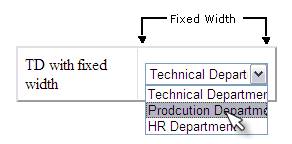
In Some cases, you have a restricted design that forces you to place a DropDownList control inside a "td" or "div" element, which has a fixed width. if that DropDownList contains long pieces of text then the user will not be able to read the whole-� text-� as you can see in Figure1.
Figure 1
 -�
-�
The best solution to overcome this problem is to add a
ToolTip for the item to display the whole text. As we know
the regular DropDownList does not support that which is the
main goal of this post.
Lest us say that we have a DropDownList that contains three list items.
Code 1
<asp:DropDownList-�ID="DropDownList1"
runat="server"-�Width="119px">
-�-�<asp:ListItem-�Value="1">Technical Department</asp:ListItem>
-�-�<asp:ListItem
Value="2">Production-�Department</asp:ListItem>
-�-�<asp:ListItem-�Value="3">HR Department</asp:ListItem>
</asp:DropDownList>
-�
As I said, the regular DropDownList does not support a ToolTip for each list item, so we will add a new attribute for each list item which is the "title" attribute.
Code 2
foreach-�(ListItem-�_listItem-�in this.DropDownList1.Items)

{-�

-�-�_listItem.Attributes.Add("title", _listItem.Text);

}
As you can see in the above code, we wrote a foreach loop to walk through the DropDownList item-by-item to add the title attribtue.
You can enter any text to represent the ToolTip for the item
as description; here in our example I am using the list item
text to be its ToolTip.
We need to add a title attribute for the selected item too, as shown in below code.
Code 3
DropDownList1.Attributes.Add("onmouseover", _
"this.title=this.options[this.selectedIndex].title");
if you view your code in a browser, right click on the page
and choose view source, take a look at the HTML generated
element for our DropDownList, in Code 4, note that a new
title attribute is added for each item in the list.
Code 4
<select name="DropDownList1" id="DropDownList1"
onmouseover="this.title=this.options[this.selectedIndex].title"
-�-�-� style="width:119px;">
-� <option
value="1" title="Technical Department">Technical
Department</option>
-� <option value="2"
title="Production Department">Production
Department</option>
-� <option value="3"
title="HR Department">HR Department</option>
</select>
Figure 2
 -�
-�
The above figure shows you how our new tooltip works when the mouse goes over the list item.
Conclusion
in this article, we have added a new tooltip attribute for
each item in the DropDownList which will help the users to
read the whole text. I hope you found this useful and
informative. If you have any questions, please write your
comments below.
-�~ Abdulla AbdelHaq
-�