Silverlight exception handling using WCF RIA Services and WCF Services
Note: Some examples in this post uses the WCF RIA Services PDC Beta, so changes can be done until it hit RTM.
I have already mention about how to handle exceptions with
WCF RIA Services here:
http://weblogs.asp.net/fredriknormen/archive/2009/12/08/wcf-ria-services-exception-handling.aspx, but this post is about different ways to handle exception
occurred on the client-side and how to log those
exceptions.
Logging Services
If you want to log exceptions occurred on the client-side to the server-side you need to add a Service which can take the exception message and store it. Silverlight supports different ways of passing data to the server for example, Web Service, WCF Service, Service operation via WCF RIA Services or just passing data to a ASP.NET Web Form etc. In this post I will focus on using WCF RIA Services and also WCF Service, only to give you two different options for using a service to log information.
The following is an example of a WCF Service and a WCF RIA DomainService to act as a logger:
Silverlight enabled WCF Service:
[ServiceContract(Namespace = "")]
[AspNetCompatibilityRequirements(RequirementsMode = AspNetCompatibilityRequirementsMode.Allowed)]
public class LogService
{
    [OperationContract]
    public void Log(string message)
    {
        //Log4Net, Exception or Instrumetionation Application Block (EntLib), EventLog or what you use ...
     }
}
WCF RIA Services DomainService:
[EnableClientAccess()]
public class LogDomainService : DomainService
{
   [Invoke]
    public void Log(string message)
    {
         //...
    }
}
Note: I haven’t added code to log the message, I
assume you have your own solutions for logging. I also
just take one argument of type string which will contain
a formatted exception message, if you prefer to use a
specific class as an argument with properties to hold
more information about the exception, you can do that. I
will only keep this example simple for demonstrate the
concept.
The InvokeAttribute added to the DomainService will make the method as a Service operation, a method which we can simply call without using the WCF RIA Services DomainContext’s SubmitChanges.
Handling Exception on the client-side
If you want to use a generic way to handle exceptions on
the client-side and call the logging service, you can use
the Application_UnhandledException located in the
code-behind of the App.xaml:
public partial class App : Application
{
    public App()
    {
        //...
        this.UnhandledException += this.Application_UnhandledException;

        InitializeComponent();
    }

    private void Application_UnhandledException(object sender, ApplicationUnhandledExceptionEventArgs e)
    {
        if (!System.Diagnostics.Debugger.IsAttached)
        {
           //...
           e.Handled = true;
         }
    }
}
If you want to log the exception directly when it occurs, you can call the Logging Service in the catch block of your try and catch block.
Note: If you applications will throw a lot of exceptions, you will get a lot of service calls, which can affect performance, so in that case it can be advisable to save exceptions for example into a variable or Isolated Storage, so send them all in a “batch”.
Here is an example how you can use either the DomainService or the WCF Service in the Application_UnhandledException:
WCF Service:
private void Application_UnhandledException(object sender, ApplicationUnhandledExceptionEventArgs e)
{
    if (!System.Diagnostics.Debugger.IsAttached)
    {
        var logServiceClient = new LogServiceClient();
        logServiceClient.LogCompleted += (s, ae) =>
                                         {
                                             if (ae.Error != null)
                                             {
                                                 //...
                                             }
                                          };

        logServiceClient.LogAsync(e.ExceptionObject.ToString());

        e.Handled = true;
    }
}
WCF RIA Services:
private void Application_UnhandledException(object sender, ApplicationUnhandledExceptionEventArgs e)
{
    if (!System.Diagnostics.Debugger.IsAttached)
    {
         var logDomainContext = new LogDomainContext();

         logDomainContext.Log(e.ExceptionObject.ToString(),
                             invokeOperation =>
                             {
                                if (invokeOperation.HasError)
                                {
                                     //....
                                 }
                              },
                              null);

                e.Handled = true;
    }
}
As you can see the async. call to the Services is only made if no debugger is attached when running the application. There is no reason to log exception during debug mode.
Because a Service will do a call over the network, the
Service can also fail, for example connection problem to the
server, or the service it self thrown an exception while
trying to log messages etc. If the Service fails, the
LogCompleted event of the WCF Service or the InvokeOperation
callback of a WCF RIA Services can be used to check if there
was any exception while calling the services. As you have
probably notice, there is no code added for handling the
exception when calling a Service in my examples, it’s
because you maybe want to handle exceptions in different
ways, so I left it for you to implement it. What you can do
is for example add a MessageBox showing a user friendly
message that the logging fails, but that is kind of strange
message to show the user. Another solution could be to store
the original exception to the Isolated Storage, and try to
resend the messages stored in the Isolated Storage later and
hope it will be sent the next time without any problems. But
I should added a solution where the user can decide if the
exception and information should be sent for logging and
that is what the rest of the blog post is about.
Using Child Window to show and send exceptions to the service
When an exception occurs in the Windows OS we will see a
dialog with the exception and also detailed information, we
can also decide if we want to send the log to Microsoft or
not. This will let the users know what kind of information
that will be sent and also let the user know that the
application will send information. By sending information
without letting the user knows about it can be kind of bad
thing to do (If the user haven’t already agree on it). So
instead of just sending the message to a Service we can show
a ChildWindow when an exception occurs, for example a window
like this:
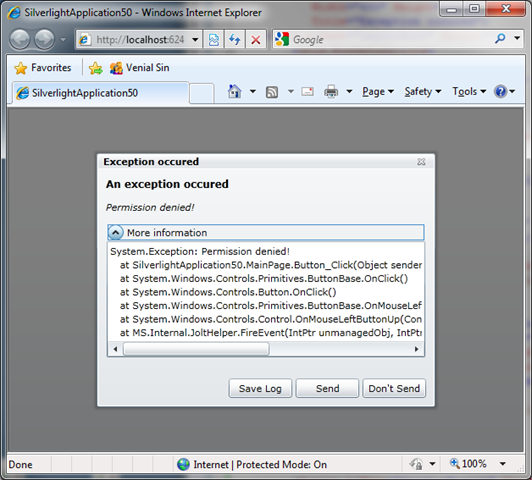
Here is the XAML for the above ChildWindow:
<controls:ChildWindow
           xmlns:controlsToolkit="clr-namespace:System.Windows.Controls;assembly=System.Windows.Controls.Toolkit"  x:Class="SilverlightApplication50.ExceptionWindow"
           xmlns="http://schemas.microsoft.com/winfx/2006/xaml/presentation"
           xmlns:x="http://schemas.microsoft.com/winfx/2006/xaml"
           xmlns:controls="clr-namespace:System.Windows.Controls;assembly=System.Windows.Controls"
           Width="400" Height="300"
           Title="Exception occured">
    <Grid x:Name="LayoutRoot" Margin="2">
        <Grid.RowDefinitions>
            <RowDefinition />
            <RowDefinition Height="Auto" />
        </Grid.RowDefinitions>

        <StackPanel>
            <TextBlock FontSize="12" FontWeight="Bold" Text="An exception occured"/>

            <TextBlock
                        x:Name="userFriendlyMessageTextBlock"
                        Margin="0,10,0,0"
                        FontStyle="italic"
                        TextWrapping="Wrap"
                        Text="User friendly message"/>

            <controlsToolkit:Expander Height="160" Header="More information" Margin="0,10,0,0">
                <controlsToolkit:Expander.Content>

                    <TextBox
                             x:Name="detailedInforTextBox"
                             AcceptsReturn="True"
                             VerticalScrollBarVisibility="Auto"
                             HorizontalScrollBarVisibility="Auto"
                             Text="A more detailed information about the exception"/>

                </controlsToolkit:Expander.Content>
            </controlsToolkit:Expander>

        </StackPanel>

        <Button x:Name="SaveLogButton" Click="SaveLogButton_Click" Content="Save Log".../>
        <Button x:Name="CancelButton" Content="Don't Send" Click="CancelButton_Click" ... />
        <Button x:Name="OKButton" Content="Send" Click="OKButton_Click" ... />
    </Grid>
</controls:ChildWindow>
Note: The Silverlight Controls Toolkit is used here to
add the Expander control.
The ChildWindow will have an Error property added in the
Code-Behind so we can pass the Exception to the ChildControl
when it’s created and also a proeprty for an user friendly
message and for a detailed message. When the user press the
Ok button the message will be sent to a Service. The
following is an example where the WCF RIA Services
LogDomainService is used (To use the WCF Service, just
replace the code in the OKButton_Click to call the WCF
Service and add the LogCompleted event to check for an
exception):
public partial class ExceptionWindow : ChildWindow
{
    private Exception _exception;

    public ExceptionWindow()
    {
      InitializeComponent();
    }

    public string UserFriendlyException
    {
       get { return userFriendlyMessageTextBlock.Text; }
       set { userFriendlyMessageTextBlock.Text = value; }
    }

    public string DetailedException
    {
        get { return detailedInforTextBox.Text; }
        set { detailedInforTextBox.Text = value; }
     }

     public Exception Error
     {
        set { _exception = value; }
     }

     private void OKButton_Click(object sender, RoutedEventArgs e)
     {
        var errorMsg = FormatMessage();

        var logDomainContext = new LogDomainContext();

        logDomainContext.Log(errorMsg,
                              invokeOperation =>
                              {
                                  if (invokeOperation.HasError)
                                  {
                                      if (MessageBox.Show("Error while trying to send the log,
do you want to save it temporary for a later try?", "Error sending log",
MessageBoxButton.OKCancel) == MessageBoxResult.OK)
                                         IsolatedStorageHelper.SaveToIsolatedStorage("retry_sending_exception.log", errorMsg);

                                      invokeOperation.MarkErrorAsHandled();
                                  }
                              },
                              null);

         this.DialogResult = true;
     }


     private string FormatMessage()
     {
         string originalException = string.Empty;

         if (_exception != null)
             originalException = _exception.ToString();

          return string.Format("{0} - {1}\n\nDetailed Message:\n{2}\n\nOriginal Exception:\n{3}",
                                          DateTime.Now.ToString(),
                                          UserFriendlyException,
                                          DetailedException,
                                          originalException);
     }

     private void CancelButton_Click(object sender, RoutedEventArgs e)
     {
         this.DialogResult = false;
     }

    //...
}
The OKButton_Click event handler will call the Logging
Service Log method, if the call fails a MessageBox will
appear and the use can decide if they want to save the
original exception temporary. The IsolatedStorateHelper is a
simple class I have added which will save the errorMsg to
the Isolated Storage:
public void SaveToIsolatedStorage(filenName, string errorMsg)
{
      using (IsolatedStorageFile isf = IsolatedStorageFile.GetUserStoreForApplication())
      {
          using (IsolatedStorageFileStream isfs = new IsolatedStorageFileStream(
                                                          fileName,
                                                          FileMode.Create,
                                                          isf))
          {
              using (StreamWriter sw = new StreamWriter(isfs))
              {
                  sw.Write(errorMsg);
                  sw.Close();
              }
          }
     }
}
Note: The Isolated Storage only allow use to use the
FileMode Create, so we can’t use the Append mode, so
only the latest failed logging will be saved.
The Application_Startup event handler in the App.xaml.cs can
be used to try to resend the latest exception, here is an
example for doing that:
public partial class App : Application
{
     public App()
     {
            this.Startup += this.Application_Startup;
            //...
     }

     private void Application_Startup(object sender, StartupEventArgs e)
     {
         TryToResendLatestException();

         this.RootVisual = new MainPage();
      }

      private void TryToResendLatestException()
      {
          var logServiceContext = new LogDomainContext();

          var errorMsg = IsolatedStorageHelper.LoadStringFromIsolatedStorage("retry_sending_exception.log");

          if (!string.IsNullOrEmpty(errorMsg))
          {
              logServiceContext.Log(errorMsg,
                                invokeOperation =>
                                {
                                  if (!invokeOperation.HasError)
                                     IsolatedStorageHelper.DeleteFileFromIsolatedStorage("retry_sending_exception.log");

                                  invokeOperation.MarkErrorAsHandled();
                                },
                                 null);
         }
     }

   //...
}
Here is the IsolatedStorageHelper’s Load and Delete methods:
public string LoadStringFromIsolatedStorage(string fileName)
{
    using (IsolatedStorageFile isf = IsolatedStorageFile.GetUserStoreForApplication())
    {
       if (isf.FileExists("retry_sending_exception.log"))
       {
           using (IsolatedStorageFileStream isfs = new IsolatedStorageFileStream(
                                           fileName,
                                           FileMode.Open,
                                           isf))
           {
                using (StreamReader sr = new StreamReader(isfs))
                {
                    return sr.ReadToEnd();
                }
            }
        }
    }

    return null;
}

public void DeleteFileFromIsolatedStorage(string fileName)
{
   using (IsolatedStorageFile isf = IsolatedStorageFile.GetUserStoreForApplication())
   {
       if (isf.FileExists(fileName))
           isf.DeleteFile(fileName);
    }
}
The ChildWindow also has a “Save Log” button, here is
the code to save the exception message to the client's local
disc (I cut it out from the above ChildWindow example to not
making the code too big, I could of course used some
Refactoring here to make the file smaller):
private void SaveLogOnClientDisc(string errorMessage)
{
    var saveLogDialog = new SaveFileDialog();

    saveLogDialog.DefaultExt = ".log";
    saveLogDialog.Filter = "Text Files|*.txt|Log Files|*.log|All Files|*.*";
    saveLogDialog.FilterIndex = 2;

    bool? dialogResult = saveLogDialog.ShowDialog();

    if ( dialogResult == true )
    {
         try
         {
             var contents = Encoding.Unicode.GetBytes(errorMessage);

             using (var fileStream = saveLogDialog.OpenFile())
             {
                  fileStream.Write(contents, 0, contents.Length);
                  fileStream.Close();
                  MessageBox.Show("File successfully saved!");
              }
          }
          catch ( Exception ex )
          {
              MessageBox.Show("Can't save file: " + ex.Message);
           }
     }
}

private void SaveLogButton_Click(object sender, RoutedEventArgs e)
{
   SaveLogOnClientDisc(FormatMessage());
}
The following is the code added to the
Application_UnhandledException to show the Exception dialog:
private void Application_UnhandledException(object sender, ApplicationUnhandledExceptionEventArgs e)
{
   if (!System.Diagnostics.Debugger.IsAttached)
   {
       var exceptionDialog = new ExceptionWindow();
       exceptionDialog.UserFriendlyException = e.ExceptionObject.Message;
       exceptionDialog.DetailedException = e.ExceptionObject.ToString();
       exceptionDialog.Error = e.ExceptionObject;
       exceptionDialog.Show();

       e.Handled = true;
   }
}
Note: I could have skipped adding the
UserFriendlyException and DetailedException property and
only use the Error property. But I decided to use them
in this example so I can reuse the dialog for try and
catch blocks, where I don’t want to show messages out
from the exception thrown, for example:
try
{
    //.. Do something
}
catch (Exception e)
{
   var exceptionDialog = new ExceptionWindow();
   exceptionDialog.UserFriendlyException = "Can't create user 'John Doe'";
   exceptionDialog.DetailedException = "The call to the CreateUser method failed because...;
   exceptionDialog.Error = e;
   exceptionDialog.Show();
}
Another kind of logging solutions
With Silverligth 4.0 we can use COM, so we could for example open up Outlook and let the user send the error log via e-mail. We can also in Silverlight 3 do something similar by adding a client-side script and call it from the Silverlight app to open up the user’s e-mail client. In Silverlight 4 in a OOB and trusted mode, we can store log files to the users local disc.
Summary
In this post I wanted to show you different ways of logging client-side exceptions by calling a Service, either by using WCF or WCF RIA Services. Something to have in mind is that the call to the log service can fail, so have a backup plan to save the original exception on the client-side, for example by using the Isolated Storage to temporary store the log and try to resend it later, for example next time the Silverlight application is started.
If you want to know when I publish new blog posts, you can follow me on twitter: http://www.twitter.com/fredrikn