Contents tagged with QuickBooks
-
Where is the QuickBooks SDK?
This post is for all of those developers out there that are trying to find the latest version of the QuickBooks SDK on developer.intuit.com. In the past you were able to log into the Intuit Developer Network MyIDN members site and then download the QuickBooks SDK from there. But currently, when you log into the MyIDN members section of the Intuit Developer Network site you get this:
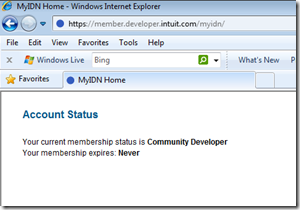
There is no menu or any other information to let you browse around the MyIDN Members site. If you look at the page source everything is there but it is just not rendering in a browser.
So for anyone that needs to download the QuickBooks SDK here is how I did it:
From the source of the MyIDN home page (the one pictured above) I found the url to the Technical Resources page:

https://member.developer.intuit.com/MyIDN/technical_resources/default.aspx?id=1952
This is probably the most important page since it will let you get to all of the SDKs and the other Technical Resources.

Second down on this page is the Intuit QuickBooks Software Development Kit (QB SDK) which will lead you to the QuickBooks SDK Information page:
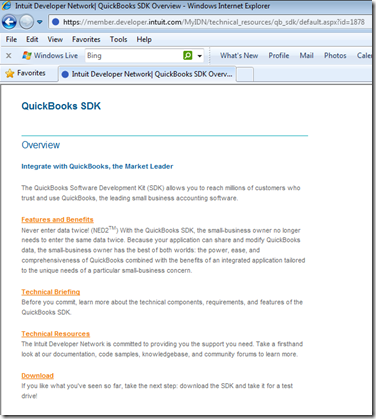
Clicking on the Download link at the bottom will get you to where you can download the QuickBooks SDK Version 8.0 (or the previous versions too).
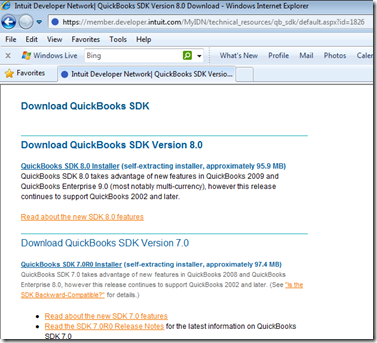
And finally for those who just want the QuickBooks SDK Installer here is the direct link:
QuickBooks SDK 8.0 Installer (self-extracting installer, approximately 95.9 MB)
Technorati Tags: QuickBooks SDK 8.0 Installer -
How to programmatically connect to QuickBooks Online Edition (QBOE)
Here are all the steps to connect to QuickBooks Online Edition (QBOE) and retrieve some data. Special thanks to Keith Palmer for his comments, answers, and his Consolibyte Solutions Website which really helped me get this working. Originally posted on StackOverflow: Connecting an ASP.NET application to QuickBooks Online Edition.
- Register your application at http://appreg.quickbooks.com. This will give you your App ID and Application Name. Use these settings:
- Target Application: QBOE
- Environment: Production
- Application Type: Desktop
- (using Desktop made things much easier as far as not needing certificates)
- A verification key will be sent to your email address which you need to enter on page 2 of this wizard.
- Set up your QBOE Connection. Once you finish registering your application in Step 1, you will then have an Application ID. Use this ID in the url below to set up your QBOE Connection:
- https://login.quickbooks.com/j/qbn/sdkapp/confirm?serviceid=2004&appid=APP_ID
- NOTE: Make sure to replace APP_ID in the above url with the Application ID that was created when you registered your application.
- The wizard will take you through the following steps:
- Specifying a name for your connection.
- Granting Access Rights - I gave All Accounting rights since this was easiest.
- Specify Login Security - I turned Login Security Off. This is important since it makes submitting the xml to the QBOE much easier since you do not need to get a session ticket for each user.
- You will then be given a Connection Key.
- At this point you now have the 3 important pieces of information in order to gain access to your QuickBooks Online Edition (QBOE) account.
- Application Name
- Application ID
- Connection Key
- Post the XML to QBOE with the 3 pieces of access information and the actual request into your QBOE database. Here is sample c# code that will post to the QBOE gateway. This will return all customers in your QuickBooks database. Make sure to update the xml below with your Application Name, Application ID, and Connection Key.
string requestUrl = null;
requestUrl = "https://apps.quickbooks.com/j/AppGateway";HttpWebRequest WebRequestObject = null;
StreamReader sr = null;
HttpWebResponse WebResponseObject = null;
StreamWriter swr = null;try
{
WebRequestObject = (HttpWebRequest)WebRequest.Create(requestUrl);
WebRequestObject.Method = "POST";
WebRequestObject.ContentType = "application/x-qbxml";
WebRequestObject.AllowAutoRedirect = false;
string post = @"<?xml version=""1.0"" encoding=""utf-8"" ?>
<?qbxml version=""6.0""?>
<QBXML>
<SignonMsgsRq>
<SignonDesktopRq>
<ClientDateTime>%%CLIENT_DATE_TIME%%</ClientDateTime>
<ApplicationLogin>APPLICATION_LOGIN</ApplicationLogin>
<ConnectionTicket>CONNECTION_TICKET</ConnectionTicket>
<Language>English</Language>
<AppID>APP_ID</AppID>
<AppVer>1</AppVer>
</SignonDesktopRq>
</SignonMsgsRq>
<QBXMLMsgsRq onError=""continueOnError"">
<CustomerQueryRq requestID=""2"" />
</QBXMLMsgsRq>
</QBXML>";post = post.Replace("%%CLIENT_DATE_TIME%%", DateTime.Now.ToString("yyyy-MM-ddTHH:mm:ss"));
XmlDocument xmlDoc = new XmlDocument();
xmlDoc.LoadXml(post);
post = xmlDoc.InnerXml;
WebRequestObject.ContentLength = post.Length;
swr = new StreamWriter(WebRequestObject.GetRequestStream());
swr.Write(post);
swr.Close();
WebResponseObject = (HttpWebResponse)WebRequestObject.GetResponse();
sr = new StreamReader(WebResponseObject.GetResponseStream());
string Results = sr.ReadToEnd();
}
finally
{
try
{
sr.Close();
}
catch
{
}try
{
WebResponseObject.Close();
WebRequestObject.Abort();
}
catch
{
}
}- Couple things to note:
- The qbxml version needs to be 6.0 (even though the IDN Unified On-Screen Reference shows 7.0).
- The onError="continueOnError" attribute is required.
- Setting the WebRequestObject.ContentLength property is required.
- Content Type needs to be "application/x-qbxml".
- And finally I received many "The remote server returned an error: (400) Bad Request." exceptions which were not helpful at all but in the end I was able to trace them to something wrong with the xml. So if you get this exception look to your xml as the source of the problem.
Technorati Tags: QuickBooks Online Edition (QBOE) -
Posting a deposit to QuickBooks Online Edition (QBOE)
When doing QuickBooks Online Edition (QBOE) development requests, you can do many tasks through the QuickBooks Online website that you cannot do through the QuickBooks SDK. Recently I ran into another one when trying to automatically insert a Deposit into a QBOE database. The DepositAddRq method is only supported in the standard QuickBooks US edition. This is the Intuit Developer Network Unified Onscreen Reference for the DepositAdd method:

Notice the US Flag icon in the implementation column. When working with QBOE you want to see the
 (online) icon.
This is the IDN Onscreen Reference for the JournalEntryAdd method:

Notice both the US and Online editions are both supported. And this is how we worked around not having the DepositAdd method available for our QBOE database. We just made a Journal Entry instead.
Just so you know you can also filter the IDN Onscreen Reference by the QuickBooks Edition. If you uncheck the “US” checkbox then only the methods that are available to QBOE are shown. This is nice way to filter the onscreen reference.
 Technorati Tags: QuickBooks,QuickBooks Online Edition (QBOE)