Contents tagged with SQL Server Management Studio
-
Lock request time out period exceeded
I was trying to drop a foreign key for a table I was working on and I ran into a time out exception from SQL Server Management Studio:
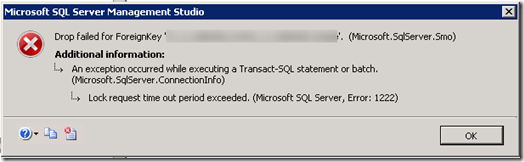
TITLE: Microsoft SQL Server Management Studio
------------------------------
Drop failed for ForeignKey 'fk_MyForeignKey'. (Microsoft.SqlServer.Smo)
------------------------------
ADDITIONAL INFORMATION:
An exception occurred while executing a Transact-SQL statement or batch. (Microsoft.SqlServer.ConnectionInfo)
------------------------------
Lock request time out period exceeded. (Microsoft SQL Server, Error: 1222)
------------------------------
BUTTONS: OK
------------------------------I also tried dropping the foreign key manually using:
ALTER TABLE MyTable DROP CONSTRAINT fk_MyForeignKey
But this time the query was just sitting there running and running. I let it run for some time and then when I checked the currently executing requests I found it was sitting in a suspended state. What was interesting about the request was that the wait_time equaled the total_elapsed_time, so it was just waiting there for something else before proceeding.
This is the sql query I used to see the currently executing requests (one of which was mine):
SELECT r.session_id, r.status, r.start_time, r.command, s.text,
r.wait_time, r.cpu_time, r.total_elapsed_time, r.reads, r.writes, r.logical_reads, r.transaction_isolation_level
,r.*
FROM sys.dm_exec_requests r
CROSS APPLY sys.dm_exec_sql_text(r.sql_handle) sAnd this in the particular row in question that made me realize my query was waiting on something else:

Now I needed to find out what is blocking my Alter Table command from running. For that I used a query I found on this blog post Error 1222 Lock Request Time Out Period Exceeded When Set up Replication by Andrew Chen:
select distinct object_name(a.rsc_objid), a.req_spid, b.loginame
from master.dbo.syslockinfo a (nolock) join
master.dbo.sysprocesses b (nolock) on a.req_spid=b.spid
where object_name(a.rsc_objid) is not nullI found that another SPID from SQL Server Management Studio was holding onto the table I was trying to alter. Using sp_who2 with the SPID showed me the owner and where it was coming from, and also that it had been holding onto the table for 2 hours... and guess what!?! It was me!

I had been looking at the execution plan and client statistics of a query that I was performance tuning and that SQL Server Management window had a hold of the table I was trying to Alter. As soon as I closed that window (and canceled that transaction) then I could drop the foreign key without a problem.
Hopefully this will help someone else in the future!
-
Cannot connect to SQL Azure Database
When connecting to a SQL Azure Database using SQL Server Enterprise Manager you will get a “Cannot connect” error if you have not configured the SQL Azure firewall to let your IP address through.

To configure the firewall, log into the Windows Azure portal at http://windows.azure.com and then select the SQL Azure tab on the left navigation:

And then choose the project you are connecting to. This will bring you to the Server Administration panel where you can select the Firewall Settings tab.

Click the Add Rule button to add your IP address (or range) into the SQL Azure Firewall. A couple of minutes later you should be able to connect to your SQL Server Instance.
______________________________________________________________________
TITLE: Connect to Server
------------------------------
Cannot connect to XXXXXXX.database.windows.net.
------------------------------
ADDITIONAL INFORMATION:
Cannot open server 'XXXXXXX' requested by the login. Client with IP address 'XXX.XXX.XXX.XXX' is not allowed to access the server. To enable access, use the SQL Azure Portal or run sp_set_firewall_rule on the master database to create a firewall rule for this IP address or address range. It may take up to five minutes for this change to take effect.
Login failed for user 'XXXXXXX'. (Microsoft SQL Server, Error: 40615)
For help, click: http://go.microsoft.com/fwlink?ProdName=Microsoft+SQL+Server&EvtSrc=MSSQLServer&EvtID=40615&LinkId=20476 -
How to change SQL Server login default database through SQL Script
I am moving a SQL Server database from one drive to another by detaching and then reattaching. I detached the database, moved the mdf and ldf files, and then went to attach it and was presented with this dialog:

TITLE: Microsoft SQL Server Management Studio
Cannot show requested dialog.ADDITIONAL INFORMATION:
Parameter name: nColIndex
Actual value was -1. (Microsoft.SqlServer.GridControl)This is because my login had the default database set to the database that I just detached. This causes all sorts of errors with SQL Server Management Studio but none of them are particularly helpful, they pretty much just keep telling you “access denied” but not why or what to do.
This is the dialog you would get if you try to click on the properties for your login:

TITLE: Microsoft SQL Server Management Studio
Cannot show requested dialog.ADDITIONAL INFORMATION:
Cannot show requested dialog. (SqlMgmt)
Failed to retrieve data for this request. (Microsoft.SqlServer.Management.Sdk.Sfc)
For help, click: http://go.microsoft.com/fwlink?ProdName=Microsoft+SQL+Server&LinkId=20476Failed to connect to server. (Microsoft.SqlServer.ConnectionInfo)
Cannot open user default database. Login failed.
Login failed for user 'login'. (Microsoft SQL Server, Error: 4064)
For help, click: http://go.microsoft.com/fwlink?ProdName=Microsoft+SQL+Server&EvtSrc=MSSQLServer&EvtID=4064&LinkId=20476And then even if you close and open SQL Server Management Studio you will get this dialog:

TITLE: Microsoft SQL Server Management Studio
Failed to connect to server. (Microsoft.SqlServer.ConnectionInfo)ADDITIONAL INFORMATION:
Cannot open user default database. Login failed.
Login failed for user 'login'. (Microsoft SQL Server, Error: 4064)
For help, click: http://go.microsoft.com/fwlink?ProdName=Microsoft+SQL+Server&EvtSrc=MSSQLServer&EvtID=4064&LinkId=20476What you can do to fix this is to change your login’s default database through SQL Script:
ALTER LOGIN [DOMAIN\login]
WITH DEFAULT_DATABASE = masterThis will set the default database to your master database and then you will be able to log in and continue from there.
Technorati Tags: SQL Server,SQL Server Management Studio -
Machine Setup: How to enable Line Numbers in Visual Studio and SQL Server Management Studio
I like to have line numbers visible when working in both Visual Studio and SQL Server Management Studio. By default, line numbers are turned off in both environments. One of the first things I do when setting up a new development machine is to open Visual Studio and SQL Server Management Studio, enable line numbers, and then close both of them so that the setting is saved for the future.
In Microsoft Visual Studio, to enable line numbers open the Options dialog by going to Tools > Options…
Then expand the Text Editor node and then the All Languages node. Now you will see a Line Number checkbox under the Display section on the right-hand side. Check this box to display line numbers.
It is a nearly identical procedure to enable line numbers in Microsoft SQL Server Management Studio:
Tools > Options… > Text Editor > All Languages > Line Numbers checkbox Technorati Tags: Visual Studio,SQL Server Management Studio