Creating a Database Connection to a Remote SQL Server Database within Visual Web Developer
By Nannette Thacker
Step-by-step instructions for creating a database connection
to a remote SQL Server Database, using Visual Web Developer.
-
Go to the View menu item and select Database Explorer.
-
Depending on how you have your Visual Web Developer
interface setup, go to the Solution Explorer, and at the
bottom you will see a tab for Database Explorer. Click
that.

-
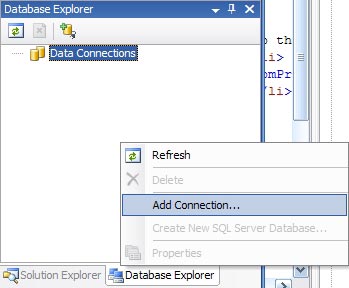
You will see the "Data Connections" available in the
Database Explorer. We currently have none displaying.
-
Right click in the Database Explorer area and select "Add
Connection..."
-
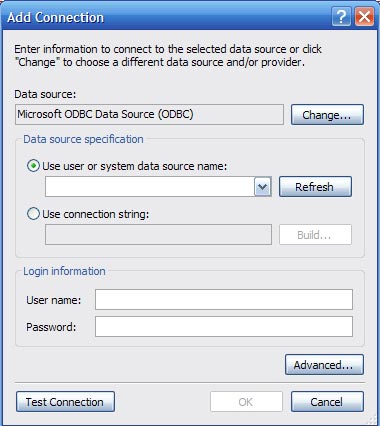
This will bring up the Add Connection dialog box. Select
the "Change" button.
-
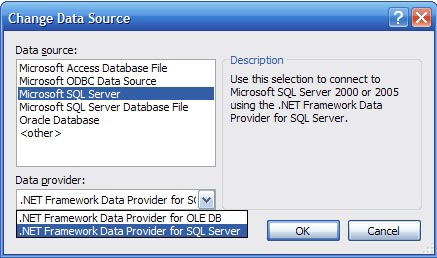
In our example, we are connecting to a SQL Server
database, so select the "Microsoft SQL Server" Data source
option as well as the ".NET Framework Data Provider for
SQL Server" Data provider.
-
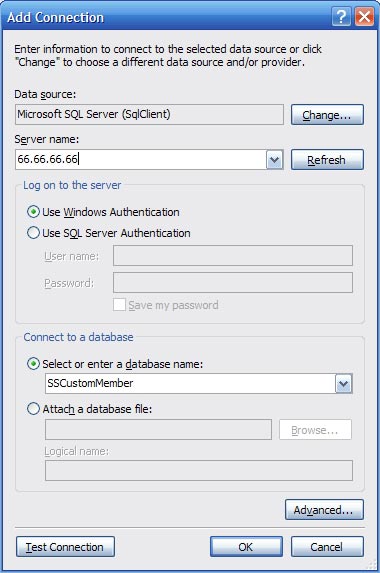
Select "OK" to return to the "Add Connection" dialog. Put
in the IP address or server name for your database. In our
case, we use Windows Authentication, but you may
optionally input a User Name and Password and select "Use
SQL Server Authentication." Use the drop down list to
"Connect to a database" and "Select or enter a database
name:" Select "Test Connection" to make sure you have it
setup properly. Then "OK."
-
Now you may use the Database Explorer tab to view your
tables and data.

Although you may create and alter a SQL Server
.mdf database within your project, Visual Web Developer
doesn't support opening a table definition or adding a new
table from your SQL Server 2000 database. But it does allow
"Show Table Data." It allows you to see the names of your
stored procedures, but not to edit or view their content,
just the properties. It is very limited, but you may wish to
have it just for those purposes.
If you don't
yet have the new Visual Studio, but do have Visual Interdev,
perhaps for use with your ASP Classic development sites, you
may utilize VI to manipulate your SQL Server databases
remotely.
May your dreams be in ASP.net!
Nannette
Thacker