Running ASP.NET Webforms and ASP.NET MVC side by side
One of the nice things about ASP.NET MVC and its older brother ASP.NET WebForms is that they are both built on top of the ASP.NET runtime environment. The advantage of this is that, you can still run them side by side even though MVC and WebForms are different frameworks.
Another point to note is that with the release of the
ASP.NET routing in .NET 3.5 SP1, we are able to create SEO
friendly URLs that do not map to specific files on disk. The
routing is part of the core runtime environment and
therefore can be used by both WebForms and MVC.
To run both frameworks side by side, we could easily
create a separate folder in your MVC project for all our
WebForm files and be good to go. What this post shows you
instead, is how to have an MVC application with WebForm
pages that both use a
common master page and
common routing for SEO friendly URLs.
A sample project that shows WebForms and MVC running
side by side is attached at the bottom of this post.
So why would we want to run WebForms and MVC in the same
project?
WebForms come with a lot of server controls that
provide a lot of rich functionality. One example is the
ReportViewer control. Using this control and client report
definition files (RDLC), we can create rich interactive
reports (with charting controls). I show you how to use the
ReportViewer control in a WebForm project here :
Creating an ASP.NET report using Visual Studio 2010. We can create even more advanced reports by using SQL
reporting services that can also be rendered by the
ReportViewer control.
Moving along, consider the sample MVC application I blogged
about titled :
ASP.NET MVC Paging/Sorting/Filtering using the MVCContrib
Grid and Pager. Assume you were given the requirement to add a UI to the
MVC application where users could interact with a report and
be given the option to export the report to Excel, PDF or
Word. How do you go about doing it?
This is a perfect scenario to use the ReportViewer
control and RDLCs. As you saw in the post on creating the
ASP.NET report, the ReportViewer control is a Web Control and is designed
to be run in a WebForm project with dependencies on, amongst
others, a ScriptManager control and the beloved
Viewstate.
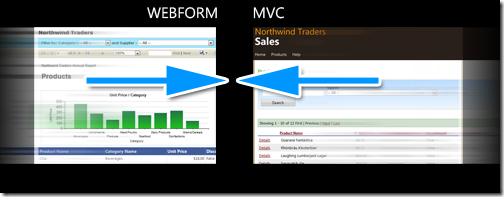
Since MVC and WebForm both run under the same runtime,
the easiest thing to is to add the WebForm application files
(index.aspx, rdlc, related class files) into our MVC
project. We will copy the files over from the WebForm
project into the MVC project.
Create a new folder in our MVC application called
CommonReports. Add the index.aspx and rdlc file from the
Webform project

Right click on the Index.aspx file and convert it
to a web application. This will add the
index.aspx.designer.cs file (this step is not required if
you are manually adding a WebForm aspx file into the MVC
project). 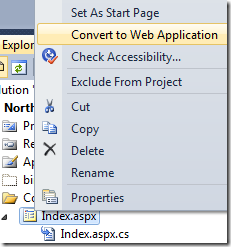
Verify that all the type names for the
ObjectDataSources in code behind to point to the correct
ProductRepository and fix any compiler errors. Right click
on Index.aspx and select “View in browser”. You should see a
screen like the one below:
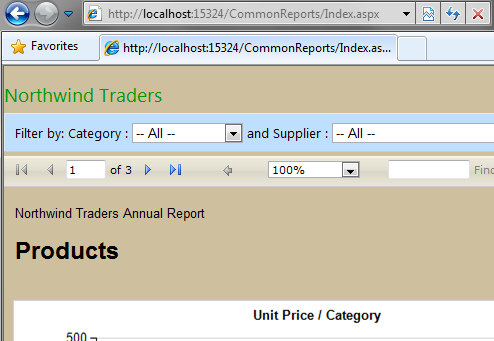
There are two issues with our page.
It does not use our site master page and the URL is not
SEO friendly.
Common Master Page
The easiest way to use master pages with both MVC and
WebForm pages is to have a common master page that each
inherits from as shown below.

The reason for this is most WebForm controls require
them to be inside a Form control and require ControlState or
ViewState. ViewMasterPages used in MVC, on the other hand,
are designed to be used with content pages that derive from
ViewPage with Viewstate turned off. By having a separate
master page for MVC and WebForm that inherit from the Root
master page,, we can set properties that are specific to
each. For example, in the Webform master, we can turn on
ViewState, add a form tag etc.
Another point worth noting is that if you set a
WebForm page to use a MVC site master page, you may run into
errors like the following:
A ViewMasterPage can be used only with content pages that
derive from ViewPage or ViewPage<TViewItem>
or
Control 'MainContent_MyButton' of type 'Button' must be
placed inside a form tag with runat=server.
Since the ViewMasterPage inherits from MasterPage as seen
below, we make our Root.master inherit from MasterPage,
MVC.master inherit from ViewMasterPage and Webform.master
inherits from MasterPage. 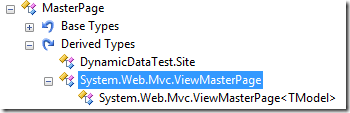
We define the attributes on the master pages like so:
-
Root.master
<%@ Master Inherits="System.Web.UI.MasterPage" … %> -
MVC.master
<%@ Master MasterPageFile="~/Views/Shared/Root.Master" Inherits="System.Web.Mvc.ViewMasterPage" … %> -
WebForm.master
<%@ Master MasterPageFile="~/Views/Shared/Root.Master" Inherits="NorthwindSales.Views.Shared.Webform" %>
Code behind:
public partial class Webform : System.Web.UI.MasterPage {}
We make changes to our reports aspx file to use the
Webform.master. See the source of the master pages in the
sample project for a better understanding of how they are
connected.
SEO friendly links
We want to create SEO friendly links that point to our
report. A request to /Reports/Products should render the
report located in ~/CommonReports/Products.aspx. Simillarly
to support future reports, a request to /Reports/Sales
should render a report in ~/CommonReports/Sales.aspx.
Lets start by renaming our index.aspx file to
Products.aspx to be consistent with our routing criteria
above.
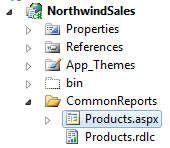
As mentioned earlier, since routing is part of the
core runtime environment, we ca easily create a custom route
for our reports by adding an entry in Global.asax.
public static void RegisterRoutes(RouteCollection routes)
{
routes.IgnoreRoute("{resource}.axd/{*pathInfo}");
//Custom route for reports
routes.MapPageRoute(
"ReportRoute", // Route name
"Reports/{reportname}", // URL
"~/CommonReports/{reportname}.aspx" // File
);
routes.MapRoute(
"Default", // Route name
"{controller}/{action}/{id}", // URL with parameters
new
{
controller = "Home",
action = "Index",
id = UrlParameter.Optional
} // Parameter defaults
);
}
With our custom route in place, a request to
Reports/Employees will render the page at
~/CommonReports/Employees.aspx. We make this custom route
the first entry since the routing system walks the table
from top to bottom, and the first route to match wins.
Note that it is highly recommended that you write unit
tests for your routes to ensure that the mappings you
defined are correct.
Common Menu Structure
The
master page in our original MVC project had a menu structure
like so:
<ul id="menu">
<li>
<%=Html.ActionLink("Home", "Index", "Home") %></li>
<li>
<%=Html.ActionLink("Products", "Index", "Products") %></li>
<li>
<%=Html.ActionLink("Help", "Help", "Home") %></li>
</ul>
We want this menu structure to be common to all pages/views
and hence should reside in Root.master. Unfortunately the
Html.ActionLink helpers will not work since Root.master
inherits from MasterPage which does not have the helper
methods available.
The quickest way to resolve this issue is to use
RouteUrl expressions. Using RouteUrl expressions, we can programmatically
generate URLs that are based on route definitions. By
specifying parameter values and a route name if required, we
get back a URL string that corresponds to a matching route.
We move our menu structure to Root.master and change
it to use RouteUrl expressions:
<ul id="menu">
<li>
<asp:HyperLink ID="hypHome" runat="server" NavigateUrl="<%$RouteUrl:routename=default,controller=home,action=index%>">Home</asp:HyperLink></li>
<li>
<asp:HyperLink ID="hypProducts" runat="server" NavigateUrl="<%$RouteUrl:routename=default,controller=products,action=index%>">Products</asp:HyperLink></li>
<li>
<asp:HyperLink ID="hypReport" runat="server" NavigateUrl="<%$RouteUrl:routename=ReportRoute,reportname=products%>">Product Report</asp:HyperLink></li>
<li>
<asp:HyperLink ID="hypHelp" runat="server" NavigateUrl="<%$RouteUrl:routename=default,controller=home,action=help%>">Help</asp:HyperLink></li>
</ul>
We are done adding the common navigation to our application.
The application now uses a common theme, routing and
navigation structure.
Conclusion
We have seen how to
do the following through this post
- Add a WebForm page from a WebForm project to an existing ASP.NET MVC application
- Use a common master page for both WebForm and MVC pages
- Use routing for SEO friendly links
-
Use a common menu structure for both WebForm and MVC.
The sample project is attached below.
Version: VS 2010 RTM
Remember to change your connection string to point to your
Northwind database
-