Adding an expression based image in a client report definition file (RDLC)
In previous posts, I showed you how to create a
report using Visual Studio 2010
and how to add a
hyperlink to the report.
In this post, I show you how to add an expression
based image to each row of the report. This is similar to
displaying a checkbox column for Boolean values. A sample
project is attached to the bottom of this post.
To start off, download the
project we created earlier from here. The report we created had a “Discontinued” column of
type Boolean. We are going to change it to display an
“available” icon or “unavailable” icon based on the
“Discontinued” row value.
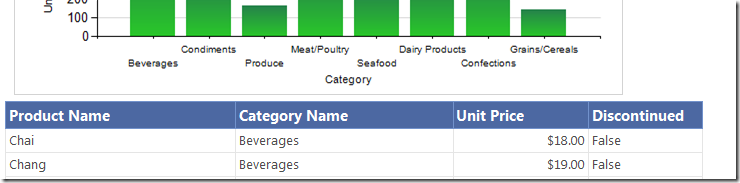
Load the project and double click on Products.rdlc.
With the report design surface active, you will see the
“Report Data” tool window. Right click on the Images folder
and select “Add Image..” 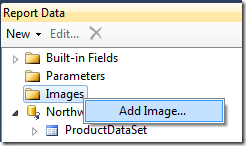
Add the available_icon.png and
discontinued_icon.png images (the sample project at the end
of this post has the icon png files)
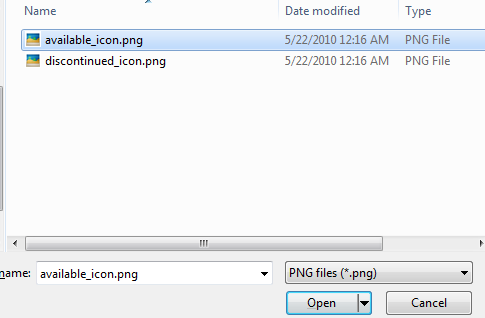
You can see the images we added in the “Report
Data” tool window. 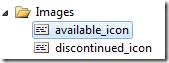
Drag and drop the available_icon into the
“Discontinued” column row (not the header) 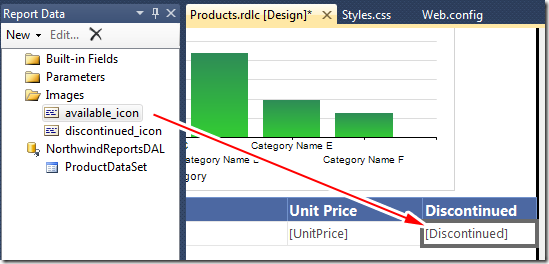
We get a dialog box which allows us to set the image
properties.
We will add an expression that specifies
the image to display based the “Discontinued” value from the
Product table. Click on the expression (fx) button.
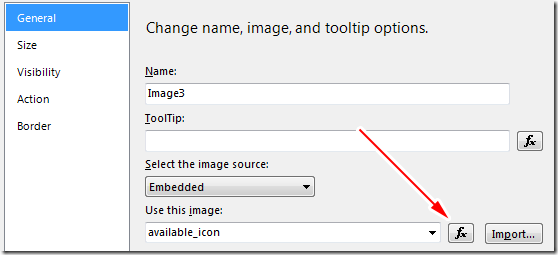
Add the following expression :
= IIf(Fields!Discontinued.Value = True,
“discontinued_icon”, “available_icon”)

Save and exit all dialog boxes.
In the
report design surface, resize the column header and change
the text from “Discontinued” to “In Production”. 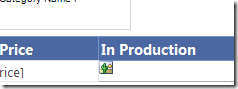
Change Display to “Original size”
(Optional) Right
click on the image cell (not header) , go to “Image
Properties..” and offset it by 5pt from the left.

(Optional) Change the border color since it is not set
by default for image columns. 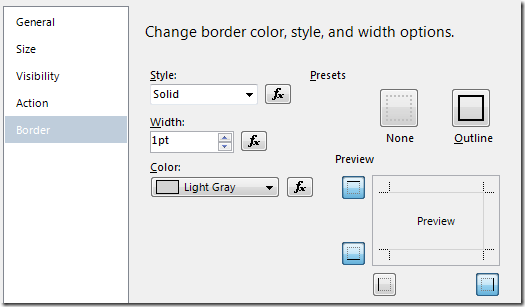
We are done adding our image column!
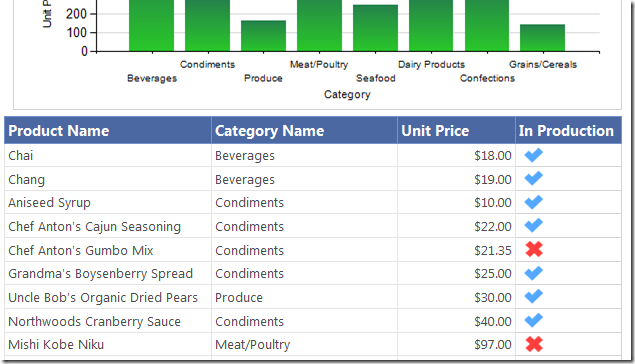
Compile the application and run it. You will see that
the “In Production” column has red ‘x’ icons for
discontinued products.
Download the VS 2010 sample project
Other Posts
- Adding a hyperlink in a client report definition file (RDLC)
- Rendering an RDLC directly to the Response stream in ASP.NET MVC
- ASP.NET MVC Paging/Sorting/Filtering using the MVCContrib Grid and Pager
- Localization in ASP.NET MVC 2 using ModelMetadata
- Setting up Visual Studio 2010 to step into Microsoft .NET Source Code
- Running ASP.NET Webforms and ASP.NET MVC side by side
-
Pre-filtering and shaping OData feeds using WCF Data
Services and the Entity Framework