Adding a hyperlink in a client report definition file (RDLC)
This post shows you how to add a hyperlink to your RDLC
report. In a
previous post, I showed you how to create an RDLC report.
We have been given the requirement to the report
we created earlier, the Northwind Product report, to add a column that will
contain hyperlinks which are unique per row. The URLs will
be RESTful with the ProductID at the end.
Clicking on the URL will take them to a website like
so:
http://localhost/products/3 where 3 is the primary key of the product row clicked on.
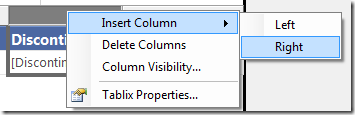
To start off, open the RDLC and add a new column to
the product table.
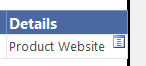
Add text to the header (Details) and row (Product
Website).
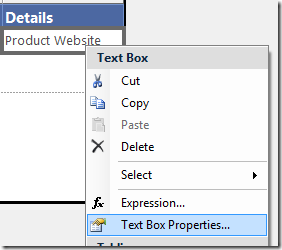
Right click on the row (not header) and select
“TextBox properties”
Select Action – Go to URL. You could hard code a URL
here but what we need is a URL that changes based on the
ProductID.
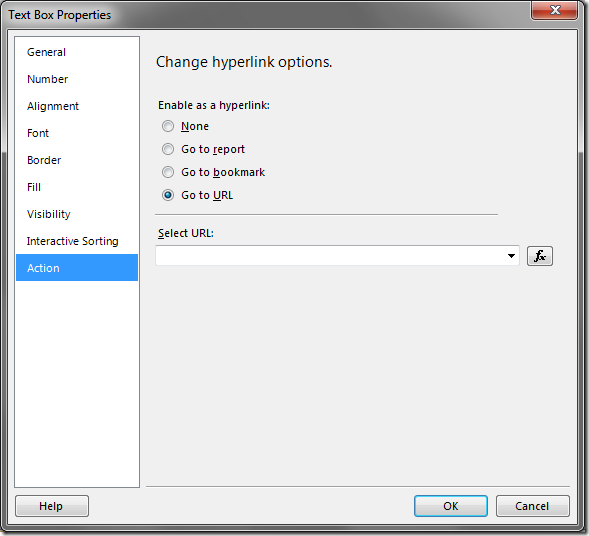
Click on the expression button (fx)
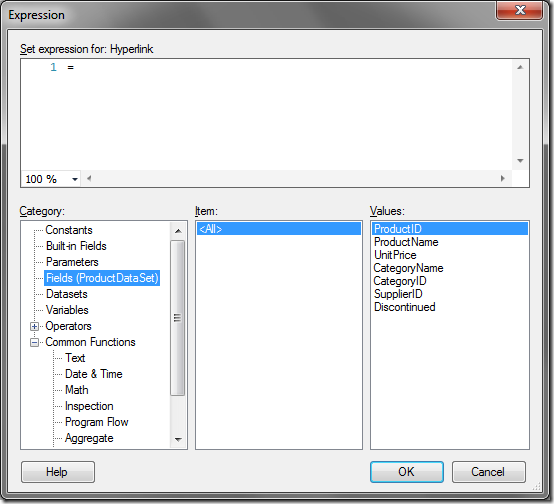
The expression builder gives you access to several
functions and constants including the fields in your
dataset. See this reference for more details:
Common Expressions for ReportViewer Reports.
Add the following expression:
= "http://localhost/products/" & Fields!ProductID.Value
Click OK to exit the Expression Builder.
The report will not render because hyperlinks are
disabled by default in the ReportViewer control. To enable
it, add the following in your page load event (where
rvProducts is the ID of your ReportViewerControl):
protected void Page_Load(object sender, EventArgs e)
{
if (!IsPostBack)
{
rvProducts.LocalReport.EnableHyperlinks = true;
}
}
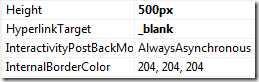
We want our links to open in a new window so set the
HyperLinkTarget property of the ReportViewer control to
“_blank”
We are done adding hyperlinks to our report.
Clicking on the links for each product pops open a new
windows. The URL has the ProductID added at the end.

Enjoy!