Windows Vista for Developers – Part 2 – Task Dialogs in Depth
Just as
Aero wizards
enable a better user experience compared to traditional
wizards, so task dialogs enable a better user experience
compared to the age-old message box. Task dialogs however
offer so much more than the lowly message box ever did with
a long list of features and customizability. Along with all
this power comes a certain degree of complexity. In part 2
of the
Windows Vista for Developers
series, I will show you how to use the task dialog API
effectively to build all manner of dialog boxes simply and
easily using native C++. If you are in a hurry, you can skip
to the end of this article where you can find a download
with the source code for a complete C++ wrapper for the task
dialog API.
An internal C++ class called
CTaskDialog hidden
inside the
comctl32.dll library
takes care of implementing all the functionality provided by
task dialogs. The
TaskDialog and
TaskDialogIndirect functions exported by
comctl32.dll call it
on your behalf. The
TaskDialog function
is just a simpler version of
TaskDialogIndirect providing much less functionality while being a little
simpler to use. Since neither is very useable directly, this
article focuses on
TaskDialogIndirect and then demonstrates how a little help from C++ can make
it quite simple to use.
The following code creates a minimal task dialog:
TASKDIALOGCONFIG
config = { sizeof (TASKDIALOGCONFIG) };
int
selectedButtonId = 0;
int selectedRadioButtonId =
0;
BOOL verificationChecked = FALSE;
HRESULT
result = ::TaskDialogIndirect(&config,
&selectedButtonId,
&selectedRadioButtonId,
&verificationChecked);
The
TASKDIALOGCONFIG structure provides a host of fields and flags that you can
populate as well as a callback function you can provide to
respond to events raised by the task dialog:
struct TASKDIALOGCONFIG
{
UINT cbSize;
HWND hwndParent;
HINSTANCE hInstance;
TASKDIALOG_FLAGS dwFlags;
TASKDIALOG_COMMON_BUTTON_FLAGS dwCommonButtons;
PCWSTR pszWindowTitle;
union
{
HICON hMainIcon;
PCWSTR pszMainIcon;
};
PCWSTR pszMainInstruction;
PCWSTR
pszContent;
UINT cButtons;
const
TASKDIALOG_BUTTON* pButtons;
int
nDefaultButton;
UINT cRadioButtons;
const TASKDIALOG_BUTTON* pRadioButtons;
int
nDefaultRadioButton;
PCWSTR
pszVerificationText;
PCWSTR
pszExpandedInformation;
PCWSTR
pszExpandedControlText;
PCWSTR
pszCollapsedControlText;
union
{
HICON hFooterIcon;
PCWSTR pszFooterIcon;
};
PCWSTR pszFooter;
PFTASKDIALOGCALLBACK pfCallback;
LONG_PTR
lpCallbackData;
UINT cxWidth;
};
As you can imagine, populating this structure just
right can be a challenge and the room for error is
significant. Although many of the fields can be zeroed-out,
the following fields generally need to be set in order to
get expected behavior:
The
cbSize field
specifies the size of the structure at compile-time and is a
common technique used to version data structures in C. It
lets the operating system know which version of the
structure the application was compiled against and thus can
make certain assumptions about the fields and functionality
that the application expects.
The
hwndParent field
stores a handle to the parent window. This allows the
resulting dialog to behave as a modal window and optionally
lets you position the window relative to the parent.
The
hInstance field is
useful for C++ developers as it allows you to specify
strings and icon resources using their identifiers from your
resource file instead of having to manually load or create
them in your code.
The
dwFlags field stores
various flags allowing to you control the behavior and
appearance of the dialog box. Subsequent sections in this
article will explore the various flags as appropriate.
Text Captions
The
TASKDIALOGCONFIG structure provides the following fields for setting the
various text captions on a task dialog:
pszWindowTitle
pszMainInstruction
pszContent
pszVerificationText
pszExpandedInformation
pszExpandedControlText
pszCollapsedControlText
pszFooter
All of these fields can be initialized either with a
pointer to a string or with a resource identifier created
using the
MAKEINTRESOURCE macro. In addition to these, you can also set the captions
for custom buttons but we will deal with that in the next
section.
The following window clipping
illustrates the various text captions: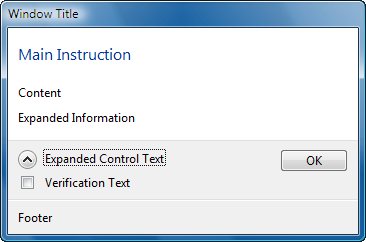
The “window title” can be specified with the
pszWindowTitle field
before the dialog is created. Once created, you can update
the caption using the regular
SetWindowText function.
The “main instruction” can be
specified with the
pszMainInstruction field before the dialog is created. Once created, you must
use the
TDM_SET_ELEMENT_TEXT message to update the text. Set
WPARAM to
TDE_MAIN_INSTRUCTION and LPARAM to either
a pointer to a string or a resource identifier created using
the
MAKEINTRESOURCE macro. The same approach is used for the “content”,
“verification text”, “expanded information” and “footer”
text captions just by passing different values for
WPARAM to identify
the control whose text needs to be updated.
The
“expanded control text” and “collapsed control text” can
only be specified prior to creating the dialog with the
pszExpandedControlText and
pszCollapsedControlText fields respectively. Build 5456 of Windows Vista also
includes a bug in the control that expands and collapses the
expanded information. If the control loses focus, the text
reverts to the value specified for the collapsed state.
Setting the text captions can be a challenge
depending on where the text comes from and when you wish to
set it. Later in this article, we look at how C++ can be
used to simplify this dramatically.
Buttons
Task dialogs support any combination of common
as well as custom buttons. The following common buttons are
currently defined:
TDCBF_OK_BUTTON (IDOK)
TDCBF_YES_BUTTON (IDYES)
TDCBF_NO_BUTTON
(IDNO)
TDCBF_CANCEL_BUTTON (IDCANCEL)
TDCBF_RETRY_BUTTON
(IDRETRY)
TDCBF_CLOSE_BUTTON (IDCLOSE)
You can specify any combination of these button flags
for the
dwCommonButtons field. The constants in brackets indicate the button
identifier used to identify the button when a particular
button is clicked.
The
Common Buttons Sample
in the download that you can find at the end of this article
demonstrates the common buttons at work:
One thing that you cannot do directly with
common buttons is reorder them or change their captions. For
complete control over the buttons, you can provide an array
of
TASKDIALOG_BUTTON
structures. Here is a simple example specifying two custom
buttons:
TASKDIALOGCONFIG config = { sizeof (TASKDIALOGCONFIG)
};
TASKDIALOG_BUTTON buttons[] =
{
{ 101, L"First Button" },
{ 102, L"Second
Button" }
};
config.pButtons = buttons;
config.cButtons
= _countof(buttons);
You can also use the
MAKEINTRESOURCE macro
to specify a resource identifier for a string in your string
table for use by the buttons.
In addition to
buttons, task dialogs can also host a set of radio buttons.
These are also described using an array of
TASKDIALOG_BUTTON
structures:
TASKDIALOG_BUTTON radioButtons[] =
{
{ 201,
L"First Radio Button" },
{ 202, L"Second Radio
Button" }
};
config.pRadioButtons =
radioButtons;
config.cRadioButtons =
_countof(radioButtons);
Here are the results for the code above:
You can also specify the
TDF_USE_COMMAND_LINKS
flag to display the custom buttons as command links instead.
Use the
TDF_USE_COMMAND_LINKS_NO_ICON
flag if you do not wish to see the icons next to the
captions.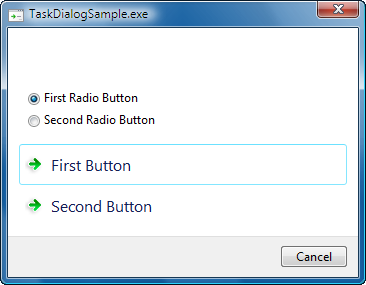
As you can see, these flags only affect
custom buttons. Any common buttons you specify will still be
displayed as regular buttons.
You can also
display the infamous User Account Control shield next to
your button caption by sending the
TDM_SET_BUTTON_ELEVATION_REQUIRED_STATE
message to the window. The
WPARAM specifies the
button identifier and the
LPARAM specifies a
BOOL indicating
whether to display or hide the shield. 
This works whether or not your custom buttons
are command links or regular buttons. Incidentally, it also
works for common buttons like OK and Cancel although it
would not in general provide for a good user experience to
require an elevation of permissions for such a button.
Icons
Task dialogs can optionally display a “main”
icon as well as a “footer” icon. The main icon appears next
to the main instruction text and optionally in the title bar
if the
TDF_CAN_BE_MINIMIZED flag is specified. The footer icon is display next to the
footer text if present.
Specifying the icons can be tricky. The
pszMainIcon field can
be used to specify an icon resource identifier using the
MAKEINTRESOURCE macro
before the dialog is created. If you use this approach, make
sure the
TDF_USE_HICON_MAIN
flag is not set. Alternatively, you can specify an icon
handle in the
hMainIcon field and
in this case, you need to ensure that
the TDF_USE_HICON_MAIN
flag is specified.
The footer icon works in the
same way. The
pszFooterIcon field
can be used to specify an icon resource identifier before
the dialog is created. Alternatively, you can specify an
icon handle in the
hFooterIcon field.
For the footer icon, you indicate your preference to use a
handle with the
TDF_USE_HICON_FOOTER
flag.
After the dialog is created, you can send
the
TDM_UPDATE_ICON message to update the icons. Set the
WPARAM to
TDIE_ICON_MAIN to
update the main icon and
TDIE_ICON_FOOTER to
update the footer icon. The
LPARAM is set to
either an icon resource identifier or an icon handle
depending on whether you specified the
TDF_USE_HICON_MAIN or
TDF_USE_HICON_FOOTER
flags respectively at creation time.
As with the
text captions, getting all this right can be challenging and
the C++ solution presented a little later in this article
will also simplify this considerably.
Progress Bar
One of the notable features of a task dialog is
that it offers a progress bar. Simply specify the
TDF_SHOW_PROGRESS_BAR
flag and your task dialog will include a progress bar. If
you would like the progress bar to appear as a marquee then
use the
TDF_SHOW_MARQUEE_PROGRESS_BAR
flag instead. You can also switch between a regular progress
bar and a marquee progress bar after the dialog is created
using the
TDM_SET_PROGRESS_BAR_MARQUEE
message. Set
WPARAM to
TRUE to display a
marquee progress bar or
FALSE to display a
regular progress bar. The
LPARAM controls the
delay used by the marquee animation and is specified in
milliseconds.
You can specify the range for the
progress bar using the
TDM_SET_PROGRESS_BAR_RANGE
message. The
LPARAM specifies both
values with the loword indicating the minimum range and the
hiword specifying the maximum range. The
TDM_SET_PROGRESS_BAR_POS
message sets the position of the progress bar within the
range. The
WPARAM specifies the
position value.
You can also change the state of
the progress bar with the
TDM_SET_PROGRESS_BAR_STATE message. The
WPARAM can specify
either PBST_NORMAL,
PBST_PAUSED, or
PBST_ERROR.
The Progress Sample and
Progress Effects Sample in the download for
this article demonstrate all the progress bar
functionality.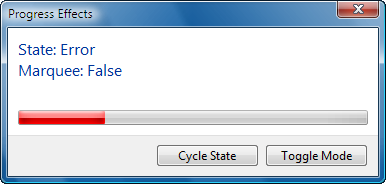
Notifications
Task dialogs provide a number of notifications
to allow you to add behavior and respond to events that may
occur. These notifications are relayed through a callback
function that you can specify through the
pfCallback field. The callback function is
prototyped as follows:
HRESULT __stdcall Callback(HWND handle,
UINT notification,
WPARAM wParam,
LPARAM lParam,
LONG_PTR data);
The prototype is misleading however since none of the
messages return an HRESULT. The only
messages that return anything at all return a Boolean value
of TRUE or FALSE. I expect
this to be cleaned up before the release. The handle
parameter provides the handle for the task dialog window
that you can then store for use at any time until the
TDN_DESTROYED notification arrives. The
data parameter provides the pointer that you specified in
the lpCallbackData field. This is typically
used to pass a pointer to a C++ window object to the static
callback function. Let us now look at the various
notifications.
TDN_DIALOG_CONSTRUCTED
is the first notification to arrive. Along with providing
the task dialog’s window handle, it signals that the dialog
is created and about to be displayed. At this point, you can
send any messages that you might need to modify the
appearance of the dialog before it is displayed. This
notification is followed by the
TDN_CREATED notification but you do not
usually need to worry about the latter unless you need to
perform some window-specific initialization. Both
notifications are equally valid for performing
initialization although TDN_CREATED is not
provided when a page navigation occurs whereas
TDN_DIALOG_CONSTRUCTED is provided in
either case. Navigations are discussed in the next
section.
The
TDN_BUTTON_CLICKED notification indicates
unsurprisingly that a button has been clicked. This includes
the common buttons as well as custom buttons. This
notification is also used if the dialog box is cancelled by
clicking the X in the top-right corner or by hitting the
Escape key although this functionality is only provided if
the TDF_ALLOW_DIALOG_CANCELLATION flag was
provided prior to creation. The
WPARAM indicates the button identifier
indicating which button was clicked. Earlier in this
article, I discussed buttons and button identifiers. To
close the dialog the callback for this notification should
return FALSE. To prevent the dialog from
closing return TRUE.
The
TDN_RADIO_BUTTON_CLICKED notification
indicates that one of the radio buttons has been clicked.
The WPARAM indicates the radio button
identifier indicating which radio button was clicked. The
return value from the callback for this notification is
ignored.
The
TDN_HELP notification indicates that the
user pressed the F1 (Help) key on the keyboard. Try to be
helpful.
The
TDN_VERIFICATION_CLICKED notification
indicates that the verification check box state has changed.
The WPARAM is FALSE if it
is unchecked or TRUE it is checked.
The
TDN_EXPANDO_BUTTON_CLICKED notification
indicates that the control to expand or collapse the
“expanded information” area has been clicked. The
WPARAM is FALSE if it is
collapsed or TRUE if it is expanded.
The
TDN_HYPERLINK_CLICKED notification
indicates that a hyperlink in one of the text fields in the
task dialog has been clicked. Hyperlinks are only supported
in the “content”, “expanded information” and “footer” text
captions and only if the
TDF_ENABLE_HYPERLINKS flag was specified.
Hyperlinks are defined using the HTML
A(nchor) element as follows:
<a href="uri">text</a>
Only double-quotes are supported so you will have to escape
them as necessary. The link can also appear within a larger
string. The value provided for the href attribute is
provided through the LPARAM and it is up to
you to do anything interesting with it such as opening a web
page. Task dialogs do not provide any default behavior and
wisely so. The MainWindow class in the download for this
article demonstrates hyperlinks.
The
TDN_TIMER notification provides a timer
that your dialog can use for a variety of things from
updating dialog controls to automatically closing the dialog
box after a certain period. Timer notifications are provided
roughly every 200 milliseconds if the
TDF_CALLBACK_TIMER flag was specified. The
Timer Sample in the download for this
article demonstrates the timer functionality at work:
Messages
Task
dialogs respond to a number of messages allowing you to
affect certain behavior as needed.
The
TDM_CLICK_BUTTON and
TDM_CLICK_RADIO_BUTTON messages simulate a
button and radio button click respectively. The
WPARAM specifies the button identifier and
the LPARAM is ignored.
The
TDM_CLICK_VERIFICATION message simulates a
click of the verification check box. The
WPARAM indicates whether it should be
checked (TRUE) or cleared
(FALSE). The
LPARAM indicates whether it should receive
the focus (TRUE) or not
(FALSE).
The
TDM_ENABLE_BUTTON and
TDM_ENABLE_RADIO_BUTTON messages enable or
disable a button and radio button respectively. The
WPARAM specifies the button identifier and
the LPARAM indicates whether it should be
enabled (TRUE) or disabled
(FALSE).
The last notification I
avoided mentioning in the previous section is
TDN_NAVIGATED, which as of this writing has
no documentation whatsoever. It is directly related to the
TDM_NAVIGATE_PAGE message so I thought I
would discuss it here. As it turns out, the
TDM_NAVIGATE_PAGE message is also without
documentation of any kind. After a few minutes in the
debugger stepping through the assembler (with OS symbols of
course), I was able to figure it out. These messages allow
you to transition, or navigate from one task dialog to
another, like a forward-only wizard. The “new” task dialog
effectively takes ownership of the previous dialog’s window
so a new window is not created for the new task dialog. Once
I tracked down the comctl32.dll code inside
the disassembler I figured out that the
TDM_NAVIGATE_PAGE message handler does not
read the WPARAM but expects the
LPARAM to specify a pointer to a
TASKDIALOGCONFIG structure describing the
appearance and behavior for the next task dialog to navigate
to. The TDN_NAVIGATED notification is then
relayed to the callback function for the new task dialog.
The Error Sample for this article
demonstrates this functionality.
C++ to the Rescue
Task dialogs certainly are powerful but that
power comes at the expense of usability. The task dialog C
API is complex despite the fact that only two functions are
exposed. To solve this problem I wrote the
TaskDialog C++ class to simplify the use of
task dialogs in native C++ code. The
TaskDialog class inherits from ATL’s
CWindow class and wraps most if not all of
the task dialog functionality, abstracting away much of the
complexity of preparing the
TASKDIALOGCONFIG structure, sending
messages and responding to notifications. All the samples in
the download for this article use my
TaskDialog class so you should have ample
examples to rely on.
Here is the source code for
one of the sample task dialogs included with the download
for this article:
class TimerDialog : public Kerr::TaskDialog
{
public:
TimerDialog() :
m_reset(false)
{
SetWindowTitle(L"Timer Sample");
SetMainInstruction(L"Time elapsed: 0 seconds");
AddButton(L"Reset", Button_Reset);
m_config.dwFlags |= TDF_ALLOW_DIALOG_CANCELLATION |
TDF_CALLBACK_TIMER;
}
private:
enum
{
Button_Reset = 101
};
virtual
void OnTimer(DWORD milliseconds,
bool&reset)
{
CString text;
text.Format(L"Time elapsed: %.2f seconds",
static_cast<double>(milliseconds) / 1000);
SetMainInstruction(text.GetString());
reset = m_reset;
m_reset = false;
}
virtual void OnButtonClicked(int
buttonId,
bool&closeDialog)
{
switch
(buttonId)
{
case
Button_Reset:
{
m_reset = true;
break;
}
case IDCANCEL:
{
closeDialog = true;
break;
}
default:
{
ASSERT(false);
}
}
}
bool m_reset;
};
As you can see, it provides a simple, object-oriented model
for programming task dialogs. You do not need to directly
populate the various structures or manage arrays of button
definitions. The TaskDialog base class
takes care of all the details. Methods are provided for
setting (and updating) the various text captions and icons.
Methods are also provided for adding buttons and sending
various messages. Finally, virtual methods are provided for
responding to notifications.
Using the task
dialog defined above could not be simpler:
TimerDialog dialog;
Dialog.DoModal();
Once the DoModal method returns, you can
use the GetSelectedButtonId,
GetSelectedRadioButtonId and
VerificiationChecked methods to retrieve
the various buttons selected by the user.
To give
you an idea of the complexity hidden by the
TaskDialog class, look at the
implementation of the
SetWindowTitle method:
void Kerr::TaskDialog::SetWindowTitle(ATL::_U_STRINGorID
text)
{
if (0 == m_hWnd)
{
m_config.pszWindowTitle = text.m_lpstr;
}
else if (IS_INTRESOURCE(text.m_lpstr))
{
CString string;
// Since we know that
text is actually a resource Id we can ignore the pointer
truncation warning.
#pragma warning(push)
#pragma warning(disable: 4311)
VERIFY(string.LoadString(m_config.hInstance,
reinterpret_cast<UINT>(text.m_lpstr)));
#pragma warning(pop)
VERIFY(SetWindowText(string));
}
else
{
VERIFY(SetWindowText(text.m_lpstr));
}
}
ATL’s _U_STRINGorID class is used to allow
you to easily specify either a string pointer or a resource
identifier. If the task dialog has not yet been created, the
internal TASKDIALOGCONFIG structure is
simply updated. Alternatively, the
SetWindowText function is used to update
the window title. In this way, the developer can call the
SetWindowTitle method at any point without
needing different code depending on when or with what data
the window title is to be populated.
Sample
Samples provided in the
download
for this article demonstrate virtually all of the features
described in this article.
Well this turned out to be quite a bit longer
than I had planned. The Windows Vista task dialog API just
provides so much functionality that I could not have done it
justice any other way. This is also the only complete
documentation for the task dialog that I am aware of. I hope
it will benefit many readers.
I was originally going to cover task dialogs in managed code but Daniel Moth has done an excellent job of covering task dialogs in C#. He has created a webcast which demonstrates a number of solutions for creating task dialogs among them the Task Dialog Designer from my MSDN Magazine article. I should just point out that the webcast incorrectly refers to the Kerr.Vista assembly as a COM DLL when in fact it is simply a .NET assembly written using C++/CLI.
Read part 3 now:
The Desktop Window Manager
© 2006 Kenny Kerr