Building Re-Usable ASP.NET User Control and Page Libraries with VS 2005
One of the questions I’ve been asked a few times
recently is whether it is still possible to build web
projects that encapsulate common libraries of .ascx web
user controls or .aspx pages with VS 2005 that can then
be easily re-used across multiple other web projects
(note: the quick answer is “yes").
This blog post walks-through how to easily accomplish
this with VS 2005, as well as some of the new features
you can take advantage of to make this scenario even
better than before.
Quick Scenario Overview
The scenario I’m going to use to illustrate building
re-usable page/control libraries in the below post is
one where a development team wants to build a re-usable
“ecommerce” web UI library that they can then re-use
across multiple web projects and applications (note: if
they are an ISV they will also want to be able to
package it up and sell it).
The developers building this ecommerce web UI library
want to provide two things:
1) Pre-built store-front UI pages (.aspx files) that
provide catalog listings, shopping cart management,
customer billing, and more. They want developers using the library to be able to
add a \storefront directory into their web project, copy
this library of pages into them, and have ecommerce
functionality incorporated within their application.
2) Pre-built strong-front UI user controls (.ascx
files) that enable scenarios like current sales, current
shopping cart items, and best selling product lists to
be easily added to pages
outside of
the \storefront directory. By encapsulating this functionality as user-controls,
they want developers using this user control library to
be able to easily add this functionality to any page on
their site.
One condition the developers have for this ecommerce UI
library is that
no code-behind or C#/VB source code
is shipped with the library. Instead, they want to be able to easily package it up
and deploy all code as compiled .dll assemblies.
For the purposes of the below walkthrough, I am going
to assume that the development team building this web UI
library wants to build-it as an isolated VS solution,
separate from any web projects that might be consuming
it (this seems to be the most common scenario I see when
I talk with customers). Note that you
could also
incorporate this library as part of a bigger solution
that also contains web projects consuming it.
Step 1: Define the Re-Usable Page/Control Web
Solution and Directory Structure
We want to cleanly encapsulate and maintain our
ecommerce library solution. To help with this I can use a straight-forward
directory structure and VS solution architecture.
Specifically, I’m going to define an “EcommerceUI”
directory underneath a “libraries” sub-directory in my
source tree. Contained within this will then be 4 sub-directories: a
“myclasslibraryproject” directory to encapsulate the
non-code-behind pieces of my library within a class
library project, a “mywebproject” directory to
encapsulate the web UI pieces of my library using a web
project, a “mytestproject” directory to encapsulate the
functionality testing of my library using a new VSTS
test project, and a “buildoutput” directory which I’ll
use to build and ultimately publish this library into
(more on this later). In addition to these sub-directories, I will define and
store a VS solution file called “EcommerceUI.sln”
underneath the root EccomerceUI library directory that
defines the solution structure and cross-project
relationships.
My resulting directory structure will look like
this:
C:\sources\libraries\EcommerceUI\
C:\sources\libraries\EcommerceUI\EcommerceUI.sln
C:\sources\libraries\EcommerceUI\myclasslibraryproject\
C:\sources\libraries\EcommerceUI\mywebproject\
C:\sources\libraries\EcommerceUI\mytestproject\
C:\sources\libraries\EcommerceUI\buildoutput\
Note that VS 2005 makes it much easier to manage and
store web projects outside of your inetpub and wwwroot
directories. This makes it possible to easily store web projects
side-by-side with companion projects as part of a
solution (like above). I can configure the above web project directory to run
using either the built-in VS file-system based
web-server or using IIS directly. For this particular solution, because I am not using
any sub-applications or vdirs, I am going to be using
the built-in VS 2005 web-server – which will avoid me
having to register anything with IIS.
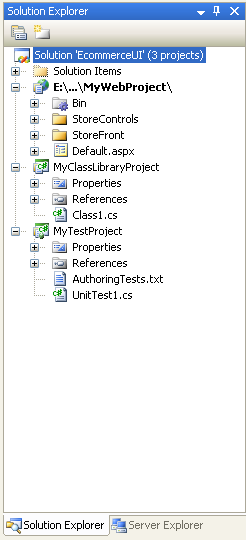
When I open up the solution defining the above projects
using VS 2005, I will see a corresponding solution
explorer view that looks like this:
One last note: I obviously don’t recommend calling
sub-directories “mywebproject” or
“myclasslibraryproject” – I’m using those names here
only to add clarity about what each directory does.
Step 2: Develop the
Re-Usable Page/Control Web Solution
Once the above library structure is in place, obviously
the next thing to-do is write the code and build
it. For the web
project, this typically involves building one or two
top-level directories to encapsulate the pages and
user-controls of the solution.
For our ecommerce solution I’m going to take the
approach of defining a top-level directory called
“storefront” that will encapsulate all of the content
for our re-usable web project library. Contained within the “storefront” directory will be the
.aspx pages that make up our pre-built page
functionality, as well as a “controls” sub-directory
that will contain all of the .ascx user controls for the
library.
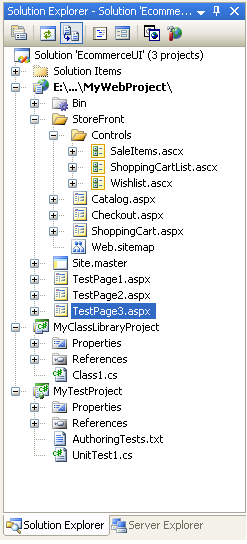
A couple of things to note in the above solution:
1) In addition to the /storefront sub-directory above,
I’ve added three test pages (testpage1.aspx,
testpage2.aspx, testpage3.aspx) in the root of the web
project. I can
use these for easily testing my library without having
to first deploy it inside another web application. I can also use these pages with the VSTS test project I
have in my solution to host and then perform Web UI
testing of the user-controls in the library (note: the
VSTS edition of Visual Studio now includes a built-in
web UI recorder that makes building ASP.NET UI unit
testing easy).
2) I have a “site.master” master page file defined in
the root directory. Master Pages are one of the big new features of
ASP.NET, and allow developers to define a common layout
across pages within their application. I can structure my EcommerceUI library pages
(underneath the /storefront directory) to use a
master-page defined outside of /storefront – which would
allow the web application that is taking advantage of
the EcommerceUI library to integrate it within their
overall web application look and feel
without
having to modify the .aspx pages contained within
/storefront. If
I wanted to I could even compile away the HTML within
these /storefront pages so that the application couldn’t
modify these – and was limited to only changing the
masterfile or using the new ASP.NET 2.0 themes feature
to integrate it within the site (this can make
versioning dramatically easier, and avoid messy
merge-hell scenarios when upgrading or deploying a new
version of the EccomerceUI library). Because Master Pages can be specified both
declaratively and programmatically, the EcommerceUI
library could optionally allow developers using the
library to configure the exact Master Page they should
use and then dynamically select this one at runtime.
3) I have a web.sitemap file defined
underneath
the /storefront directory. Web.sitemap files are used by the new ASP.NET 2.0 Site
Navigation system to define the logical scope and
structure of a site layout. Developers can then write code against the SiteMap API
to get access to this structure and figure out where a
visiting browser is within the site hierarchy at
runtime, and/or can use some of the new built-in ASP.NET
2.0 UI controls like the Menu, Treeview and Breadcrumb
Navigation controls to easily visualize it. One of the cool things about the built-in XML Site Map
Providers in ASP.NET 2.0 is that it allows you to
partition the site definition across multiple files
which can then be automatically merged into a single
sitemap at runtime. The web.sitemap file defined underneath the /storefront
directory above would then contain only the site
structure for the EcommerceUI library we are
defining. When
added to a web
application that had its own sitemap defined, the site
structure we defined would be merged into that, and can
show up in a menu defined on the Master Page of the
entire site – without us having to-do a lot of extra
work.
4) One of the goals we tried to accomplish in ASP.NET
V2.0 was to provide a much richer framework for building
web applications, and to build-in “building-block
application service APIs” that provide a common model
and framework for accomplishing core things like
Membership, Role Management, Profiles, Personalization,
Health Monitoring, etc. One of the nice things this provides is a consistent
way for components, controls and libraries to integrate
and work better together. For example: in our EcommerceUI example we could have
our library use the new ASP.NET 2.0 Membership, Role
Management, and Profile APIs – and as a result have our
/storefront section of the web app integrate nicely with
the rest of the application if they are using the same
APIs. Because
these APIs are pluggable via providers, it also means
that we don’t loose flexibility as a result (read http://weblogs.asp.net/scottgu/archive/2005/08/25/423703.aspx
for more on how providers work and how they can be
configured). The
end-result should be much richer code-reuse and
flexibility of libraries with ASP.NET 2.0.
So what can’t I do within this web project
library?
You can pretty much use all the same designers,
code-editors and features when building a re-usable web
project library that you can with a normal standalone
web application. Because you’ll be shipping and re-using the library
within other web applications, though, there are a
couple of things you’ll need to avoid:
-- Don’t define a global.asax file. You are only allowed one of these per-application in
ASP.NET, and so you don’t want to define one in your
re-usable library.
-- Don’t define classes under app_code or service
proxies under app_webservices. Like global.asax, there are one of these each per
application. Code-behind class files are obviously fine inside the
web project library and typically live next to their
.aspx/.ascx equivalents. Non-UI and business classes for the web project library
should be defined within a companion class library
project in the solution (for example: the
myclasslibraryproject above).
-- Be careful about what you require in your root
web.config file. If possible, define applicationsettings and other
configuration within the web.config file that lives
underneath sub-directories (like /storefront
above). This
will make re-using these web project libraries much
easier and avoid having to write a setup program that
does custom merge semantics.
Step 3: Building and Deploying the
Re-Usable Page/Control Web Solution
Once you’ve built and tested your web project library,
it is time to build and deploy it for re-use in other
web projects. There are a lot of new compilation and deployment
options introduced by ASP.NET 2.0 and VS 2005. In particular, there are two big new decisions that
developers can now make:
Decision #1) Whether to preserve the HTML + Server
Control markup when deploying a web project (which is
what VS 2003 does today), or whether this should be
removed as part of the compilation process and compiled
directly into the generated \bin assemblies. The benefit with the first approach (preserving the
html) is that it allows later modification of the markup
without having to re-build the project (hence the reason
we call this the “updatable” build option in dialogs
you’ll see below). The benefit with the later approach (compiling the
mark-up out) is that it allows ASP.NET to avoid having
to ever parse and compile the .aspx file at runtime –
which can dramatically improve the
first-load/first-request performance of the
application. It
also allows ISVs to better protect their intellectual
property and hide their HTML and server control
definitions.
Decision #2) How granular the deployed assemblies
should be. Specifically, VS 2005 + ASP.NET 2.0 now by default
compiles your web project so that each separate
directory of .aspx/.ascx content compiles into a
separate assembly. For even more flexibility, you can also optionally
choose to compile each .aspx or .ascx file into its own
separate assembly (this option is called the “fixed
name” option because it also results in assemblies whose
names are fixed across multiple compilations). The benefit with this later approach is that you can
now deploy individual updates on your system without
having to re-build and update your entire site. It can also sometimes make deploying web project
libraries much easier – because it allows you to copy
and deploy just those .ascx user controls and associated
assemblies that you want out of the web project, without
having to grab everything.
Note: one request we’ve heard from several people since
Beta2 has been to provide a new third compilation
granularity option above which would allow you to merge
the assembly output from multiple directories into a
single assembly that has a well known name that you
define (and which does not change across re-builds –
which is one unfortunate side-affect of the
per-directory build option today). We are working on a tool right now that does this, and
have a prototype up and running that seems to work
great. I’ll
provide more details on this over the next week or two
once we confirm that it fully works for all
scenarios.
There are two ways I can easily build and deploy my
solution: a) from within the VS IDE, or b) from the
command-line using MSBuild.
Building and Deploying the Web Project Library from
the VS IDE
To build and publish/deploy my web library solution
within the Visual Studio IDE, I can go to the “Build”
menu and select the “Publish Web Site” option. This will bring up the “Publish Web Site” build dialog
which provides me with the various
deployment/compilation options on how to build the
site:
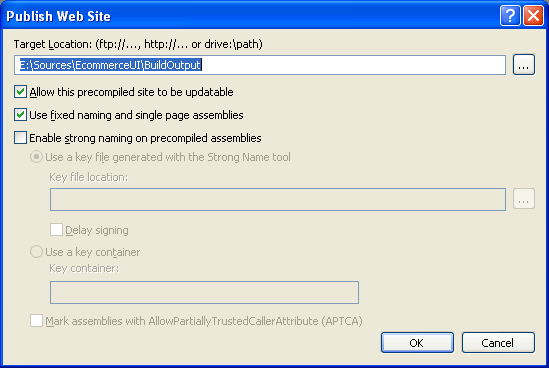
For this walkthrough I am going to use the default
“updatable” option (meaning the HTML + Server control
markup is preserved), and select to have individual
assemblies created for my .ascx and .aspx files. The reason for selecting the individual assembly option
is because I want to be able to remove the compiled code
for the root test pages and master templates that I am
currently using to test my store-front library, and want
to have the flexibility to update these assemblies on a
more granular level in the future.
Note: For simplicity sake in this walkthrough I’m
going to only describe one deployment combination
(specifically I’ll use updatable html + individual
compiled assemblies). I could have just as easily picked another (for
example: fully compiled html + per-directory
assemblies). You as a developer are allowed to pick whatever you
feel is most appropriate for your particular web
library deployment scenario.
When I click the “ok” button, VS 2005 will compile all
three projects (myclasslibrary, mywebproject,
mytestproject) and then deploy the classlibrary and
webproject into the “BuildOutput” directory we defined
earlier under our c:\sources\libraries\ecommerceUI\
directory.
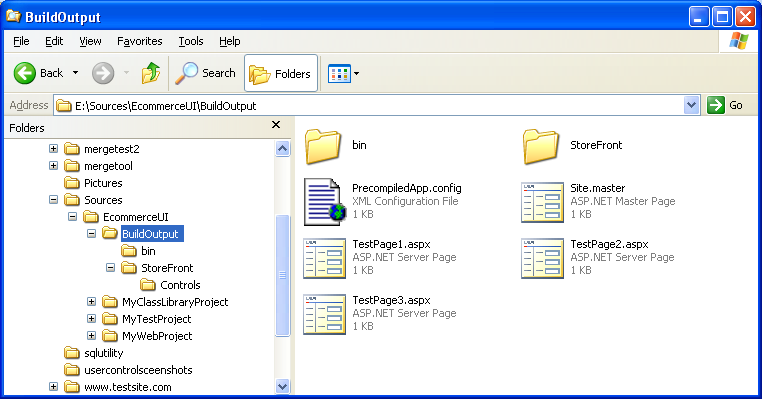
Note that the .aspx/.ascx files will remain (because
they still have .html/server control content defined
within them), but all code-behind files are now gone –
since they have been compiled into assemblies underneath
the \bin directory.
Building and Deploying the Web Project Library from
the VS IDE
To build and publish/deploy my web library solution
from the command-line (without having the VS IDE loaded
or potentially even installed on my machine), I can take
advantage of the new MSBuild support that ships with VS
2005 and .NET 2.0. There is *a lot* of richness in MSBuild – easily 20+
blog entries worth. I’m going to only show a super basic (but still pretty
useful) way to use it below with web projects. I’ll blog some more about it in the future to go into
some of the more advanced ways you can use it with web
projects.
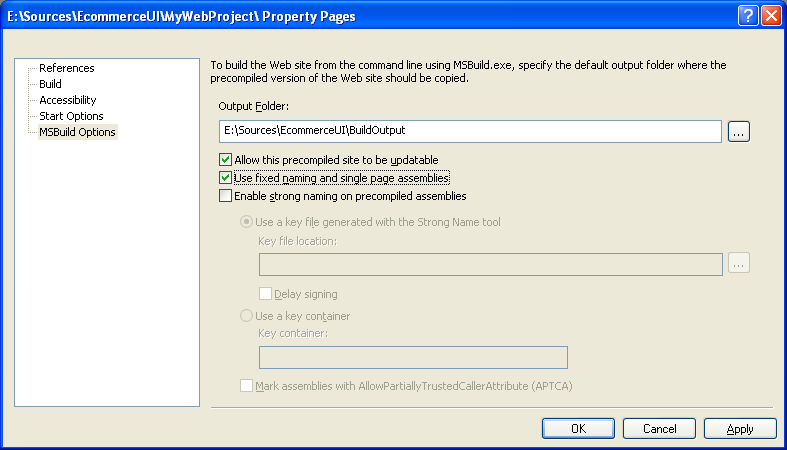
To configure basic MSBuild options with my web project
library solution, I can right-click on my web project in
the solution explorer and select the “Properties” menu
item on the context menu. This will bring up a configuration dialog for the web
project, and allows me to configure lots of different
things (start pages, references, accessibility
compliance checker, etc). If I click on the MSBuild tab I will see the below
options:
Once I have configured the MSBuild options this way,
and hit “save all” to make sure the solution is
up-to-date (note: I always forget to-do this), I can now
perform command line builds on my solution.
MSBuild.exe is installed underneath the framework
redist directory
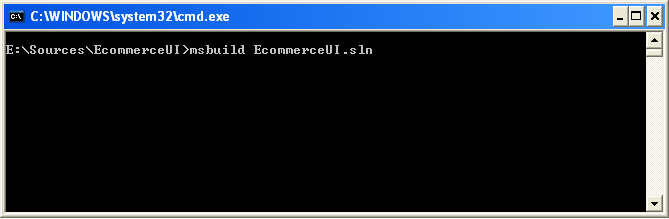
(c:\windows\microsoft.net\framework\v2.0.xyz). If this was on my command-line path, then I could
simply type the below command to kick off a command-line
build:
This would then generate the below console output and
produce the exact same bits we did before using the
IDE:
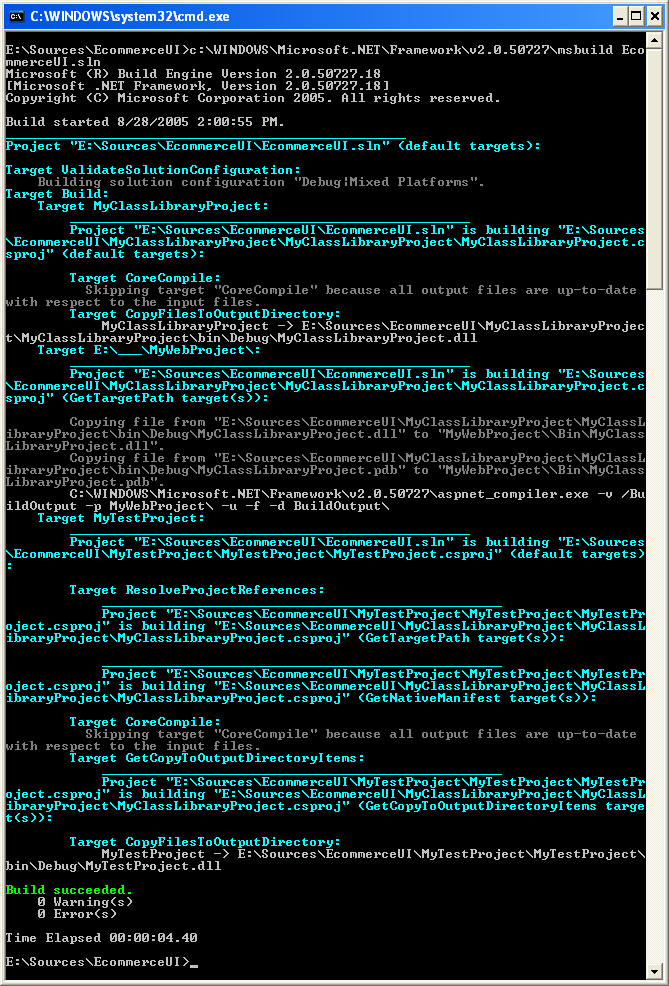
Obviously this is a very simple command line build
scenario – but I could compose additional MSBuild rules
to make this much richer (including adding additional
steps to copy the appropriate files from the produced
library into multiple projects). MSBuild has a custom task called “AspNetCompiler” that
can also be used to declaratively author custom MSBuild
scripts from scratch.
Step 4: Using the Page/Control Web Library within a
Web Application
To use the EcomerceUI library we just created inside a
new web application in VS 2005, I need to-do two
things:
1) Copy the appropriate .aspx/.ascx files from the
built EcommerceUI solution into my new web application
project directory.
2) Copy the appropriate .dll assemblies from the built
EcommerceUI solution into my new web application
project’s \bin directory (note: I could either copy
these manually or as part of an automated build process,
or have a CopyLocal reference setup to auto-refresh
these assemblies when new versions get built and
deployed under the EcommerceUI solution).
Here is what my blank web-application will look like
when I copy the above items into it:
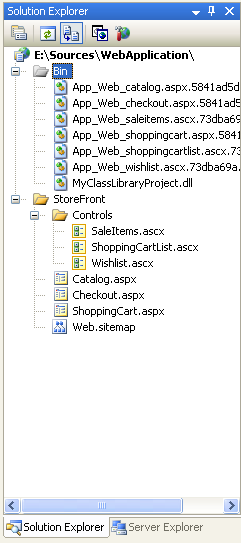
Note that because I’ve built using the option to
generate separate assemblies for each control/page, I
end up having several granular assemblies in my \bin
directory. Note
also that this allowed me to remove all of the testpage
assemblies I was using within the web project to verify
things.
I can then go ahead and build my web project and take
advantage of the Ecommerce UI library. I can add whatever pages I want into the project and
integrate them around the /storefront subdirectory. I can also use the user controls from
/storefront/controls on any page within the site.
Here are two screen-shots of this in action with VS
2005:
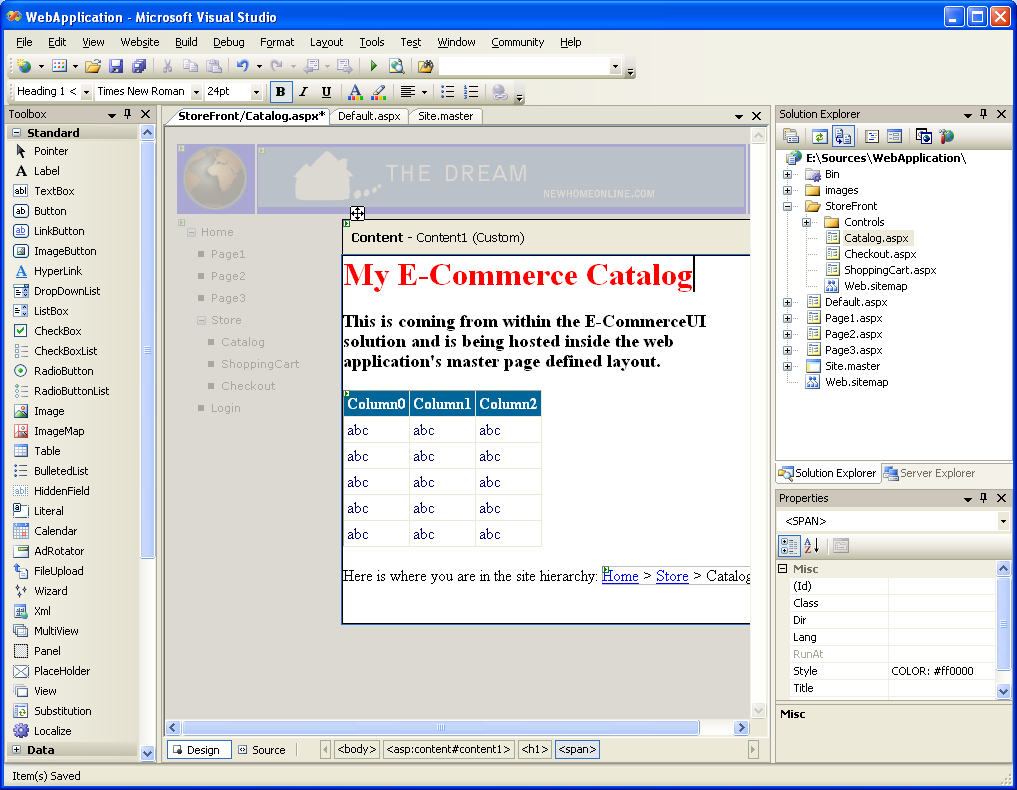
Note in the above screen-shot how the catalog page we
defined within the EcommerceUI library picks up and
integrates within the custom Site.Master masterpage file
we defined at the root level within this new web
project. It
shows up both in WYSIWYG in VS 2005, and obviously also
at runtime.
Also note the treeview control on the left that is
defined
within the master page in our new web project
as well as the bread-crumb control that is defined
within the catalog.aspx page of the EcommerceUI
library. Both of these
new ASP.NET 2.0 controls are binding against the new
ASP.NET Site Navigation system – and are showing a
consistent site hierarchy view of the overall web
solution regardless of whether they were used inside the
storefront or outside of it. This view shows up consistently both at runtime and
also at design-time in VS 2005.
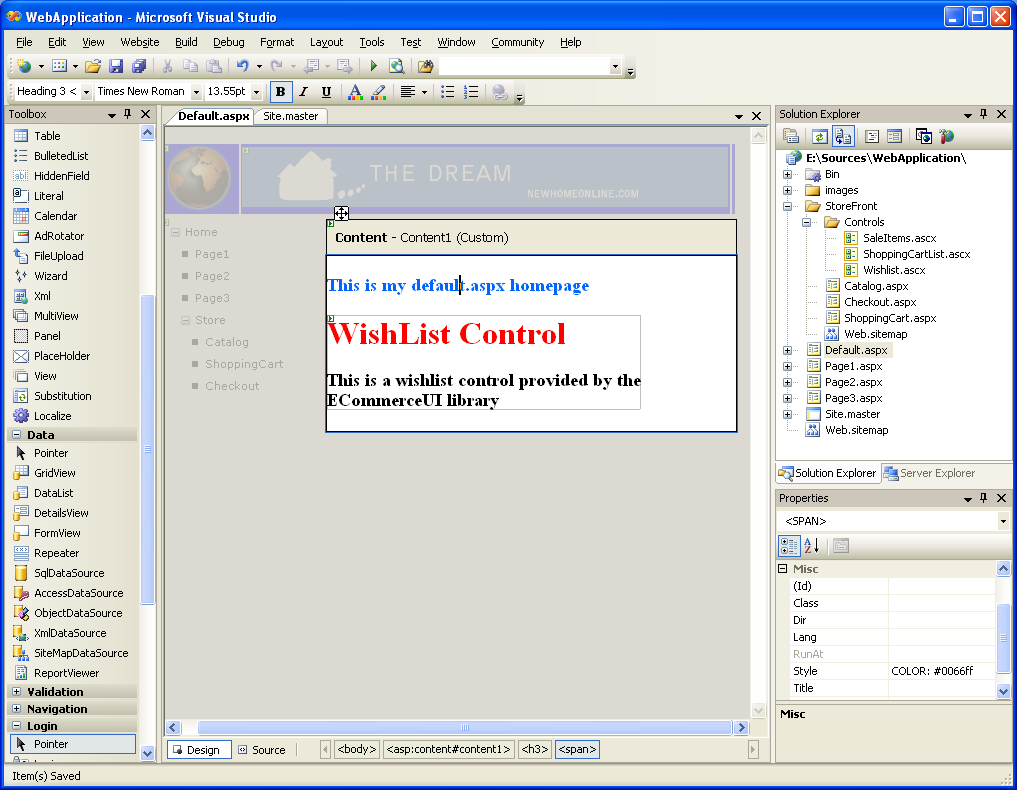
Note in the above screen-shot how the wishlist.ascx
user-control from the /storefront/controls directory
shows up in WYSIWYG on the default.aspx homepage defined
at the web project root. With previous versions of VS user-controls were
rendered as grey-boxes – now developers using the
ECommerceUI library will be able to see the actual
representation of the user control content they’ll see
at runtime. VS
2005 also now provides strong-typing and intellisense
against the usercontrols when writing code-behind code
for default.aspx (previous versions of VS declared these
controls by default as type-less usercontrols).
Note that as I’m building my new web project I can
regularly run (just do a standard F5 or Ctrl-F5 to run
the web project). When I’m finished I can also then do a “Publish Web” or
command-line build operation on this new web project and
solution, and generate a completed web application with
EcommerceUI library included that is ready to
deploy.
Hope this helps,
Scott