Atlas Keynote Walkthrough
I
mentioned a little earlier
that I’d post the Atlas sample code and overall talk flow
from the keynote demo I was part of earlier today at the
PDC. Here it is
below:
Step 1: The Web Service We Use
In the talk Anders used the new LINQ features in C# 3.0
to query for process information, then join it in memory
with data from a database, and then transform it into
XML. Don then
showed exposing it via Indigo as first a SOAP end-point,
then an RSS end-point, and then finally as a JSON
end-point that I could consume.
Unfortunately I don’t have a snap-shot of the above code
still with me (it is on another machine right now), so
can’t show what we really used during the keynote. Here is a simplified .asmx version, though, that shows
what the signature of the service looks like The sample
below is calling System.Diagnostics directly instead of
using the cool new LINQ features, but hopefully provides a
little insight into the service signature. Note that there is no Atlas specific decoration or
meta-data that needs to be applied to the web-service – it
is just a standard .asmx file (Atlas then installs an
HttpModule that can handle transforming the input/output
of the service to a JSON wire protocol as
appropriate):
LapService.asmx
<%@
WebService
Language="C#"
Class="LapService"
%>
using
System;
using
System.Collections;
using
System.Collections.Generic;
using
System.ComponentModel;
using
System.IO;
using
System.Web;
using
System.Web.Services;
using
System.Web.Services.Protocols;
public
class
LapService :
System.Web.Services.WebService
{
[WebMethod]
public
ProcessData[]
GetProcesses() {
return
this.GetAllProcesses().ToArray();
}
[WebMethod]
public
ProcessData[]
MatchProcesses(string
expression)
{
List<ProcessData> data =
this.GetAllProcesses();
if (String.IsNullOrEmpty(expression))
{
return
data.ToArray();
}
string[] words =
expression.Split(' ');
return
data.FindAll(new
Predicate<ProcessData>(delegate(ProcessData
process)
{
return
System.Text.RegularExpressions.Regex.IsMatch(process.Name, expression);
})).ToArray();
}
private
List<ProcessData> GetAllProcesses()
{
List<ProcessData> data = new
List<ProcessData>();
System.Diagnostics.Process[] processes = System.Diagnostics.Process.GetProcesses();
foreach
(System.Diagnostics.Process
process in processes)
{
data.Add(new
ProcessData(process.ProcessName, process.WorkingSet64,
process.Threads.Count));
}
return data;
}
}
ProcessData.cs
using
System;
using
System.ComponentModel;
public
class
ProcessData
{
private
string _name;
private
long _workingSet;
private
int _threadCount;
public
string Name {
get {
return _name; }
set { _name =
value; }
}
public
long WorkingSet {
get {
return _workingSet; }
set { _workingSet =
value; }
}
public
long WorkingSetInMB {
get {
return _workingSet /
(1024 * 1000); }
private
set { }
}
public
int ThreadCount {
get {
return _threadCount;
}
set { _threadCount =
value; }
}
public ProcessData() {
}
public ProcessData(string
name, long workingSet,
int threadCount) {
_name =
name;
_workingSet = workingSet;
_threadCount = threadCount;
}
}
Step2 : Simple Invocation of the Web Service
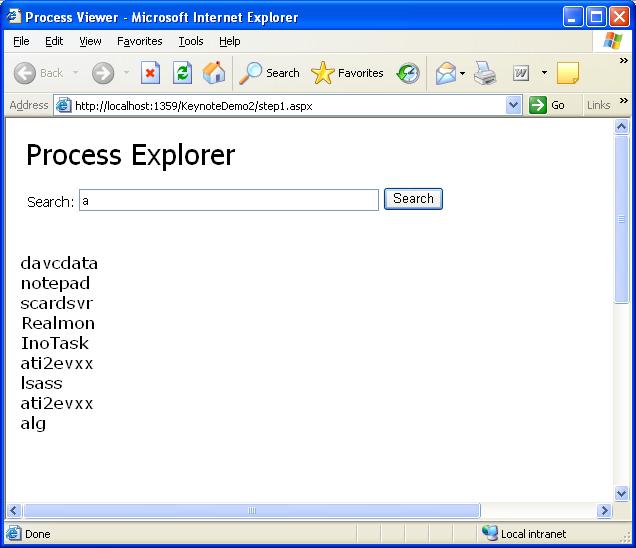
The first step with Atlas we did on stage was to take a
simple html page with
no server-side code
and show binding to the remote LapService end-point with
it. The final code
for this segment looked like the page below.
Note how it is easy to add a JSON proxy to the page –
just add two script references to the page (one that
points to the AtlasCore.js library and one that points to
the .asmx with the /js flag specified). You can then just call methods on the remote service –
and setup a call-back event handler that will be invoked
when the response is returned. You can then work with the data using the same object
model (except in Jscript) that was used on the
server. All code
in the below sample runs on the client.
Default.aspx:
<!DOCTYPE
HTML
PUBLIC
"-//W3C//DTD HTML 4.0 Transitional//EN">
<html
xmlns="http://www.w3.org/1999/xhtml"
xml:lang="en"
lang="en">
<head>
<title>Process Viewer</title>
<link
type="text/css"
rel="stylesheet"
href="simple.css"
/>
<script
src="ScriptLibrary/AtlasCore.js"
type="text/javascript"></script>
<script
src="LapService.asmx/js"
type="text/javascript"></script>
<script language="javascript" type="text/javascript">
function
Button1_onclick() {
var text1 =
document.getElementById("Text1");
LapService.MatchProcesses(text1.value,
onSearchComplete);
}
function
onSearchComplete(results) {
var searchResults =
document.getElementById("searchResults");
for (var
i=0; i<results.get_length(); i++) {
searchResults.innerHTML += results[i].Name +
"<br>";
}
}
</script>
</head>
<body>
<form
id="form1"
runat="server">
<div
id="logo">
Process
Explorer
</div>
<div
id="header">
Search:
<input
id="Text1"
type="text"
/>
<input
id="Button1"
type="button"
value="Search"
onclick="Button1_onclick();"
/>
</div>
<div
id="content">
<div
class="left">
<span
id="searchResults"></span>
</div>
</div>
</form>
</body>
</html>
Step 3: Using an Atlas ListView Control
[In the keynote demo we actually merged this step and the
next one together – but for this post I’ll actually show
what we originally planned (before we ran into a time
crunch and had to compress them together).]
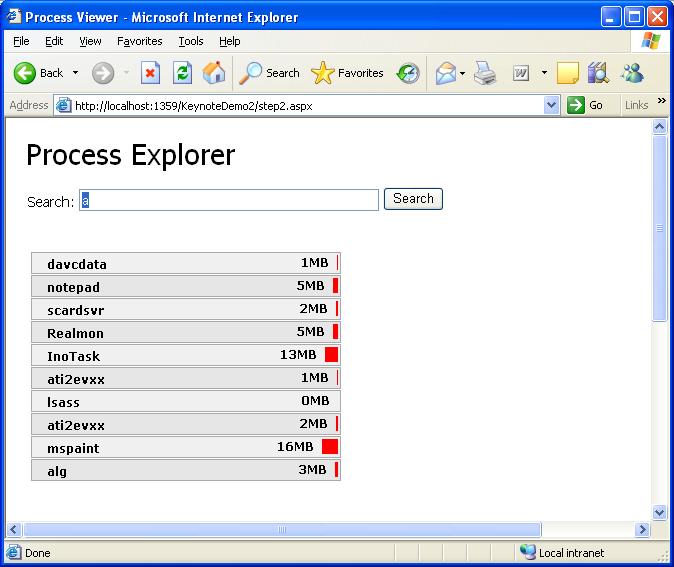
In this step we’ll take our simple invocation further and
use one of the new Atlas controls called ListView to
customize the presentation of the data further (and avoid
having to hard-code it into javascript like the sample
above).
Atlas provides a Javascript client library that provides
a Listview control that I can declare and use with
javascript on the client. Alternatively, I can use the ASP.NET server control model
to nicely encapsulate this and handle automatically
sending out the appropriate client markup (which is what
I’ll do below).
Note that all Atlas-enabled ASP.NET Server Controls
support both a client-side and server-side object model –
so I can write code against them both from client
Javascript and my server code-behind file. In the below example I’m taking the same Results data
that we retrieved above and instead of doing a for-loop
over it I’m binding it on the client to the ListView (by
calling searchResults.control.set_data(results). Note also that all style design is done using standard
CSS.
Default.aspx:
<!DOCTYPE
HTML
PUBLIC
"-//W3C//DTD HTML 4.0 Transitional//EN">
<html
xmlns="http://www.w3.org/1999/xhtml"
xml:lang="en"
lang="en">
<head>
<title>Process Viewer</title>
<link
type="text/css"
rel="stylesheet"
href="simple.css"
/>
<atlas:ScriptManager
runat="server"
/>
<script
src="LapService.asmx/js"
type="text/javascript"></script>
<script
language="javascript"
type="text/javascript">
function
Button1_onclick() {
var text1 =
document.getElementById("Text1");
LapService.MatchProcesses(text1.value,
onSearchComplete);
}
function
onSearchComplete(results) {
var searchResults =
document.getElementById("searchResults");
searchResults.control.set_data(results);
}
</script>
</head>
<body>
<form
id="form1"
runat="server">
<div
id="logo">
Process
Explorer
</div>
<div
id="header">
Search:
<input
id="Text1"
type="text"
/>
<input
id="Button1"
type="button"
value="Search"
onclick="Button1_onclick();"
/>
</div>
<div
id="content">
<div
class="left">
<atlas:ListView
id="searchResults"
runat="server"
ItemTemplateControlID="row"
CssClass="listView"
ItemCssClass="item"
AlternatingItemCssClass="alternatingItem">
<LayoutTemplate>
<ul
runat="server">
<li
id="row"
runat="server">
<atlas:Label
id="name"
runat="server">
<Bindings>
<atlas:Binding
DataPath="Name"
Property="text"
/>
</Bindings>
</atlas:Label>
<atlas:Label
runat="server"
CssClass="bar">
<Bindings>
<atlas:Binding
DataPath="WorkingSetInMB"
Property="style"
PropertyKey="width"
/>
</Bindings>
</atlas:Label>
<atlas:Label
runat="server">
<Bindings>
<atlas:Binding
DataPath="WorkingSetInMB"
Property="text"
/>
</Bindings>
</atlas:Label>MB
</li>
</ul>
</LayoutTemplate>
</atlas:ListView>
</div>
</div>
</form>
</body>
</html>
Step 4: Implementing Drag/Drop
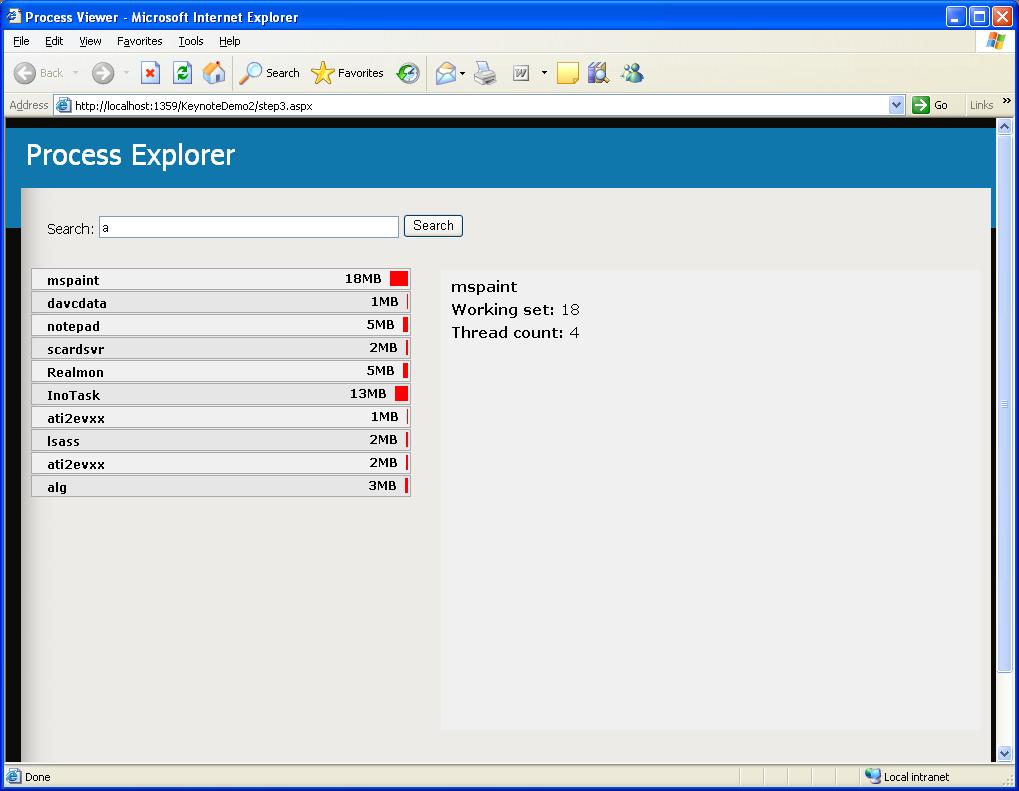
The next step is to implement a master/detail drill-down view, where we let visitors to the site drag/drop processes from our Listview into an ItemView control to drill into its details (entirely on the client without requiring any post-backs or page refreshes). Doing this is pretty easy with Atlas – drag/drop sourcing and targeting can be done declaratively or programmatically (note the <behaviors> tag to see how this is done below). Note that I also switching the CSS stylesheet to "color.css" (from simple.css") just to make it look a little better.
Default.aspx:
<!DOCTYPE
HTML
PUBLIC
"-//W3C//DTD HTML 4.0 Transitional//EN">
<html
xmlns="http://www.w3.org/1999/xhtml"
xml:lang="en"
lang="en">
<head>
<title>Process Viewer</title>
<link
type="text/css"
rel="stylesheet"
href="color.css"
/>
<atlas:ScriptManager
runat="server"
/>
<script
src="LapService.asmx/js"
type="text/javascript"></script>
<script
language="javascript"
type="text/javascript">
function
Button1_onclick() {
var text1 =
document.getElementById("Text1");
LapService.MatchProcesses(text1.value,
onSearchComplete);
}
function
onSearchComplete(results) {
var searchResults =
document.getElementById("searchResults");
searchResults.control.set_data(results);
}
</script>
</head>
<body>
<form
id="form1"
runat="server">
<div
id="logo">
Process
Explorer
</div>
<div
id="header">
Search:
<input
id="Text1"
type="text"
/>
<input
id="Button1"
type="button"
value="Search"
onclick="Button1_onclick();"
/>
</div>
<div
id="content">
<!-- Listview -->
<div
class="left">
<atlas:ListView
id="searchResults"
runat="server"
ItemTemplateControlID="row"
CssClass="listView"
ItemCssClass="item"
AlternatingItemCssClass="alternatingItem">
<Behaviors>
<atlas:DragDropList
runat="server"
DataType="Process"
/>
</Behaviors>
<LayoutTemplate>
<ul
id="ul1"
runat="server">
<li
id="row"
runat="server">
<atlas:Label
id="name"
runat="server">
<Behaviors>
<atlas:DraggableListItem
runat="server"
Handle="name">
<Bindings>
<atlas:Binding
Property="data"
/>
</Bindings>
</atlas:DraggableListItem>
</Behaviors>
<Bindings>
<atlas:Binding
DataPath="Name"
Property="text"
/>
</Bindings>
</atlas:Label>
<atlas:Label
id="Label1"
runat="server"
CssClass="bar">
<Bindings>
<atlas:Binding
DataPath="WorkingSetInMB"
Property="style"
PropertyKey="width"
/>
</Bindings>
</atlas:Label>
<atlas:Label
id="Label2"
runat="server">
<Bindings>
<atlas:Binding
DataPath="WorkingSetInMB"
Property="text"
/>
</Bindings>
</atlas:Label>MB
</li>
</ul>
</LayoutTemplate>
</atlas:ListView>
</div>
<!-- Item Details -->
<div
class="right">
<atlas:ItemView
id="details"
runat="server">
<Behaviors>
<atlas:DataSourceDropTarget
runat="server"
Append="false"
AcceptedDataTypes="Process"
/>
</Behaviors>
<ItemTemplate>
<atlas:Label
runat="server"
CssClass="name">
<Bindings>
<atlas:Binding
DataPath="Name"
Property="text"
/>
</Bindings>
</atlas:Label>
<span
class="detailRow">
Working set:
<atlas:Label
runat="server">
<Bindings>
<atlas:Binding
DataPath="WorkingSetInMB"
Property="text"
/>
</Bindings>
</atlas:Label>
</span>
<span
class="detailRow">
Thread count:
<atlas:Label
runat="server">
<Bindings>
<atlas:Binding
DataPath="ThreadCount"
Property="text"
/>
</Bindings>
</atlas:Label>
</span>
</ItemTemplate>
</atlas:ItemView>
</div>
</div>
</form>
</body>
</html>
Step 5: Implementing VirtualEarth
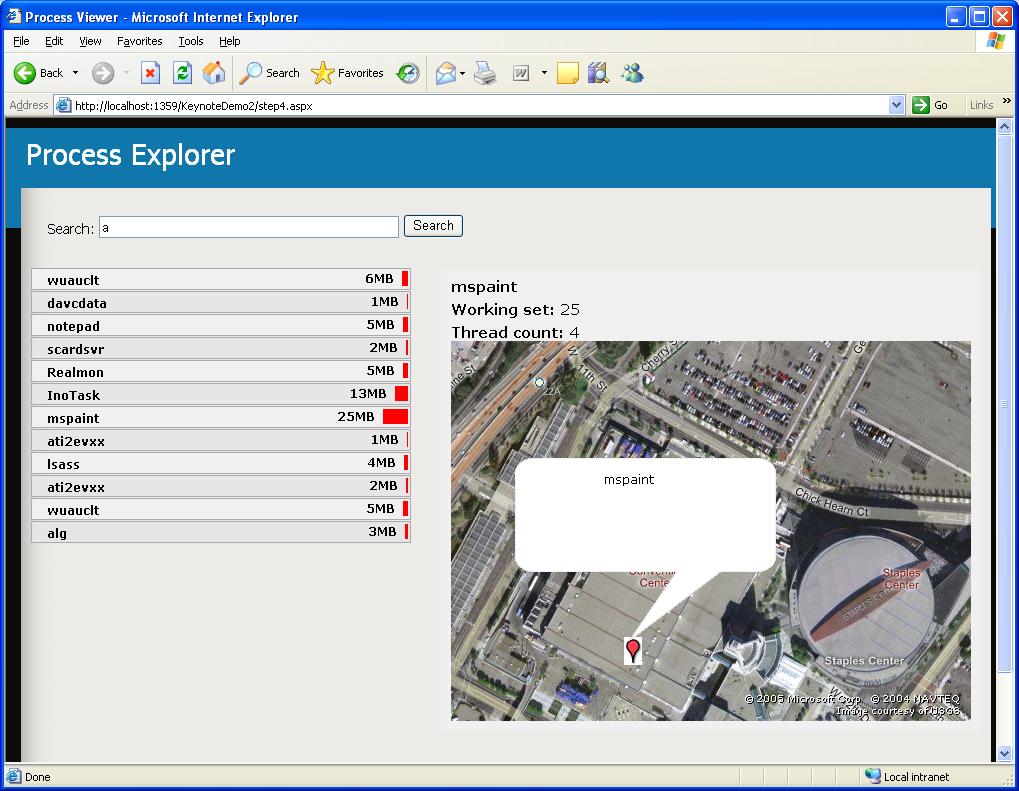
This step was completely gratuitous but fun. Since any “real”
Since there is no way to get real longitude or latitude
information from a running process, we just hard-coded in
the coordinates. But the name of the process was data-bound and live (and
if we did have longitude and latitude information we could
obviously have data-bound that too).
Here is what the code looked like with the virtual earth
inside the bottom of the ItemView (note that no other code
changes were required). I’m using an older push-pin image so the background image
is not transparent (it was for the demo) – but it should
give you an idea of what it looked like:
Default.aspx:
<!DOCTYPE
HTML
PUBLIC
"-//W3C//DTD HTML 4.0 Transitional//EN">
<html
xmlns="http://www.w3.org/1999/xhtml"
xml:lang="en"
lang="en">
<head>
<title>Process Viewer</title>
<link
type="text/css"
rel="stylesheet"
href="color.css"
/>
<atlas:ScriptManager
runat="server"
/>
<script
src="LapService.asmx/js"
type="text/javascript"></script>
<script
language="javascript"
type="text/javascript">
function
Button1_onclick() {
var text1 =
document.getElementById("Text1");
LapService.MatchProcesses(text1.value,
onSearchComplete);
}
function
onSearchComplete(results) {
var searchResults =
document.getElementById("searchResults");
searchResults.control.set_data(results);
}
</script>
</head>
<body>
<form
id="form1"
runat="server">
<div
id="logo">
Process
Explorer
</div>
<div
id="header">
Search:
<input
id="Text1"
type="text"
/>
<input
id="Button1"
type="button"
value="Search"
onclick="Button1_onclick();"
/>
</div>
<div
id="content">
<!-- Listview -->
<div
class="left">
<atlas:ListView
id="searchResults"
runat="server"
ItemTemplateControlID="row"
CssClass="listView"
ItemCssClass="item"
AlternatingItemCssClass="alternatingItem">
<Behaviors>
<atlas:DragDropList
runat="server"
DataType="Process"
/>
</Behaviors>
<LayoutTemplate>
<ul
id="ul1"
runat="server">
<li
id="row"
runat="server">
<atlas:Label
id="name"
runat="server">
<Behaviors>
<atlas:DraggableListItem
runat="server"
Handle="name">
<Bindings>
<atlas:Binding
Property="data"
/>
</Bindings>
</atlas:DraggableListItem>
</Behaviors>
<Bindings>
<atlas:Binding
DataPath="Name"
Property="text"
/>
</Bindings>
</atlas:Label>
<atlas:Label
id="Label1"
runat="server"
CssClass="bar">
<Bindings>
<atlas:Binding
DataPath="WorkingSetInMB"
Property="style"
PropertyKey="width"
/>
</Bindings>
</atlas:Label>
<atlas:Label
id="Label2"
runat="server">
<Bindings>
<atlas:Binding
DataPath="WorkingSetInMB"
Property="text"
/>
</Bindings>
</atlas:Label>MB
</li>
</ul>
</LayoutTemplate>
</atlas:ListView>
</div>
</div>
<!-- Item Details -->
<div
class="right">
<atlas:ItemView
id="details"
runat="server">
<Behaviors>
<atlas:DataSourceDropTarget
runat="server"
Append="false"
AcceptedDataTypes="Process"
/>
</Behaviors>
<ItemTemplate>
<atlas:Label
runat="server"
CssClass="name">
<Bindings>
<atlas:Binding
DataPath="Name"
Property="text"
/>
</Bindings>
</atlas:Label>
<span
class="detailRow">
Working set:
<atlas:Label
runat="server">
<Bindings>
<atlas:Binding
DataPath="WorkingSetInMB"
Property="text"
/>
</Bindings>
</atlas:Label>
</span>
<span
class="detailRow">
Thread count:
<atlas:Label
runat="server">
<Bindings>
<atlas:Binding
DataPath="ThreadCount"
Property="text"
/>
</Bindings>
</atlas:Label>
</span>
<!-- Virtual Earth Control -->
<atlas:VirtualEarthMap
id="map"
runat="server"
ZoomLevel="17"
Latitude="34.042653"
Longitude="-118.269779"
PushpinImageUrl="~/TravelImages/pushpin.gif"
PushpinCssClass="pushpin"
PushpinImageWidth="12"
PushpinImageHeight="20"
PushpinActivation="Click"
PopupPositioningMode="TopLeft"
MapStyle="Hybrid">
<PopupTemplate>
<atlas:Label
runat="server">
<Bindings>
<atlas:Binding
DataContext="details"
DataPath="dataContext.Name"
Property="text"
/>
</Bindings>
</atlas:Label>
</PopupTemplate>
<Pushpins>
<atlas:Pushpin
Value="pp"
Latitude="34.042653"
Longitude="-118.269779"
/>
</Pushpins>
</atlas:VirtualEarthMap>
</ItemTemplate>
</atlas:ItemView>
</div>
</div>
</form>
</body>
</html>
Step 6: Showing it on a Mac
The final step we showed was switching to a Mac running
Safari and hitting the same page above using it. Safari browsers get the exact same user experience with
full Ajax support.
Hopefully this provides a rough sense of what the demo
was like.
- Scott