Efficient Data Paging with the ASP.NET 2.0 DataList Control and ObjectDataSource
Last weekend I posted
about how to implement super efficient data-paging using
the new ROW_NUMBER() within SQL 2005 (which is supported
with the free SQL Express edition and up) and the new
ASP.NET 2.0 GridView/ObjectDataSource controls.
The BIG win
with this approach is that it enables a web-application
to efficiently retrieve only the specific rows it needs
from the database, and avoid having to pull back dozens,
hundreds, or even thousands of results to the web-server
– only to then end up trimming them down to the 10-15
you end up displaying on a web-page (which is what most
data-paging solutions do today). This can lead to significant performance wins within
your application (both in terms of latency and
throughput), and reduce the load on your database.
A few people have asked me to also provide a similar
sample that demonstrates how to also implement efficient
data-paging using an ASP.NET DataList or Repeater
control instead (since neither of these have built-in
paging UI semantics – but they do have the big benefit
of allowing developers to have tight control over the
html generated).
You can download a sample app that demonstrates how
to-do this
here.
For the scenario in the sample I basically “borrowed”
the UI used on several popular ecommerce web-sites
(although I tried to be a good CSS citizen, and
implemented it using CSS rules instead of a table-heavy
format):
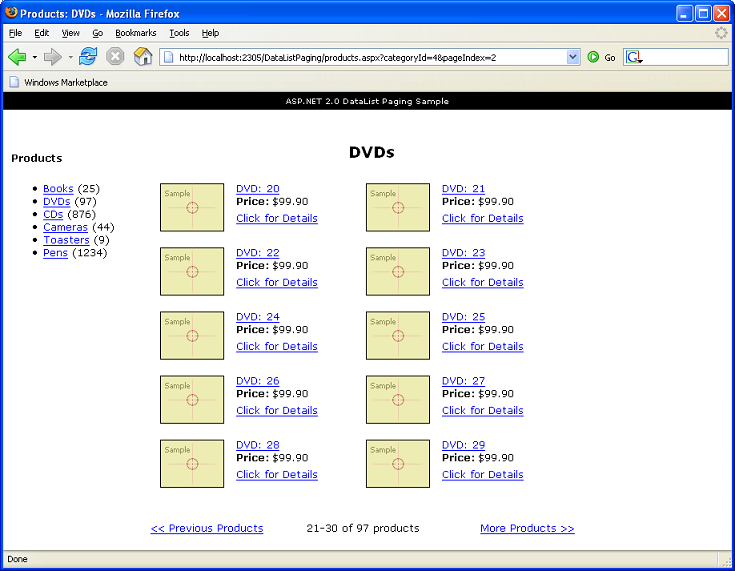
It provides a list of product-categories on the
left-hand side of the product listing page (the value in
parenthesis indicates the number of products in each
category), and then a 2 column layout for the products
on the right (the default page size is 10 per page –
although you can change this with a 1 line code-change
if you want a different size). You can page back and forward throughout the listing,
and are provided UI that helps indicate where you are in
the paging series (the Previous/More links also
auto-hide if you are on the first or last page of the
results).
What is cool about the sample is that all of the data
on the right-hand side of the screen (everything but the
product category listing on the left) is retrieved with
a single database call on each page view (so no multiple
database trips). This single database call also only returns the product
rows of data we end up displaying on the given data page
(so with the screen-shot above it returns 10 rows of
data instead of all 97 rows in that product
category). This
makes it super fast and efficient.
The entire sample to implement this app is only about
~20 lines of total code (this includes all the code in
both the UI and data code layers).
How To Run and Use the Sample
To setup the sample, follow the below steps:
1) Have VS 2005 or Visual Web Developer and SQL Express
installed. Visual Web Developer and SQL Express are both free
downloads and provide everything you need to build,
debug and run the application. You can download them from here.
2) Download
this .zip file containing the sample. Expand it
into any directory you want.
3) Using Visual Web Developer or VS 2005, choose
File->Open Web-site and point to the root directory
of the sample sub-directory (the one with the files in
it).
4) Select the “Products.aspx” file and hit run.
This will bring up a page like the screenshot above
that lists products and allows you to page back and
forth throughout a
product category listing (note that the next/previous
buttons will auto-hide if you are at the beginning or
end of the listing). Click on the left-hand side of the page to switch
category listings.
To add a new product category, run the “AddData.aspx”
page:
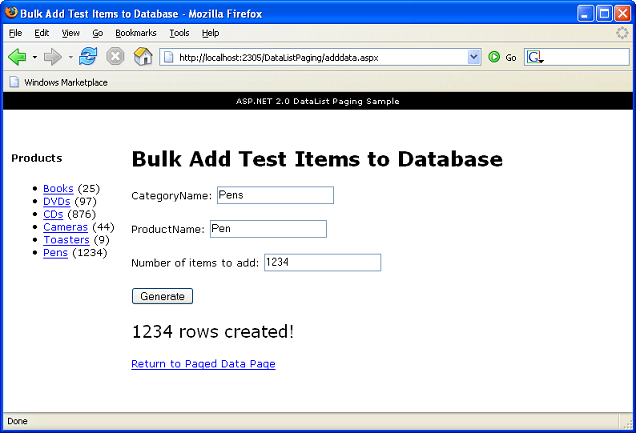
When you add a new product category, you can specify
the number of products to add to it. You can add dozens, hundreds, thousands or tens of
thousands of products (the AddData.aspx page names the
products sequentially for you automatically so you can
simulate different sized loads).
Because the data paging implementation in the sample
uses an intelligent paging algorithm that only pulls the
needed page rows to the web-server (by default only 10
rows per web request), your server won’t start to run
into performance issues even if you have a category or
result with tens of thousands of product results.
How this Sample is Built
Here is what the solution directory looks like in
Visual Web Developer:
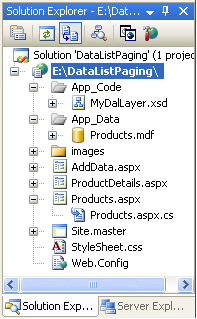
It contains three pages – “Products.aspx”,
“ProductDetails.aspx”, and “AddData.aspx” – that are
each based on the “Site.master” master-page.
The database is implemented in Products.mdf and
contains 2 simple tables – “Products” and “Categories”
(note: you can create new SQL Express databases by
select File->Add New Item->Database File). Here is what they look like in the database designer
built-into the free Visual Web Developer IDE:
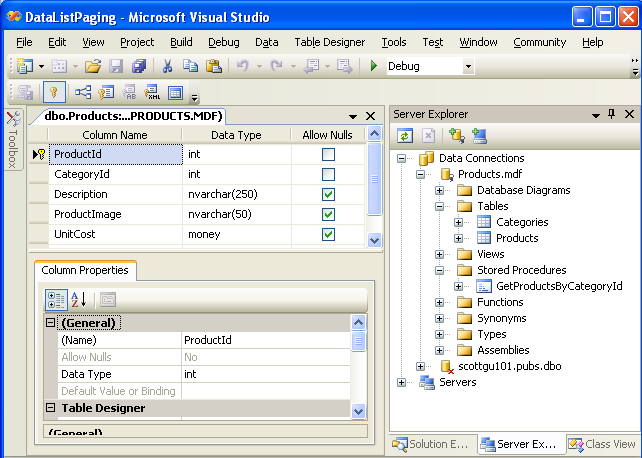
The Categories table contains a list of product
categories, and the Products table contains a list of
products contained within them. The ProductID column in
the Products table is the primary key (and is
automatically indexed), and an index has also been
created on the CategoryId column (to create an index in
the designer, just right click on a column and select
“Indexes/Keys” to bring up the Index manager
dialog). These
indexes are going to be important if we put 100,000s of
products of entries into our Products table.
The database has one stored procedure called
“GetProductsByCategoryId” that was created using the
ROW_NUMBER() approach described in David’s blog
to enable us to retrieve only the specific product data
rows we want from the Products database (this means that
we retrieve just the 10 or so products we need for the
current page instead of the 1000 products that might be
in the product category:
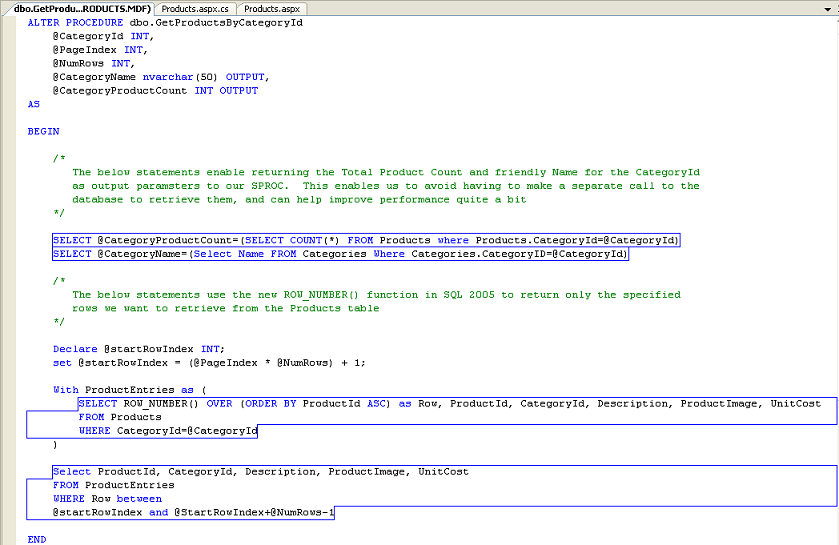
Notice that I’m also returning the total number of
products in a category as well as the friendly name of
the category as output parameters of the SPROC. Originally I was fetching these with a separate
database call, but to demonstrate how to implement a
nice performance optimization I’m returning them along
with our 10 rows of data as output parameters here. The benefit of doing this optimization (versus a
separate call to the database – which would actually be
logically cleaner) is that it means you can retrieve
all of
the data you need with a single database query (which is
also in turn only returning 10 rows of data). For a high-volume page like this where performance
matters, it is a performance optimization to seriously
consider.
The data access layer was then implemented using a
DataSet designer (choose File->Add New
Item->DataSet to create one), which allows us to
avoid having to write any manual ADO.NET data access
code – and instead just use strongly-typed data classes
that are generated and maintained in the project
automatically by defining methods/relationships using
the DataSet designer.
The generated DataSet definitions for this sample are
stored within the “MyDataLayer.xsd” file in the App_Code
directory and contain two table-adapters (note: if you
want to be advanced you can open and edit this XML file
defining the DAL structure by right-clicking on it,
choosing “Open With”, and selecting the XML source
editor):
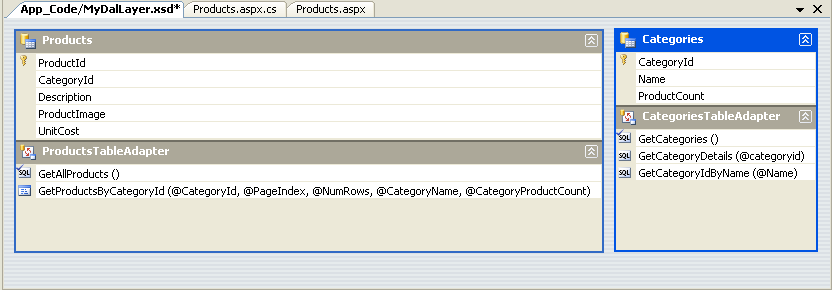
The GetProductsByCategoryId() method goes against the
SPROC we defined earlier, but all other methods are
normal SQL queries defined within the DAL layer.
Once defined using the DataSet designer, it is possible
to write procedural code like the code below to invoke
and use a method defined with our new DAL
components:
int categoryId = 0;
int pageIndex = 0;
int pageSize = 10;
int numTotalProducts =
0;
string categoryName =
String.Empty;
ProductsTableAdapter
products = new ProductsTableAdapter();
MyDalLayer.ProductsDataTable
products = products.GetProductsByCategoryId( categoryId,
pageIndex,
pageSize,
ref categoryName,
ref
numTotalProducts);
foreach (MyDalLayer.ProductsRow product
in products) {
int productId =
product.ProductId;
string
productDescription = product.Description;
string productImage =
product.ProductImage;
}
The DAL components generated are strongly typed with
both type and data relationship validation
built-in. You
can add custom validation and/or code to the generated
DAL components very cleanly via either code inheritance
(subclass the DAL and override/add your own logic), or
by adding a partial type to the project which will be
compiled with the DAL (allowing you to avoid having to
worry about the designer stomping on your code). Here is an article
that covers the DataSet designer in more detail.
In my previous blog sample
on efficient data paging using the GridView control, I
showed how to optionally build a custom business façade
that then wraps our generated DAL layer (which was built
using the DataSet designer like above), and in turn
provides another layer of isolation and separation. For this sample, though, I’m just going to use the DAL
directly.
In terms of building the UI for the sample, the
“Site.Master” page defines the outer “chrome” of all
pages within the site, as well as the product listing on
the left:
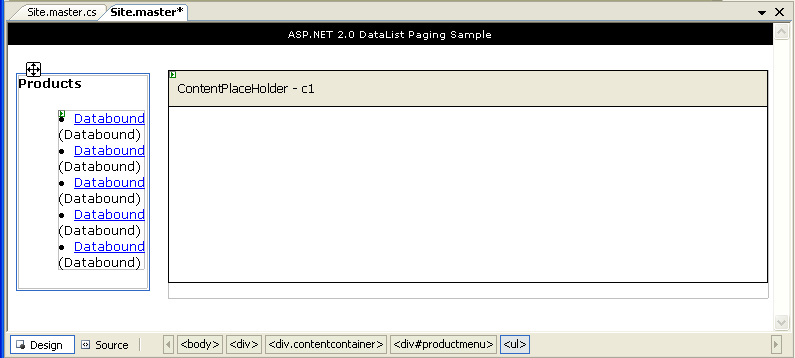
Within the Site.Master master page, I’m using an
<asp:repeater> control to dynamically build the
list of products and associated links (note the use of
the new ASP.NET 2.0 Eval() data-binding syntax that
provides a much terser way to evaluate data-binding
expressions against the container parent):
<div
id="productmenu">
<h5>Products</h5>
<ul>
<asp:repeater
ID="ProductNav"
DataSourceID="CategoryDataSource"
runat="server">
<ItemTemplate>
<li>
<a
href="Products.aspx?categoryid=<%#Eval("CategoryId")
%>"><%#Eval("Name")%></a>
(<%#Eval("ProductCount")
%>)
</li>
</ItemTemplate>
</asp:repeater>
</ul>
</div>
<asp:ObjectDataSource
ID="CategoryDataSource"
TypeName="MyDalLayerTableAdapters.CategoriesTableAdapter"
SelectMethod="GetCategories"
runat="server"
/>
I’m using declarative data-binding with the new ASP.NET
2.0 ObjectDataSource control to bind the
<asp:repeater> against the
“MyDalLayerTableAdapters.CategoriesTableAdapter” class
and its GetCategories() data method – which is one of
the data classes defined and built for us as part of our
DataSet designer based DAL.
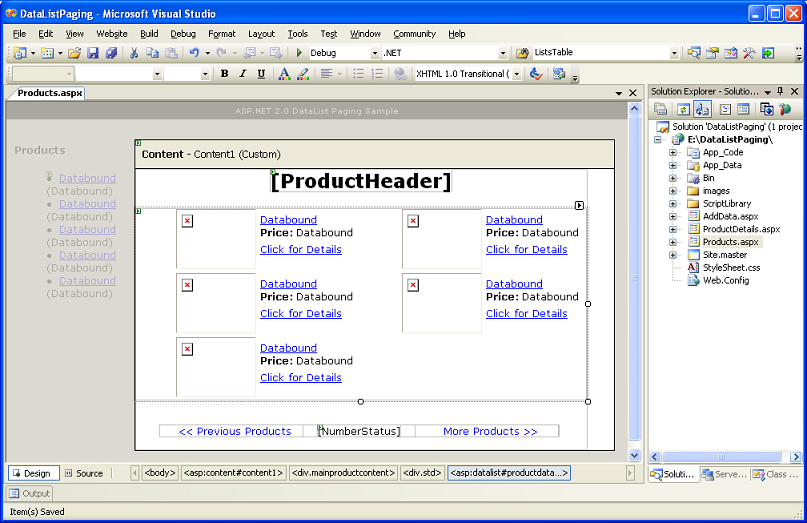
The products.aspx page is then based on the Site.Master
master page, and contains a <asp:DataList> control
as well as some standard hyperlink html elements that
we’ll use to programmatically control paging
navigation:
And in source-view:
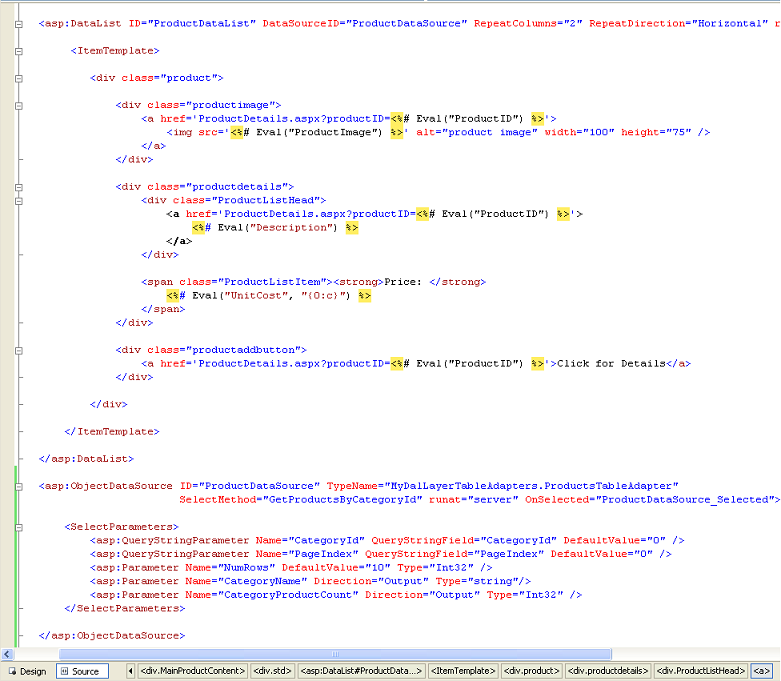
A few quick things to point out above: 1) the
ItemTemplate within the DataList is using <divs>
and CSS for styling and positioning, 2) Eval() supports
an optional data-formatting syntax that I’m using to
format the price of each product as currency, 3) I’ve
disabled view-state for the page (since we don’t need
it), and 4) the “tag-navigator” (bottom of the
screen-shot) and tag-highlighting features in the free
Visual Web Developer html source editor are pretty
convenient to identify where your cursor is within the
document (they dynamically update as you move the cursor
around the html source).
As you can see above, I’m using declarative
data-binding with the ObjectDataSource control for this
DataList control as well (alternatively I could have
just written procedural code to invoke the
ProductAdapter, set the datasource, and call databind on
the control). There are a couple of benefits to doing this the
ObjectDataSource way – one is that it handles when to
grab the data in the page lifecycle automatically. Another is that the WYSIWYG page designer will offer to
automatically generate default data templates for you
within the DataList above when you wire one up to the
ObjectDataSource (it will reflect on the data from the
returned method and generate a default template based on
it that you can then easily edit). The last is that you can declaratively bind parameter
values from other controls, querystring/form values, and
the new ASP.NET Profile object – all without having to
write any code yourself. You can see this in action with this last point – where
I’m declaratively specifying that the CategoryId and
PageIndex values should be pulled from the QueryString
(and a value of “0” should be used if it isn’t
present).
The above markup is actually all we need in our page to
bind to our DAL, retrieve 10 rows of data, and generate
pretty output containing the results. If you ran a page with just this, you’d be able to page
back and forth through the product listing data by
manually adding a “CategoryId” and “PageIndex” value to
the querystring of the page (for example:
Products.aspx?CategoryId=0&PageIndex=2).
Rather than force people to manually do this, though,
obviously what we want to-do instead is provide some
built-in navigation UI to enable this. To accomplish this, I added a <div> section at
the bottom of the page with some hyperlinks that we’ll
use to page back and forth, as well as a label that I
can use to output where the user currently is
(specifically text that says something like: “1-10 of 56
Products”).
<div
id="Navigation"
class="navigation"
runat="server">
<div
id="leftnav">
<a
id="PreviousPageNav"
runat="server">
<< Previous
Products</a>
</div>
<div
id="rightnav">
<a
id="NextPageNav"
runat="server">More
Products >></a>
</div>
<div
id="numnav">
<asp:Label
ID="PagerLocation"
runat="server"
/>
</div>
</div>
Note the use of standard hyperlinks above. They have a runat=”server” attribute on them so that I
can program against them on the server. I chose to implement the paging semantics within this
sample using standard HTTP GET requests for everything –
instead of using post-backs. Doing the navigation via post-backs would have been
easier, but I wanted to enable users to easily bookmark
pages (which will automatically persist the querystring
values for me), as well as to enable cross-linking from
things like search engines.
To dynamically update the hyperlink values (as well as
other elements of the page), I added an event-handler to
the ObjectDataSource so that I’ll be called after it has
fetched the data from our DAL (specifically: I’m using
the “selected” event – I would have used the “selecting”
event if I wanted to inject code immediately before the
DAL was called):
protected
void
ProductDataSource_Selected(object
sender,
ObjectDataSourceStatusEventArgs
e) {
// Retrieve output parameter values returned from the
"GetProductsByCategoryId"
// method invoked by the ObjectDataSource control on
the ProductsTableAdapter class
int productCount =
(int)
e.OutputParameters["CategoryProductCount"];
string categoryName =
(string)e.OutputParameters["CategoryName"];
// Retrieve pageIndex and categoryId from querystring,
pageSize pulled from ObjectDataSource
int pageIndex =
Convert.ToInt32(Request.QueryString["pageIndex"]);
int categoryId =
Convert.ToInt32(Request.QueryString["categoryid"]);
int pageSize =
Int32.Parse(ProductDataSource.SelectParameters["NumRows"].DefaultValue);
// Update various page elements with data values
UpdateTitles(categoryName);
UpdatePagerLocation(pageIndex, pageSize,
productCount);
UpdateNextPrevLinks(categoryId, pageIndex, pageSize,
productCount);
}
Notice above that I am using the event argument
(specifically its OutputParameters collection) to
retrieve the output parameter results from the DAL
method (e.ReturnValue provides access to the return
value of the method).
I’m retrieving other HTTP GET parameters from the
Request.QueryString collection. I’m using Convert.ToInt32() to convert them to integers
instead of Int32.Parse() because Convert.ToInt32() will
return a 0 value instead of throwing if the querystring
isn’t specified (and so it saves me having to-do a null
check).
At the end of the event, I then call three helper
methods that I’m using the update the page contents with
the various data results. The last two are used to customize the html navigation
<div> above. Specifically, the “UpdatePagerLocation” method emits
the location text (“1-10 of 44 Products”):
void
UpdatePagerLocation(int
pageIndex, int pageSize,
int productCount) {
int currentStartRow =
(pageIndex * pageSize) + 1;
int currentEndRow =
(pageIndex * pageSize) + pageSize;
if (currentEndRow >
productCount)
currentEndRow = productCount;
PagerLocation.Text = currentStartRow +
"-" + currentEndRow +
" of " + productCount +
" products";
}
And then the “UpdateNextPrevLinks” just updates and
auto shows/hides the <a> elements depending on
whether we are at the beginning or end of the product
listing (note: we are using the CategoryProductCount
that was returned as an output parameter to calculate
the total number of products in the category):
void
UpdateNextPrevLinks(int
categoryId,
int pageIndex,
int pageSize,
int productCount) {
string navigationFormat
=
"products.aspx?categoryId={0}&pageIndex={1}";
PreviousPageNav.HRef =
String.Format(navigationFormat, categoryId, pageIndex - 1);
PreviousPageNav.Visible = (pageIndex > 0) ?
true :
false;
NextPageNav.HRef =
String.Format(navigationFormat, categoryId, pageIndex + 1);
NextPageNav.Visible = (pageIndex + 1) * pageSize <
productCount ? true :
false;
}
Last but not least, I have a simple method that updates
the Page’s title element (using the new ASP.NET 2.0
Page.Title property), as well as a <h1> header at
the top of the page:
void UpdateTitles(string
title) {
ProductHeader.Text = title;
Page.Title
= "Products: " +
title;
}
And that is all the code there is to the sample….
One thing to play with on the ObjectDataSource is to adjust the “NumRows” parameter value.
For example, if
you changed this to “4” instead of “10”
(which is what the sample ships with), you’d get 4 rows
of products per page:
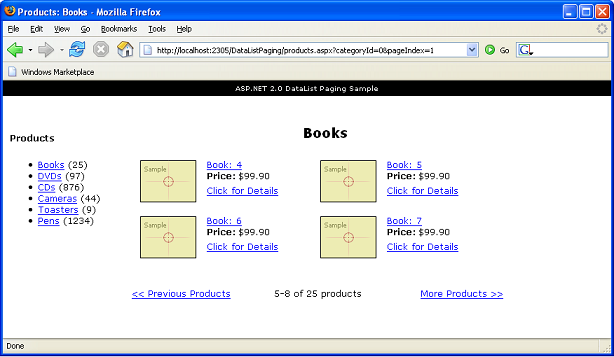
No additional code changes are required to enable this – just change the value in one place and you are good to go (no DAL, code-behind or other changes needed).
You can also experiment with the number of columns
rendered by the DataList – try changing the
“RepeatColumns” property on it to 1 or 3 to see a
different layout.
Summary
Because we only retrieve and return the rows needed for the current page of rendering from the database, and because we only use a single database
call to retrieve all of the data for the product-listing page, the execution of the page should be very, very fast and scalable (even when you have thousands
of results). As
you can see above,
the code to implement this is pretty small and
clean.
Because we are using standard navigational HTTP GET requests everywhere in the sample, no client-script is needed or emitted on the page (do a view-source
in the browser and you’ll notice there isn’t a single line of javascript anywhere on the page). All markup in the sample is also XHTML compliant and cross-browser.
I used FireFox for all the
screen-shots above – but obviously it also works with
IE.
Hope this helps,
Scott