Manipulating HTML Tables – Part 5 (Editing Rows using an ID)
While we have been concentrating on just working with
client-side code, at some point you are going to have to
send the data back to the server. In addition, you will
most likely get data from a server as well. Most of us
assign a primary key (unique number) to each row of data.
This ‘ID’ can be used to identify each row of data within
the table. In this blog post you will see how you might
use a primary key when manipulating data within a
table.
NOTE: You should probably go back and read the previous blog
posts in order to see what we are doing with tables.
The HTML
The HTML is exactly like that shown in my last blog post. I
am presenting it here just so you can see it in its
entirety.
<div class="container">
<h1 class="text-center">Add Row to
Table</h1>
<div class="row">
<div class="center-block col-sm-6">
<table id="peopleTable" class="table
table-bordered
table-condensed table-striped">
<thead>
<tr>
<th>Edit</th>
<th>First Name</th>
<th>Last Name</th>
<th>Email</th>
<th>Delete</th>
</tr>
</thead>
</table>
</div>
</div>
<div class="row">
<div class="center-block col-sm-6">
<div class="panel panel-primary">
<div class="panel-heading">
Person Information
</div>
<div class="panel-body">
<div class="form-group">
<label for="firstname">
First Name
</label>
<input type="text"
class="form-control"
value="Paul"
id="firstname" />
</div>
<div class="form-group">
<label for="lastname">
Last Name
</label>
<input type="text"
class="form-control"
value="Sheriff"
id="lastname" />
</div>
<div class="form-group">
<label for="email">
Email
</label>
<input type="email"
class="form-control"
value="PSheriff@pdsa.com"
id="email" />
</div>
</div>
<div class="panel-footer">
<div class="row">
<div class="col-xs-12">
<button type="button"
id="updateButton"
class="btn btn-primary"
onclick="updatePerson();">
Add
</button>
</div>
</div>
</div>
</div>
</div>
</div>
</div>
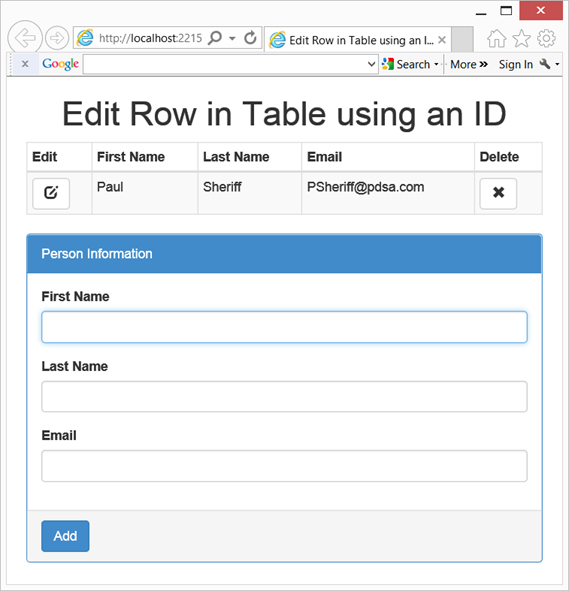
Figure 1: Use a unique ID for editing and deleting records
in a table
Add Two Variables
When adding a new record, you assign a new unique ID to that
record. This means you need a variable within your
<script> tag that is not a part of any function. This
makes that variable global to this page. Let’s call this
variable ‘nextId’. You also want to keep track of the record
you are currently editing if the user clicks on the edit
button. Let’s call this variable ‘currentId’. The code to do
this is shown below.
<script>
// Next id for adding a new person
var nextId = 1;
// ID of person currently editing
var currentId = 0;
</script>
Building a Row for the Table
You will either use the nextId variable or the currentId
variable when you build a row to be added to your HTML
table. So you build your buildPersonTableRow() function to
accept a parameter called ‘id’ to which you can pass either
of those two variables. This unique number will be added
into a data- attribute on each button. The code to do this
is shown below:
function buildPersonTableRow(id) {
var ret =
"<tr>" +
"<td>" +
"<button type='button' " +
"onclick='displayPerson(this);' " +
"class='btn btn-default' " +
"data-id='" + id + "'>" +
"<span class='glyphicon glyphicon-edit'
/>" +
"</button>" +
"</td>" +
"<td>" + $("#firstname").val() + "</td>"
+
"<td>" + $("#lastname").val() + "</td>"
+
"<td>" + $("#email").val() + "</td>" +
"<td>" +
"<button type='button' " +
"onclick='deletePerson(this);' " +
"class='btn btn-default' " +
"data-id='" + id + "'>" +
"<span class='glyphicon glyphicon-remove'
/>" +
"</button>" +
"</td>" +
"</tr>"
return ret;
}
Getting the Current ID
When the user clicks on the Edit button in the table, you
call the displayPerson() function passing in the Edit
button. In this function is where you need to grab the data-
attribute that contains the unique id and assign it to the
‘currentId’ variable. The displayPerson() function is shown
below:
function displayPerson(ctl) {
var row = $(ctl).parents("tr");
var cols = row.children("td");
currentId =
$($(cols[0]).children("button")[0]).data("id");
$("#firstname").val($(cols[1]).text());
$("#lastname").val($(cols[2]).text());
$("#email").val($(cols[3]).text());
// Change Update Button Text
$("#updateButton").text("Update");
}
This function retrieves the current row the user clicked on
using the parents() function on the ‘Edit’ button passed in
and locating the <tr> tag. Once you have the row of
the table you can use the children() function to retrieve an
array of all of the <td> elements for that row. Since
the Edit button is in the first column of the row, you can
retrieve that button using the line shown in bold above. You
then get the current id using the data() function to
retrieve the data-id attribute’s value.
Update a Person
You now need to modify the updatePersonInTable() function to
find the row in the table that contains this unique ID. You
call this function using
updatePersonInTable(currentId);. This function uses
that id to locate the button that contains the data-
attribute within your table. An example of the jQuery
selector that might be built would be $(“#peopleTable
button[data-id=’2’]). This selector returns a row in the
table that has the data for the person you wish to edit. One
you locate the row, replace that row in the table with the
contents from what the user entered in the input fields on
this form. The code for the updatePersonInTable() function
is shown below.
function updatePersonInTable(id) {
// Find person in <table>
var row = $("#peopleTable button[data-id='" + id +
"']")
.parents("tr")[0];
// Add changed row to table
$(row).after(buildPersonTableRow(id));
// Remove original row
$(row).remove();
// Change Update Button Text
$("#updateButton").text("Add");
}
Adding a New Row
Each time you add a new row to the table, use the ‘nextId’
variable to build the row of data. So you rewrite your
addPersonToTable() function as shown below. Notice how you
pass in the nextId variable to the buildPersonTableRow()
function. After this new person has been created, increment
the ‘nextId’ variable so the next person you add gets the
next unique id.
function addPersonToTable() {
// First check if a <tbody> tag exists, add one if
not
if ($("#peopleTable tbody").length == 0) {
$("#peopleTable").append("<tbody></tbody>");
}
// Append row to table
$("#peopleTable tbody").append(
buildPersonTableRow(nextId));
// Increment next ID to use
nextId += 1;
}
Summary
While the code in this blog post is not needed if you are
just working 100% client-side, it will come in handy once
you start working with data from the server. Using the data-
attributes to store the primary keys is a great way to keep
track of your unique ids.
Past Blog Content
Blog Archive
-
2015
-
2014 (18)
-
2013 (11)
-
2012 (19)
-
2011 (29)
-
2010 (19)
-
2009 (28)
-
2008 (0)
-
2007 (14)
-
2006 (6)