Paging through lots of data efficiently (and in an Ajax way) with ASP.NET 2.0
David Hayden
blogged about a cool new ROW_NUMBER() function
that SQL 2005 provides that got me excited and inspired
to write a little code last night.
You can download the sample app I built
here.
Features of the Sample
This sample is a self-contained ASP.NET application
that demonstrates a few things:
- How to implement a data-result search page built with
ASP.NET 2.0 and Atlas that can present hundreds of
thousands of row results using the ASP.NET 2.0 GridView
control. The
results are formatted using a “paging” based UI model –
where 15 results per page are displayed, and the user
can skip from page to page to see their data. For kicks I also added support for editing and deleting
each individual row.
- How to optimize the number of rows returned by the
SQL Server to the middle-tier web-server. This sample demonstrates how a large query result
(think 1000s, 10s of thousands or 100s of thousands of
rows) can be paged efficiently so that only the 15 rows
currently on display in a page are ever retrieved by the
web-server from the SQL database (this is done using the
ROW_NUMBER() function that David describes above, as
well as the support for optimized paging provided by the
GridView and ObjectDataSource controls). This avoids your web-server and SQL server grinding to
a halt when you execute large queries, and makes for
much more scalable performance.
- How to easily implement Ajax UI support for
paging/editing/deleting on top of hundreds of thousands
of rows of data (so no full page refreshes – instead it
only updates the portion of the page that changes). This took me only 60 seconds to-do, and uses the same
<atlas:updatepanel> control support I talked about
in this earlier blog post.
- How to easily implement Ajax UI support for adding
“auto-suggest” behavior to controls like
text-boxes. The
December release of the Atlas Project provides a
super-easy server control called the
<atlas:autocompleteextender> control that you can
point at a TextBox, and that will then call a
web-service to provide a list of suggestions when a
browser user starts typing in the text-box. This sample demonstrates how to use this to
auto-suggest items based on the contents in the
database.
- How to implement a business class façade/wrapper
around a data access layer. This is in turn used by the new ASP.NET 2.0
ObjectDataSource control for databinding scenarios. For this simple sample, I could have just used the data
access layer built by using File->Add New
Item->DataSet from the ObjectDataSource control
directly (like I did with my earlier To-do List sample), and basically eliminate the need to write any code
in the app. But
I wanted to use this sample to help demonstrate how to
build a richer business library layer abstraction that
was separate from my data access layer. The business layer implementation in this sample is
pretty trivial (and doesn’t really add much value), but
it demonstrates a skeleton of how/where you could easily
add business logic rules that were cleanly separated
from your data layer.
How To Run and Use the Application
To setup the sample, follow the below steps:
1) Have VS 2005 or Visual Web Developer and SQL Express
installed. Visual Web Developer and SQL Express are both free
downloads and provide everything you need to build,
debug and run the application. You can download them from here.
2) Download this
.zip file
containing the sample. Expand it into any directory you want.
3) Using Visual Web Developer or VS 2005, choose
File->Open Web-site and point to the root directory
of the sample sub-directory (the one with the files in
it).
4) Select the “PagedData.aspx” file and hit run.
This will bring up a page that looks like this:
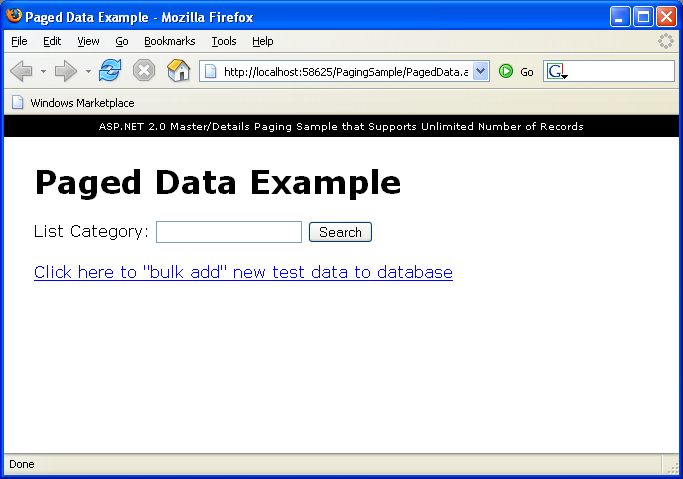
This allows you to query for lists by categories in
your database. The default database in the sample doesn’t have any
list items, so first we’ll want to create some. To-do this click the “Bulk Add” link.
Create a category called “test” and add 100 items to
it. This will
create a bunch of sample data in the database that will
help simulate paging. Then repeat this with a new category called “test2” and
add 10,000 items to it. Then repeat this with a new category called “test3” and
add 100,000 items to it.
Note that this
last category will probably take a few minutes to create
(since the logic in my app is simple and just adds them
one row at a time).
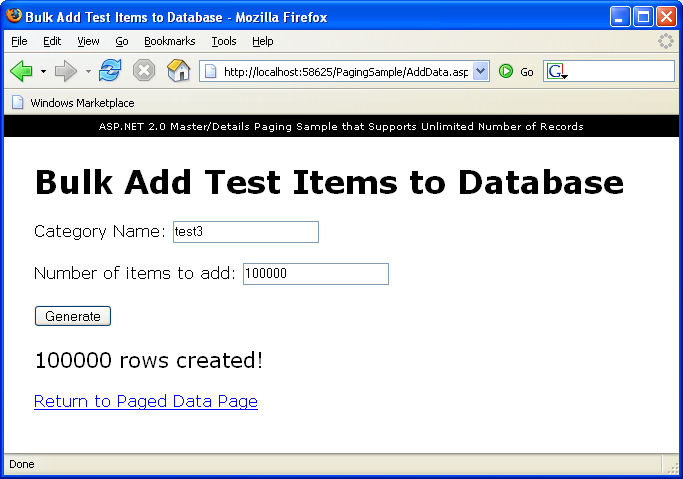
Then click on the “Return to Paged Data Page” link and
start typing a search string in the textbox. Pause slightly after you type “tes” – and then notice
how the auto-suggest box will list the three new
categories you added:
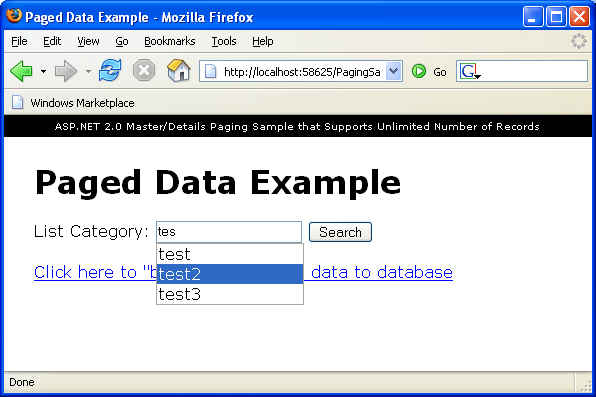
These are being populated using the
<atlas:autocompleteextender> server control (which
is hitting a web-service on the server to lookup the
available categories – and so will return the three new
ones we just created).
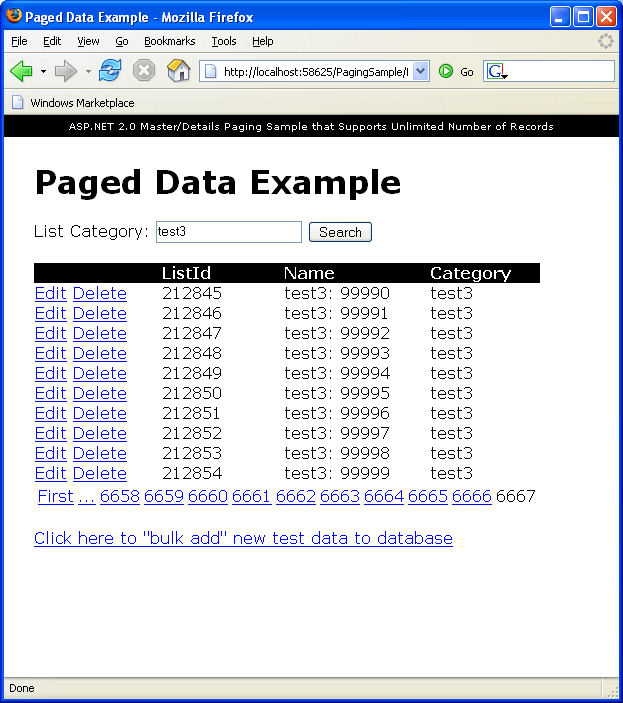
Search using “test3” (the one with 100,000 items), and
you’ll see this paged view of 100,000 items in the
GridView:
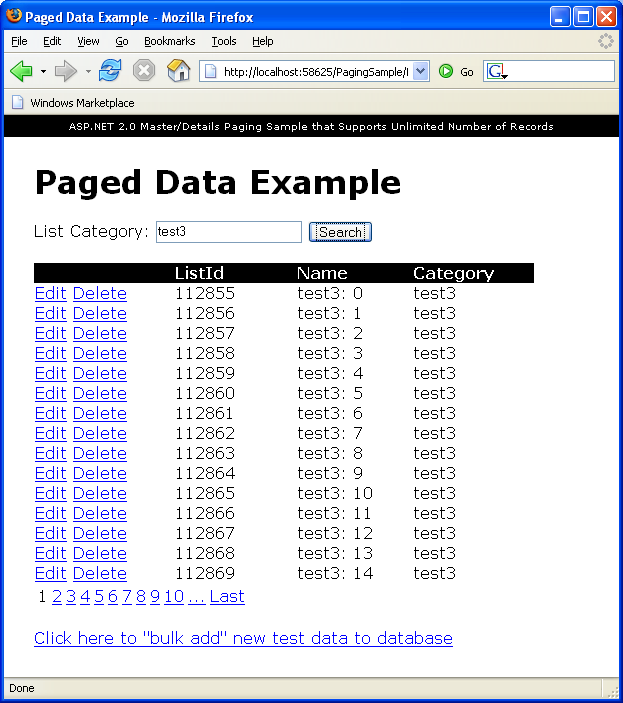
Each page of the screen contains 15 items from the
database. You
can switch around to see the different pages. Click the “…” link to go to pages 11-20. Click “Last” to jump to the final page of data:
Note that as you choose the different pages, the only
thing that gets updated is the grid of data – the
overall page
does not
refresh. This is
because the GridView control is wrapped using the
<atlas:updatepanel> control which allows
incremental
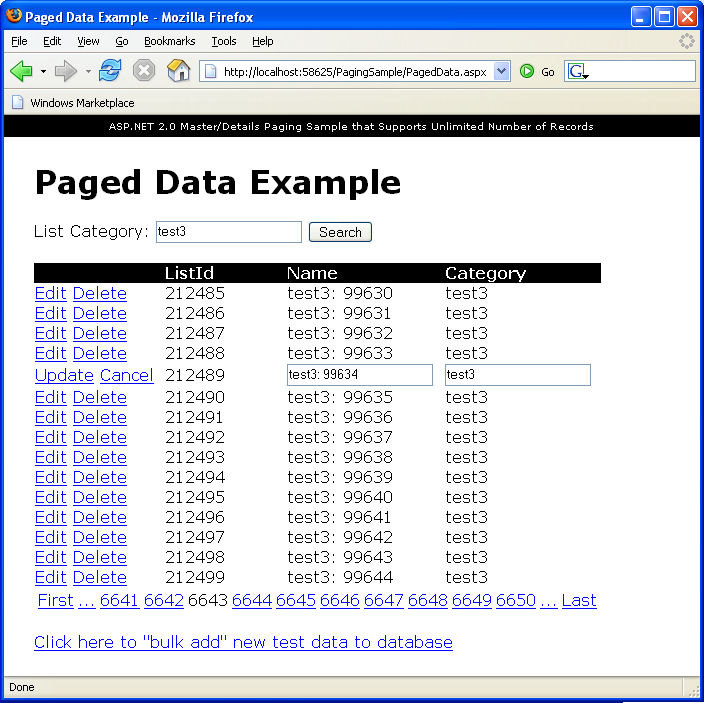
Page back a few screens, and then click “edit” on one
of the rows. Note that you can now edit and update its items. You can also click “delete” on a row to remove
one. Both
operations occur in an
How is this Application Built
Here is what the solution directory looks like in
Visual Web Developer:
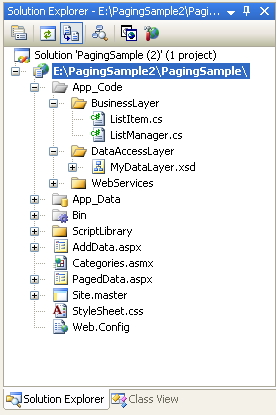
It contains two pages – PagedData.aspx and AddData.aspx
– that are each based on the Site.master
master-page. It
also contains one web-service – categories.asmx – which
is used by the <atlas:autocompleteextender>
control.
The database is implemented in PagingSample.mdf and
contains 1 simple table called “Lists” (note: you can
create new SQL Express databases by select File->Add
New Item->Database File):
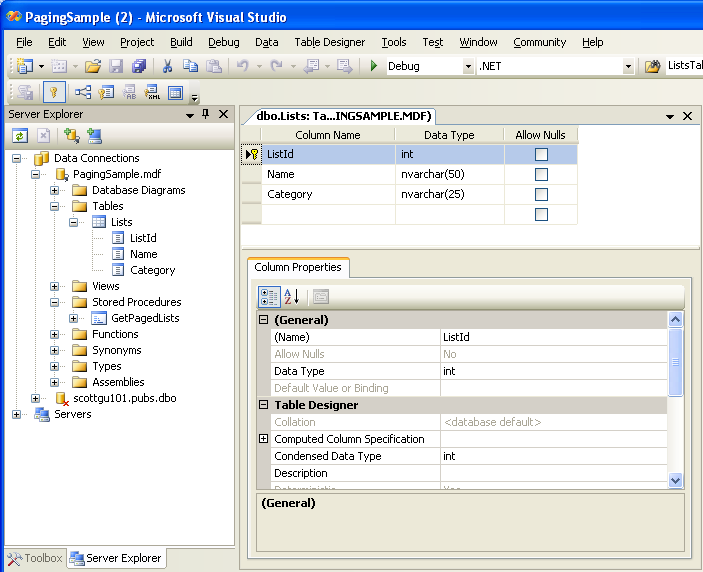
ListId is the primary key, and the Category column has
been marked to be indexed (note: this is important since
we’ll be creating 100,000+ rows). To set indexes, right click on a column in the table
designer and choose “Indexs/Keys” and make sure that
“Categories” is being indexed.
The database has one stored procedure called
“GetPagedLists” that was created using the ROW_NUMBER()
approach described in David’s blog:
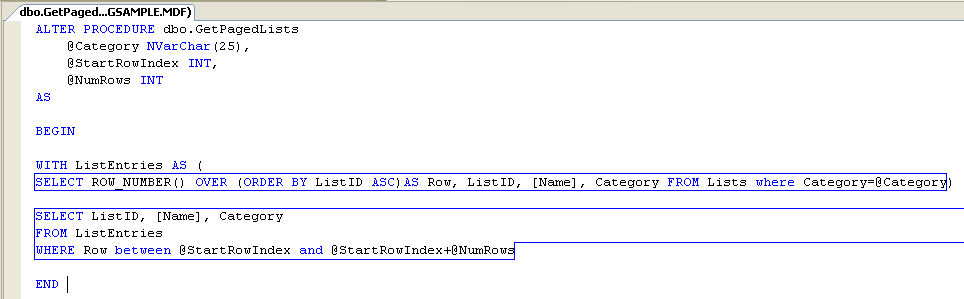
Note: you can double-click on the sproc name in the
solution explorer to open and edit it.
The data access layer was implemented using a DataSet
component (choose File->Add New Item->DataSet to
create one). It is defined declaratively within the
“MyDataLayer.xsd” file and contains two
table-adapters:
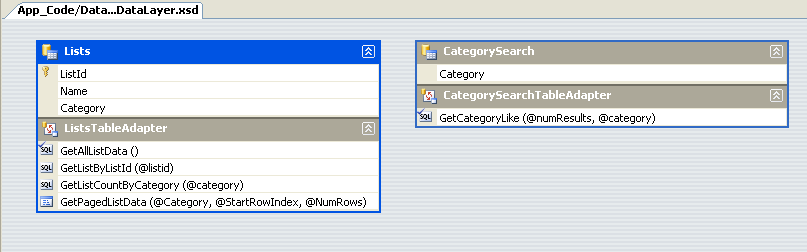
GetPagedListData goes against the SPOC above, but all
other methods are normal SQL queries (note: the
GetListCountByCategory method is defined as:
SELECT COUNT(*) FROM Lists where
category=@category
and returns a scalar integer value).
I could have just used the DAL layer directly from the
UI tier, but instead chose to wrap the DAL with a
business layer façade that looks like this:
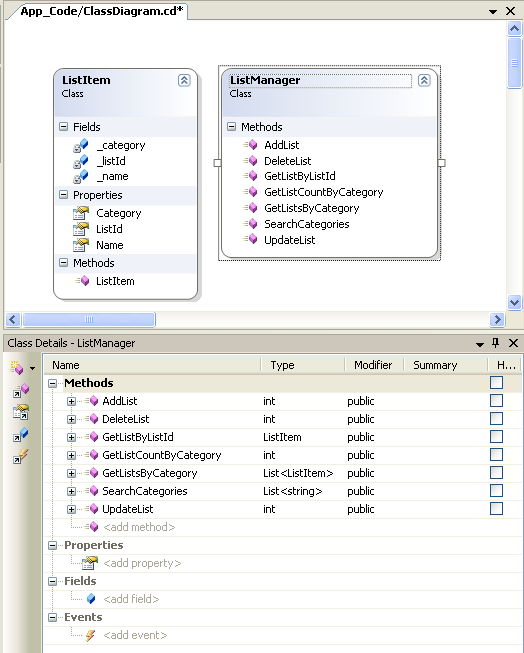
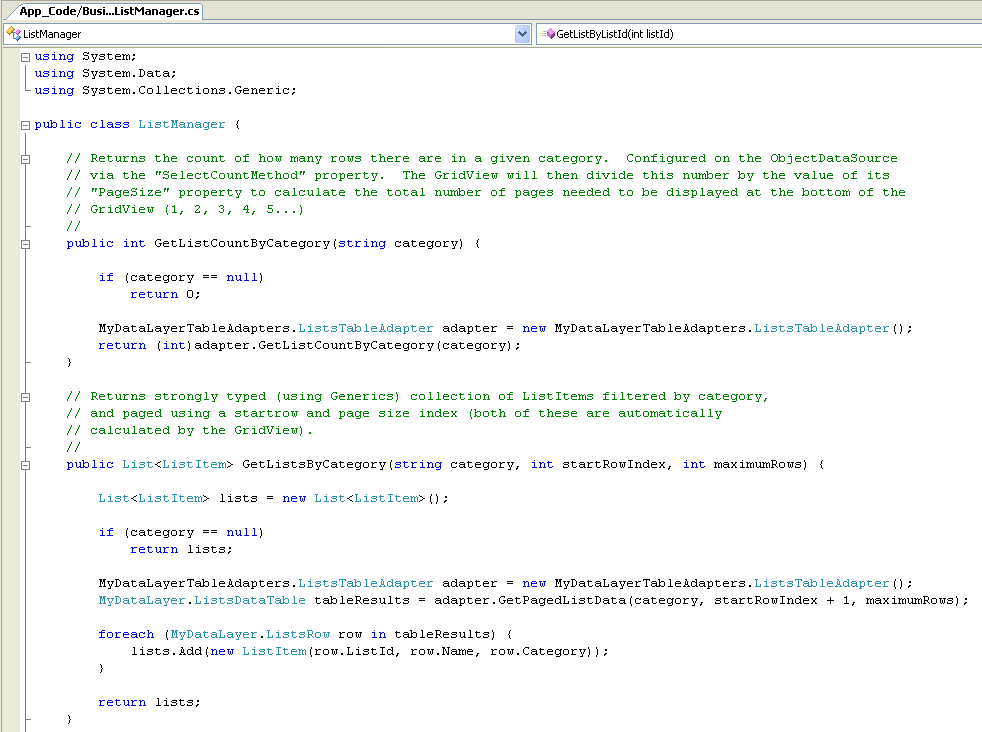
The two significant methods for our paging sample are
“GetListCountByCategory” and “GetListsByCategory”. Here are the simple implementations of them in our
business façade layer (note: right now they just thinly
wrap the data access layer and expose the row data as
custom “ListItem” types – so they don’t provide much
value over calling the DAL directly, but do demonstrate
how you could add your own custom logic around it):
Databinding a paged GridView control to this
middle-tier object is easy (and automated if you are
using the WYSIWYG designer in Visual Web
Developer). Just
set the “AllowPaging=true” property on the GridView and
set the PageSize value you want (for this sample I am
using 15 rows per page). Then point the GridView at an ObjectDataSource control,
which is configured to use the ListManager business
façade class. It
has the “AllowPaging” attribute set to true, and has the
“SelectMethod” and “SelectCount” properties pointing to
the “GetLisByCategory” and “GetListCountByCategory”
methods above.
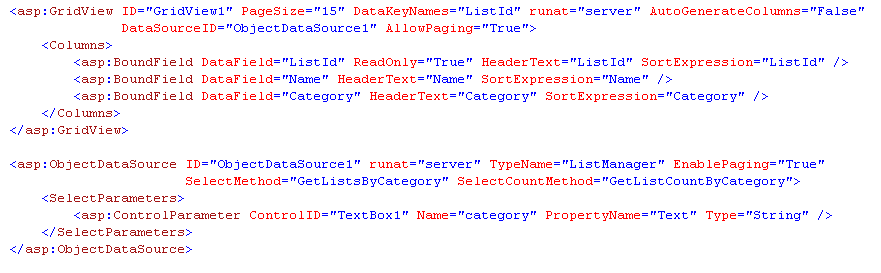
Now, when you run the application, the GridView binds
against the ObjectDataSource which will invoke the
“GetListCountByCategory” method on our “ListManager”
business façade class to calculate the total number of
rows to page, and then invoke the “GetListByCategory”
method passing the appropriate “category” parameter
along with the “startRowIndex” and “maximumRows”
parameter values that correspond to the page index that
the GridView is currently on.
The beauty is that because we only retrieve and return the 15 rows of data we actually need from the database as part of this operation, the result is fast and scalable. As a browser user pages back and forth on the data within the GridView across the 100,000 rows of data, all UI paging logic and update/edit semantics are handled for us.
The last little implementation note to call out is the use of the <atlas:AutoCompleteExtender> control to auto-suggest items within the Category TextBox. This is a new control provided by the Atlas December drop, and is simple to implement. Basically, you just add the control to your page and point at the TextBox you want to complete, along with a web-service URL and method to call when the browser user types three letters in the TextBox -- these are then passed to the web-service, which can provide a list of suggestions back:

The implementation of the web-service method then looks like this within this sample:

Hope this helps and proves to be a useful sample. Thanks again to David for the blog post
on the new ROW_NUMBER() function in SQL 2005 that makes
this much easier to implement.
Hope this helps – and happy new year!
Scott
P.S. Note that with SQL 2000 you can use the same
approach as above, although the SPROC ends up being
slightly more complicated.