Coming Soon: VS 2005 Web Application Project and VS 2005 Web Deployment Project Updates
May 8th Update: The final release of the VS 2005 Web Application Project is now live. You can learn more about it here.
Later this week we are planning to publish updated
downloads for both the VS 2005 Web Application Project Option and VS 2005 Web Deployment Project Utility.
VS 2005 Web Application Project Refresh
Run-through
You can learn more about the first preview edition of
the VS 2005 Web Application Project on my web-site here
(you can also read this blog post
here for more information on the motivation for
introducing this new option). The first preview provided a number of the core
features of the new web project-system option, and
allowed people who didn’t mind doing some manual work to
start using it. I’ve also received a lot of positive feedback from
people who have found it makes upgrading complex VS 2003
Web Projects really easy (because the compilation
semantics are the same as VS 2003, most upgrades can be
done in about 15-30 minutes).
The refreshed VS 2005 Web Application Project drop this
week will add support for the most commonly requested
missing feature in the first preview release – which is
support for generating and updating the control field
declarations for the code-behind class, as well as a
number of other new features.
Installing the new build now allows you to-do the
following:
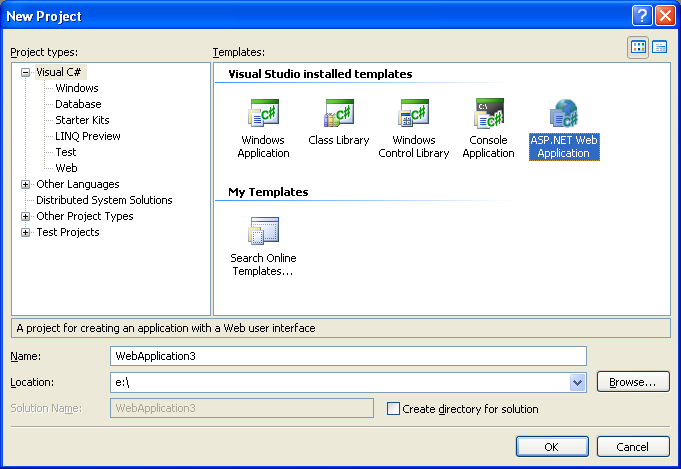
1) Choose File->New Project in VS 2005, and then
select the “ASP.NET Web Application” icon to create a
new VS 2005 Web Application Project:
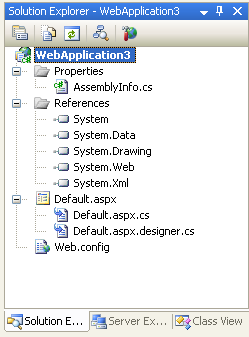
2) This then create a new project with a default.aspx
page and web.config. Note that VS 2005 Web Application Projects have the
same project configuration as VS 2003 Web Projects, as
well as standard class library projects (they also use a
MSBuild based project file):
3) I can then open the Default.aspx page in either the
WYSIWYG designer or source-view and add some static HTML
content + controls:
<%@
Page
Language="C#"
AutoEventWireup="true"
CodeBehind="Default.aspx.cs"
Inherits="WebApplication3._Default"
%>
<html>
<head
runat="server">
<title>My VS 2005 Web
Application Project Test</title>
</head>
<body>
<form
id="form1"
runat="server">
<div>
<h1>My VS 2005 Web
Application Project Test</h1>
<h3>Pick a date:
</h3>
<asp:Calendar
ID="Calendar1"
runat="server"
BorderColor="#999999"
DayNameFormat="Shortest"
Font-Names="Verdana">
<SelectedDayStyle
BackColor="#666666"
Font-Bold="True"
ForeColor="White"
/>
<TodayDayStyle
BackColor="#CCCCCC"
ForeColor="Black"
/>
<SelectorStyle
BackColor="#CCCCCC"
/>
<WeekendDayStyle
BackColor="#FFFFCC"
/>
<OtherMonthDayStyle
ForeColor="#808080"
/>
<NextPrevStyle
VerticalAlign="Bottom"
/>
<DayHeaderStyle
BackColor="#CCCCCC"
Font-Bold="True"
Font-Size="7pt"
/>
<TitleStyle
BackColor="#999999"
BorderColor="Black"
Font-Bold="True"
/>
</asp:Calendar>
<br
/>
<div>
<asp:Label
ID="Label1"
runat="server"
Text="Label"/>
</div>
</div>
</form>
</body>
</html>
4) If you look at the Solution Explorer in step 2 above
you’ll notice that there are two .cs files associated
with the Default.aspx page. One is the code-behind file that contains the page
class that a developer authors (this is the
default.aspx.cs file), the other is a new file used to
contain all of the tool-generated/maintained code for
the page (this is the default.aspx.designer.cs
file). The class
in both files is declared as a “partial” type – which
means they are compiled together into a single
code-behind class at compile-time. You can read this tutorial
I wrote at the time of the first VS 2005 Web Application
Preview download to understand more how this works.
With the updated VS 2005 Web Application Project
Preview we are releasing this week, the
Default.aspx.designer.cs file will automatically be
updated when you add/remove controls to your
Default.aspx file. Below is what the file looks like after I added the
markup above:
namespace
WebApplication3 {
public
partial
class
_Default {
protected
System.Web.UI.HtmlControls.HtmlForm
form1;
protected
System.Web.UI.WebControls.Calendar
Calendar1;
protected
System.Web.UI.WebControls.Label
Label1;
}
}
Notice that there is a control declaration for each
server control in the .aspx file. By default the controls are declared as “protected”
fields. You can
optionally open the .designer.cs file and change a
field’s accessor to “public” if you want. We don’t recommend this – since it is much better to
declare a getter property instead. But we added support for it starting with this preview
drop because we’ve noticed a lot of VS 2003 Web Projects
doing it, and we wanted to make upgrades as easy as
possible.
We’ve also refined the code-generation of the field
declarations in two other ways that provide big
improvements over the VS 2003 experience:
a) It is no longer required for you to switch the page
into the designer in order to update the control
declarations. VS
2003 required you to-do this – which meant that if you
add/edit/rename controls in source-view you are forced
into loading the page in design-view to have the
code-behind declarations update. With the VS 2005 Web Application Project option we
monitor both source-view and design-view, and update the
declarations appropriately.
b) VS 2005 now honors control fields declarations in
the base class of a page, and will not duplicate them in
the code-behind file of the page. VS 2003 had problems with this that required manual
editing – with the VS 2005 Web Application Project
option we manage this for you automatically.
5) Because the .designer.cs file is automatically
updated with the control declarations, I can now just go
directly to the Default.aspx.cs code-behind file and
program against any of the controls on the page:
using
System;
using
System.Data;
using
System.Configuration;
using
System.Collections;
using
System.Web;
using
System.Web.Security;
using
System.Web.UI;
using
System.Web.UI.WebControls;
using
System.Web.UI.WebControls.WebParts;
using
System.Web.UI.HtmlControls;
namespace
WebApplication3 {
public
partial
class
_Default :
System.Web.UI.Page {
protected
void Page_Load(object
sender, EventArgs e)
{
Label1.Text =
"Current date: " +
Calendar1.SelectedDate;
}
}
}
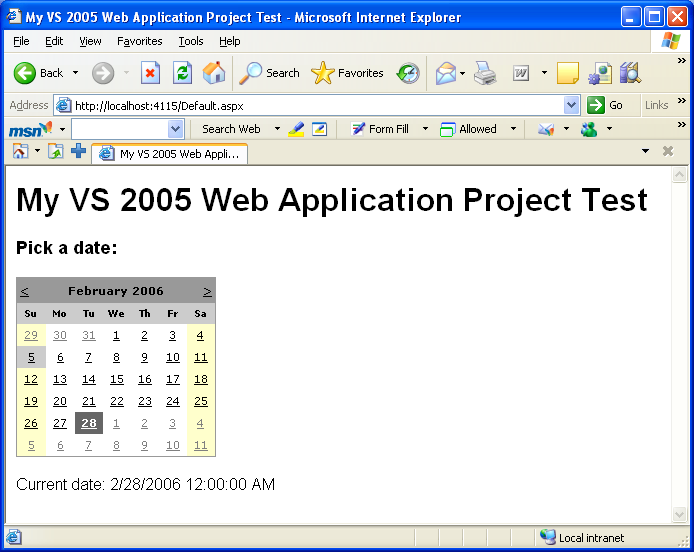
6) I can then run the web application by hitting F5
(run with debugging) or Ctrl-F5 (run without
debugging). This
will compile the project into a single assembly (the
exact same build semantics as VS 2003 Web Projects) and
by default launch and run the web application using the
built-in VS 2005 Web Server (aka Cassini):

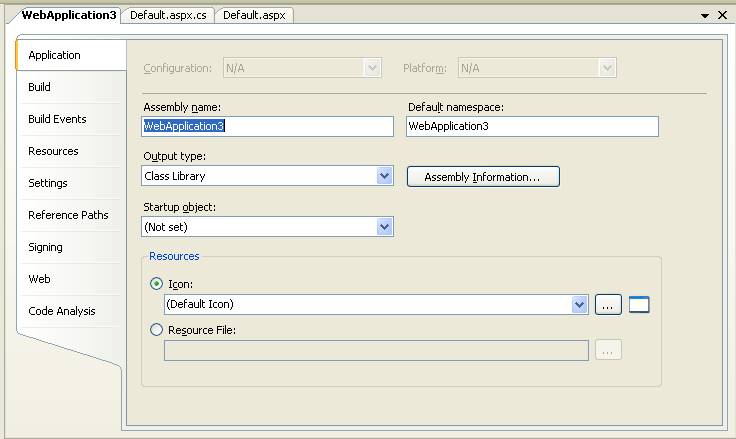
7) I can customize my new web project settings using
the same project options screens supported by
client-library projects in VS 2005 today (just
right-click on the web project node in the solution
explorer and choose the “Properties” menu item):
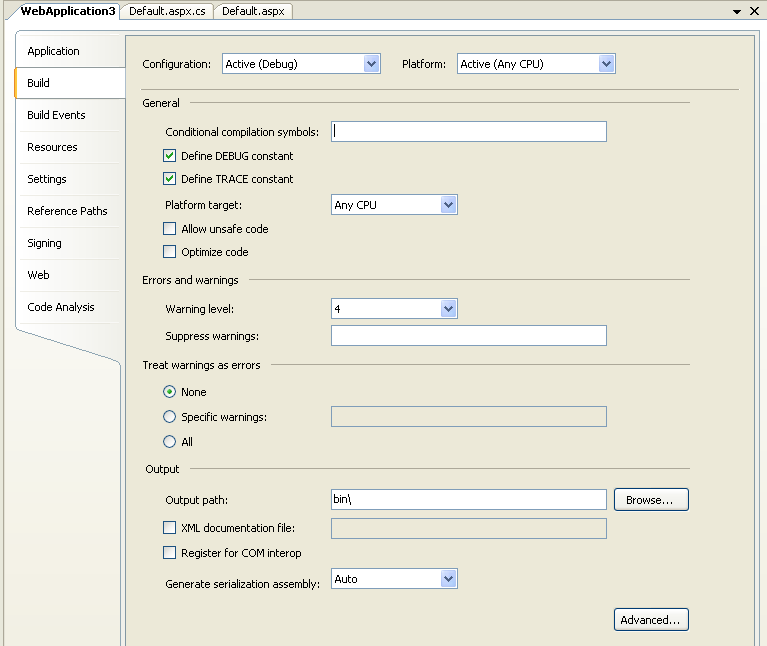
8) VS 2005 Web Application Projects also add support
for a new “Web” tab that enables you to configure
whether IIS or the built-in VS 2005 Web Server is used
to run the application, as well as the default page used
when running the application (like VS 2005 Web Site
Projects – it defaults to running the current page you
are editing unless you specifically pick a page as the
startup page):
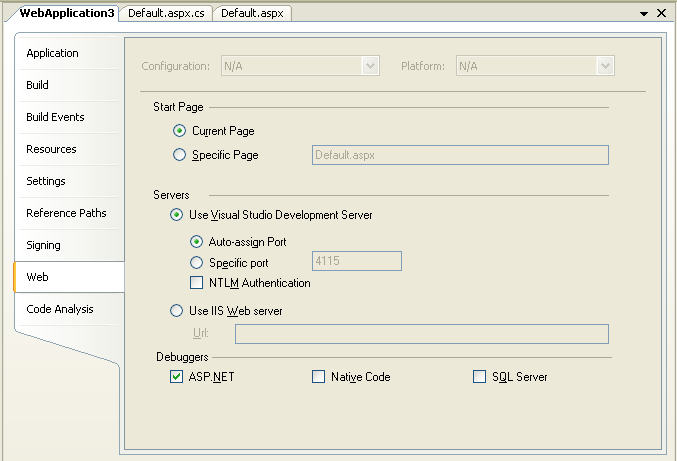
All of these project settings are saved within a
standard MSBuild project file.
9) As a last optional step, you can now also choose to
use a VS 2005 Web Deployment Project to further refine
your deployment of the above VS 2005 Web
Application.
VS 2005 Web Application Projects now compile all code
into a single .dll assembly – so there is no need to use
a VS 2005 Web Deployment Project to get this. But Web Deployment Projects do provide additional
support for pre-compiling the .aspx content of a
project, as well as for making additional post-build
publish configuration changes. With the refreshed build of the Web Deployment Project
that we are putting out, you’ll now be able to-do this
for both VS 2005 Web Site Projects as well as VS 2005
Web Application Projects.
Upgrading VS 2003 Web Projects to VS 2005 Web
Application Projects
When the final refresh of the VS 2005 Web Application
Project option is released, and you open up a VS 2003
Web Project in VS 2005, it will automatically prompt you
as to whether you want to upgrade it as a VS 2005 Web
Site Project or as a VS 2005 Web Application
Project.
If you choose the Web Application Project option, the
upgrade wizard will automatically upgrade the project
file format to MSBuild and open the project for you as a
VS 2005 Web Application project. Because the build-semantics are the same as with VS
2003 Web Projects (everything is compiled into a single
assembly), no code changes are required.
With both the first and this new refresh of VS 2005 Web
Application Projects, this automatic project conversion
doesn’t take place yet. Instead, you need to follow some manual steps to
migrate the project file. These are straight-forward (and take about 5 minutes
once you know what you are doing). I published detailed tutorials with the first VS 2005
Web Application Project preview that show how you do
this both for C# projects and VB projects.
Once the project file conversion is complete, you can
open the project up as a VS 2005 Web Application
Project. For
example, the below screenshot shows what the ASP.NET 1.1
Reports Starter Kit looks like in the VS 2005 Solution
Explorer as a Web Application Project after spending 5
minutes updating the project file using the tutorial
above:
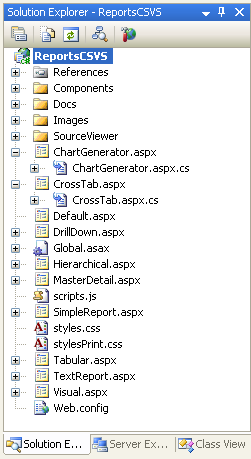
Notice how the pages in the project are still using the
VS 2003 style code-behind where there is no .designer.cs
file, and the fields are still in the code-behind .cs
file. When you
upgrade a project, you can optionally keep this same
format and manually update the field declarations if you
want (for cases where you want total control over
them).
Alternatively, with the new refresh build of the VS
2005 Web Application Project you can also now
right-click on a page and choose the new “Upgrade File
to Web Application” menu option:
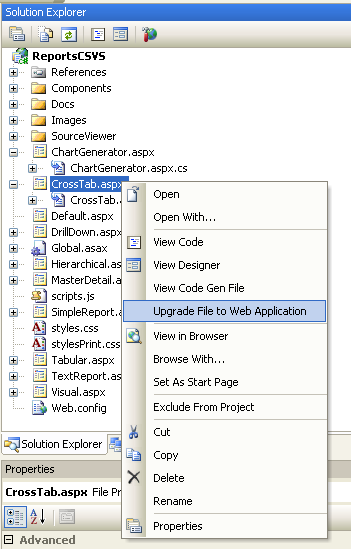
This will cause a .designer.cs file with the control field declarations to be generated and added to the project. This file will automatically be maintained as you make changes to the .aspx file:
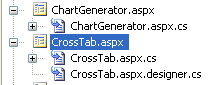
Upgrading VS 2005 Web Site Projects to VS 2005 Web
Application Projects
One question I’ve been asked a few times lately has
been how much work it will take to migrate an existing
page built using the VS 2005 Web Site Project model to
run within a VS 2005 Web Application Project.
The good news is that this is pretty easy with this new
refresh. Just
follow the following steps:
1) Create your new VS 2005 Web Application Project
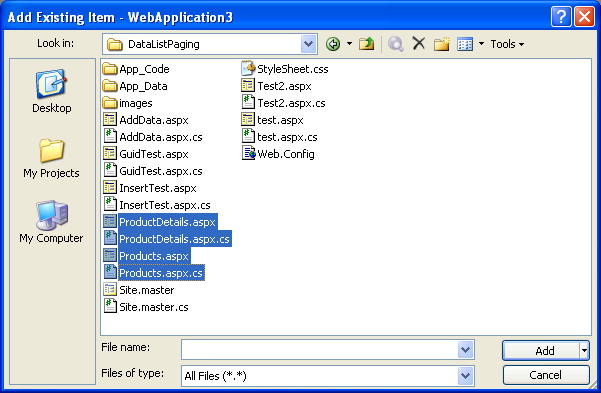
2) Choose “Add Existing File” on the project and select
the page or pages you wish to import into the project
(select both the page and the code-behind file):
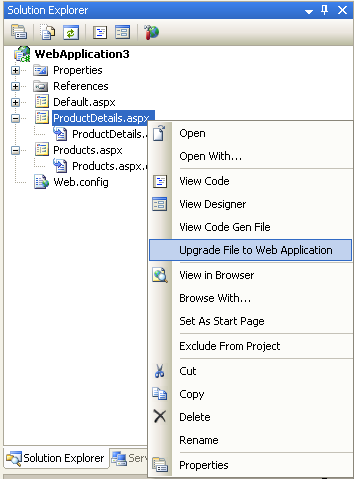
3) You can then right-click on the VS 2005 Web Site
Project pages within the solution and select “Upgrade
File to Web Application”:
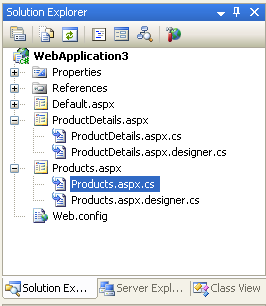
This will generate the appropriate .desinger.cs file
for the control declarations, and update the page
directive to be “codebehind” instead of “codefile”:
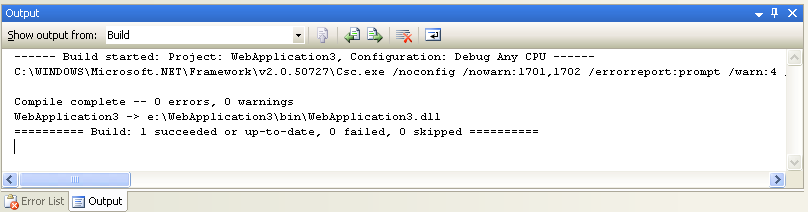
4) You can then do a build or build-solution to compile
the project into a single assembly and run it:
Future VS 2005 Web Application Project Refreshes
The refresh build of the VS 2005 Web Application Project we are putting out this week contains a lot of new feature functionality support. There are still some features that aren’t implemented yet (we’ll publish a detailed list of these when we make the build available). Our plan is to finish these out with a build that we put out around the middle of next month (we need to expose a few hooks in VS 2005 via a patch that we'll be putting out then -- which is why not all features are implemented with this week's build). We will then make it an officially "supported" release (meaning you can call up and get PSS support and fixes), and will include it directly in future VS releases.
Hopefully this week’s build provides a good roadmap for where we are heading, though, and provides the core functionality needed for people to get started and make progress using the new project option today.
I will be updating the tutorials on my http://webproject.scottgu.com site later this week once the new refresh build is out to show how to work with the new features.
Hope this helps,
Scott