Using LINQ with ASP.NET (Part 1)
One of the new things I’m super excited about right now is the LINQ family of technologies that are starting to come out (LINQ, DLINQ, XLINQ and others soon).
LINQ will be fully integrated with the next release of Visual Studio (code-name: Orcas) and it will include some very cool framework and tool support (including full intellisense and designer support). Last week the LINQ team released the May CTP drop of LINQ that you can download from here. What is cool about this CTP is that it works with VS 2005, and allows you to start learning more about it immediately. It incorporates a bunch of customer feedback (for example: support for stored procedures in DLINQ), and also includes a built-in ASP.NET Web-Site Project to enable you to leverage it with ASP.NET apps (note: you can also use LINQ with the new VS 2005 Web Application Project option as well).
I’m going to put together a few blog postings over the next few weeks that show off ways to use LINQ/DLINQ/XLINQ within ASP.NET projects. This first walkthrough below will help you get started and introduce some of the important LINQ concepts. You can follow-along by downloading the May CTP LINQ preview above and typing in the code below (I list all of it below), or you can download and run the complete .zip file of my samples here (note: you still need to install the LINQ May CTP drop for the .zip file of samples to work).
Note: LINQ, DLINQ and XLINQ will be fully supported in both C# and VB. I am using C# for the example belows.
Step 0: Creating a C# LINQ ASP.NET Web Site
To create a new ASP.NET Web Site that can use LINQ/DLINQ/XLINQ and the new C# 3.0 language features, choose File->New Web Site in VS and select the “LINQ ASP.NET Web Site Template”:
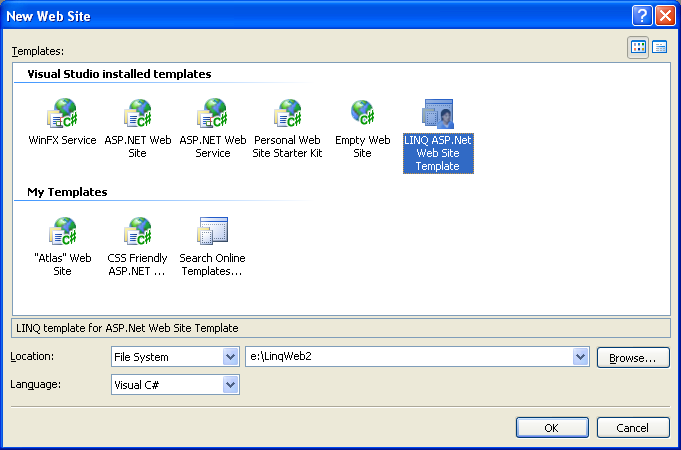
This will create a web-site project with the following files in-it by default:
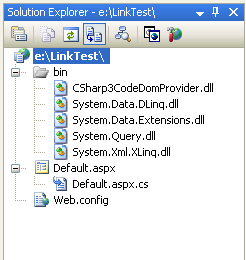
Note that it includes a number of LINQ assemblies in the \bin folder. It also adds the following setting to the app’s web.config file which tells both VS and ASP.NET to use the C# 3.0 compiler to compile and run the app:
<system.codedom>
<compilers>
<compiler language="c#;cs;csharp"
extension=".cs"
type="Microsoft.CSharp.CSharp3CodeProvider, CSharp3CodeDomProvider"/>
</compilers>
</system.codedom>
Note that the C# 3.0 compiler and CodeDOM provider can run side-by-side with the C# 2.0 versions (so you don’t have to worry about it breaking VS or ASP.NET when you install it).
Step 1: Creating your first ASP.NET page using LINQ
Create a new page called Step1.aspx. Within the .aspx page add a GridView control like so:
<%@ Page Language="C#" CodeFile="Step1.aspx.cs" Inherits="Step1" %>
<html>
<body>
<form id="form1" runat="server">
<div>
<h1>City Names</h1>
<asp:GridView ID="GridView1" runat="server">
</asp:GridView>
</div>
</form>
</body>
</html>
Within the code-behind file we’ll then write the canonical “hello world” LINQ sample – which involves searching and ordering a list of strings:
using System;
using System.Web;
using System.Web.UI;
using System.Web.UI.WebControls;
using System.Query;
public partial class Step1 : System.Web.UI.Page
{
protected void Page_Load(object sender, EventArgs e)
{
string[] cities = { "
"
"
GridView1.DataSource = from city in cities
where city.Length > 4
orderby city
select city.ToUpper();
GridView1.DataBind();
}
}
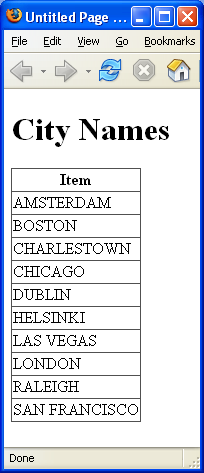
In the above sample I’ve created an array of strings listing the cities I’ve visited from Jan->May of this year. I’m then using a LINQ query expression against the array. This query expression returns all cities where the city name is greater than 4 characters, and orders the result in alphabetical order and transforms those city names into upper case.
LINQ queries return results of type: IEnumerable<T> -- where <T> is determined by the object type of the “select” clause. In the above sample “city” is a string, so the type-safe result is a generics based collection like so:
IEnumerable<string> result = from city in cities
where city.Length > 4
orderby city
select city.ToUpper();
Because ASP.NET controls already support databinding to any IEnumerable collection, we can easily assign this LINQ query result to the GridView and call its DataBind() method to generate this page output result:
Note that instead of using the GridView control I could have just as easily used the <asp:repeater>, <asp:datalist>, <asp:dropdownlist>, or any other ASP.NET list control (both those built-into the product or ones built by other developers). For the purposes of these samples I’m just going to use the <asp:gridview> -- but again know that you can use any.
Step2: Using Richer Collections
Searching an array of strings is not terribly interesting (although sometimes actually useful). More interesting would be the ability to search and work against richer collections of our own making. The good news is that LINQ makes this easy. For example, to better track trips I can create a simple class called “Location” in my project below:
using System;
public class Location
{
// Fields
private string _country;
private int _distance;
private string _city;
// Properties
public string Country
{
get { return _country; }
set { _country = value; }
}
public int Distance
{
get { return _distance; }
set { _distance = value; }
}
public string City
{
get { return _city; }
set { _city = value; }
}
}
This exposes 3 public properties to track the County, City name and Distance from
<%@ Page Language="C#" CodeFile="Step2.aspx.cs" Inherits="Step2" %>
<html>
<body>
<form id="form1" runat="server">
<h1>Cities and their Distances</h1>
<asp:GridView ID="GridView1" AutoGenerateColumns="false" runat="server">
<Columns>
<asp:BoundField HeaderText="Country" DataField="Country" />
<asp:BoundField HeaderText="City" DataField="City" />
<asp:BoundField HeaderText="Distance from
</Columns>
</asp:GridView>
</form>
</body>
</html>
I can then populate a collection of Location objects and databind it to the Grid in my code-behind like so:
using System;
using System.Collections.Generic;
using System.Web;
using System.Query;
public partial class Step2 : System.Web.UI.Page
{
protected void Page_Load(object sender, EventArgs e)
{
List<Location> cities = new List<Location>{
new Location { City="
new Location { City="
new Location { City="
new Location { City="
new Location { City="
new Location { City="
new Location { City="
new Location { City="
new Location { City="
new Location { City="Nice", Distance=5428, Country="
new Location { City="
};
GridView1.DataSource = from location in cities
where location.Distance > 1000
orderby location.Country, location.City
select location;
GridView1.DataBind();
}
}
The above code-behind shows off a few cool features. The first is the new C# 3.0 support for creating class instances, and then using a terser syntax for setting properties on them:
new Location { City="
This is very useful when instantiating and adding classes within a collection like above (or within an anonymous type like we’ll see later). Note that rather than use an array this time, I am using a Generics based List collection of type “Location”. LINQ supports executing queries against any IEnumerable<T> collection, so can be used against any Generics or non-Generics based object collections you already have.
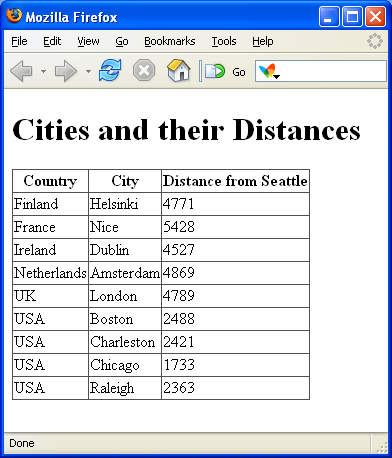
For my LINQ query I’m then returning a collection of all cities that are more than 1000 miles away from
IEumerable<Location> result = from location in cities
where location.Distance > 1000
orderby location.Country, location.City
select location;
When I databind this result against the GridView I get a result like so:
Step 3: Refactoring the City Collection Slightly
Since we’ll be re-using this collection of cities in several other samples, I decided to encapsulate my travels in a “TravelOrganizer” class like so:
using System;
using System.Collections.Generic;
public class TravelOrganizer
{
public List<Location> PlacesVisited
{
get
{
List<Location> cities = new List<Location>{
new Location { City="
new Location { City="
new Location { City="
new Location { City="
new Location { City="
new Location { City="
new Location { City="
new Location { City="
new Location { City="
new Location { City="Nice", Distance=5428, Country="
new Location { City="
};
return cities;
}
}
}
This allows me to then just write the below code in our code-behind to get the same result as before:
using System;
using System.Collections.Generic;
using System.Web;
using System.Web.UI;
using System.Query;
public partial class Step3 : System.Web.UI.Page
{
protected void Page_Load(object sender, EventArgs e)
{
TravelOrganizer travel = new TravelOrganizer();
GridView1.DataSource = from location in travel.PlacesVisited
where location.Distance > 1000
orderby location.Country, location.City
select location;
GridView1.DataBind();
}
}
What is really cool about LINQ is that it is strongly-typed. What this means is that:
1) You get compile-time checking of all queries. Unlike SQL statements today (where you typically only find out at runtime if something is wrong), this means you will be able to check during development that your code is correct (for example: if I wrote “distanse” instead of “distance” above the compiler would catch it for me).
2) You will get intellisense within VS (and the free Visual Web Developer) when writing LINQ queries. This makes both typing faster, but also make it much easier to work against both simple and complex collection and datasource object models.
Step 4: Skipping and Taking using .NET Standard Query Operators
LINQ comes with built-in support for many built-in Standard Query Operators. These can be used within code by adding a “using System.Query” statement at the top of a class file, and can be applied to any sequence of data. For example, if I wanted to list cities in order of distance and list the 2nd->6th farthest away cities I could write my code-behind file like so:
using System;
using System.Web.UI;
using System.Query;
public partial class Step4 : System.Web.UI.Page
{
protected void Page_Load(object sender, EventArgs e)
{
TravelOrganizer travel = new TravelOrganizer();
GridView1.DataSource = (from location in travel.PlacesVisited
orderby location.Distance descending
select location).Skip(1).Take(5);
GridView1.DataBind();
}
}
Note how I am ordering the result by the distance (farthest to least). I am then using the “Skip” operator to skip over the first city, and the "Take" operator to only return the remaining 5.
What is really powerful is that the .NET Standard Query Operators are not a hard-coded list, and can be added to and replaced by any developer. This enables very powerful domain specific implementations. For example, when the Skip() and Take() operators are used with DLINQ – it translates the calls into back-end SQL logic that performs server-side paging (so that only a few rows are returned from the SQL database – regardless of whether it is from a table with 100,000+ rows of data). This means that you will be able to trivially build efficient web data paging over lots of relational data (note: until then you can use the techniques listed here).
Step 5: More Fun with .NET Standard Query Operators
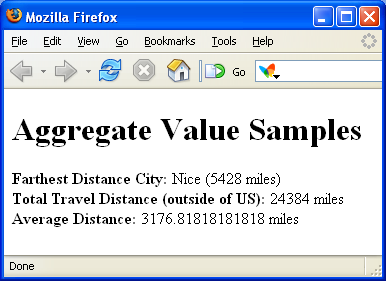
In addition to returning sequences of data, we can use .NET Standard Query Operators to return single or computed results of data. The below samples show examples of how to-do this:
<%@ Page Language="C#" CodeFile="Step5.aspx.cs" Inherits="Step5" %>
<html>
<body>
<form id="form1" runat="server">
<div>
<h1>Aggregate Value Samples</h1>
<div>
<b>Farthest
<asp:Label ID="MaxCityNameTxt" runat="server" Text="Label"></asp:Label>
<asp:Label ID="MaxCityDistanceTxt" runat="server" Text="Label"></asp:Label>
</div>
<div>
<b>Total Travel Distance (outside of US):</b>
<asp:Label ID="TotalDistanceTxt" runat="server" Text="Label"></asp:Label>
</div>
<div>
<b>Average Distance:</b>
<asp:Label ID="AverageDistanceTxt" runat="server" Text="Label"></asp:Label>
</div>
</div>
</form>
</body>
</html>
Step5.aspx.cs code-behind file:
using System;
using System.Collections.Generic;
using System.Web.UI;
using System.Query;
public partial class Step5 : System.Web.UI.Page
{
protected void Page_Load(object sender, EventArgs e)
{
TravelOrganizer travel = new TravelOrganizer();
//
// Calculate farthest city away
Location farthestCity = (from location in travel.PlacesVisited
orderby location.Distance descending
select location).First();
MaxCityNameTxt.Text = farthestCity.City;
MaxCityDistanceTxt.Text = "(" + farthestCity.Distance + " miles)";
//
// Calculate total city distances of all cities outside US
int totalDistance = (from location in travel.PlacesVisited
where location.Country != "
select location).Sum(loc => loc.Distance);
TotalDistanceTxt.Text = totalDistance + " miles";
//
// Calculate average city distances of each city trip
double averageDistance = travel.PlacesVisited.Average(loc => loc.Distance);
AverageDistanceTxt.Text = averageDistance + " miles";
}
}
Note that the last two examples above use the new Lambda Expression support – which enable fragments of code (like delegates) that can operate on top of data to compute a result. You can build your own .NET Query Operators that use these (for example: you could build domain specific ones to calculate shipping costs or payroll tax). Everything is strongly-typed, and will support intellisense and compilation checking support.
The output of the above sample looks like so:
Step 6: Anonymous Types
One of the new C# and VB language features that LINQ can take advantage of is support for “Anonymous Types”. This allows you to easily create and use type structures inline without having to formally declare their object model (instead it can be inferred by the initialization of the data). This is very useful to “custom shape” data with LINQ queries.
For example, consider a scenario where you are working against a database or strongly-typed collection that has many properties – but you only really care about a few of them. Rather than create and work against the full type, it might be useful to only return those properties that you need. To see this in action we’ll create a step6.aspx file like so:
<%@ Page Language="C#" AutoEventWireup="true" CodeFile="Step6.aspx.cs" Inherits="Step6" %>
<html>
<body>
<form id="form1" runat="server">
<div>
<h1>Anonymous Type</h1>
<asp:GridView ID="GridView1" runat="server">
</asp:GridView>
</div>
</form>
</body>
</html>
And within our code-behind file we’ll write a LINQ query that uses anonymous types like so:
using System;
using System.Web.UI;
using System.Query;
public partial class Step6 : System.Web.UI.Page
{
protected void Page_Load(object sender, EventArgs e)
{
TravelOrganizer travel = new TravelOrganizer();
GridView1.DataSource = from location in travel.PlacesVisited
orderby location.City
select new {
City = location.City,
Distance = location.Distance
};
GridView1.DataBind();
}
}
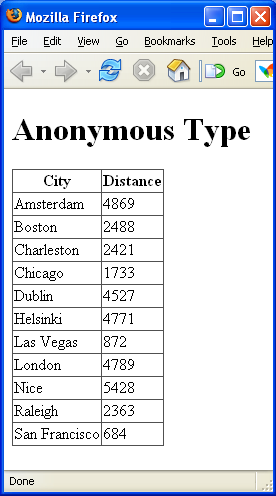
Note that instead of returning a “location” from our select clause like before, I am instead creating a new anonymous type that has two properties – “City” and “Distance”. The types of these properties are automatically calculated based on the value of their initial assignment (in this case a string and an int), and when databound to the GridView produce an output like so:
Step 7: Anonymous Types (again)
The previous sample showed a basic example of using anonymous types to custom-shape the output of a LINQ query. The below sample provides a richer and more practical scenario. It transforms our list of cities into a hierarchical result collection – where we group the results around countries using an anonymous type that we define that contains the country name, a sub-collection list of city details, and the sum of the total distance of all cities within the country (computed using a lambda expression like we demonstrated in step5 above):
using System;
using System.Web.UI;
using System.Query;
public partial class Step7 : System.Web.UI.Page
{
protected void Page_Load(object sender, EventArgs e)
{
TravelOrganizer travel = new TravelOrganizer();
GridView1.DataSource = from location in travel.PlacesVisited
group location by location.Country into loc
select new {
Country = loc.Key,
Cities = loc,
TotalDistance = loc.Sum(dist => dist.Distance)
};
GridView1.DataBind();
}
}
The GridView on our .aspx page is then defined like so:
<%@ Page Language="C#" AutoEventWireup="true" CodeFile="Step7.aspx.cs" Inherits="Step7" %>
<html>
<body>
<form id="form1" runat="server">
<div>
<h1>Groupings with Anonymous Classes</h1>
<asp:GridView ID="GridView1" AutoGenerateColumns="false" runat="server">
<Columns>
<asp:BoundField HeaderText="Country" DataField="Country" />
<asp:TemplateField HeaderText="Cities">
<ItemTemplate>
<asp:BulletedList ID="BulletedList1" runat="server"
DataSource='<%#Eval("Cities")%>' DataValueField="City"/>
</ItemTemplate>
</asp:TemplateField>
<asp:BoundField HeaderText="Total Distance" DataField="TotalDistance" />
</Columns>
</asp:GridView>
</div>
</form>
</body>
</html>
Notice how I’ve added a GridView templatefield column for the “Cities” column – and within that I’ve then added an <asp:bulletedlist> control (a new control built-in with ASP.NET 2.0) that databinds its values from the cities property of the hierarchical result we created using our LINQ query above. This generates output like so:
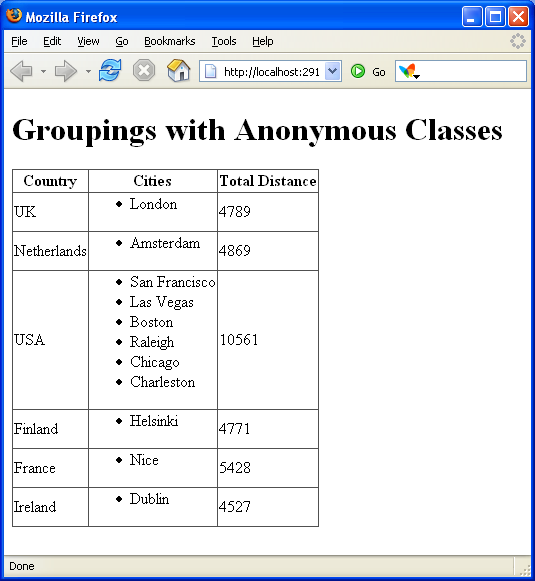
Note that all of the databind syntax and hierarchical binding support in the .aspx page above is fully supported in ASP.NET 2.0 today – so you can use this same technique with any existing app you have now. What is new (and I think very cool) is the data shaping capabilities provided by anonymous types and LINQ – which makes binding hierarchical data against ASP.NET controls very easy.
Next Steps
All of my samples above were against in-memory collections. They show you how you will be able to use LINQ against any .NET object model (includes all the ones you have already).
In my next few LINQ-related blog postings I’ll show how you can go even further, and take advantage of the new DLINQ support to use the above techniques against relational databases as well as the new XLINQ support to work against XML files and structures. What is great about the LINQ project is that the syntax and concepts are the same across all of its uses – so once you learn how to use LINQ against an array or collection, you also know all the concepts needed to work against a database or even XML file.
For example, if you use DLINQ to generate a Northwinds database mapping of Suppliers and their Products (no code is required to set this up), the below code is all you need to write to obtain and databind a hierarchical database result against a GridView like we did above (note: we are using the same data-shaping technique as our previous sample to only require fetching two columns from the database, and automatically join the products of each supplier as a hierarchical group result):
using System;
using System.Query;
public partial class Data_Data2 : System.Web.UI.Page
{
protected void Page_Load(object sender, EventArgs e)
{
Northwind db = new Northwind();
GridView1.DataSource = from x in db.Suppliers
where x.Country == "
orderby x.Country
select new {
x.CompanyName,
x.Country,
x.Products
};
GridView1.DataBind();
}
}
No custom SQL syntax or code is required – this is all that needs to be written to efficiently fetch and populate hierarchical data now (note: only the rows and columns needed will be fetched -- DLINQ can use the remote function support within LINQ so that it does not need to materialize or fetch the full database table or all columns from a row). And it is all type-safe, with full compiler checking, intellisense, and debugging supported.
Even better, the ability to plug-in new LINQ providers (of which DLINQ and XLINQ are just two examples) is completely open – so developers who either build or use existing data providers today (for example: O/R database mappers) can easily integrate their implementations with LINQ to have a seamless developer experience. Once you know LINQ you will know all the basics needed to program against any of them.
Summary
Hopefully this provides a glimpse of some of the cool new things coming. You can try it all out today by downloading the May CTP drop of LINQ today from here. You can also download and run all of the samples I built above from this .ZIP file here.
Hope this helps,
Scott