Recovering the admin password in Orchard
 These things happen, and it seems hopeless at first:
you've locked yourself out of your own site and that's that.
Well, not quite. If you still have access to the database
there is a way out. Access may be through FTP and WebMatrix
or Visual Studio if using SQL CE or through SQL Server
Management Studio or whatever is your preferred way to
access your database. In this tutorial I'll use WebMatrix
over a local SqlCe database but other tools would work just
as well with minor differences.
These things happen, and it seems hopeless at first:
you've locked yourself out of your own site and that's that.
Well, not quite. If you still have access to the database
there is a way out. Access may be through FTP and WebMatrix
or Visual Studio if using SQL CE or through SQL Server
Management Studio or whatever is your preferred way to
access your database. In this tutorial I'll use WebMatrix
over a local SqlCe database but other tools would work just
as well with minor differences.
Open the database and go to the Orchard_Users_UserPartRecord
table. You should see something like this:
As you can see, the passwords are stored hashed, and the password format is specified for each user. Possible values are Hashed (the default), Encrypted and Clear.
Edit the Password column and replace the value with a
temporary reset password of your choice. Then edit the
PasswordFormat column and set it to Clear.
Now you should be able to log into the site using these new credentials.
You should now click on the "admin" link in order to change
that password: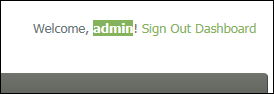
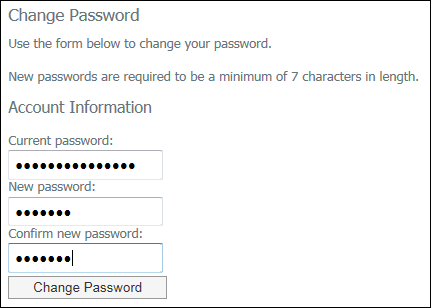 Once your password is reset, the data in the table should
be back to a hashed password:
Once your password is reset, the data in the table should
be back to a hashed password:
Many thanks to Sébastien Ros for hinting me to this trick.
UPDATE: since Orchard 1.8, content items such as users store a lot of their contents in the infoset that's on Orchard_Framework_ContentItemRecord. On those versions of Orchard, in order to recover the admin password, you'll have to go into that table, and find the content item for the admin user (that's 2 in the example above). In the data column of that table, you'll see a large XML blob. That's the infoset. Look for the XML attributes with the same names as the columns of the user part record table. You'll have to update these values in there, the same way you did for the values in the table.