Serge van den Oever [Macaw]
SharePoint RIP. Azure, Node.js, hybrid mobile apps
-
sitecore - one click publish for web projects
With the Helix application structure of sitecore projects there are a lot of web projects. If you follow the Habitat tooling there is a set of convenient gulp tasks for publishing changes like the "do it all"
gulp defaulttask. In most cases publishing the web project you made your changes in is enough. In most cases this is a feature or foundation project. You can do this by right-clicking on the web project, select Publish..., and press the Publish button in the resulting screen. A faster way is to enable the Views > Toolbars > Web One Click Publish option so you get a button on your toolbar for fast publication. -
sitecore Helix - pdf, epub, mobi
Sitecore Helix documentation is available at http://helix.sitecore.net. But if you want the documentation as PDF, epub or mobi file you can download them at https://chorpoblog.wordpress.com/2017/03/19/sitecore-helix-documentation-1-1/ thanks to the great work of Peter Prochazka.
-
sitecore Habitat - TypeError: Cannot read property '0' of undefined
When you get the error TypeError: Cannot read property '0' of undefined in the Gulp task '05-Sync-Unicorn' you probably don't have a SharedSecret configured in the file C:\Projects\Habitat\src\Project\Habitat\code\App_Config\Include\Unicorn\Unicorn.UI.config.
In my project the SharedSecret wat commented out, i.e.:
<!--<SharedSecret></SharedSecret>
                            Uncomment this line and provide a strong randomized
                            shared secret here. At least 64 characters is
                            recommended, for example
                            https://www.grc.com/passwords.htm -->
I followed the instructions, uncommented it, grabbed a 64 characters password from https://www.grc.com/passwords.htm so my line read:
<SharedSecret>06A3203AA36C84D499D9BF6F79852B61EF2992465C2160FE09263E1AB5B882E2</SharedSecret>I did run
gulp 05-Sync-Unicornagain, but still the same error.After adding a line to the script C:\Projects\Habitat\scripts\unicorn.js:
console.log("Reading Unicorn configuration file
                                " + unicornConfigFile);
var data = fs.readFileSync(unicornConfigFile);I saw my problem:The script is reading from the deployed website location ( C:\websites\Habitat.dev.local\Website/App_config/Include/Unicorn/Unicorn.UI.config), not the project location (C:\Projects\Habitat\src\Project\Habitat\code\App_Config\Include\Unicorn\Unicorn.UI.config).I could run the completegulp defaulttask again, but doing a Publish... on the Sitecore.Habitat.Website project (right-click on the project) does the job much quicker.After publishing, re-execute step 5 again: gulp 05-Sync-UnicornHint for the sitecore team: reading a configuration setting using the line:secret = result.configuration.sitecore[0].unicorn[0].authenticationProvider[0].SharedSecret[0];from a configuration file where this setting is commented out will lead to issues that take people a lot of time to find out, especially because I couldn't find anything on this on the Wiki documentation of the Habitat project. -
sitecore SIM - backup installation as restore point
After doing a fresh install of a sitecore site through the sitecore instance manager (SIM) including packages like Sitecore PowerShell Extensions and other stuff you want to have installed you can make a backup (right-click on your site > Backup) as a fresh restore point in case things get terribly wrong.
Note that the backups are made in the folder C:\websites\mysite.dev.local\Backups.
Install the latest version of SIM from http://dl.sitecore.net/updater/sim/.
-
sitecore SIM - succesful install but no databases
I was busy with an installation of sitecore through the sitecore instance manager (SIM), asnd everything seemed to be ok, but I had no databases.
I gave Network Service read/write access on my c:\websites folder, but when I looked the SIM logs (Home > Bundled tools > SIM logs) I saw the error:
System.Data.SqlClient.SqlException (0x80131904): Unable to open the physical file "C:\websites\mysite.dev.local\Databases\Sitecore.core.mdf". Operating system error 5: "5(Access denied.)".
When I gave Network Service full control on the folder c:\websites it worked.
Install the latest version of SIM from http://dl.sitecore.net/updater/sim/.
-
Wappalyzer + PageXray Chrome plugins combined change PUT to GET
I installed at home two Chrome plugins on my Mac to analyze technology used on websites: Wappalyzer and PageXray. When I got on my work this morning and turned on my Windows PC I started using the application we are developing, but it behaved weird. After a lot of debugging I found that an Ajax PUT request was changed into a GET request! Then I remembered that I installed some plugins at home, and that on startup of Chrome these plugins were installed at work as well! When I disable one of the plugins it started working again as expected. So beware of this deadly combination!!
-
Zipkin with docker startup script
In a project we use http://zipkin.io/ for distributed tracing. During development is is very handy to trace to Zipkin running in a Docker image. The following PowerShell script will help with (re)starting the Docker image on WIndows and open Zipkin in Chrome when it is running.
$runningZipkin = & docker ps -q --filter
                            ancestor=openzipkin/zipkin
if ($runningZipkin) {"Running Zipkin with id $runningZipkin - will be killed"& docker stop $runningZipkin}"Starting Zipkin docker image"& docker run -d -p 9411:9411 openzipkin/zipkin$ErrorActionPreference = "SilentlyContinue" # We don't want to see failing requestsdo {Start-Sleep -Seconds 1"Waiting for starting of Zipkin..."$up = Invoke-WebRequest -Uri http://localhost:9411} while (!$up)& "C:\Program Files (x86)\Google\Chrome\Application\chrome.exe" http://localhost:9411 -
SPA Series: Turn our ShowTitle app into a Progressive Web App
In this post we turn our great web app into a Progressive Web App (PWA). "A progressive web app provides an app-like user experience that is low friction and is built using modern web capabilities and hosted on the web and can become an app on the user's system over time." To learn more about the great promises of Progressive Web Apps read Addy Osmani's great overview article Getting started with Progressive Web Apps. Google also has a great entry point to the required information at https://developers.google.com/web/progressive-web-apps/.
Getting up to speed with Progressive Web Apps
Progressive Web Apps are cool, and in my opinion the future of a whole category of mobile apps. An inspiring introduction to this vision is this presentation by Bruce Lawson. See also https://dev.opera.com/blog/pwa-taipei/. For a great overview of other material available on Progressive Web Apps have a look at https://github.com/hemanth/awesome-pwa.
What do I want to achieve in this blog post
In this article we explore how to get the following functionality working in our PWA:
- Hosting in a SharePoint document library - for authentication, access to data within your company, and freedom of distribution
- Add to homescreen - so we get an icon between the other apps on your mobile device or between the apps in your browser
- Splash screen - for direct visual feedback on start of our application
- Offline support - so we can use our app even if we are not connected to the network
The code for our sample Progressive Web App can be found at https://github.com/svdoever/sharepoint-progressive-web-apps/tree/master/ShowTitleProgressiveWebApp.
Generating artifacts
For the PWA we need things like a favicon, icons for the different (mobile) platforms, html code to include these icons, and configuration directives for platforms to provide us with PWA functionality. The site http://realfavicongenerator.net/ can help us out with some of these steps. It generates a zip file with icons and other artifacts based on a single uploaded icon. Because we are creating the amazing "Show Title" app that shows the title of SharePoint site hosting our app, I downloaded an icon of the letter T and used that for the generation. The generator created a zip file with artifacts and the following HTML lines for inclusion in the head of our app page:
<link rel="apple-touch-icon" sizes="60x60"
                            href="/apple-touch-icon-60x60.png">
<link rel="apple-touch-icon" sizes="76x76" href="/apple-touch-icon-76x76.png"><link rel="apple-touch-icon" sizes="120x120" href="/apple-touch-icon-120x120.png"><link rel="apple-touch-icon" sizes="152x152" href="/apple-touch-icon-152x152.png"><link rel="apple-touch-icon" sizes="180x180" href="/apple-touch-icon-180x180.png"><link rel="icon" type="image/png" href="/favicon-32x32.png" sizes="32x32"><link rel="icon" type="image/png" href="/favicon-16x16.png" sizes="16x16"><link rel="manifest" href="/manifest.json"><link rel="mask-icon" href="/safari-pinned-tab.svg" color="#5bbad5"><meta name="theme-color" content="#ffffff">Because we are hosting in a subfolder of a SharePoint document library and not in the root of a website we need to remove the leading slashes as in:
<link rel="apple-touch-icon" sizes="60x60"
                            href="apple-touch-icon-60x60.png">
<link rel="apple-touch-icon" sizes="76x76" href="apple-touch-icon-76x76.png"><link rel="apple-touch-icon" sizes="120x120" href="apple-touch-icon-120x120.png"><link rel="apple-touch-icon" sizes="152x152" href="apple-touch-icon-152x152.png"><link rel="apple-touch-icon" sizes="180x180" href="apple-touch-icon-180x180.png"><link rel="icon" type="image/png" href="favicon-32x32.png" sizes="32x32"><link rel="icon" type="image/png" href="favicon-16x16.png" sizes="16x16"><link rel="manifest" href="manifest.json"><link rel="mask-icon" href="safari-pinned-tab.svg" color="#5bbad5"><meta name="theme-color" content="#ffffff">Besides a set of icons it generated a browserconfig.xml file for Internet Explorer with the following contents (leading slashes removed):
<?xml version="1.0" encoding="utf-8"?><browserconfig><msapplication><tile><square70x70logo src="mstile-70x70.png"/><square150x150logo src="mstile-150x150.png"/><square310x310logo src="mstile-310x310.png"/><wide310x150logo src="mstile-310x150.png"/><TileColor>#da532c</TileColor></tile></msapplication></browserconfig>The web manifest file
Now we need to add a manifest file that drives our Progressive Web App. The specifications for the app manifest can be found at https://www.w3.org/TR/appmanifest/, but a better readable reference can be found at https://developer.mozilla.org/en-US/docs/Web/Manifest. In most examples, and in the generated zip file by the generator, the manifest file is named manifest.json. When hosting in SharePoint files ending in .json are not allowed. We will rename the file to manifest.webmanifest.
I made some small changes to the generated manifest, like adding a short_name and description and background_color (used as background color for the splash screen), and I added 128x128 and 144x144 version of the icon (I resized the 256x256 icon using a paint program) as that seems to be required by Firefox (128x128) and for the splash screen support (144x144). The start_url we set to index.html?home=true so that when we add the app to homescreen we can identify that it is an app lounched from the homescreen.
The manifest file manifest.webmanifest:
End of file manifest.webmanifest.
If we look into the descriptions about add to homescreen requirements (https://developers.google.com/web/fundamentals/engage-and-retain/app-install-banners/) we find that the site:
-
Has a
web app manifest
file with:
-
a
short_name(used on the home screen) -
a
name(used in the banner when showing the splash screen) -
a 144x144 png icon used on the splash screen,
(the icon declarations must include a mime type
of
image/png) - a
start_urlthat loads
-
a
- Has a service worker registered on your site (service worker may be empty)
- Is served over HTTPS (a requirement for using service worker).
- Is visited at least twice, with at least five minutes between visits.
The app page index.html
In the index.html file we see the registration of the service worker. Besides the service worker registration there is one really important thing: the link to the web manifest. When specifying the link to the manifest file as found in all examples as
<link rel="manifest"
                            href="manifest.webmanifest">
it works perfectly locally, but does not work when deployed to SharePoint because authentication headers are not passed through on requesting the manifest. I tried everything. Providing the manifest content from a page manifest.aspx so I could set the correct content type (made no difference). Embedding the manifest as base64 in the href on the link (seems not supported on Chrome, see https://github.com/w3c/manifest/issues/534). The answer came on a question I posted on https://github.com/w3c/manifest/issues/535: we need to use the attribute crossOrigin="use-credentials", now the authentication headers are passed as required. So the manifest should be referenced as:<link rel="manifest" href="manifest.webmanifest" crossOrigin="use-credentials">. I think this is a bug, because on access of resources on the same origin the security context should be inherited (https://developer.mozilla.org/en-US/docs/Web/Security/Same-origin_policy).The file index.html:
End of file index.html.
Testing the app from a browser and from a device
During development we use the sp-rest-proxy and can access the site on http://localhost:8081. We can now test the app from for example Chrome. Testing the app in Chrome is interesting because Chrome has support for web app manifests in the developer tools on the application tab. From this tab it is possible to see if the manifest is correctly parsed and we can test the Add to homescreen functionality:
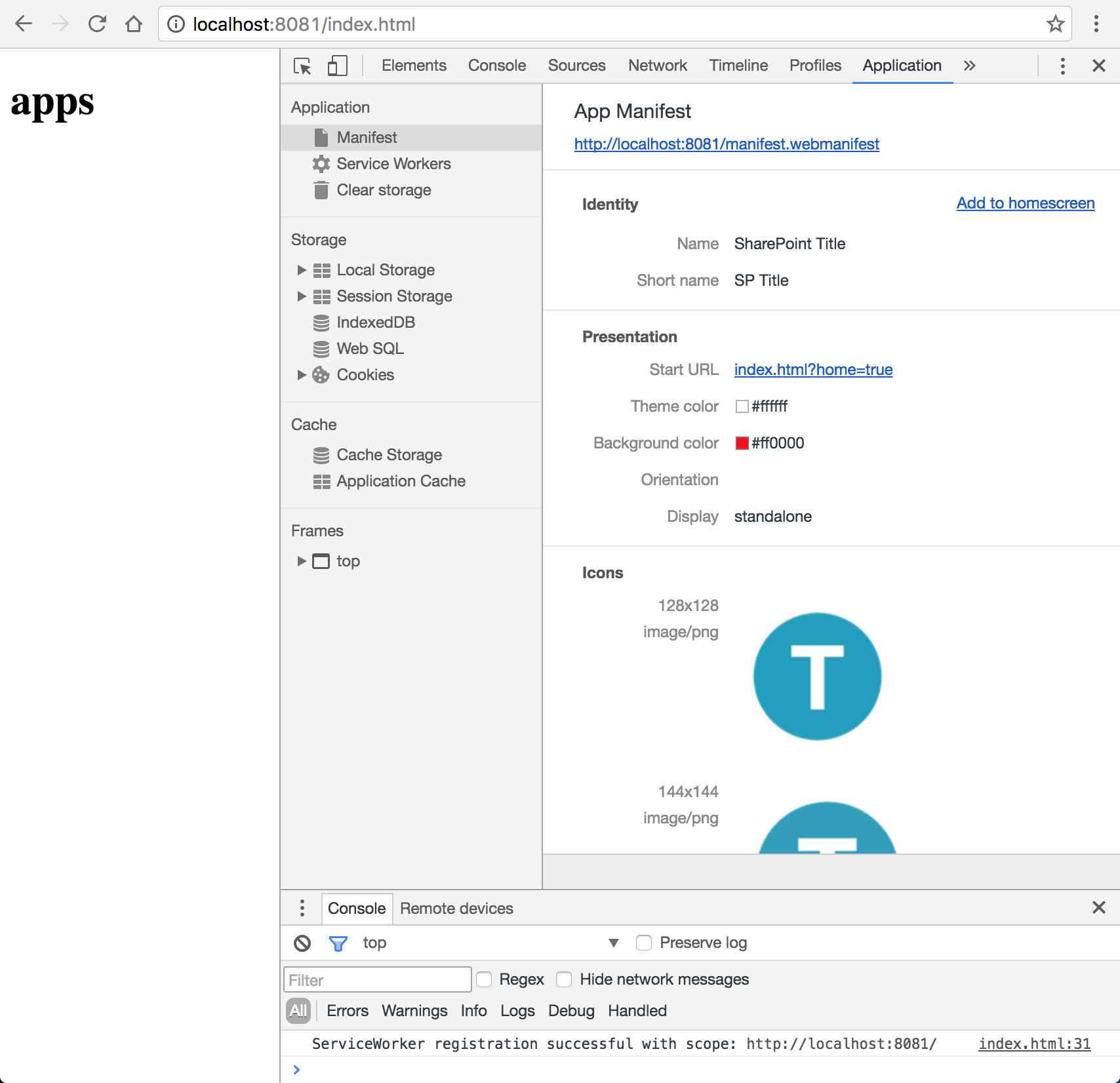
But what if we want to test the app on another device like a mobile phone while developing on http://localhost:8081? Ngrok to the rescue! Install ngrok on you system and run
ngrok http 8081.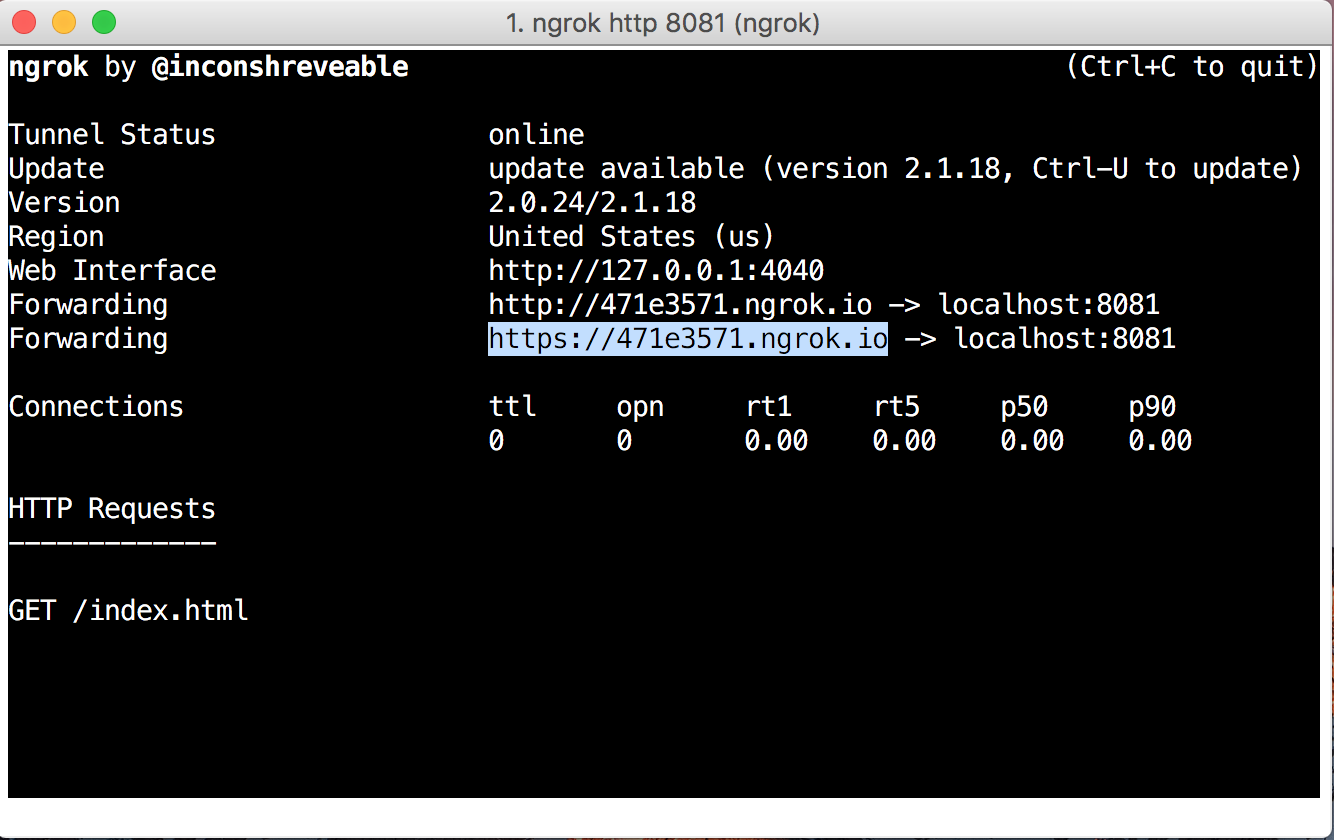
We now have an outside https endpoint to access our app. Now open https://471e3571.ngrok.io/index.html to open the app from another device like your mobile.
Deploying to SharePoint
Building on the SharePoint configuration described in the previous blog posts we can now deploy our app to SharePoint. The custom deployment script deploy.js will work for our current situation.
The file deploy.js:
End of file deploy.js.
On deployment we rename the index.html page to index.aspx. But we also need to do rewrites on the index.html and manifest.webmanifest files.
Because we need to deploy more artifacta to SharePoint, the deploy.js command got an optional parameter. If you give no parameter only the index.html and manifest.webmanifest files are deployed. If the parameter assets is given, also all other artifacts are deployed.
For deployment we no support the following npm commands:
- npm start codedeploy - only deploy the index.html and manifest.webmanifest files
- npm start deploy - deploy all files (makes the call node deploy.js assets)
When no offline support is required we can get away with an empty service-worker.js file. When we want offline support we need to implement caching functionality like the first approach below. In this first approach I don't remove old caches, and when cached I don't load newer versions. Not even of /_api/ calls. When creating a new version of the app we can increase the version number of the cache to cache the latest versions again. For api call we need another strategy. For more information on caching strategies see Jake Archibalds blog post https://jakearchibald.com/2016/caching-best-practices/. There is also agreat service workers cookbook at https://serviceworke.rs/ describing different caching strategies. In an upcoming blog post I will describe what I think would be the optimal caching strategy for SharePoint hosted apps and /_api service calls.
The file service-worker.js:
End of file service-worker.js.
Easy access to your SharePoint hosted PWA
The links into SharePoint for your Progressive Web App can become quite large, and not easy to share with others. For easy access on devices I registered a short link https://bit.ly/sptitle to my app using the https://bit.ly shortening service.
SharePoint SPA Series blog posts
-
SPA Series: Using sp-rest-proxy for local web development against real SharePoint data
A very interesting tool called sp-rest-proxy enables us to do local web development against real SharePoint data. All REST api requests are proxied to the real SharePoint in the context of a configured site under the credentials of a configured username and password.
Install sp-rest-proxy using:
npm install sp-rest-proxy --save-dev. See sp-rest-proxy for the documentation.As described in the documentation create a file server.js with the following contents:
Note that instead of using port 8080 as described in the documentation we used port 8081... with a reason: the sp-rest-proxy tool contains a UI to test our api REST requests, and that tool runs under port 8080.
The app under development lives in static/index.html:
End code of file static/index.html.
The code is written in a way that it will work for local development and for hosting within a document library in SharePoint as described in SPA Series: Building full screen single page web applications on SharePoint.
We also added a new and improved deploy.js script:
End code of file deploy.js.
Note that the deploy script loads a configuration file from config/_private.conf.json which contains the site to deploy to and the credentials to use for deployment. This file is excluded from sourcecontrol (through .gitignore) because it contains personal settings, but the file (which is generated through a set of questions when starting the local website) contains something like:
{"siteUrl":"https://macaw-my.sharepoint.com/personal/serge_macaw_nl/apps","username":"serge@macaw.nl","password":"<my password>"}The password is encrypted on creation of the site, but a plain password works as well.
During the deployment two things are done:
- the contents of the file static/index.html is loaded and all occurences of http://localhost:8081 are replaced with the url of the SharePoint site we will deploy to.
- the contents of the file is uploaded in the document library apppages in the folder showtitlerest with the name index.aspx.
We extend the npm package.json script with some commands:
End of file package.json.
We can now execute the following commands:
-
npm run serve- start a local website with our app on http://localhost:8081/index.html. On first run it asks for the url to the SharePoint site sp-rest-proxy makes a proxy for, a domain (leave empty for SharePoint Online), a username (in the format name@mycompany.com for SharePoiint Online) and a password. Persist the configuration so the settings can be used by the deploy script as well. -
npm run api- start a test site at http://localhost:8080 that is part of sp-rest-proxy to test api requests. -
npm run deploy- deploy our app to the apppages document library in a folder showtitlerest. The app is available under the url https://<yoursharepointsite>/apppages/showtitlerest/index.aspx. For me this url is https://macaw-my.sharepoint.com/personal/serge_macaw_nl/apps/apppages/showtitlerest/index.aspx.
Conclusion
this concludes this blog post. What did we accomplish:
- We can do local web development against the content of a live SharePoint site. Api calls can be made through the url http://localhost:8081/_api/... On deployment this url is replaced by the correct site url we deploy to.
- We can test api calls in a test page available on http://localhost:8080.
- We can deploy our resulting app page to the SharePoint site.
The sample code can be found in the GitHub repository https://github.com/svdoever/sharepoint-progressive-web-apps in the folder ShowTitleRestWithProxy.
SharePoint SPA Series blog posts
-
SPA Series: SharePoint REST versus SharePoint CSOM
Using REST to access data within SharePoint has advantages over using CSOM, the Client-side SharePoint Object Model. One important reason for me is a way smaller footprint in required libraries. For CSOM we need to use a bulky set of proprietary libraries provided by SharePoint. With REST we can use any library to do http requests. A good must read blog post on SharePoint CSOM versus REST is written by Andrew Connell, and he has a lot of good reasons in favor of REST. Another reason is that with REST we can use sp-rest-proxy, but that will be the topic of the next blog post.
In the first post of our SPA Series we described a simple web app that displayed the title of the hosting SharePoint site using CSOM.
The file index.aspx using CSOM has the following content:
End code of file index.aspx using CSOM.
We can also use REST to display the title of the hosting SharePoint site. When using SharePoint REST almost all examples use the jQuery Ajax functions. I prefer to use the new web standards like fetch() in combination with ES6 promises. Because not all browsers support fetch() and promises yet I included polyfills for these web standards. In the future we do not even have to include these polyfills anymore.
The file index.aspx using REST has the following content:
End code of file index.aspx using REST.
There are a few interesting things to notice in the above REST example:
- The code is hard-coding the API on path http://localhost:8081. This is the url I configured for sp-rest-proxy, a proxy tool I use for local development while accessing real SharePoint data. more on this in the next blog post.
- We need to configure a header Accept with the value application/json; odata=verbose. This was the only json output format that gave (almost) the same results through sp-rest-proxy and on the real SharePoint.
- In the point above I said "almost" the same value... the proxy returns a json containing an extra level body. See the issue I posted on the sp-rest-proxy repository.
- I included a helper function sp_api_get_json() that return the correct json content in a promise.
- In the fetch call we need to configure to include credentials, otherwise we get an authentication error on real SharePoint. It works without it on the sp-rest-proxy, because sp-rest-proxy handles the proxy and authentication.
SharePoint SPA Series blog posts
-
SPA Series: Building full screen single page web applications on SharePoint
Introduction
I have the intention to write a series of blog posts on how to write full screen single page web applications that are hosted on SharePoint and have access to Sharepoint data. There are a few good reasons why hosting a web app on SharePoint is handy:
- When you access the url of the web app page hosted in SharePoint, the default SharePoint login page will be shown. There is nothing that you have to do to handle authentication in your app.
- The SharePoint rights system is taken into account for authentication and authorization. You can specify who has access to the web app and to the content the web app is displaying.
- It is easy to access SharePoint data.
- You don't need a separate hosting platform for your web app like a web server when working on premise, or an Azure website if your are working in the cloud. Just upload the artifacts that are part of your web app in a SharePoint document library and you are done. SharePoint can serve your web app to the desktop or mobile web browser.
In this first blog post I will show how to get the most simple web app possible up and running on SharePoint: a web app that displays the title of the SharePoint site it resides in.
Front-end toolbelt
In the world of front-end development Node.js is your friend. If you don't have it running on your machine yet, head over to https://nodejs.org and install the LTS version.
There is no need for big Visual Studio projects, any editor will be sufficient. But if you have to choose one that is free and cool, have a look at Visual Studio Code. Works on Windows and OSX (I develop on OSX), is fast and has great support for front-end development.
Getting started
To get started first create a project folder, I called mine SPOnlinePWA, and run
npm initon it to initialize a new project:~/projects/serge▶ mkdir SPOnlinePWA~/projects/serge▶ cd SPOnlinePWAprojects/serge/SPOnlinePWA▶ npm initThis utility will walk you through creating a package.json file.It only covers the most common items, and tries to guess sensible defaults.See `npm help json` for definitive documentation on these fieldsand exactly what they do.Use `npm install <pkg> --save` afterwards to install a package andsave it as a dependency in the package.json file.Press ^C at any time to quit.name: (SPOnlinePWA) sponlinepwaversion: (1.0.0)description: A progressive web app on SharePoint Onlineentry point: (index.js)test command:git repository:keywords: pwa sponlineauthor: Serge van den Oeverlicense: (ISC) MITAbout to write to /Users/Serge/projects/serge/SPOnlinePWA/package.json:{"name": "sponlinepwa","version": "1.0.0","description": "A progressive web app on SharePoint Online","main": "index.js","scripts": {"test": "echo \"Error: no test specified\" && exit 1"},"keywords": ["pwa","sponline"],"author": "Serge van den Oever","license": "MIT"}Is this ok? (yes) yesWe now have a simple project to get us started. First thing to do is install tooling that we need. And we need tooling.... to get our page into SharePoint. We do this using the great tool spsave - advertised as "Save files in SharePoint using node.js easily".
projects/serge/SPOnlinePWA▶ npm install spsave --save-devConfigure SharePoint Online
Another thing that we need is a SharePoint site with a document library where we have write access. In this blog post we assume the use of On SharePoint Online where you can go to the url https://tenant-my.sharepoint.com, where tenant is the name of your company. After authentication you will end up in OneDrive with the url https://tenant-my.sharepoint.com/personal/serge_macaw_nl/_layouts/15/onedrive.aspx, if you replace the onedrive into viewlsts like this https://tenant-my.sharepoint.com/personal/serge_macaw_nl/_layouts/15/viewlsts.aspx, you will get to the content living on your personal site. With the new link you can add a subsite:
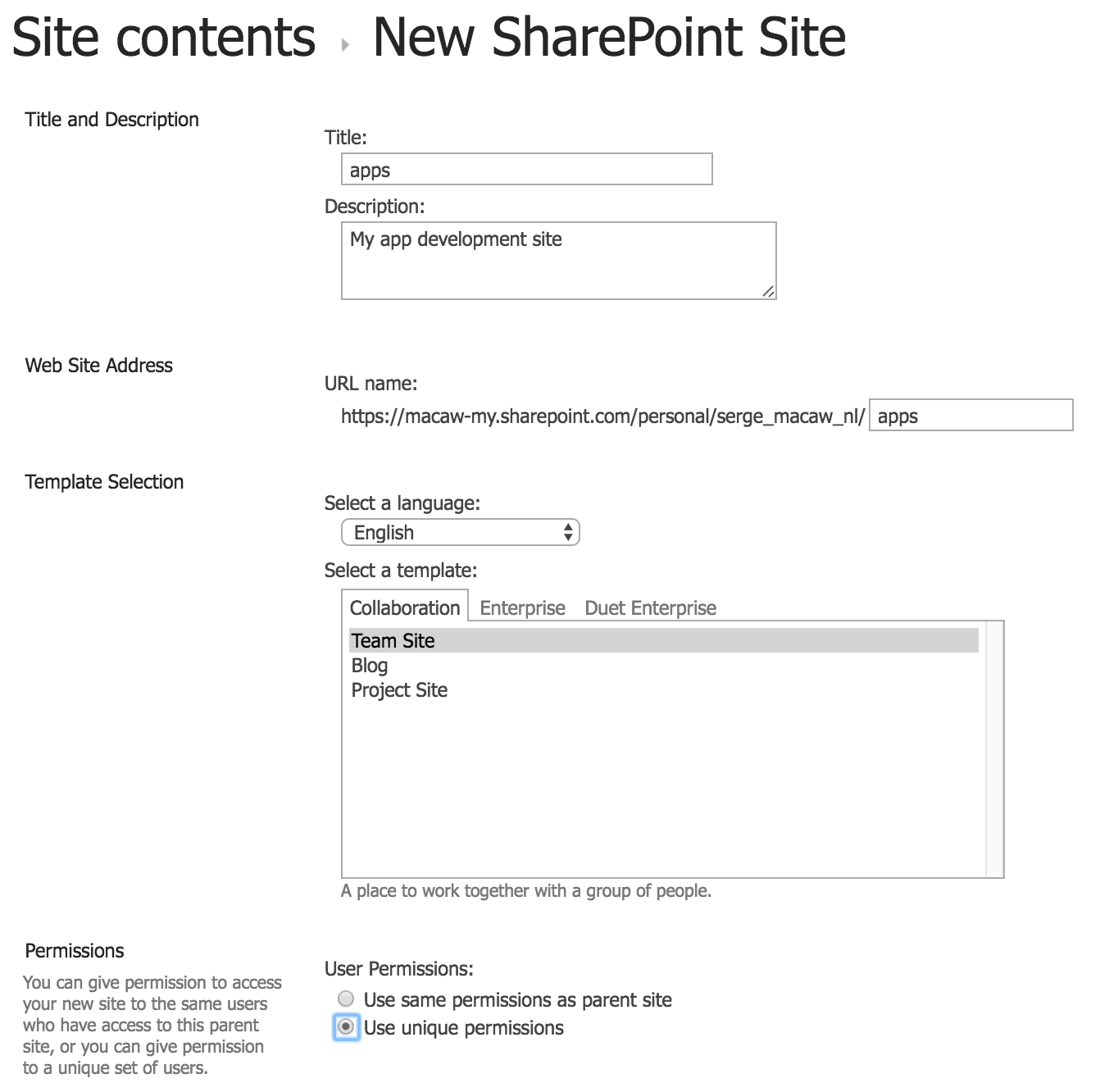
Because we selected "Use unique permissions" we can now give everyone read access to our new site so we can share our web apps hosted on this site within our company:
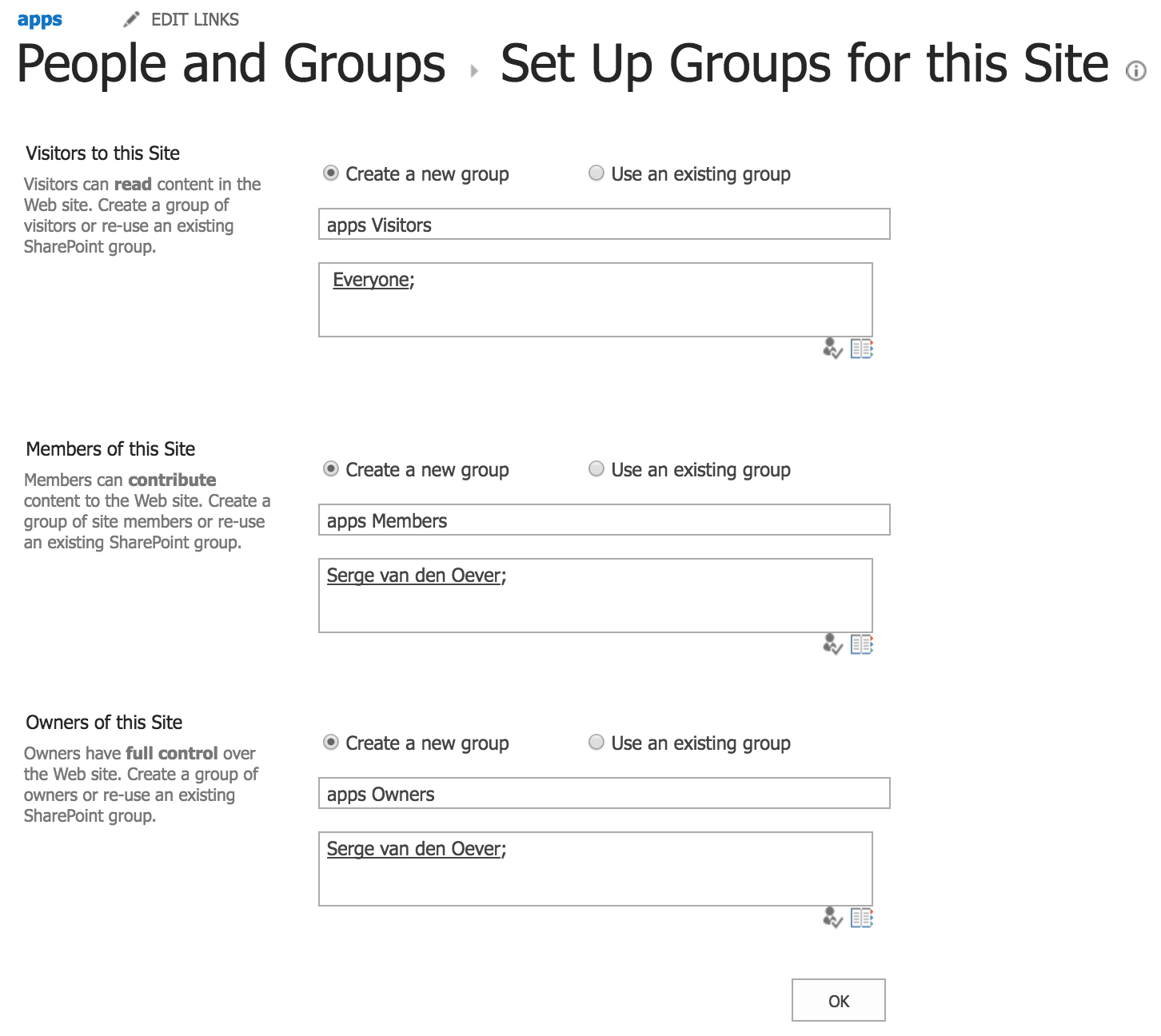
In our newly created "apps" site create a document library called "apppages". In this document library we will host our apps. For each app we will create a sub-folder, so we can host multiple apps in this document library. In my case this document library has the url: https://macaw-my.sharepoint.com/personal/serge_macaw_nl/apps/apppages.
Note that you can take a similar approach with a SharePoint site on-premise.
The simplest app
We now create our simplest app, showing the title of the SharePoint site the app resides in using CSOM, the Client-side SharePoint Object Model.
Create a file index.aspx with the following content:
End code of file index.aspx.
Configuration for deployment
To deploy to SharePoint Online we need the following environment variables (I saved this in my .zshrc file on OSX because I use zsh, add to .bshrc if you use bash):
# For SharePoint Online App Development we need the
                            following environment variables
export SPONLINE_SITE_APPS="https://macaw-my.sharepoint.com/personal/serge_macaw_nl/apps"export SPONLINE_USERNAME="<my username>"export SPONLINE_PASSWORD="<my password>"On Windows set the environment variables with the method as described here.
Deploy to SharePoint
To deploy to SharePoint we use the spsave npm package as already installed above.
Create a file deploy.js with the following content:
End code of file deploy.js.
We can now run the command
node deploy.jsto deploy the file index.aspx to the document library apppages. In my case the url of the uploaded app is https://macaw-my.sharepoint.com/personal/serge_macaw_nl/apps/apppages/showtitlecsom/index.aspx.If you open this url in a browser you would see a blank page with the SharePoint site title apps. If you open this url from an anonymous browser or your phone you would get the SharePoint login screen, and after authentication you will see the interesting app content.
Conclusion
Although very simple, these are the first steps to get a web app hosted on SharePoint with access to SharePoint content. In following blog posts we build on the above knowledge to improve our development process for building SharePoint hosted full screen single page applications.
The sample code can be found in the GitHub repository https://github.com/svdoever/sharepoint-progressive-web-apps in the folder ShowTitleCsom.
SharePoint SPA Series blog posts
-
Working example of MassTransit 3 request/response conversation
Chapter 3.5 of the MassTransit documentation contains a non-complete example of a request/response conversation using MassTransit. After some fiddling I got an example working using an in-memory MassTransit queue with multple request types. See the code below, implemented as an xunit test.
This file contains hidden or bidirectional Unicode text that may be interpreted or compiled differently than what appears below. To review, open the file in an editor that reveals hidden Unicode characters. Learn more about bidirectional Unicode charactersusing System; using System.Threading; using System.Threading.Tasks; using MassTransit; using Xunit; namespace MassTransitRequestResponse.Test { public interface INamedReq { string Name { get; } } public class NamedReq : INamedReq { public string Name { get; set; } } public interface INamedResp { string Named { get; } } public class NamedResp : INamedResp { public string Named { get; set; } } public interface ICalledReq { string Name { get; } } class CalledReq : ICalledReq { public string Name { get; set; } } public interface ICalledResp { string Called { get; } } public class CalledResp : ICalledResp { public string Called { get; set; } } public class NamedReqRespConsumer : IConsumer<INamedReq> { public Task Consume(ConsumeContext<INamedReq> context) { context.Respond(new NamedResp { Named = $"I name you {context.Message.Name}" }); return Task.FromResult(0); } } public class CalledReqRespConsumer : IConsumer<ICalledReq> { public Task Consume(ConsumeContext<ICalledReq> context) { context.Respond(new CalledResp { Called = $"I call you {context.Message.Name}" }); return Task.FromResult(0); } } public class MasstransitRequestResponse { [Fact] public async void ReqResTest() { // Arrange var control = Bus.Factory.CreateUsingInMemory(configure => { configure.ReceiveEndpoint("reqRespQueue", endpoint => { endpoint.Consumer<NamedReqRespConsumer>(); endpoint.Consumer<CalledReqRespConsumer>(); }); }); var myUri = control.Address; var namedClient = new MessageRequestClient<INamedReq, INamedResp>(control, new Uri(control.Address, "reqRespQueue"), TimeSpan.FromSeconds(3)); var calledClient = new MessageRequestClient<ICalledReq, ICalledResp>(control, new Uri(control.Address, "reqRespQueue"), TimeSpan.FromSeconds(3)); using (var handle = control.Start()) { await handle.Ready; // Act var result1 = await namedClient.Request(new NamedReq() { Name = "Serge" }, CancellationToken.None); var result2 = await calledClient.Request(new CalledReq() { Name = "Danny" }, CancellationToken.None); // Assert Assert.Equal("I name you Serge", result1.Named); Assert.Equal("I call you Danny", result2.Called); } } } } -
Consuming Javascript libraries from TypeScript without type definition files
There are cases where you need to consume Javascript libraries or, for example, ReactJS components written in Javascript from your TypeScript code. Possible reasons:
- You find a great library or component "out in the wild" written in Javascript
- One of your team-members does not know/does not want to write TypeScript
-
You want to consume components from an existing
library or component set writen in Javascript
Assume the situation where a ReactJS component MyComponent.jsx written in Javascript must be consumed from a component Home.tsx:
The file MyComponent.jsx:
import * as React from 'react';

export class MyComponent extends React.Component {
  constructor(props) { super(props); }
  render() { return (<h1>Hello from MyComponent</h1>); }
}
We could import this component in different ways:
import {MyComponent} from './MyComponent'; // ERROR: Cannot find module './MyComponent'
const MyComponent = require('./MyComponent'); // Warning if used as <MyComponent/>
            // see https://codereviewvideos.com/blog/warning-react-createelement/
const X = require('./MyComponent'); // OK if used as <X.MyComponent/>
const MyComponent = require('./MyComponent').MyComponent; // OK
const MyComponent = require('./MyComponent').default;// OK if defined as export default class MyComponent
const {MyComponent} = require('./MyComponent'); // OK, it's possible to destructure multiple components
For details on how to specify types for desctructured object parameters see destructured object parameters in TypeScript.
So if we want to consume the above JavaScript component from TypeScript in the component Home.tsx:
import * as React from 'react';
const MyComponent = require('./MyComponent').MyComponent;

export class Home extends React.Component<any, any> {
  render() { return (<div><MyComponent /></div>); }
} -
Polymer 1.0 - Polylint - use on project instead of component
The Polymer team just release Polylint, a tool to catch errors in your polymer project before even running your code.
The tool seems to be designed to work in a component, but it faisl in a project that follows the project structure as used in the Polymer Starter Kit.
You can see this structure at https://github.com/polymerelements/polymer-starter-kit.
In this structure the folder bower_components folder is located next to the app folder, instead of in the app folder.
To get started:
git clone https://github.com/polymerelements/polymer-starter-kit
cd polymer-starter-kit
bower install
Now if you run the command polylint --root app --input index.html you will get the following errors:
ERROR finding app\bower_components\webcomponentsjs\webcomponents-lite.js
Error: ENOENT, open 'C:\p\serge\polymer-starter-kit\app\bower_components\webcomponentsjs\webcomponents-lite.js'
at Error (native)
ERROR finding app\bower_components\iron-flex-layout\classes\iron-flex-layout.html
ERROR finding app\bower_components\iron-icons\iron-icons.html
ERROR finding app\bower_components\iron-pages\iron-pages.html
ERROR finding app\bower_components\iron-selector\iron-selector.html
ERROR finding app\bower_components\paper-drawer-panel\paper-drawer-panel.html
ERROR finding app\bower_components\paper-icon-button\paper-icon-button.html
ERROR finding app\bower_components\paper-item\paper-item.html
ERROR finding app\bower_components\paper-material\paper-material.html
ERROR finding app\bower_components\paper-menu\paper-menu.html
ERROR finding app\bower_components\paper-scroll-header-panel\paper-scroll-header-panel.html
ERROR finding app\bower_components\paper-styles\paper-styles-classes.html
ERROR finding app\bower_components\paper-toast\paper-toast.html
ERROR finding app\bower_components\paper-toolbar\paper-toolbar.html
ERROR finding app\bower_components\page\page.js
ERROR finding app\bower_components\polymer\polymer.htmlThis can be solved by creating a symbolic link bower_components in the app folder to ..\bower_components.
The following script RunPolylint.bat will do this, place it in the root of your project (next to the app folder.
:: RunPolylint.bat - by Serge van den Oever, http://weblogs.asp.net/soever
:: This script assumes that polylint in installed
:: globally through the following command:
::    npm install -g polylint
:: Polylint assumes that the bower_components folder is located
:: in the same folder as the entry point file as specified with --input.
:: This is the case for a Polymer component, but not for an application
:: that follows the structure of the Polymer Starter Kit.
:: This script solves this issue by creating a temporary symbolic link
:: to the folder bower_components in the folder app
@cd %~dp0
set root=app
set input=index.html
pushd %root%
mklink bower_components ..\bower_components
popd
polylint --root %root% --input %input%
del %root\bower_components -
Intel AppFramework create and use your choice of IcoMoon icons
The Intel AppFramework uses a small subset of the IcoMoon icons. This post describes how to make your own selection of IcoMoon icons and use it in your app.
There is a free IcoMoon icon set with 490 icons available that we will use to make our selection from.
-
Open the url https://icomoon.io/app/#/select
- Open the IcoMoon - Free icon set and select the icons you want to use in your app
- It is also possible to select all icons (we will do that for now)
- Select the Generate Font option at the bottom
- Press settings and select Font Name IcoMoon, select as Class Prefix icon. and select the option Encode & Embed Font in CSS
- Now click the download button
- Open the downloaded IcoMoon.zip file and copy the file style.cssto your styles folder as customicons.css
- Open de customicons.css file and compare with the file appframework/build/icons.css (we need to copy over the appframework specific styles)
-
Remove the first four lines with a
file-based @font-facedefinition, we
will use the embeded one
@font-face {
   font-family: 'IcoMoon';
   src: url('fonts/IcoMoon.eot');
}
-
Replace:
.icon {
   font-family: 'IcoMoon';
   speak: none;
   font-style: normal;
   font-weight: normal;
   font-variant: normal;
   text-transform: none;
   line-height: 1;
/* Better Font Rendering =========== */
-webkit-font-smoothing: antialiased;
-moz-osx-font-smoothing: grayscale;
}
with (check appframework/build/icons.css for changes):
.icon:before {
   font-family:'IcoMoon';
   speak:none;
   font-style:normal;
   font-weight:normal !important;
   font-variant:normal;
   text-transform:none;
   line-height:1;
   color:inherit;
   position:relative;
   font-size:1em;
   left:-3px; top:2px;
}
li .icon:before {
   position:relative;
   width:24px; height:100%;
   top:2px;
   line-height:0 !important;
   margin-right:4px;
}

.icon.mini:before {
   font-size:.7em;
}
.icon.big:before {
   font-size:1.5em;
}
and we are done! -
In your main.css file include the appframework css
files and your customicons.css file (or include
directly in html):
@import url(../appframework/build/af.ui.base.css);
@import url(../appframework/build/af.ui.css);
@import url(customicons.css);
-
Open the url https://icomoon.io/app/#/select
-
Intel AppFramework installation and documentation
I have written a mobile app with Ionic Framework but I must say that I'm not really font of the AngularJS framework, especially now that you know that version 1.3 as used in Ionic at the time of writing (version 1.0.1) is a dead end and version 2 is on the horizon. For a new mobile app I needed a mobile app UI framework that I can use in combination with ReactJS and that would work on an as wide range of mobile devices as possible. Reapp looks promising, but is still alpha and not very cross platform (for example Windows Phone). I ended up with Intel App Framework version 3, a simple framework with great support for multiple devices. It event tries to mimic the native style on each type of device, I'm not sure yet if i'm that happy about that, but it is also possible to override the ui time to a fixed ui (for example ios) for all devices.
Installing Intel App Framework
For client framework I normally use Bower. The Intel App Framework in available on Bower as the "intel-bower" package, but that package is not maintained and out of date, so don't use it. There is another reason why you shouldn't use it, it only contains the js and css files, not the samples which you really need due to a lack of documentation. More on that later. My approach is that I add the original appframework Git repository ito my project's Git repository a a submodule:
git submodule add
                              https://github.com/01org/appframework.git
                              appframework
And to update this (an possibly other) submodules in your repository, just execute:
git submodule foreach git pullDocumentation
The documentation available for the Intel App Framework is ... minimal.
- Your main entry point is at http://app-framework-software.intel.com/
- The most important entry in the documentation is http://app-framework-software.intel.com/documentation.php#afui/afui_about, in this list you find some interesting things like:
- - UI Quickstart - gives a nice initial introduction on using the Intel App Framework
- - OS Themes - how to disable custom os themes and specify the one you want to use on all devices (still mentions version 2.1?!)
- For all JavaScript api's and plugins see http://app-framework-software.intel.com/api.php
The documentation is very minimal (to say the least) about a lot of things. Good example: the section Vector Icons does not mention the available icons, and does not explain how to add your custom icons (I will write about that in a next blog post).
One of the most important pages is the appframework/index.html kitchensink example. It is possible to run this page directly within the github repository by translating it's url from: https://github.com/01org/appframework/blob/master/index.html to http://rawgit.com/01org/appframework/master/index.html (see this stackoverflow page for more information on this translation)
This is a list of all example pages in the appframework github repository. They are interesting to check out and its source code is one of the best sources of documentation:
-
Kitchensink index.html (github source code)
note: sample gives overview of all available vector fonts -
Kitchensink animbase.html (github source code)
note: had to fork the appframework repository and make some changed because JQuery and FastClick were not referenced correctly - Angular todo example (github source code)
- Backbone todo example (github source code)
-
React todo example (github source code)
note: this is a very simplistic React example, I had some more trouble to get multiple panels provided by React rendering working -
Lancaster demo (github source code)
note: had to fork the appframework repository and make some changed because JQuery and FastClick were not referenced correctly - Template drawer (github source code)
- Template form (github source code)
- Template gridview (github source code)
- Template listview (github source code)
- Template loginview (github source code)
- Template swipedelete (github source code)
- Template tabview (github source code)
- Widget lockscreen (github source code)
- Widget popup (github source code)
I think it might be a good idea if the intel team would give the appframework documentation some more love, and include the links as described above.
-
AngularJS 2 and TypeScript... some work to do...
After reading a great "First impressions" post on AngularJS 2 (http://blog.mgechev.com/2015/04/06/angular2-first-impressions/) I headed over to the code repository of AngularJS 2 to see how they write their code now in my favorite front-end language: TypeScript. After looking at some of the code it is clear that the team has still some TypeScript to learn. A little example of something you find in most of the code: for example in the file https://github.com/angular/angular/blob/master/modules/angular2/src/render/api.ts:
export class EventBinding {
    fullName: string;  // name/target:name, e.g "click", "window:resize"
source: ASTWithSource;

    constructor(fullName: string, source: ASTWithSource) {
        this.fullName = fullName;
        this.source = source;
    }
}
But one of the features of TypeScript is parameter property declaration and is shorthand for declaring a property with the same name as the parameter and initializing it with the value of the parameter. This would reduce the above code to:
export class EventBinding {
    constructor(private fullName: string, private source: ASTWithSource) {
    }
}
See chapter 8.3.1. of the TypeScript language specification.
And this is a really simple example. The code is full of this kind of initialization code.
-
Building an Ionic hybrid mobile app with TypeScript
Presentation based on experiences of building a hybrid mobile app using the Ionic framework, Cordova, AngularJS and TypeScript.
The app we have built is for Android and iOS.
-
Cordova – file-transfer, unzip and present adventures
For a hybrid project I have a very simple requirement: download zip file, unzip it, serve content on a page from artifacts (html text, images).
I started with Intel XDK, an environment I did some other work with. A great integrated development environment, but some of its big problems: lagging behind in version of Cordova, fixed set of selected plugins, no possibility to include other plugins. Because I wanted to unzip, I tried it with a Javascript only solution zip.js. The problem I had was that it worked if I downloaded the zip file over http using importHttpContent(), but I could’t get it working with loading from the local file system. Another problem I had was with where files ended up on different devices: in / on wp8, on /storage/sdcard0 on Android, and on iOS in even another location.
I decided to go with plain Cordova, with the command-line commands. That was a good decision. It was now possible to use the latest version (3.4 at time of writing), and use the new file and file-transfer plugins that now support a huge improvement to hybrid development: the cdvfile protocol. Files can now be addressed with respect to one multi-platform root: cdvfile://, rather than through device-specific paths. There is also a great plugin available to unzip that understands the new cdvfile:// notation as well. I ended up with a simple example to showcase the download, unzip and present case. To get it working execute the following commands with a Cordova 3.4 installation:
- cordova create Cordova-TransferUnzipPresent com.svdoever.tranferunzippresent TransferUnzipPresent
- cd Cordova-TransferUnzipPresent
- cordova platform add android
- cordova plugin add org.apache.cordova.file
- cordova plugin add org.apache.cordova.file-transfer
- cordova plugin add org.chromium.zip
- Replace code in www\index.html with the code below
- cordova emulate android
Works with iOS platform as well. The zip plugin does not work on wp8 (yet).
The code:
<!-- Code by Serge van den Oever, http://weblogs.asp.net/soever --> <!-- Using Cordova 3.4 with the following plugins: --> <!-- 'org.apache.cordova.file' (version 1.0.1), 'org.apache.cordova.file-transfer' (0.4.2), 'org.chromium.zip' (2.0.0) --> <!DOCTYPE html> <html> <head> <title>Cordova Download Unzip Display Sample</title> <meta http-equiv="Content-type" content="text/html; charset=utf-8"> <meta name="viewport" content="width=device-width, initial-scale=1.0, maximum-scale=1.0, minimum-scale=1.0, user-scalable=0"> <script src="cordova.js"></script> </head>
<body> <button id="btnLoad">Load</button> <button id="btnUnzip">Unzip</button> <hr/> <div id="statusPlace"></div> <hr/> <img id="imgPlace" src="http://lorempixel.com/320/200"> <br/> <div id="txtPlace">TEXT COMES HERE</div>
<script type="application/javascript"> document.addEventListener("deviceready", onDeviceReady, false);
function registerHandlers() { document.getElementById("btnLoad").onclick = function() { var that = this, App = new DownloadApp(), fileName = "ft-p.zip", uri = encodeURI("https://dl.dropboxusercontent.com/u/7197720/ftpack.zip"), folderName = "content"; console.log("load button clicked"); document.getElementById("statusPlace").innerHTML += "<br/>Loading: " + uri; App.load(uri, folderName, fileName, /*progress*/function(percentage) { document.getElementById("statusPlace").innerHTML += "<br/>" + percentage + "%"; }, /*success*/function(entry) { document.getElementById("statusPlace").innerHTML += "<br/>Zip saved to: " + entry.toURL(); }, /*fail*/function() { document.getElementById("statusPlace").innerHTML += "<br/>Failed load zip: " + that.uri; } ); }; document.getElementById("btnUnzip").onclick = function() { var that = this, App = new DownloadApp(), fileName = "ft-p.zip", folderName = "content"; console.log("zip button clicked"); App.unzip(folderName, fileName, /*success*/function() { alert("Unzipped and assigned"); }, /*fail*/function(error) { alert("Unzip failed: " + error.code); } ); }; } function onDeviceReady() { // navigator.splashscreen.hide(); document.getElementById("statusPlace").innerHTML += "<br/>deviceready event received"; registerHandlers(); } var DownloadApp = function() { } DownloadApp.prototype = { load: function(uri, folderName, fileName, progress, success, fail) { var that = this; that.progress = progress; that.success = success; that.fail = fail; filePath = ""; that.getFilesystem( function(fileSystem) { console.log("GotFS"); that.getFolder(fileSystem, folderName, function(folder) { filePath = folder.toURL() + "/" + fileName; that.transferFile(uri, filePath, progress, success, fail); }, function(error) { console.log("Failed to get folder: " + error.code); typeof that.fail === 'function' && that.fail(error); }); }, function(error) { console.log("Failed to get filesystem: " + error.code); typeof that.fail === 'function' && that.fail(error); } ); }, getFilesystem:function (success, fail) { window.requestFileSystem = window.requestFileSystem || window.webkitRequestFileSystem; window.requestFileSystem(LocalFileSystem.PERSISTENT, 0, success, fail); }, getFolder: function (fileSystem, folderName, success, fail) { fileSystem.root.getDirectory(folderName, {create: true, exclusive: false}, success, fail) }, transferFile: function (uri, filePath, progress, success, fail) { var that = this; that.progress = progress; that.success = success; that.fail = fail; var transfer = new FileTransfer(); transfer.onprogress = function(progressEvent) { if (progressEvent.lengthComputable) { var perc = Math.floor(progressEvent.loaded / progressEvent.total * 100); typeof that.progress === 'function' && that.progress(perc); // progression on scale 0..100 (percentage) as number } else { } }; transfer.download( uri, filePath, function(entry) { console.log("File saved to: " + entry.toURL()); typeof that.success === 'function' && that.success(entry); }, function(error) { console.log("An error has occurred: Code = " + error.code); console.log("download error source " + error.source); console.log("download error target " + error.target); console.log("download error code " + error.code); typeof that.fail === 'function' && that.fail(error); } ); }, unzip: function(folderName, fileName, success, fail) { var that = this; that.success = success; that.fail = fail; zip.unzip("cdvfile://localhost/persistent/" + folderName + "/" + fileName, "cdvfile://localhost/persistent/" + folderName, function(code) { console.log("result: " + code); that.getFilesystem( function(fileSystem) { console.log("gotFS"); that.getFolder(fileSystem, folderName + "/ftpack", function (folder) { document.getElementById("imgPlace").src = folder.nativeURL + "/img.jpg"; folder.getFile("text.html", {create: false}, function (fileEntry) { fileEntry.file(function(file) { var reader = new FileReader(); reader.onloadend = function (evt) { console.log("Read as text"); console.log(evt.target.result); document.getElementById("txtPlace").innerHTML = evt.target.result; typeof that.success === ' function && that.success();' }; reader.readAsText(file); }, function(error) { console.log("Failed to get file"); typeof that.fail === 'function' && that.fail(error); }); }, function (error) { console.log("failed to get file: " + error.code); typeof that.fail === 'function' && that.fail(error); }); }, function (error) { console.log("failed to get folder: " + error.code); typeof that.fail === 'function' && that.fail(error); }); }, function(error) { console.log("failed to get filesystem: " + error.code); typeof that.fail === 'function' && that.fail(error); }); } ); } }</script> </body> </html>
-
AngularJS–don’t use self-closing div tags
I had a piece of code that gave strange results in AngularJS. The issue was that I used a self closing <div /> tag instead of <div>…</div>. Self closing div tags are not supported in HTML5. The complete code can be found at http://stackoverflow.com/questions/21552560/angularjs-bug-in-ng-include-when-not-using-jquery and the plunker http://plnkr.co/edit/O3NSb2VEwAEDrkmtoKZ6?p=preview.
My wrong code was written as:
<script id="paragraphTmpl.html" type="text/ng-template"> <h4>{{paragraph.Title}}</h4> <!-- comment line below to have the paragraphs render correctly --> <div ng-bind-html="trustAsHtml(paragraph.Content)"/> <ng-include ng-repeat="paragraph in paragraph.Paragraphs" src="'paragraphTmpl.html'"> </script><div> <h3>{{chaptercontent.Title}}</h3>
<div ng-bind-html="trustAsHtml(chaptercontent.Content)"/> <ng-include ng-repeat="paragraph in chaptercontent.Paragraphs" src="'paragraphTmpl.html'"/></div>It works fine when jQuery is included, but not when you use the AngularJS JQLite implementation.When <div ng-bind-html="trustAsHtml(chaptercontent.Content)"></div> is used, the code works correctly. -
Webstorm – great IDE for web development
I’m really interested in front-end web development, and although Visual Studio 2013 is the main IDE in our company I’m really impressed by Webstorm from JetBrains, the guys behind Resharper. It is a full featured web development IDE for under $50. Although I’m impressed by the better support of Visual Studio 2013 for web development, Webstorm feels like “exactly made” for web development.The reason I favor Webstorm right now is that Visual Studio is pushing you too much into the Microsoft way, with server side code, web.config files etc. I want to build single page apps, front-end (JavaScript and Typescript) code only, talking to services, that can be hosted on any web server, or even drop box, and can also be embedded into a Phonegap mobile application if needed.
And the great thing: it works on OSX and Windows, I have my code on dropbox and can hop from mac to windows without changing a thing.
Check out http://www.jetbrains.com/webstorm/
Note: I’m in no way affiliated with, or sponsered by, JetBrains, just a happy and impressed user.
-
Visual Studio Online “Monaco”: the backend is in node.js
Probably to some surprise for some of you: the backend of Monaco is written in node.js, and actually a quite new version of node.js: version v0.10.21 (at the time of writing this post). Because it is running on IIS, it uses iisnode to run the site.
The backend uses the following node modules:
- edge – Edge.js: run .NET and node.js code in-process (https://npmjs.org/package/edge)
- express – Sinatra inspired web development framework (https://npmjs.org/package/express)
- glob - Match files using the patterns the shell uses, like stars and stuff. (https://npmjs.org/package/glob)
- graceful-fs - A drop-in replacement for fs, making various improvements. (https://npmjs.org/package/graceful-fs)
- ini - An ini encoder/decoder for node (https://npmjs.org/package/ini)
- jake - JavaScript build tool, similar to Make or Rake (https://npmjs.org/package/jake)
- nake - GNU Make/Ruby Rake like tasks management tool for NodeJS (https://npmjs.org/package/nake)
- npm - A package manager for node (https://npmjs.org/package/npm)
- optimist - Light-weight option parsing with an argv hash. No optstrings attached. (https://npmjs.org/package/optimist)
- sax - An evented streaming XML parser in JavaScript (https://npmjs.org/package/sax)
- send - Better streaming static file server with Range and conditional-GET support (https://npmjs.org/package/send)
The code base itself consists of the following files:
D:\Program Files (x86)\SiteExtensions/Monaco/1.0.0-20131104/server/availableLanguages.js
D:\Program Files (x86)\SiteExtensions/Monaco/1.0.0-20131104/server/config/db.js
D:\Program Files (x86)\SiteExtensions/Monaco/1.0.0-20131104/server/config/home.js
D:\Program Files (x86)\SiteExtensions/Monaco/1.0.0-20131104/server/config/logger.js
D:\Program Files (x86)\SiteExtensions/Monaco/1.0.0-20131104/server/config/tools.js
D:\Program Files (x86)\SiteExtensions/Monaco/1.0.0-20131104/server/config/workspaces.js
D:\Program Files (x86)\SiteExtensions/Monaco/1.0.0-20131104/server/config.js
D:\Program Files (x86)\SiteExtensions/Monaco/1.0.0-20131104/server/contrib/config/config.contribution.js
D:\Program Files (x86)\SiteExtensions/Monaco/1.0.0-20131104/server/contrib/contributions.js
D:\Program Files (x86)\SiteExtensions/Monaco/1.0.0-20131104/server/contrib/event/event.contribution.js
D:\Program Files (x86)\SiteExtensions/Monaco/1.0.0-20131104/server/contrib/event/event.js
D:\Program Files (x86)\SiteExtensions/Monaco/1.0.0-20131104/server/contrib/event/eventImpl.js
D:\Program Files (x86)\SiteExtensions/Monaco/1.0.0-20131104/server/contrib/experiment/experiment.contribution.js
D:\Program Files (x86)\SiteExtensions/Monaco/1.0.0-20131104/server/contrib/feedback/feedback.contribution.js
D:\Program Files (x86)\SiteExtensions/Monaco/1.0.0-20131104/server/contrib/files/files.contribution.js
D:\Program Files (x86)\SiteExtensions/Monaco/1.0.0-20131104/server/contrib/files/files.js
D:\Program Files (x86)\SiteExtensions/Monaco/1.0.0-20131104/server/contrib/files/stat.js
D:\Program Files (x86)\SiteExtensions/Monaco/1.0.0-20131104/server/contrib/git/git.config.js
D:\Program Files (x86)\SiteExtensions/Monaco/1.0.0-20131104/server/contrib/git/git.contribution.js
D:\Program Files (x86)\SiteExtensions/Monaco/1.0.0-20131104/server/contrib/git/git.js
D:\Program Files (x86)\SiteExtensions/Monaco/1.0.0-20131104/server/contrib/output/output.contribution.js
D:\Program Files (x86)\SiteExtensions/Monaco/1.0.0-20131104/server/contrib/process/commands/any.js
D:\Program Files (x86)\SiteExtensions/Monaco/1.0.0-20131104/server/contrib/process/commands/azure.js
D:\Program Files (x86)\SiteExtensions/Monaco/1.0.0-20131104/server/contrib/process/commands/commands.js
D:\Program Files (x86)\SiteExtensions/Monaco/1.0.0-20131104/server/contrib/process/commands/express.js
D:\Program Files (x86)\SiteExtensions/Monaco/1.0.0-20131104/server/contrib/process/commands/fs.js
D:\Program Files (x86)\SiteExtensions/Monaco/1.0.0-20131104/server/contrib/process/commands/git.js
D:\Program Files (x86)\SiteExtensions/Monaco/1.0.0-20131104/server/contrib/process/commands/help.js
D:\Program Files (x86)\SiteExtensions/Monaco/1.0.0-20131104/server/contrib/process/commands/init.js
D:\Program Files (x86)\SiteExtensions/Monaco/1.0.0-20131104/server/contrib/process/commands/jake.js
D:\Program Files (x86)\SiteExtensions/Monaco/1.0.0-20131104/server/contrib/process/commands/mocha.js
D:\Program Files (x86)\SiteExtensions/Monaco/1.0.0-20131104/server/contrib/process/commands/monaco-editor.js
D:\Program Files (x86)\SiteExtensions/Monaco/1.0.0-20131104/server/contrib/process/commands/msbuild.js
D:\Program Files (x86)\SiteExtensions/Monaco/1.0.0-20131104/server/contrib/process/commands/msdeploy/echo.bat
D:\Program Files (x86)\SiteExtensions/Monaco/1.0.0-20131104/server/contrib/process/commands/msdeploy/Microsoft.Web.Delegation.dll
D:\Program Files (x86)\SiteExtensions/Monaco/1.0.0-20131104/server/contrib/process/commands/msdeploy/Microsoft.Web.Deployment.dll
D:\Program Files (x86)\SiteExtensions/Monaco/1.0.0-20131104/server/contrib/process/commands/msdeploy/msdeploy.exe
D:\Program Files (x86)\SiteExtensions/Monaco/1.0.0-20131104/server/contrib/process/commands/msdeploy/msdeploy.js
D:\Program Files (x86)\SiteExtensions/Monaco/1.0.0-20131104/server/contrib/process/commands/msdeploy/publish.js
D:\Program Files (x86)\SiteExtensions/Monaco/1.0.0-20131104/server/contrib/process/commands/nake.js
D:\Program Files (x86)\SiteExtensions/Monaco/1.0.0-20131104/server/contrib/process/commands/nodejs.js
D:\Program Files (x86)\SiteExtensions/Monaco/1.0.0-20131104/server/contrib/process/commands/npm.js
D:\Program Files (x86)\SiteExtensions/Monaco/1.0.0-20131104/server/contrib/process/commands/nuget.js
D:\Program Files (x86)\SiteExtensions/Monaco/1.0.0-20131104/server/contrib/process/commands/ps.js
D:\Program Files (x86)\SiteExtensions/Monaco/1.0.0-20131104/server/contrib/process/commands/setup.js
D:\Program Files (x86)\SiteExtensions/Monaco/1.0.0-20131104/server/contrib/process/commands/tsc.js
D:\Program Files (x86)\SiteExtensions/Monaco/1.0.0-20131104/server/contrib/process/process.contribution.js
D:\Program Files (x86)\SiteExtensions/Monaco/1.0.0-20131104/server/contrib/process/shell/parser.js
D:\Program Files (x86)\SiteExtensions/Monaco/1.0.0-20131104/server/contrib/process/shell/shell.js
D:\Program Files (x86)\SiteExtensions/Monaco/1.0.0-20131104/server/contrib/search/fileSearch.js
D:\Program Files (x86)\SiteExtensions/Monaco/1.0.0-20131104/server/contrib/search/index/index.js
D:\Program Files (x86)\SiteExtensions/Monaco/1.0.0-20131104/server/contrib/search/search.contribution.js
D:\Program Files (x86)\SiteExtensions/Monaco/1.0.0-20131104/server/contrib/search/search.js
D:\Program Files (x86)\SiteExtensions/Monaco/1.0.0-20131104/server/contrib/search/searchApp.js
D:\Program Files (x86)\SiteExtensions/Monaco/1.0.0-20131104/server/contrib/search/textSearch.js
D:\Program Files (x86)\SiteExtensions/Monaco/1.0.0-20131104/server/contrib/strongbox/strongbox.contribution.js
D:\Program Files (x86)\SiteExtensions/Monaco/1.0.0-20131104/server/contrib/telemetry/telemetry.contribution.js
D:\Program Files (x86)\SiteExtensions/Monaco/1.0.0-20131104/server/contrib/telemetry/telemetry.js
D:\Program Files (x86)\SiteExtensions/Monaco/1.0.0-20131104/server/contrib/telemetry/telemetryClient.js
D:\Program Files (x86)\SiteExtensions/Monaco/1.0.0-20131104/server/contrib/tfs/tfs.contribution.js
D:\Program Files (x86)\SiteExtensions/Monaco/1.0.0-20131104/server/contrib/tfs/tfs.js
D:\Program Files (x86)\SiteExtensions/Monaco/1.0.0-20131104/server/contrib/typescript/build/tsc.js
D:\Program Files (x86)\SiteExtensions/Monaco/1.0.0-20131104/server/contrib/typescript/lib/lib.d.ts
D:\Program Files (x86)\SiteExtensions/Monaco/1.0.0-20131104/server/contrib/typescript/lib/typescriptServices.js
D:\Program Files (x86)\SiteExtensions/Monaco/1.0.0-20131104/server/contrib/typescript/routes/filesRoute.js
D:\Program Files (x86)\SiteExtensions/Monaco/1.0.0-20131104/server/contrib/typescript/routes/graphRoute.js
D:\Program Files (x86)\SiteExtensions/Monaco/1.0.0-20131104/server/contrib/typescript/routes/projectRoute.js
D:\Program Files (x86)\SiteExtensions/Monaco/1.0.0-20131104/server/contrib/typescript/service/references.js
D:\Program Files (x86)\SiteExtensions/Monaco/1.0.0-20131104/server/contrib/typescript/service/requireRunner.js
D:\Program Files (x86)\SiteExtensions/Monaco/1.0.0-20131104/server/contrib/typescript/service/resolver.js
D:\Program Files (x86)\SiteExtensions/Monaco/1.0.0-20131104/server/contrib/typescript/service/serverLanguageService.js
D:\Program Files (x86)\SiteExtensions/Monaco/1.0.0-20131104/server/contrib/typescript/typescript.contribution.js
D:\Program Files (x86)\SiteExtensions/Monaco/1.0.0-20131104/server/controller/eventChannel.js
D:\Program Files (x86)\SiteExtensions/Monaco/1.0.0-20131104/server/controller/events.js
D:\Program Files (x86)\SiteExtensions/Monaco/1.0.0-20131104/server/controller/log.js
D:\Program Files (x86)\SiteExtensions/Monaco/1.0.0-20131104/server/controller/monaco.js
D:\Program Files (x86)\SiteExtensions/Monaco/1.0.0-20131104/server/controller/ping.js
D:\Program Files (x86)\SiteExtensions/Monaco/1.0.0-20131104/server/controller/public.js
D:\Program Files (x86)\SiteExtensions/Monaco/1.0.0-20131104/server/controller/workspace.js
D:\Program Files (x86)\SiteExtensions/Monaco/1.0.0-20131104/server/home/.gitconfig
D:\Program Files (x86)\SiteExtensions/Monaco/1.0.0-20131104/server/home/bin/cred.js
D:\Program Files (x86)\SiteExtensions/Monaco/1.0.0-20131104/server/home/bin/cred.sh
D:\Program Files (x86)\SiteExtensions/Monaco/1.0.0-20131104/server/home/empty.cmd
D:\Program Files (x86)\SiteExtensions/Monaco/1.0.0-20131104/server/home/empty.sh
D:\Program Files (x86)\SiteExtensions/Monaco/1.0.0-20131104/server/lib/assert.js
D:\Program Files (x86)\SiteExtensions/Monaco/1.0.0-20131104/server/lib/async.js
D:\Program Files (x86)\SiteExtensions/Monaco/1.0.0-20131104/server/lib/cache.js
D:\Program Files (x86)\SiteExtensions/Monaco/1.0.0-20131104/server/lib/cli.js
D:\Program Files (x86)\SiteExtensions/Monaco/1.0.0-20131104/server/lib/collections.js
D:\Program Files (x86)\SiteExtensions/Monaco/1.0.0-20131104/server/lib/config.js
D:\Program Files (x86)\SiteExtensions/Monaco/1.0.0-20131104/server/lib/db/db.js
D:\Program Files (x86)\SiteExtensions/Monaco/1.0.0-20131104/server/lib/db/engines/inmemory.js
D:\Program Files (x86)\SiteExtensions/Monaco/1.0.0-20131104/server/lib/db/engines/jsondb.js
D:\Program Files (x86)\SiteExtensions/Monaco/1.0.0-20131104/server/lib/encoding.js
D:\Program Files (x86)\SiteExtensions/Monaco/1.0.0-20131104/server/lib/errors.js
D:\Program Files (x86)\SiteExtensions/Monaco/1.0.0-20131104/server/lib/eventBus.js
D:\Program Files (x86)\SiteExtensions/Monaco/1.0.0-20131104/server/lib/events.js
D:\Program Files (x86)\SiteExtensions/Monaco/1.0.0-20131104/server/lib/extcp.js
D:\Program Files (x86)\SiteExtensions/Monaco/1.0.0-20131104/server/lib/extfs.js
D:\Program Files (x86)\SiteExtensions/Monaco/1.0.0-20131104/server/lib/extnet.js
D:\Program Files (x86)\SiteExtensions/Monaco/1.0.0-20131104/server/lib/extpath.js
D:\Program Files (x86)\SiteExtensions/Monaco/1.0.0-20131104/server/lib/flow.js
D:\Program Files (x86)\SiteExtensions/Monaco/1.0.0-20131104/server/lib/http2.js
D:\Program Files (x86)\SiteExtensions/Monaco/1.0.0-20131104/server/lib/import.js
D:\Program Files (x86)\SiteExtensions/Monaco/1.0.0-20131104/server/lib/injector.js
D:\Program Files (x86)\SiteExtensions/Monaco/1.0.0-20131104/server/lib/injectorService.js
D:\Program Files (x86)\SiteExtensions/Monaco/1.0.0-20131104/server/lib/jshtm.js
D:\Program Files (x86)\SiteExtensions/Monaco/1.0.0-20131104/server/lib/logger.js
D:\Program Files (x86)\SiteExtensions/Monaco/1.0.0-20131104/server/lib/mime.js
D:\Program Files (x86)\SiteExtensions/Monaco/1.0.0-20131104/server/lib/nls.js
D:\Program Files (x86)\SiteExtensions/Monaco/1.0.0-20131104/server/lib/node.js
D:\Program Files (x86)\SiteExtensions/Monaco/1.0.0-20131104/server/lib/performance.js
D:\Program Files (x86)\SiteExtensions/Monaco/1.0.0-20131104/server/lib/pfs.js
D:\Program Files (x86)\SiteExtensions/Monaco/1.0.0-20131104/server/lib/process/process.js
D:\Program Files (x86)\SiteExtensions/Monaco/1.0.0-20131104/server/lib/process/ProcessUtils.cs
D:\Program Files (x86)\SiteExtensions/Monaco/1.0.0-20131104/server/lib/process/processUtils.dll
D:\Program Files (x86)\SiteExtensions/Monaco/1.0.0-20131104/server/lib/promises.js
D:\Program Files (x86)\SiteExtensions/Monaco/1.0.0-20131104/server/lib/route.js
D:\Program Files (x86)\SiteExtensions/Monaco/1.0.0-20131104/server/lib/siteextension.js
D:\Program Files (x86)\SiteExtensions/Monaco/1.0.0-20131104/server/lib/stream.js
D:\Program Files (x86)\SiteExtensions/Monaco/1.0.0-20131104/server/lib/strings.js
D:\Program Files (x86)\SiteExtensions/Monaco/1.0.0-20131104/server/lib/system.js
D:\Program Files (x86)\SiteExtensions/Monaco/1.0.0-20131104/server/lib/temp.js
D:\Program Files (x86)\SiteExtensions/Monaco/1.0.0-20131104/server/lib/types.js
D:\Program Files (x86)\SiteExtensions/Monaco/1.0.0-20131104/server/lib/typeScript/tsc.js
D:\Program Files (x86)\SiteExtensions/Monaco/1.0.0-20131104/server/lib/typeScript/typescript.js
D:\Program Files (x86)\SiteExtensions/Monaco/1.0.0-20131104/server/lib/typeScript/typescriptServices.js
D:\Program Files (x86)\SiteExtensions/Monaco/1.0.0-20131104/server/lib/utils.js
D:\Program Files (x86)\SiteExtensions/Monaco/1.0.0-20131104/server/lib/uuid.js
D:\Program Files (x86)\SiteExtensions/Monaco/1.0.0-20131104/server/lib/watcher/fileWatcher.cs
D:\Program Files (x86)\SiteExtensions/Monaco/1.0.0-20131104/server/lib/watcher/fileWatcher.dll
D:\Program Files (x86)\SiteExtensions/Monaco/1.0.0-20131104/server/lib/watcher/watcher.js
D:\Program Files (x86)\SiteExtensions/Monaco/1.0.0-20131104/server/lib/watcher/watcher.win32.js
D:\Program Files (x86)\SiteExtensions/Monaco/1.0.0-20131104/server/lib/zip/zip.cs
D:\Program Files (x86)\SiteExtensions/Monaco/1.0.0-20131104/server/lib/zip/zip.dll
D:\Program Files (x86)\SiteExtensions/Monaco/1.0.0-20131104/server/lib/zip/zip.js
D:\Program Files (x86)\SiteExtensions/Monaco/1.0.0-20131104/server/middleware/access.js
D:\Program Files (x86)\SiteExtensions/Monaco/1.0.0-20131104/server/middleware/cache.js
D:\Program Files (x86)\SiteExtensions/Monaco/1.0.0-20131104/server/middleware/logger.js
D:\Program Files (x86)\SiteExtensions/Monaco/1.0.0-20131104/server/middleware/security.js
D:\Program Files (x86)\SiteExtensions/Monaco/1.0.0-20131104/server/middleware/upload.js
D:\Program Files (x86)\SiteExtensions/Monaco/1.0.0-20131104/server/middleware.js
D:\Program Files (x86)\SiteExtensions/Monaco/1.0.0-20131104/server/model/modelDb.js
D:\Program Files (x86)\SiteExtensions/Monaco/1.0.0-20131104/server/model/workspace.js
D:\Program Files (x86)\SiteExtensions/Monaco/1.0.0-20131104/server/monaco.impl.js
D:\Program Files (x86)\SiteExtensions/Monaco/1.0.0-20131104/server/monaco.js
D:\Program Files (x86)\SiteExtensions/Monaco/1.0.0-20131104/server/platform.js
D:\Program Files (x86)\SiteExtensions/Monaco/1.0.0-20131104/server/routes.js
D:\Program Files (x86)\SiteExtensions/Monaco/1.0.0-20131104/server/run-siteextension.js
D:\Program Files (x86)\SiteExtensions/Monaco/1.0.0-20131104/server/run.js
D:\Program Files (x86)\SiteExtensions/Monaco/1.0.0-20131104/server/version.js
D:\Program Files (x86)\SiteExtensions/Monaco/1.0.0-20131104/server/view/dashboard.jshtm
D:\Program Files (x86)\SiteExtensions/Monaco/1.0.0-20131104/server/view/error.jshtm
D:\Program Files (x86)\SiteExtensions/Monaco/1.0.0-20131104/server/view/log.jshtm
D:\Program Files (x86)\SiteExtensions/Monaco/1.0.0-20131104/server/view/monaco.jshtm
D:\Program Files (x86)\SiteExtensions/Monaco/1.0.0-20131104/server/view/workbench.jshtm
D:\Program Files (x86)\SiteExtensions/Monaco/1.0.0-20131104/server.js
D:\Program Files (x86)\SiteExtensions/Monaco/1.0.0-20131104/web.config -
Visual Studio Online “Monaco”: supported languages and file types
Diving into Visual Studio online I was wondering which languages / file types are supported. After some hacking I came to the following list: bat, coffeescript, cpp, csharp, css, fsharp, handlebars, html, ini, jade, java, javascript, jshtm, json, less, lua, markdown, php, powershell, python, razor, ruby, typescript, vb, xml.
Not all languages will probably be supported out of the box, it probably depends on your msbuild / jake / whatever build script.
I based this list on the following “support files” in the Monaco source code:
D:\Program Files (x86)\SiteExtensions/Monaco/1.0.0-20131104/client/86a9221e/vs/languages/bat/bat.js
D:\Program Files (x86)\SiteExtensions/Monaco/1.0.0-20131104/client/86a9221e/vs/languages/bat/bat.nls.js
D:\Program Files (x86)\SiteExtensions/Monaco/1.0.0-20131104/client/86a9221e/vs/languages/bat/bat.nls.keys.js
D:\Program Files (x86)\SiteExtensions/Monaco/1.0.0-20131104/client/86a9221e/vs/languages/coffeescript/coffeescript.js
D:\Program Files (x86)\SiteExtensions/Monaco/1.0.0-20131104/client/86a9221e/vs/languages/coffeescript/coffeescript.nls.js
D:\Program Files (x86)\SiteExtensions/Monaco/1.0.0-20131104/client/86a9221e/vs/languages/coffeescript/coffeescript.nls.keys.js
D:\Program Files (x86)\SiteExtensions/Monaco/1.0.0-20131104/client/86a9221e/vs/languages/cpp/cpp.js
D:\Program Files (x86)\SiteExtensions/Monaco/1.0.0-20131104/client/86a9221e/vs/languages/cpp/cpp.nls.js
D:\Program Files (x86)\SiteExtensions/Monaco/1.0.0-20131104/client/86a9221e/vs/languages/cpp/cpp.nls.keys.js
D:\Program Files (x86)\SiteExtensions/Monaco/1.0.0-20131104/client/86a9221e/vs/languages/csharp/csharp.js
D:\Program Files (x86)\SiteExtensions/Monaco/1.0.0-20131104/client/86a9221e/vs/languages/csharp/csharp.nls.js
D:\Program Files (x86)\SiteExtensions/Monaco/1.0.0-20131104/client/86a9221e/vs/languages/csharp/csharp.nls.keys.js
D:\Program Files (x86)\SiteExtensions/Monaco/1.0.0-20131104/client/86a9221e/vs/languages/css/css.css
D:\Program Files (x86)\SiteExtensions/Monaco/1.0.0-20131104/client/86a9221e/vs/languages/css/css.js
D:\Program Files (x86)\SiteExtensions/Monaco/1.0.0-20131104/client/86a9221e/vs/languages/css/css.nls.js
D:\Program Files (x86)\SiteExtensions/Monaco/1.0.0-20131104/client/86a9221e/vs/languages/css/css.nls.keys.js
D:\Program Files (x86)\SiteExtensions/Monaco/1.0.0-20131104/client/86a9221e/vs/languages/css/cssWorker.js
D:\Program Files (x86)\SiteExtensions/Monaco/1.0.0-20131104/client/86a9221e/vs/languages/css/cssWorker.nls.js
D:\Program Files (x86)\SiteExtensions/Monaco/1.0.0-20131104/client/86a9221e/vs/languages/css/cssWorker.nls.keys.js
D:\Program Files (x86)\SiteExtensions/Monaco/1.0.0-20131104/client/86a9221e/vs/languages/css/lib/beautify-css.license.txt
D:\Program Files (x86)\SiteExtensions/Monaco/1.0.0-20131104/client/86a9221e/vs/languages/css/lib/cssLib.js
D:\Program Files (x86)\SiteExtensions/Monaco/1.0.0-20131104/client/86a9221e/vs/languages/css/lib/cssLib.nls.js
D:\Program Files (x86)\SiteExtensions/Monaco/1.0.0-20131104/client/86a9221e/vs/languages/css/lib/cssLib.nls.keys.js
D:\Program Files (x86)\SiteExtensions/Monaco/1.0.0-20131104/client/86a9221e/vs/languages/css/lib/csslint.license.txt
D:\Program Files (x86)\SiteExtensions/Monaco/1.0.0-20131104/client/86a9221e/vs/languages/css/lib/OSSREADME.txt
D:\Program Files (x86)\SiteExtensions/Monaco/1.0.0-20131104/client/86a9221e/vs/languages/css/monacoParticipant.js
D:\Program Files (x86)\SiteExtensions/Monaco/1.0.0-20131104/client/86a9221e/vs/languages/css/monacoParticipant.nls.js
D:\Program Files (x86)\SiteExtensions/Monaco/1.0.0-20131104/client/86a9221e/vs/languages/css/monacoParticipant.nls.keys.js
D:\Program Files (x86)\SiteExtensions/Monaco/1.0.0-20131104/client/86a9221e/vs/languages/css/README
D:\Program Files (x86)\SiteExtensions/Monaco/1.0.0-20131104/client/86a9221e/vs/languages/fsharp/fsharp.js
D:\Program Files (x86)\SiteExtensions/Monaco/1.0.0-20131104/client/86a9221e/vs/languages/fsharp/fsharp.nls.js
D:\Program Files (x86)\SiteExtensions/Monaco/1.0.0-20131104/client/86a9221e/vs/languages/fsharp/fsharp.nls.keys.js
D:\Program Files (x86)\SiteExtensions/Monaco/1.0.0-20131104/client/86a9221e/vs/languages/handlebars/handlebars.js
D:\Program Files (x86)\SiteExtensions/Monaco/1.0.0-20131104/client/86a9221e/vs/languages/handlebars/handlebars.nls.js
D:\Program Files (x86)\SiteExtensions/Monaco/1.0.0-20131104/client/86a9221e/vs/languages/handlebars/handlebars.nls.keys.js
D:\Program Files (x86)\SiteExtensions/Monaco/1.0.0-20131104/client/86a9221e/vs/languages/html/html.js
D:\Program Files (x86)\SiteExtensions/Monaco/1.0.0-20131104/client/86a9221e/vs/languages/html/html.nls.js
D:\Program Files (x86)\SiteExtensions/Monaco/1.0.0-20131104/client/86a9221e/vs/languages/html/html.nls.keys.js
D:\Program Files (x86)\SiteExtensions/Monaco/1.0.0-20131104/client/86a9221e/vs/languages/html/htmlWorker.js
D:\Program Files (x86)\SiteExtensions/Monaco/1.0.0-20131104/client/86a9221e/vs/languages/html/htmlWorker.nls.js
D:\Program Files (x86)\SiteExtensions/Monaco/1.0.0-20131104/client/86a9221e/vs/languages/html/htmlWorker.nls.keys.js
D:\Program Files (x86)\SiteExtensions/Monaco/1.0.0-20131104/client/86a9221e/vs/languages/ini/ini.js
D:\Program Files (x86)\SiteExtensions/Monaco/1.0.0-20131104/client/86a9221e/vs/languages/ini/ini.nls.js
D:\Program Files (x86)\SiteExtensions/Monaco/1.0.0-20131104/client/86a9221e/vs/languages/ini/ini.nls.keys.js
D:\Program Files (x86)\SiteExtensions/Monaco/1.0.0-20131104/client/86a9221e/vs/languages/jade/jade.js
D:\Program Files (x86)\SiteExtensions/Monaco/1.0.0-20131104/client/86a9221e/vs/languages/jade/jade.nls.js
D:\Program Files (x86)\SiteExtensions/Monaco/1.0.0-20131104/client/86a9221e/vs/languages/jade/jade.nls.keys.js
D:\Program Files (x86)\SiteExtensions/Monaco/1.0.0-20131104/client/86a9221e/vs/languages/java/java.js
D:\Program Files (x86)\SiteExtensions/Monaco/1.0.0-20131104/client/86a9221e/vs/languages/java/java.nls.js
D:\Program Files (x86)\SiteExtensions/Monaco/1.0.0-20131104/client/86a9221e/vs/languages/java/java.nls.keys.js
D:\Program Files (x86)\SiteExtensions/Monaco/1.0.0-20131104/client/86a9221e/vs/languages/javascript/javascript.js
D:\Program Files (x86)\SiteExtensions/Monaco/1.0.0-20131104/client/86a9221e/vs/languages/javascript/javascript.nls.js
D:\Program Files (x86)\SiteExtensions/Monaco/1.0.0-20131104/client/86a9221e/vs/languages/javascript/javascript.nls.keys.js
D:\Program Files (x86)\SiteExtensions/Monaco/1.0.0-20131104/client/86a9221e/vs/languages/javascript/javascriptWorker.js
D:\Program Files (x86)\SiteExtensions/Monaco/1.0.0-20131104/client/86a9221e/vs/languages/javascript/javascriptWorker.nls.js
D:\Program Files (x86)\SiteExtensions/Monaco/1.0.0-20131104/client/86a9221e/vs/languages/javascript/javascriptWorker.nls.keys.js
D:\Program Files (x86)\SiteExtensions/Monaco/1.0.0-20131104/client/86a9221e/vs/languages/jshtm/jshtm.js
D:\Program Files (x86)\SiteExtensions/Monaco/1.0.0-20131104/client/86a9221e/vs/languages/jshtm/jshtm.nls.js
D:\Program Files (x86)\SiteExtensions/Monaco/1.0.0-20131104/client/86a9221e/vs/languages/jshtm/jshtm.nls.keys.js
D:\Program Files (x86)\SiteExtensions/Monaco/1.0.0-20131104/client/86a9221e/vs/languages/json/json.js
D:\Program Files (x86)\SiteExtensions/Monaco/1.0.0-20131104/client/86a9221e/vs/languages/json/json.nls.js
D:\Program Files (x86)\SiteExtensions/Monaco/1.0.0-20131104/client/86a9221e/vs/languages/json/json.nls.keys.js
D:\Program Files (x86)\SiteExtensions/Monaco/1.0.0-20131104/client/86a9221e/vs/languages/json/jsonWorker.js
D:\Program Files (x86)\SiteExtensions/Monaco/1.0.0-20131104/client/86a9221e/vs/languages/json/jsonWorker.nls.js
D:\Program Files (x86)\SiteExtensions/Monaco/1.0.0-20131104/client/86a9221e/vs/languages/json/jsonWorker.nls.keys.js
D:\Program Files (x86)\SiteExtensions/Monaco/1.0.0-20131104/client/86a9221e/vs/languages/less/less.css
D:\Program Files (x86)\SiteExtensions/Monaco/1.0.0-20131104/client/86a9221e/vs/languages/less/less.js
D:\Program Files (x86)\SiteExtensions/Monaco/1.0.0-20131104/client/86a9221e/vs/languages/less/less.nls.js
D:\Program Files (x86)\SiteExtensions/Monaco/1.0.0-20131104/client/86a9221e/vs/languages/less/less.nls.keys.js
D:\Program Files (x86)\SiteExtensions/Monaco/1.0.0-20131104/client/86a9221e/vs/languages/less/lessWorker.js
D:\Program Files (x86)\SiteExtensions/Monaco/1.0.0-20131104/client/86a9221e/vs/languages/less/lessWorker.nls.js
D:\Program Files (x86)\SiteExtensions/Monaco/1.0.0-20131104/client/86a9221e/vs/languages/less/lessWorker.nls.keys.js
D:\Program Files (x86)\SiteExtensions/Monaco/1.0.0-20131104/client/86a9221e/vs/languages/less/parser/less.grammar.txt
D:\Program Files (x86)\SiteExtensions/Monaco/1.0.0-20131104/client/86a9221e/vs/languages/lib/beautify-html.license.txt
D:\Program Files (x86)\SiteExtensions/Monaco/1.0.0-20131104/client/86a9221e/vs/languages/lib/OSSREADME.txt
D:\Program Files (x86)\SiteExtensions/Monaco/1.0.0-20131104/client/86a9221e/vs/languages/lua/lua.js
D:\Program Files (x86)\SiteExtensions/Monaco/1.0.0-20131104/client/86a9221e/vs/languages/lua/lua.nls.js
D:\Program Files (x86)\SiteExtensions/Monaco/1.0.0-20131104/client/86a9221e/vs/languages/lua/lua.nls.keys.js
D:\Program Files (x86)\SiteExtensions/Monaco/1.0.0-20131104/client/86a9221e/vs/languages/markdown/markdown.js
D:\Program Files (x86)\SiteExtensions/Monaco/1.0.0-20131104/client/86a9221e/vs/languages/markdown/markdown.nls.js
D:\Program Files (x86)\SiteExtensions/Monaco/1.0.0-20131104/client/86a9221e/vs/languages/markdown/markdown.nls.keys.js
D:\Program Files (x86)\SiteExtensions/Monaco/1.0.0-20131104/client/86a9221e/vs/languages/nullWorker.js
D:\Program Files (x86)\SiteExtensions/Monaco/1.0.0-20131104/client/86a9221e/vs/languages/nullWorker.nls.js
D:\Program Files (x86)\SiteExtensions/Monaco/1.0.0-20131104/client/86a9221e/vs/languages/nullWorker.nls.keys.js
D:\Program Files (x86)\SiteExtensions/Monaco/1.0.0-20131104/client/86a9221e/vs/languages/php/OSSREADME.txt
D:\Program Files (x86)\SiteExtensions/Monaco/1.0.0-20131104/client/86a9221e/vs/languages/php/php.js
D:\Program Files (x86)\SiteExtensions/Monaco/1.0.0-20131104/client/86a9221e/vs/languages/php/php.nls.js
D:\Program Files (x86)\SiteExtensions/Monaco/1.0.0-20131104/client/86a9221e/vs/languages/php/php.nls.keys.js
D:\Program Files (x86)\SiteExtensions/Monaco/1.0.0-20131104/client/86a9221e/vs/languages/php/phpWorker.js
D:\Program Files (x86)\SiteExtensions/Monaco/1.0.0-20131104/client/86a9221e/vs/languages/php/phpWorker.nls.js
D:\Program Files (x86)\SiteExtensions/Monaco/1.0.0-20131104/client/86a9221e/vs/languages/php/phpWorker.nls.keys.js
D:\Program Files (x86)\SiteExtensions/Monaco/1.0.0-20131104/client/86a9221e/vs/languages/powershell/powershell.js
D:\Program Files (x86)\SiteExtensions/Monaco/1.0.0-20131104/client/86a9221e/vs/languages/powershell/powershell.nls.js
D:\Program Files (x86)\SiteExtensions/Monaco/1.0.0-20131104/client/86a9221e/vs/languages/powershell/powershell.nls.keys.js
D:\Program Files (x86)\SiteExtensions/Monaco/1.0.0-20131104/client/86a9221e/vs/languages/python/python.js
D:\Program Files (x86)\SiteExtensions/Monaco/1.0.0-20131104/client/86a9221e/vs/languages/python/python.nls.js
D:\Program Files (x86)\SiteExtensions/Monaco/1.0.0-20131104/client/86a9221e/vs/languages/python/python.nls.keys.js
D:\Program Files (x86)\SiteExtensions/Monaco/1.0.0-20131104/client/86a9221e/vs/languages/python/pythonWorker.js
D:\Program Files (x86)\SiteExtensions/Monaco/1.0.0-20131104/client/86a9221e/vs/languages/python/pythonWorker.nls.js
D:\Program Files (x86)\SiteExtensions/Monaco/1.0.0-20131104/client/86a9221e/vs/languages/python/pythonWorker.nls.keys.js
D:\Program Files (x86)\SiteExtensions/Monaco/1.0.0-20131104/client/86a9221e/vs/languages/razor/razor.js
D:\Program Files (x86)\SiteExtensions/Monaco/1.0.0-20131104/client/86a9221e/vs/languages/razor/razor.nls.js
D:\Program Files (x86)\SiteExtensions/Monaco/1.0.0-20131104/client/86a9221e/vs/languages/razor/razor.nls.keys.js
D:\Program Files (x86)\SiteExtensions/Monaco/1.0.0-20131104/client/86a9221e/vs/languages/ruby/ruby.js
D:\Program Files (x86)\SiteExtensions/Monaco/1.0.0-20131104/client/86a9221e/vs/languages/ruby/ruby.nls.js
D:\Program Files (x86)\SiteExtensions/Monaco/1.0.0-20131104/client/86a9221e/vs/languages/ruby/ruby.nls.keys.js
D:\Program Files (x86)\SiteExtensions/Monaco/1.0.0-20131104/client/86a9221e/vs/languages/ruby/rubyWorker.js
D:\Program Files (x86)\SiteExtensions/Monaco/1.0.0-20131104/client/86a9221e/vs/languages/ruby/rubyWorker.nls.js
D:\Program Files (x86)\SiteExtensions/Monaco/1.0.0-20131104/client/86a9221e/vs/languages/ruby/rubyWorker.nls.keys.js
D:\Program Files (x86)\SiteExtensions/Monaco/1.0.0-20131104/client/86a9221e/vs/languages/typescript/lib/lib.d.ts
D:\Program Files (x86)\SiteExtensions/Monaco/1.0.0-20131104/client/86a9221e/vs/languages/typescript/lib/typescriptServices.js
D:\Program Files (x86)\SiteExtensions/Monaco/1.0.0-20131104/client/86a9221e/vs/languages/typescript/lib/typescriptServices.nls.js
D:\Program Files (x86)\SiteExtensions/Monaco/1.0.0-20131104/client/86a9221e/vs/languages/typescript/lib/typescriptServices.nls.keys.js
D:\Program Files (x86)\SiteExtensions/Monaco/1.0.0-20131104/client/86a9221e/vs/languages/typescript/participants/nlsParticipant.js
D:\Program Files (x86)\SiteExtensions/Monaco/1.0.0-20131104/client/86a9221e/vs/languages/typescript/participants/nlsParticipant.nls.js
D:\Program Files (x86)\SiteExtensions/Monaco/1.0.0-20131104/client/86a9221e/vs/languages/typescript/participants/nlsParticipant.nls.keys.js
D:\Program Files (x86)\SiteExtensions/Monaco/1.0.0-20131104/client/86a9221e/vs/languages/typescript/typescript.js
D:\Program Files (x86)\SiteExtensions/Monaco/1.0.0-20131104/client/86a9221e/vs/languages/typescript/typescript.nls.js
D:\Program Files (x86)\SiteExtensions/Monaco/1.0.0-20131104/client/86a9221e/vs/languages/typescript/typescript.nls.keys.js
D:\Program Files (x86)\SiteExtensions/Monaco/1.0.0-20131104/client/86a9221e/vs/languages/typescript/typescriptWorker2.js
D:\Program Files (x86)\SiteExtensions/Monaco/1.0.0-20131104/client/86a9221e/vs/languages/typescript/typescriptWorker2.nls.js
D:\Program Files (x86)\SiteExtensions/Monaco/1.0.0-20131104/client/86a9221e/vs/languages/typescript/typescriptWorker2.nls.keys.js
D:\Program Files (x86)\SiteExtensions/Monaco/1.0.0-20131104/client/86a9221e/vs/languages/vb/vb.js
D:\Program Files (x86)\SiteExtensions/Monaco/1.0.0-20131104/client/86a9221e/vs/languages/vb/vb.nls.js
D:\Program Files (x86)\SiteExtensions/Monaco/1.0.0-20131104/client/86a9221e/vs/languages/vb/vb.nls.keys.js
D:\Program Files (x86)\SiteExtensions/Monaco/1.0.0-20131104/client/86a9221e/vs/languages/vb/vbWorker.js
D:\Program Files (x86)\SiteExtensions/Monaco/1.0.0-20131104/client/86a9221e/vs/languages/vb/vbWorker.nls.js
D:\Program Files (x86)\SiteExtensions/Monaco/1.0.0-20131104/client/86a9221e/vs/languages/vb/vbWorker.nls.keys.js
D:\Program Files (x86)\SiteExtensions/Monaco/1.0.0-20131104/client/86a9221e/vs/languages/vwd.webinfo
D:\Program Files (x86)\SiteExtensions/Monaco/1.0.0-20131104/client/86a9221e/vs/languages/xml/xml.js
D:\Program Files (x86)\SiteExtensions/Monaco/1.0.0-20131104/client/86a9221e/vs/languages/xml/xml.nls.js
D:\Program Files (x86)\SiteExtensions/Monaco/1.0.0-20131104/client/86a9221e/vs/languages/xml/xml.nls.keys.js
D:\Program Files (x86)\SiteExtensions/Monaco/1.0.0-20131104/client/86a9221e/vs/languages/xml/xmlWorker.js
D:\Program Files (x86)\SiteExtensions/Monaco/1.0.0-20131104/client/86a9221e/vs/languages/xml/xmlWorker.nls.js
D:\Program Files (x86)\SiteExtensions/Monaco/1.0.0-20131104/client/86a9221e/vs/languages/xml/xmlWorker.nls.keys.js -
Hybrid mobile applications–what is it–what are the tools
As mentioned in a previous blog post I am going to write some observation posts on development tools that can be used to write hybrid mobile applications. What is a hybrid mobile application in my thoughts? I see it as a:
- platform specific native “shell” application
- utilizes a browser control as its rendering surface
- provides an API that gives access to native device functions (camera, contacts, …)
- makes the API available to Javascript running in the browser control
- the application functionality is written using HTML, CSS and Javascript in the spirit of building web apps
- the application specific code can be bundled and ”injected” into the shell application
- the functionality provided by the shell application can be extended with plugins that are written for the native platform and provides additional API functions to the Javascript running in the browser control
There are many other possible ways to think about hybrid mobile apps, but the slice of approaches I’m most interested in is the one where you utilize web standards to build your mobile applications. There is a great blog post by Udayan Banerjee called Cross-Platform Hybrid Mobile Application Development – a Tool Comparison where he goes into great detail on the huge set of different tools that are available in the broad sense of hybrid mobile apps. He divides the tools into:
- Mobile Web (JavaScript-CSS library), (see this)
- Visual Tool (No access to Code), (see this)
- App Generator (Native application for multiple platforms), (see this)
- Hybrid App (Leverages embedded browser control), (see this)
- Game Builder (see this)
I will only discuss tools that are in the Hybrid App space.
See the following post for some of my observations on tools in this space: (not written in the specified order)
- Cordova (to be written)
- PhoneGap / PhoneGap Build (to be written)
- Intel XDK (to be written)
- Red-gate Nomad (to be written)
- Icenium (to be written)
- DevExpress DevExtreme (to be written)
I will update the links when the posts are written.
-
Developing mobile apps–too many options?
It is unbelievable how many companies jumped on the mobile app development bandwagon.
In the early days life was easy. When you developed for iOS (iPhone, iPod Touch and iPad) you bought a Mac, downloaded XCode and started programming in Objective-C. For Android you grabbed a PC, downloaded the Android SDK and Java was your best friend. And for Windows Phone (yes it still exists) you downloaded a version of Visual Studio, the Windows Phone SDK and you started to hack away in good old C#.
The new trend for mobile apps that don’t ask too much from the platform (say non-game, and non-multimedia applications) is to develop them cross-platform without the need to rewrite the applications multiple times in different languages.
Wikipedia gives a nice overview of some of the available mobile application development platforms at http://en.wikipedia.org/wiki/Mobile_application_development. And this overview is even far from complete.
Within the development platforms you see broadly two options for developing your cross-platform mobile apps:
- Development in one language for a native UI, where the interaction patterns are phone specific
- Development one one language for a cross-platform UI, where the interaction patterns are app specific
Of course there are all kind of mixes of the above two options, for example Appcelerator where you develop your code in Javascript with a platform independent API to create native UI elements, or a lot of JavaScript libraries like PhoneJS en KendoUI where you render web technology widgets using HTML, CSS and Javascript that try to behave like native widgets.
I am very interested in the Xamarin approach where you can use C# as the common app language, but create a native UI per platform. But I am also a strong believer of the “hybrid” development approach where you develop your application using HTML, CSS and Javascript, and wrap your “application” in a host application for packaging and deploying to the app stores.
In some following posts I will dive into a few of the development options for creating hybrid mobile applications using tooling like:
All above options have their roots in the Cordova project.
-
Azure Mobile Services: revealing the internals
I think this is an interesting blog post if you want to know how azure Mobile Services is working. Don’t forget to check the link at the end of this post to see all source code of Azure Mobile Services:-)
The Azure Mobile Services documentation is … suboptimal. It is unclear in which context our server side scripts are running, which node.js modules are available, and which node.js modules are already loaded. The best way to get an idea on what is going on is by looking at the source code that is running inside Azure Mobile Services. In this post I will show some of the node.js scripts running Azure Mobile Services. These scripts are the scripts running today, but they may change as we speak. At least the scripts will give us some ideas what is happening.
I will try to comment on some things that we see, but I’m absolutely no node.js expert, I just started to dive into this technology.
Azure mobile services in built on top of node.js which is running in IIS8 using iisnode. To support the web features like the API’s Azure Mobile Services uses the Express web application framework for node.
When you look at the getting started guide of Express you see that you need to “… Create a file named app.js or server.js”. If you look at the used Web.config file this is exactly the starting point that is on Azure Mobile Services as defined in the handlers section: <handlers> <add name="iisnode" path="app.js" verb="*" modules="iisnode" /> </handlers>
Source-code of Web.config:
<?xml version="1.0"?>
<configuration>
  <system.web>
    <customErrors mode="Off" />
  </system.web>
  <system.webServer>
    <httpErrors errorMode="Detailed" />
    <iisnode devErrorsEnabled="false" loggingEnabled="false" />
    <handlers>
      <add name="iisnode" path="app.js" verb="*" modules="iisnode" />
    </handlers>
    <rewrite>
      <rules>
        <rule name="favicon">
          <match url="favicon.ico" />
          <action type="CustomResponse" statusCode="404" />
        </rule>
        <!-- Serve a robots.txt file which disallows everything -->
        <rule name="robots" stopProcessing="true">
          <match url="^robots.txt" />
          <action type="Rewrite" url="static/robots.txt" />
        </rule>
        <rule name="landingpage" stopProcessing="true">
          <match url="^$" />
          <action type="Rewrite" url="static/default.htm" />
        </rule>
        <!-- This rule allows IIS to serve the /static/client directory natively -->
        <rule name="client" stopProcessing="true">
          <match url="^client/(.*)" />
          <action type="Rewrite" url="static/client/{R:1}" />
        </rule>
        <!-- This rule routes everything to app.js, except for direct
             requests to app.js, as in /app.js/debug node debugging. -->
        <rule name="app">
          <match url="/*" />
          <action type="Rewrite" url="app.js" />
        </rule>
      </rules>
    </rewrite>
  </system.webServer>
  <location path="runtime">
    <system.web>
      <authorization>
        <deny users="*" />
      </authorization>
    </system.web>
  </location>
  <!-- The below settings are for local testing only. The web config transforms remove all of
       these settings when the deploy package is built, since placeholder setting values
       arent needed in Antares -->
  <appSettings>
    <!-- This setting must remain, so the package process can set the version -->
    <add key="RuntimeVersion" value="Zumo.Main.0.1.6.3017.Runtime" />
  </appSettings>
</configuration>
What more do we see in the Web.config file:
- There is a static folder that is used for serving static files
- /robots.txt is mapped to static/robots.txt
- the root (/) of the Mobile Services Web site is mapped to static/default.htm
- the client JavaScript libraries are mapped to /static/client/*
- /client/MobileServices.Web-1.0.0.js
<li>/client/MobileServices.Web-1.0.0.min.js</li>
Ok, so everything kicks off in a node.js file call app.js. So lets get started here...
Source-code of app.js:
// ----------------------------------------------------------------------------
// Copyright (c) Microsoft Corporation. All rights reserved.
// ----------------------------------------------------------------------------
//
// The Zumo runtime. Creates an instance of a Zumo server with options determined
// by env variables and starts listening on the port designated by the PORT env
// variable.
require('./runtime/server.js').createServer(process.env).listen(process.env.PORT);
From this simple app.js script a module called server.js is loaded, and in this module the createServer() function is called with a lot of environment settings.
In general these environment settings look like: (I anonymized some values)
{
  "APP_POOL_CONFIG": "C:\\DWASFiles\\Sites\\<NAME-OF-AZURE-MOBILE-SERVICES-SITE>\\Config\\applicationhost.config",
  "APP_POOL_ID": "<NAME-OF-AZURE-MOBILE-SERVICES-SITE>",
  "PROCESSOR_ARCHITEW6432": "AMD64",
  "TMP": "C:\\DWASFiles\\Sites\\<NAME-OF-AZURE-MOBILE-SERVICES-SITE>\\Temp",
  "TEMP": "C:\\DWASFiles\\Sites\\<NAME-OF-AZURE-MOBILE-SERVICES-SITE>\\Temp",
  "ApplicationName": "<NAME-OF-AZURE-MOBILE-SERVICES-SITE>",
  "APPSETTING_ApplicationName": "<NAME-OF-AZURE-MOBILE-SERVICES-SITE>",
  "UserConnectionString": "<MY-DATABASE-CONNECTIONSTRING>",
  "APPSETTING_UserConnectionString": "<MY-DATABASE-CONNECTIONSTRING>",
  "LogServiceURL": "https://<NAME-OF-LOGSERVICE-SERVER>.cloudapp.net/",
  "APPSETTING_LogServiceURL": "https://<NAME-OF-LOGSERVICE-SERVER>.cloudapp.net/",
  "LogServiceToken": "<MY-LOGSERVICE-TOKEN>",
  "APPSETTING_LogServiceToken": "<MY-LOGSERVICE-TOKEN>",
  "ApnsCertificateMode": "None",
  "APPSETTING_ApnsCertificateMode": "None",
  "ApnsCertificatePassword": "",
  "APPSETTING_ApnsCertificatePassword": "",
  "ApplicationKey": "<MY-APPLICATIONKEY>",
  "APPSETTING_ApplicationKey": "<MY-APPLICATIONKEY>",
  "ApplicationMasterKey": "<MY-APPLICATIONMASTERKEY>",
  "APPSETTING_ApplicationMasterKey": "<MY-APPLICATIONMASTERKEY>",
  "LogLevel": "Error",
  "APPSETTING_LogLevel": "Error",
  "DynamicSchemaEnabled": "True",
  "APPSETTING_DynamicSchemaEnabled": "True",
  "PreviewFeatures": "[]",
  "APPSETTING_PreviewFeatures": "[]",
  "ApplicationSystemKey": "<MY-APPLICATIONSYSTEMKEY>",
  "APPSETTING_ApplicationSystemKey": "<MY-APPLICATIONSYSTEMKEY>",
  "ScmType": "None",
  "APPSETTING_ScmType": "None",
  "APPDATA": "C:\\DWASFiles\\Sites\\<NAME-OF-AZURE-MOBILE-SERVICES-SITE>\\AppData",
  "LOCALAPPDATA": "C:\\DWASFiles\\Sites\\<NAME-OF-AZURE-MOBILE-SERVICES-SITE>\\LocalAppData",
  "PROGRAMDATA": "C:\\DWASFiles\\Sites\\<NAME-OF-AZURE-MOBILE-SERVICES-SITE>\\ProgramData",
  "ALLUSERSPROFILE": "C:\\DWASFiles\\Sites\\<NAME-OF-AZURE-MOBILE-SERVICES-SITE>\\ProgramData",
  "USERPROFILE": "C:\\DWASFiles\\Sites\\<NAME-OF-AZURE-MOBILE-SERVICES-SITE>\\UserProfile",
  "HOME": "C:\\DWASFiles\\Sites\\<NAME-OF-AZURE-MOBILE-SERVICES-SITE>\\VirtualDirectory0",
  "windows_tracing_flags": "",
  "windows_tracing_logfile": "",
  "Path": "D:\\Windows\\system32;D:\\Windows;D:\\Windows\\System32\\Wbem;D:\\Windows\\System32\\WindowsPowerShell\\v1.0\\;D:\\Users\\OnStartAdmin\\AppData\\Roaming\\npm;D:\\Program Files (x86)\\nodejs\\;D:\\Program Files (x86)\\Mercurial\\;D:\\Program Files (x86)\\Microsoft ASP.NET\\ASP.NET Web Pages\\v1.0\\;D:\\Program Files (x86)\\PHP\\v5.3;",
  "CommonProgramFiles": "D:\\Program Files (x86)\\Common Files",
  "CommonProgramFiles(x86)": "D:\\Program Files (x86)\\Common Files",
  "CommonProgramW6432": "D:\\Program Files\\Common Files",
  "COMPUTERNAME": "<MY-COMPUTERNAME>",
  "ComSpec": "D:\\Windows\\system32\\cmd.exe",
  "FP_NO_HOST_CHECK": "NO",
  "NUMBER_OF_PROCESSORS": "8",
  "OS": "Windows_NT",
  "PATHEXT": ".COM;.EXE;.BAT;.CMD;.VBS;.VBE;.JS;.JSE;.WSF;.WSH;.MSC",
  "PROCESSOR_ARCHITECTURE": "x86",
  "PROCESSOR_IDENTIFIER": "AMD64 Family 16 Model 4 Stepping 2, AuthenticAMD",
  "PROCESSOR_LEVEL": "16",
  "PROCESSOR_REVISION": "0402",
  "ProgramFiles": "D:\\Program Files (x86)",
  "ProgramFiles(x86)": "D:\\Program Files (x86)",
  "ProgramW6432": "D:\\Program Files",
  "PSModulePath": "D:\\Windows\\system32\\WindowsPowerShell\\v1.0\\Modules\\",
  "PUBLIC": "D:\\Users\\Public",
  "SystemDrive": "D:",
  "SystemRoot": "D:\\Windows",
  "USERDOMAIN": "WORKGROUP",
  "USERNAME": "<MY-USERNAME>",
  "windir": "D:\\Windows",
  "PORT": "\\\\.\\pipe\\b4b47d62-dcfe-426b-a239-6a4755a06f29",
  "IISNODE_VERSION": "0.2.6",
  "RuntimeVersion": "Zumo.Main.0.1.6.3221.Runtime"
}
Hey, Azure runs on 8-processors 64-bit AMD processors!
But lets not get distracted, the real thing gets going in server.js…
Source-code of ./runtime/server.js:
// ----------------------------------------------------------------------------
// Copyright (c) Microsoft Corporation. All rights reserved.
// ----------------------------------------------------------------------------
//
// Defines the Zumo runtime HTTP server, which delegates to the request handler.

var path = require('path'),
    RequestHandler = require('./request/requesthandler'),
    Request = require('./request/request'),
    Logger = require('./logger'),
    StatusCodes = require('./statuscodes').StatusCodes,
    core = require('./core'),
    tripwire = require('tripwire'),
    Metrics = require('./metrics'),
    ScriptManager = require('./script/scriptmanager'),
    resource = require('./resources'),
    _ = require('underscore'),
    _str = require('underscore.string'),
    express = require('express');

_.mixin(_str.exports());

var logSource = 'Server';

exports.createServer = createServer;

function createServer(options) {
    Logger.initialize(options.logServiceURL, options.logServiceToken);

    var configPath = path.join(__dirname, '..', options.dataDirectory || './App_Data', 'config'),
        globalLogger = new Logger(LogLevel[options.logLevel]),
        metrics = new Metrics(globalLogger, parseInt(options.metricsTimeout || 300000, 10)), // Five minutes default
        maxRequestBodySize = (options.maxRequestBodySizeKB || 1024) * 1024,
        authenticationCredentials = getAuthenticationCredentials(options),
        crossDomainWhitelist = getCrossDomainWhitelist(globalLogger);

    var scriptManager = new ScriptManager(configPath, options.userConnectionString, options.applicationName, core.parseBoolean(options.dynamicSchemaEnabled), authenticationCredentials, options.ApnsCertificatePassword, options.ApnsCertificateMode, globalLogger, metrics);
    var requestHandler = new RequestHandler(configPath, options.applicationMasterKey, options.applicationSystemKey, options.applicationName, authenticationCredentials, crossDomainWhitelist, options.userConnectionString, options.applicationKey, core.parseBoolean(options.dynamicSchemaEnabled), options.runtimeVersion, options.requestTimeout, scriptManager, globalLogger, metrics, options.logLevel, options.logServiceURL, options.logServiceToken, maxRequestBodySize);
    var app = express();

    var server;
    if (options.pfx) {
        server = require('https').createServer({ pfx: options.pfx, passphrase: options.passphrase }, app);
    }
    else {
        server = require('http').createServer(app);
    }

    Logger.writer.on('error', function () {
        // ignore failures. we need this handler here to prevent errors
        // from bubbling up to the global exception handler, which would
        // cause the process to be killed
    });

    registerUncaughtExceptionListener(server, options, globalLogger, metrics);

    // override the listen function so the server only starts listening
    // once all async initialization is complete
    var originalListen = server.listen;
    server.listen = function () {
        var listenArgs = arguments;

        requestHandler.initialize(app, function () {
            scriptManager.runStartupScript(3600000);
            originalListen.apply(server, listenArgs);
        });
    };

    return server;
}

function registerUncaughtExceptionListener(server, options, logger, metrics) {
    var tripwireContext = {};
    var tripwireKeepalive = parseInt(options.tripwireKeepalive, 10) || 1000;
    var processShutdownTimeout = parseInt(options.processShutdownTimeout, 10) || 2000;

    // 99.9% of the time async errors will end up here and we assume all async errors belong to user code
    var onUncaughtException = function (e) {
        process.removeAllListeners('uncaughtException');

        var exitCode;
        var isTripWireError = false;
        if (tripwireContext === tripwire.getContext()) {
            e = new Error(_.sprintf(resource.tripwireError, tripwireKeepalive));
            exitCode = 2;
            isTripWireError = true;
        }
        else {
            e = e || new Error('The application generated an unspecified exception.');
            exitCode = 1;
        }

        logGlobalException(e, isTripWireError, logger);

        // flush any pending global log operations
        Logger.flush();

        // Wait a short period of time to allow any other logger instances a chance
        // to flush themselves (based on their flush timeouts).
        setTimeout(function () {
            process.exit(exitCode);
        }, processShutdownTimeout);
    };

    process.on('uncaughtException', onUncaughtException);

    function resetTripwire() {
        tripwire.resetTripwire(tripwireKeepalive * 2, tripwireContext);
    }

    resetTripwire();
    var tripwireInterval = setInterval(resetTripwire, tripwireKeepalive);

    server.on('close', function () {
        tripwire.clearTripwire();
        clearInterval(tripwireInterval);
        process.removeListener('uncaughtException', onUncaughtException);
    });
}

function logGlobalException(e, isTripWireError, logger) {
    if (!isTripWireError && core.isRuntimeError(e)) {
        logger.error(logSource, e);
    } else {
        var userScriptSource = core.parseUserScriptError(e);
        var stackPrefix = userScriptSource ? '' : 'An unhandled exception occurred. ';
        var stack = e.stack ? stackPrefix + e.stack : '';

        var errMsg = stack || e.message || e.toString();
        logger.logUser(userScriptSource, 'error', errMsg);
    }
}

function getAuthenticationCredentials(options) {
    var result = {
        microsoftaccount: {
            clientId: process.env.WLClientId,
            clientSecret: process.env.WLClientSecret || options.wLClientSecret,
            packageSid: process.env.WLPackageSid || options.wLPackageSid
        },
        facebook: {
            appId: process.env.AUTH_FACEBOOK_APPID,
            appSecret: process.env.AUTH_FACEBOOK_SECRET
        },
        twitter: {
            consumerKey: process.env.AUTH_TWITTER_APPID,
            consumerSecret: process.env.AUTH_TWITTER_SECRET
        },
        google: {
            clientId: process.env.AUTH_GOOGLE_APPID,
            clientSecret: process.env.AUTH_GOOGLE_SECRET,
            gcmApiKey: process.env.GCM_API_KEY
        }
    };

    result.microsoftaccount.enabled = isProviderEnabled(result.microsoftaccount.clientId, result.microsoftaccount.clientSecret);
    result.facebook.enabled = isProviderEnabled(result.facebook.appId, result.facebook.appSecret);
    result.twitter.enabled = isProviderEnabled(result.twitter.consumerKey, result.twitter.consumerSecret);
    result.google.enabled = isProviderEnabled(result.google.clientId, result.google.clientSecret);

    return result;

    // a certain auth credential provider is enabled if all required fields are non empty strings
    function isProviderEnabled(id, secret) {
        if (typeof (id) !== "string" || id.length === 0) {
            return false;
        }
        if (typeof (secret) !== "string" || secret.length === 0) {
            return false;
        }
        return true;
    }
}

function getCrossDomainWhitelist(logger) {
    var serializedValue = process.env.CrossDomainWhitelist;
    if (serializedValue) {
        try {
            return JSON.parse(serializedValue);
        } catch (ex) {
            ex.message += "; Attempted JSON value: " + serializedValue;
            logger.error(logSource, ex);
        }
    }

    return null;
}
As you can see in the call from App.js to the function createServer(options), the options are actually Process.Env, the environment settings. So all the configuration settings you can do in the Azure Mobile Services UI like the DynamicSchemaEnabled are just persisted to environment variables. If a value is not set yet (like in the above case the authentication credentials), the enviroment variable does not exist yet.
In the above code you see that the options parameter (containing a hashtable with all environment variable settings) and Process.Env are used mixed. A good example is the function getAuthenticationCredentials(options), the options (Process.Env) are passed in as a parameter, but it still reads the settings directly from Process.Env.
If you look at the code above, a lot of things are initialized based on the enviroment variables. If environment variables are changed through the Azure Mobile Services Web UI, the process must be restarted to pick-up the new environment settings an reinitialize the application. I did not investigate this further yet.
If you look at the above code the following roughly happening:
- A lot of node.js modules are loaded
- The server is instantiated
- Log service is initialized
- Global variables like authentication configuration and the cross domain white list (CORS) are set
- The scriptmanager (wires the api, table and scheduler scripts)
- The requesthandler is initialized, this handles the request that come in and uses the scriptmanager for redirecting to api, table or scheduler scripts
- The Express() web server system is started
- Top-level Exception handling is configured
- When all (async) initialization is completed the Express server starts listening to requests and we are in business
From there on a lot of stuff is happening. Too much to describe in this blog post, and too much for me to understand in detail. I think it is better to have a look for yourself, check out https://documented.azure-mobile.net/api/dir. Let me know what you think of this:-)
Azure Mobile Services: available modules
Azure Mobile Services has documented a set of objects available in your Azure Mobile Services server side scripts at their documentation page Mobile Services server script reference. Although the documented list is a nice list of objects for the common things you want to do, it will be sooner than later that you will look for more functionality to be included in your script, especially with the new provided feature that you can now create your custom API’s. If you use GIT it is now possible to add any NPM module (node package manager module, say the NuGet of the node world), but why include a module if it is already available out of the box. And you can only use GIT with Azure Mobile Services if you are an administrator on your Azure Mobile Service, not if you are a co-administrator (will be solved in the future).
Until now I did some trial and error experimentation to test if a certain module was available. This is easiest to do as follows:
Create a custom API, for example named experiment.
In this API use the following code:
exports.get = function (request, response) {
    var module = "nonexistingmodule";
    var m = require(module);
    response.send(200, "Module '%s' found.", module);
};
You can now test your service with the following request in your browser: https://yourservice.azure-mobile.net/api/experiment
If you get the result:
{"code":500,"error":"Error: Internal Server Error"}
you know that the module does not exist. In your logs you will find the following error:
Error in script '/api/experiment.json'. Error: Cannot find module 'nonexistingmodule' [external code] at
C:\DWASFiles\Sites\yourservice\VirtualDirectory0\site\wwwroot\App_Data\config\scripts\api\experiment.js:3:13
[external code]
If you require an existing (undocumented) module like the OAuth module in the following code, you will get success as a result:
exports.get = function (request, response) {
    var module = "oauth";
    var m = require(module);
    response.send(200, "Module '" + module + "' found.");
};
If we look at the standard node.js documentation we see an extensive list of modules that can be used from your code. If we look at the list of files available in the Azure Mobile Services platform as documented in the blog post Azure Mobile Services: what files does it consist of? we see a folder node_modules with many more modules are used to build the Azure Mobile Services functionality on, but that can also be utilized from your server side node script code:
- apn - An interface to the Apple Push Notification service for Node.js.
- dpush - Send push notifications to Android devices using GCM.
- mpns - A Node.js interface to the Microsoft Push Notification Service (MPNS) for Windows Phone.
- wns - Send push notifications to Windows 8 devices using WNS.
- pusher - Node library for the Pusher server API (see also: http://pusher.com/)
- azure - Windows Azure Client Library for node.
- express - Sinatra inspired web development framework.
- oauth - Library for interacting with OAuth 1.0, 1.0A, 2 and Echo. Provides simplified client access and allows for construction of more complex apis and OAuth providers.
- request - Simplified HTTP request client.
- sax - An evented streaming XML parser in JavaScript
- sendgrid - A NodeJS implementation of the SendGrid Api.
- sqlserver – In node repository known as msnodesql - Microsoft Driver for Node.js for SQL Server.
- tripwire - Break out from scripts blocking node.js event loop.
- underscore - JavaScript's functional programming helper library.
- underscore.string - String manipulation extensions for Underscore.js javascript library.
- xml2js - Simple XML to JavaScript object converter.
- xmlbuilder - An XML builder for node.js.
As stated before, many of these modules are used to provide the functionality of Azure Mobile Services platform, and in general should not be used directly. On the other hand, I needed OAuth badly to authenticate to the new v1.1 services of Twitter, and was very happy that a require('oauth') and a few lines of code did the job.
Based on the above modules and a lot of code in the other javascript files in the Azure Mobile Services platform a set of global objects is provided that can be used from your server side node.js script code. In future blog posts I will go into more details with respect to how this code is built-up, all starting at the node.js express entry point app.js.
Azure Mobile Services: what files does it consist of?
Azure Mobile Services is a platform that provides a small set of functionality consisting of authentication, custom data tables, custom API’s, scheduling scripts and push notifications to be used as the back-end of a mobile application or if you want, any application or web site. As described in my previous post Azure Mobile Services: lessons learned the documentation on what can be used in the custom scripts is a bit minimalistic. The list below of all files the complete Azure Mobile Services platform consists of ca shed some light on what is available in the platform. In following posts I will provide more detailed information on what we can conclude from this list of files.
Below are the available files as available in the Azure Mobile Services platform. The bold files are files that describe your data model, api scripts, scheduler scripts and table scripts. Those are the files you configure/construct to provide the “configuration”/implementation of you mobile service.
The files are located in a folder like C:\DWASFiles\Sites\youreservice\VirtualDirectory0\site\wwwroot.
One file is missing in the list below and that is the event log file C:\DWASFiles\Sites\youreservice\VirtualDirectory0\site\LogFiles\eventlog.xml where your messages written with for example console.log() and exception catched by the system are written.
NOTA BENE: the Azure Mobile Services system is a system that is under full development, new releases may change the list of files.
- ./app.js
- ./App_Data/config/datamodel.json
- ./App_Data/config/scripts/api/youreapi.js
- ./App_Data/config/scripts/api/youreapi.json
- ./App_Data/config/scripts/scheduler/placeholder
- ./App_Data/config/scripts/scheduler/youresheduler.js
- ./App_Data/config/scripts/shared/placeholder
- ./App_Data/config/scripts/table/placeholder
- ./App_Data/config/scripts/table/yourtable.insert.js
- ./App_Data/config/scripts/table/yourtable.update.js
- ./App_Data/config/scripts/table/yourtable.delete.js
- ./App_Data/config/scripts/table/yourtable.read.js
- ./node_modules/apn/index.js
- ./node_modules/apn/lib/connection.js
- ./node_modules/apn/lib/device.js
- ./node_modules/apn/lib/errors.js
- ./node_modules/apn/lib/feedback.js
- ./node_modules/apn/lib/notification.js
- ./node_modules/apn/lib/util.js
- ./node_modules/apn/node_modules/q/package.json
- ./node_modules/apn/node_modules/q/q.js
- ./node_modules/apn/package.json
- ./node_modules/azure/lib/azure.js
- ./node_modules/azure/lib/cli/blobUtils.js
- ./node_modules/azure/lib/cli/cacheUtils.js
- ./node_modules/azure/lib/cli/callbackAggregator.js
- ./node_modules/azure/lib/cli/cert.js
- ./node_modules/azure/lib/cli/channel.js
- ./node_modules/azure/lib/cli/cli.js
- ./node_modules/azure/lib/cli/commands/account.js
- ./node_modules/azure/lib/cli/commands/config.js
- ./node_modules/azure/lib/cli/commands/deployment.js
- ./node_modules/azure/lib/cli/commands/deployment_.js
- ./node_modules/azure/lib/cli/commands/help.js
- ./node_modules/azure/lib/cli/commands/log.js
- ./node_modules/azure/lib/cli/commands/log_.js
- ./node_modules/azure/lib/cli/commands/repository.js
- ./node_modules/azure/lib/cli/commands/repository_.js
- ./node_modules/azure/lib/cli/commands/service.js
- ./node_modules/azure/lib/cli/commands/site.js
- ./node_modules/azure/lib/cli/commands/site_.js
- ./node_modules/azure/lib/cli/commands/vm.js
- ./node_modules/azure/lib/cli/common.js
- ./node_modules/azure/lib/cli/constants.js
- ./node_modules/azure/lib/cli/generate-psm1-utils.js
- ./node_modules/azure/lib/cli/generate-psm1.js
- ./node_modules/azure/lib/cli/iaas/blobserviceex.js
- ./node_modules/azure/lib/cli/iaas/deleteImage.js
- ./node_modules/azure/lib/cli/iaas/image.js
- ./node_modules/azure/lib/cli/iaas/upload/blobInfo.js
- ./node_modules/azure/lib/cli/iaas/upload/bufferStream.js
- ./node_modules/azure/lib/cli/iaas/upload/intSet.js
- ./node_modules/azure/lib/cli/iaas/upload/jobTracker.js
- ./node_modules/azure/lib/cli/iaas/upload/pageBlob.js
- ./node_modules/azure/lib/cli/iaas/upload/streamMerger.js
- ./node_modules/azure/lib/cli/iaas/upload/uploadVMImage.js
- ./node_modules/azure/lib/cli/iaas/upload/vhdTools.js
- ./node_modules/azure/lib/cli/keyFiles.js
- ./node_modules/azure/lib/cli/patch-winston.js
- ./node_modules/azure/lib/cli/templates/node/iisnode.yml
- ./node_modules/azure/lib/cli/utils.js
- ./node_modules/azure/lib/diagnostics/logger.js
- ./node_modules/azure/lib/http/webresource.js
- ./node_modules/azure/lib/serviceruntime/fileinputchannel.js
- ./node_modules/azure/lib/serviceruntime/goalstatedeserializer.js
- ./node_modules/azure/lib/serviceruntime/namedpipeinputchannel.js
- ./node_modules/azure/lib/serviceruntime/namedpipeoutputchannel.js
- ./node_modules/azure/lib/serviceruntime/protocol1runtimeclient.js
- ./node_modules/azure/lib/serviceruntime/protocol1runtimecurrentstateclient.js
- ./node_modules/azure/lib/serviceruntime/protocol1runtimegoalstateclient.js
- ./node_modules/azure/lib/serviceruntime/roleenvironment.js
- ./node_modules/azure/lib/serviceruntime/runtimekernel.js
- ./node_modules/azure/lib/serviceruntime/runtimeversionmanager.js
- ./node_modules/azure/lib/serviceruntime/runtimeversionprotocolclient.js
- ./node_modules/azure/lib/serviceruntime/xmlcurrentstateserializer.js
- ./node_modules/azure/lib/serviceruntime/xmlgoalstatedeserializer.js
- ./node_modules/azure/lib/serviceruntime/xmlroleenvironmentdatadeserializer.js
- ./node_modules/azure/lib/services/blob/blobservice.js
- ./node_modules/azure/lib/services/blob/hmacsha256sign.js
- ./node_modules/azure/lib/services/blob/models/blobresult.js
- ./node_modules/azure/lib/services/blob/models/blocklistresult.js
- ./node_modules/azure/lib/services/blob/models/containeraclresult.js
- ./node_modules/azure/lib/services/blob/models/containerresult.js
- ./node_modules/azure/lib/services/blob/models/leaseresult.js
- ./node_modules/azure/lib/services/blob/models/listblobsresultcontinuation.js
- ./node_modules/azure/lib/services/blob/models/listcontainersresultcontinuation.js
- ./node_modules/azure/lib/services/blob/models/servicepropertiesresult.js
- ./node_modules/azure/lib/services/blob/sharedaccesssignature.js
- ./node_modules/azure/lib/services/blob/sharedkey.js
- ./node_modules/azure/lib/services/blob/sharedkeylite.js
- ./node_modules/azure/lib/services/core/connectionstringparser.js
- ./node_modules/azure/lib/services/core/exponentialretrypolicyfilter.js
- ./node_modules/azure/lib/services/core/linearretrypolicyfilter.js
- ./node_modules/azure/lib/services/core/servicebusserviceclient.js
- ./node_modules/azure/lib/services/core/servicebussettings.js
- ./node_modules/azure/lib/services/core/serviceclient.js
- ./node_modules/azure/lib/services/core/servicemanagementclient.js
- ./node_modules/azure/lib/services/core/servicemanagementsettings.js
- ./node_modules/azure/lib/services/core/servicesettings.js
- ./node_modules/azure/lib/services/core/storageserviceclient.js
- ./node_modules/azure/lib/services/core/storageservicesettings.js
- ./node_modules/azure/lib/services/queue/models/listqueuesresultcontinuation.js
- ./node_modules/azure/lib/services/queue/models/queuemessageresult.js
- ./node_modules/azure/lib/services/queue/models/queueresult.js
- ./node_modules/azure/lib/services/queue/models/servicepropertiesresult.js
- ./node_modules/azure/lib/services/queue/queueservice.js
- ./node_modules/azure/lib/services/serviceBus/models/acstokenresult.js
- ./node_modules/azure/lib/services/serviceBus/models/queuemessageresult.js
- ./node_modules/azure/lib/services/serviceBus/models/queueresult.js
- ./node_modules/azure/lib/services/serviceBus/models/ruleresult.js
- ./node_modules/azure/lib/services/serviceBus/models/subscriptionresult.js
- ./node_modules/azure/lib/services/serviceBus/models/topicresult.js
- ./node_modules/azure/lib/services/serviceBus/servicebusservice.js
- ./node_modules/azure/lib/services/serviceBus/wrap.js
- ./node_modules/azure/lib/services/serviceBus/wrapservice.js
- ./node_modules/azure/lib/services/serviceBus/wraptokenmanager.js
- ./node_modules/azure/lib/services/serviceManagement/models/roleparser.js
- ./node_modules/azure/lib/services/serviceManagement/models/roleschema.json
- ./node_modules/azure/lib/services/serviceManagement/models/servicemanagementserialize.js
- ./node_modules/azure/lib/services/serviceManagement/servicemanagementservice.js
- ./node_modules/azure/lib/services/table/batchserviceclient.js
- ./node_modules/azure/lib/services/table/models/entityresult.js
- ./node_modules/azure/lib/services/table/models/queryentitiesresultcontinuation.js
- ./node_modules/azure/lib/services/table/models/querytablesresultcontinuation.js
- ./node_modules/azure/lib/services/table/models/servicepropertiesresult.js
- ./node_modules/azure/lib/services/table/models/tableresult.js
- ./node_modules/azure/lib/services/table/sharedkeylitetable.js
- ./node_modules/azure/lib/services/table/sharedkeytable.js
- ./node_modules/azure/lib/services/table/tablequery.js
- ./node_modules/azure/lib/services/table/tableservice.js
- ./node_modules/azure/lib/util/atomhandler.js
- ./node_modules/azure/lib/util/certificates/der.js
- ./node_modules/azure/lib/util/certificates/pkcs.js
- ./node_modules/azure/lib/util/constants.js
- ./node_modules/azure/lib/util/iso8061date.js
- ./node_modules/azure/lib/util/js2xml.js
- ./node_modules/azure/lib/util/rfc1123date.js
- ./node_modules/azure/lib/util/util.js
- ./node_modules/azure/lib/util/validate.js
- ./node_modules/azure/LICENSE.txt
- ./node_modules/azure/node_modules/async/index.js
- ./node_modules/azure/node_modules/async/lib/async.js
- ./node_modules/azure/node_modules/async/LICENSE
- ./node_modules/azure/node_modules/async/package.json
- ./node_modules/azure/node_modules/azure/lib/azure.js
- ./node_modules/azure/node_modules/azure/lib/diagnostics/logger.js
- ./node_modules/azure/node_modules/azure/lib/http/webresource.js
- ./node_modules/azure/node_modules/azure/lib/serviceruntime/fileinputchannel.js
- ./node_modules/azure/node_modules/azure/lib/serviceruntime/goalstatedeserializer.js
- ./node_modules/azure/node_modules/azure/lib/serviceruntime/namedpipeinputchannel.js
- ./node_modules/azure/node_modules/azure/lib/serviceruntime/namedpipeoutputchannel.js
- ./node_modules/azure/node_modules/azure/lib/serviceruntime/protocol1runtimeclient.js
- ./node_modules/azure/node_modules/azure/lib/serviceruntime/protocol1runtimecurrentstateclient.js
- ./node_modules/azure/node_modules/azure/lib/serviceruntime/protocol1runtimegoalstateclient.js
- ./node_modules/azure/node_modules/azure/lib/serviceruntime/roleenvironment.js
- ./node_modules/azure/node_modules/azure/lib/serviceruntime/runtimekernel.js
- ./node_modules/azure/node_modules/azure/lib/serviceruntime/runtimeversionmanager.js
- ./node_modules/azure/node_modules/azure/lib/serviceruntime/runtimeversionprotocolclient.js
- ./node_modules/azure/node_modules/azure/lib/serviceruntime/xmlcurrentstateserializer.js
- ./node_modules/azure/node_modules/azure/lib/serviceruntime/xmlgoalstatedeserializer.js
- ./node_modules/azure/node_modules/azure/lib/serviceruntime/xmlroleenvironmentdatadeserializer.js
- ./node_modules/azure/node_modules/azure/lib/services/blob/blobservice.js
- ./node_modules/azure/node_modules/azure/lib/services/blob/internal/sharedaccesssignature.js
- ./node_modules/azure/node_modules/azure/lib/services/blob/internal/sharedkey.js
- ./node_modules/azure/node_modules/azure/lib/services/blob/internal/sharedkeylite.js
- ./node_modules/azure/node_modules/azure/lib/services/blob/models/blobresult.js
- ./node_modules/azure/node_modules/azure/lib/services/blob/models/blocklistresult.js
- ./node_modules/azure/node_modules/azure/lib/services/blob/models/containeraclresult.js
- ./node_modules/azure/node_modules/azure/lib/services/blob/models/containerresult.js
- ./node_modules/azure/node_modules/azure/lib/services/blob/models/leaseresult.js
- ./node_modules/azure/node_modules/azure/lib/services/blob/models/listblobsresultcontinuation.js
- ./node_modules/azure/node_modules/azure/lib/services/blob/models/listcontainersresultcontinuation.js
- ./node_modules/azure/node_modules/azure/lib/services/blob/models/servicepropertiesresult.js
- ./node_modules/azure/node_modules/azure/lib/services/core/connectionstringparser.js
- ./node_modules/azure/node_modules/azure/lib/services/core/exponentialretrypolicyfilter.js
- ./node_modules/azure/node_modules/azure/lib/services/core/hmacsha256sign.js
- ./node_modules/azure/node_modules/azure/lib/services/core/linearretrypolicyfilter.js
- ./node_modules/azure/node_modules/azure/lib/services/core/servicebusserviceclient.js
- ./node_modules/azure/node_modules/azure/lib/services/core/servicebussettings.js
- ./node_modules/azure/node_modules/azure/lib/services/core/serviceclient.js
- ./node_modules/azure/node_modules/azure/lib/services/core/servicemanagementclient.js
- ./node_modules/azure/node_modules/azure/lib/services/core/servicemanagementsettings.js
- ./node_modules/azure/node_modules/azure/lib/services/core/servicesettings.js
- ./node_modules/azure/node_modules/azure/lib/services/core/sqlserviceclient.js
- ./node_modules/azure/node_modules/azure/lib/services/core/storageserviceclient.js
- ./node_modules/azure/node_modules/azure/lib/services/core/storageservicesettings.js
- ./node_modules/azure/node_modules/azure/lib/services/queue/models/listqueuesresultcontinuation.js
- ./node_modules/azure/node_modules/azure/lib/services/queue/models/queuemessageresult.js
- ./node_modules/azure/node_modules/azure/lib/services/queue/models/queueresult.js
- ./node_modules/azure/node_modules/azure/lib/services/queue/models/servicepropertiesresult.js
- ./node_modules/azure/node_modules/azure/lib/services/queue/queueservice.js
- ./node_modules/azure/node_modules/azure/lib/services/serviceBus/apnsservice.js
- ./node_modules/azure/node_modules/azure/lib/services/serviceBus/gcmservice.js
- ./node_modules/azure/node_modules/azure/lib/services/serviceBus/internal/sharedaccesssignature.js
- ./node_modules/azure/node_modules/azure/lib/services/serviceBus/internal/wrap.js
- ./node_modules/azure/node_modules/azure/lib/services/serviceBus/internal/wraptokenmanager.js
- ./node_modules/azure/node_modules/azure/lib/services/serviceBus/models/acstokenresult.js
- ./node_modules/azure/node_modules/azure/lib/services/serviceBus/models/notificationhubresult.js
- ./node_modules/azure/node_modules/azure/lib/services/serviceBus/models/queuemessageresult.js
- ./node_modules/azure/node_modules/azure/lib/services/serviceBus/models/queueresult.js
- ./node_modules/azure/node_modules/azure/lib/services/serviceBus/models/registrationresult.js
- ./node_modules/azure/node_modules/azure/lib/services/serviceBus/models/resourceresult.js
- ./node_modules/azure/node_modules/azure/lib/services/serviceBus/models/ruleresult.js
- ./node_modules/azure/node_modules/azure/lib/services/serviceBus/models/subscriptionresult.js
- ./node_modules/azure/node_modules/azure/lib/services/serviceBus/models/topicresult.js
- ./node_modules/azure/node_modules/azure/lib/services/serviceBus/notificationhubservice.js
- ./node_modules/azure/node_modules/azure/lib/services/serviceBus/servicebusservice.js
- ./node_modules/azure/node_modules/azure/lib/services/serviceBus/servicebusservicebase.js
- ./node_modules/azure/node_modules/azure/lib/services/serviceBus/wnsservice.js
- ./node_modules/azure/node_modules/azure/lib/services/serviceBus/wrapservice.js
- ./node_modules/azure/node_modules/azure/lib/services/serviceManagement/hdinsightservice.js
- ./node_modules/azure/node_modules/azure/lib/services/serviceManagement/models/roleparser.js
- ./node_modules/azure/node_modules/azure/lib/services/serviceManagement/models/roleschema.json
- ./node_modules/azure/node_modules/azure/lib/services/serviceManagement/models/servicemanagementserialize.js
- ./node_modules/azure/node_modules/azure/lib/services/serviceManagement/servicebusmanagementservice.js
- ./node_modules/azure/node_modules/azure/lib/services/serviceManagement/servicemanagementservice.js
- ./node_modules/azure/node_modules/azure/lib/services/serviceManagement/sqlmanagementservice.js
- ./node_modules/azure/node_modules/azure/lib/services/sqlAzure/models/databaseresult.js
- ./node_modules/azure/node_modules/azure/lib/services/sqlAzure/sqlserveracs.js
- ./node_modules/azure/node_modules/azure/lib/services/sqlAzure/sqlservice.js
- ./node_modules/azure/node_modules/azure/lib/services/table/batchserviceclient.js
- ./node_modules/azure/node_modules/azure/lib/services/table/internal/sharedkeylitetable.js
- ./node_modules/azure/node_modules/azure/lib/services/table/internal/sharedkeytable.js
- ./node_modules/azure/node_modules/azure/lib/services/table/models/entityresult.js
- ./node_modules/azure/node_modules/azure/lib/services/table/models/listresult.js
- ./node_modules/azure/node_modules/azure/lib/services/table/models/queryentitiesresultcontinuation.js
- ./node_modules/azure/node_modules/azure/lib/services/table/models/querytablesresultcontinuation.js
- ./node_modules/azure/node_modules/azure/lib/services/table/models/servicepropertiesresult.js
- ./node_modules/azure/node_modules/azure/lib/services/table/models/tableresult.js
- ./node_modules/azure/node_modules/azure/lib/services/table/tablequery.js
- ./node_modules/azure/node_modules/azure/lib/services/table/tableservice.js
- ./node_modules/azure/node_modules/azure/lib/util/atomhandler.js
- ./node_modules/azure/node_modules/azure/lib/util/constants.js
- ./node_modules/azure/node_modules/azure/lib/util/date.js
- ./node_modules/azure/node_modules/azure/lib/util/edmtype.js
- ./node_modules/azure/node_modules/azure/lib/util/iso8061date.js
- ./node_modules/azure/node_modules/azure/lib/util/js2xml.js
- ./node_modules/azure/node_modules/azure/lib/util/odatahandler.js
- ./node_modules/azure/node_modules/azure/lib/util/rfc1123date.js
- ./node_modules/azure/node_modules/azure/lib/util/util.js
- ./node_modules/azure/node_modules/azure/lib/util/validate.js
- ./node_modules/azure/node_modules/azure/LICENSE.txt
- ./node_modules/azure/node_modules/azure/node_modules/wns/lib/wns.js
- ./node_modules/azure/node_modules/azure/node_modules/wns/LICENSE.txt
- ./node_modules/azure/node_modules/azure/node_modules/wns/package.json
- ./node_modules/azure/node_modules/azure/node_modules/xml2js/lib/xml2js.js
- ./node_modules/azure/node_modules/azure/node_modules/xml2js/LICENSE
- ./node_modules/azure/node_modules/azure/node_modules/xml2js/node_modules/sax/lib/sax.js
- ./node_modules/azure/node_modules/azure/node_modules/xml2js/node_modules/sax/LICENSE
- ./node_modules/azure/node_modules/azure/node_modules/xml2js/node_modules/sax/package.json
- ./node_modules/azure/node_modules/azure/node_modules/xml2js/package.json
- ./node_modules/azure/node_modules/azure/package.json
- ./node_modules/azure/node_modules/colors/colors.js
- ./node_modules/azure/node_modules/colors/MIT-LICENSE.txt
- ./node_modules/azure/node_modules/colors/package.json
- ./node_modules/azure/node_modules/commander/index.js
- ./node_modules/azure/node_modules/commander/lib/commander.js
- ./node_modules/azure/node_modules/commander/node_modules/keypress/index.js
- ./node_modules/azure/node_modules/commander/node_modules/keypress/package.json
- ./node_modules/azure/node_modules/commander/package.json
- ./node_modules/azure/node_modules/dateformat/lib/dateformat.js
- ./node_modules/azure/node_modules/dateformat/package.json
- ./node_modules/azure/node_modules/easy-table/lib/table.js
- ./node_modules/azure/node_modules/easy-table/package.json
- ./node_modules/azure/node_modules/eyes/lib/eyes.js
- ./node_modules/azure/node_modules/eyes/LICENSE
- ./node_modules/azure/node_modules/eyes/package.json
- ./node_modules/azure/node_modules/log/index.js
- ./node_modules/azure/node_modules/log/lib/log.js
- ./node_modules/azure/node_modules/log/package.json
- ./node_modules/azure/node_modules/mime/LICENSE
- ./node_modules/azure/node_modules/mime/mime.js
- ./node_modules/azure/node_modules/mime/package.json
- ./node_modules/azure/node_modules/mime/types/mime.types
- ./node_modules/azure/node_modules/mime/types/node.types
- ./node_modules/azure/node_modules/node-uuid/LICENSE.md
- ./node_modules/azure/node_modules/node-uuid/package.json
- ./node_modules/azure/node_modules/node-uuid/uuid.js
- ./node_modules/azure/node_modules/qs/component.json
- ./node_modules/azure/node_modules/qs/index.js
- ./node_modules/azure/node_modules/qs/lib/head.js
- ./node_modules/azure/node_modules/qs/lib/querystring.js
- ./node_modules/azure/node_modules/qs/lib/tail.js
- ./node_modules/azure/node_modules/qs/package.json
- ./node_modules/azure/node_modules/qs/querystring.js
- ./node_modules/azure/node_modules/request/aws.js
- ./node_modules/azure/node_modules/request/forever.js
- ./node_modules/azure/node_modules/request/LICENSE
- ./node_modules/azure/node_modules/request/main.js
- ./node_modules/azure/node_modules/request/node_modules/form-data/lib/form_data.js
- ./node_modules/azure/node_modules/request/node_modules/form-data/node_modules/async/index.js
- ./node_modules/azure/node_modules/request/node_modules/form-data/node_modules/async/lib/async.js
- ./node_modules/azure/node_modules/request/node_modules/form-data/node_modules/async/LICENSE
- ./node_modules/azure/node_modules/request/node_modules/form-data/node_modules/async/package.json
- ./node_modules/azure/node_modules/request/node_modules/form-data/node_modules/combined-stream/lib/combined_stream.js
- ./node_modules/azure/node_modules/request/node_modules/form-data/node_modules/combined-stream/License
- ./node_modules/azure/node_modules/request/node_modules/form-data/node_modules/combined-stream/node_modules/delayed-stream/lib/delayed_stream.js
- ./node_modules/azure/node_modules/request/node_modules/form-data/node_modules/combined-stream/node_modules/delayed-stream/License
- ./node_modules/azure/node_modules/request/node_modules/form-data/node_modules/combined-stream/node_modules/delayed-stream/package.json
- ./node_modules/azure/node_modules/request/node_modules/form-data/node_modules/combined-stream/package.json
- ./node_modules/azure/node_modules/request/node_modules/form-data/package.json
- ./node_modules/azure/node_modules/request/node_modules/mime/LICENSE
- ./node_modules/azure/node_modules/request/node_modules/mime/mime.js
- ./node_modules/azure/node_modules/request/node_modules/mime/package.json
- ./node_modules/azure/node_modules/request/node_modules/mime/types/mime.types
- ./node_modules/azure/node_modules/request/node_modules/mime/types/node.types
- ./node_modules/azure/node_modules/request/oauth.js
- ./node_modules/azure/node_modules/request/package.json
- ./node_modules/azure/node_modules/request/tunnel.js
- ./node_modules/azure/node_modules/request/uuid.js
- ./node_modules/azure/node_modules/request/vendor/cookie/index.js
- ./node_modules/azure/node_modules/request/vendor/cookie/jar.js
- ./node_modules/azure/node_modules/sax/lib/sax.js
- ./node_modules/azure/node_modules/sax/LICENSE
- ./node_modules/azure/node_modules/sax/package.json
- ./node_modules/azure/node_modules/streamline/AUTHORS
- ./node_modules/azure/node_modules/streamline/deps/narcissus/lib/decompiler.js
- ./node_modules/azure/node_modules/streamline/deps/narcissus/lib/definitions.js
- ./node_modules/azure/node_modules/streamline/deps/narcissus/lib/jsbrowser.js
- ./node_modules/azure/node_modules/streamline/deps/narcissus/lib/jsdecomp.js
- ./node_modules/azure/node_modules/streamline/deps/narcissus/lib/jsdefs.js
- ./node_modules/azure/node_modules/streamline/deps/narcissus/lib/jsexec.js
- ./node_modules/azure/node_modules/streamline/deps/narcissus/lib/jslex.js
- ./node_modules/azure/node_modules/streamline/deps/narcissus/lib/jsparse.js
- ./node_modules/azure/node_modules/streamline/deps/narcissus/lib/lexer.js
- ./node_modules/azure/node_modules/streamline/deps/narcissus/lib/parser.js
- ./node_modules/azure/node_modules/streamline/deps/narcissus/LICENSE
- ./node_modules/azure/node_modules/streamline/deps/narcissus/main.js
- ./node_modules/azure/node_modules/streamline/deps/narcissus/package.json
- ./node_modules/azure/node_modules/streamline/deps/narcissus/xfail/narcissus-failures.txt
- ./node_modules/azure/node_modules/streamline/deps/narcissus/xfail/narcissus-slow.txt
- ./node_modules/azure/node_modules/streamline/lib/callbacks/format.js
- ./node_modules/azure/node_modules/streamline/lib/callbacks/require-stub.js
- ./node_modules/azure/node_modules/streamline/lib/callbacks/runtime.js
- ./node_modules/azure/node_modules/streamline/lib/callbacks/transform.js
- ./node_modules/azure/node_modules/streamline/lib/compile.js
- ./node_modules/azure/node_modules/streamline/lib/compiler/command.js
- ./node_modules/azure/node_modules/streamline/lib/compiler/compile--fibers.js
- ./node_modules/azure/node_modules/streamline/lib/compiler/compile.js
- ./node_modules/azure/node_modules/streamline/lib/compiler/compile_.js
- ./node_modules/azure/node_modules/streamline/lib/compiler/index.js
- ./node_modules/azure/node_modules/streamline/lib/compiler/register.js
- ./node_modules/azure/node_modules/streamline/lib/fibers/runtime.js
- ./node_modules/azure/node_modules/streamline/lib/fibers/transform.js
- ./node_modules/azure/node_modules/streamline/lib/fibers/walker.js
- ./node_modules/azure/node_modules/streamline/lib/globals.js
- ./node_modules/azure/node_modules/streamline/lib/index.js
- ./node_modules/azure/node_modules/streamline/lib/register.js
- ./node_modules/azure/node_modules/streamline/lib/require/client/require.js
- ./node_modules/azure/node_modules/streamline/lib/require/server/depend.js
- ./node_modules/azure/node_modules/streamline/lib/require/server/require.js
- ./node_modules/azure/node_modules/streamline/lib/streams/client/streams--fibers.js
- ./node_modules/azure/node_modules/streamline/lib/streams/client/streams.js
- ./node_modules/azure/node_modules/streamline/lib/streams/client/streams_.js
- ./node_modules/azure/node_modules/streamline/lib/streams/jsonRequest.js
- ./node_modules/azure/node_modules/streamline/lib/streams/readers.js
- ./node_modules/azure/node_modules/streamline/lib/streams/server/httpHelper.js
- ./node_modules/azure/node_modules/streamline/lib/streams/server/streams.js
- ./node_modules/azure/node_modules/streamline/lib/streams/streams.js
- ./node_modules/azure/node_modules/streamline/lib/tools/docTool.js
- ./node_modules/azure/node_modules/streamline/lib/transform.js
- ./node_modules/azure/node_modules/streamline/lib/util/flows--fibers.js
- ./node_modules/azure/node_modules/streamline/lib/util/flows.js
- ./node_modules/azure/node_modules/streamline/lib/util/flows_.js
- ./node_modules/azure/node_modules/streamline/lib/util/future.js
- ./node_modules/azure/node_modules/streamline/lib/util/index.js
- ./node_modules/azure/node_modules/streamline/lib/util/url.js
- ./node_modules/azure/node_modules/streamline/lib/util/uuid.js
- ./node_modules/azure/node_modules/streamline/module.js
- ./node_modules/azure/node_modules/streamline/package.json
- ./node_modules/azure/node_modules/tunnel/index.js
- ./node_modules/azure/node_modules/tunnel/lib/tunnel.js
- ./node_modules/azure/node_modules/tunnel/package.json
- ./node_modules/azure/node_modules/underscore/index.js
- ./node_modules/azure/node_modules/underscore/LICENSE
- ./node_modules/azure/node_modules/underscore/package.json
- ./node_modules/azure/node_modules/underscore/underscore.js
- ./node_modules/azure/node_modules/underscore.string/lib/underscore.string.js
- ./node_modules/azure/node_modules/underscore.string/package.json
- ./node_modules/azure/node_modules/validator/index.js
- ./node_modules/azure/node_modules/validator/lib/defaultError.js
- ./node_modules/azure/node_modules/validator/lib/entities.js
- ./node_modules/azure/node_modules/validator/lib/filter.js
- ./node_modules/azure/node_modules/validator/lib/index.js
- ./node_modules/azure/node_modules/validator/lib/validator.js
- ./node_modules/azure/node_modules/validator/lib/validators.js
- ./node_modules/azure/node_modules/validator/lib/xss.js
- ./node_modules/azure/node_modules/validator/LICENSE
- ./node_modules/azure/node_modules/validator/package.json
- ./node_modules/azure/node_modules/validator/validator.js
- ./node_modules/azure/node_modules/winston/lib/winston/common.js
- ./node_modules/azure/node_modules/winston/lib/winston/config/cli-config.js
- ./node_modules/azure/node_modules/winston/lib/winston/config/npm-config.js
- ./node_modules/azure/node_modules/winston/lib/winston/config/syslog-config.js
- ./node_modules/azure/node_modules/winston/lib/winston/config.js
- ./node_modules/azure/node_modules/winston/lib/winston/container.js
- ./node_modules/azure/node_modules/winston/lib/winston/exception.js
- ./node_modules/azure/node_modules/winston/lib/winston/logger.js
- ./node_modules/azure/node_modules/winston/lib/winston/transports/console.js
- ./node_modules/azure/node_modules/winston/lib/winston/transports/file.js
- ./node_modules/azure/node_modules/winston/lib/winston/transports/http.js
- ./node_modules/azure/node_modules/winston/lib/winston/transports/transport.js
- ./node_modules/azure/node_modules/winston/lib/winston/transports/webhook.js
- ./node_modules/azure/node_modules/winston/lib/winston/transports.js
- ./node_modules/azure/node_modules/winston/lib/winston.js
- ./node_modules/azure/node_modules/winston/LICENSE
- ./node_modules/azure/node_modules/winston/node_modules/cycle/cycle.js
- ./node_modules/azure/node_modules/winston/node_modules/cycle/package.json
- ./node_modules/azure/node_modules/winston/node_modules/pkginfo/lib/pkginfo.js
- ./node_modules/azure/node_modules/winston/node_modules/pkginfo/package.json
- ./node_modules/azure/node_modules/winston/node_modules/request/aws.js
- ./node_modules/azure/node_modules/winston/node_modules/request/aws2.js
- ./node_modules/azure/node_modules/winston/node_modules/request/forever.js
- ./node_modules/azure/node_modules/winston/node_modules/request/LICENSE
- ./node_modules/azure/node_modules/winston/node_modules/request/main.js
- ./node_modules/azure/node_modules/winston/node_modules/request/mimetypes.js
- ./node_modules/azure/node_modules/winston/node_modules/request/oauth.js
- ./node_modules/azure/node_modules/winston/node_modules/request/package.json
- ./node_modules/azure/node_modules/winston/node_modules/request/tunnel.js
- ./node_modules/azure/node_modules/winston/node_modules/request/uuid.js
- ./node_modules/azure/node_modules/winston/node_modules/request/vendor/cookie/index.js
- ./node_modules/azure/node_modules/winston/node_modules/request/vendor/cookie/jar.js
- ./node_modules/azure/node_modules/winston/node_modules/stack-trace/lib/stack-trace.js
- ./node_modules/azure/node_modules/winston/node_modules/stack-trace/License
- ./node_modules/azure/node_modules/winston/node_modules/stack-trace/package.json
- ./node_modules/azure/node_modules/winston/package.json
- ./node_modules/azure/node_modules/xml2js/lib/xml2js.js
- ./node_modules/azure/node_modules/xml2js/LICENSE
- ./node_modules/azure/node_modules/xml2js/package.json
- ./node_modules/azure/node_modules/xmlbuilder/lib/index.js
- ./node_modules/azure/node_modules/xmlbuilder/lib/XMLBuilder.js
- ./node_modules/azure/node_modules/xmlbuilder/lib/XMLFragment.js
- ./node_modules/azure/node_modules/xmlbuilder/package.json
- ./node_modules/azure/package.json
- ./node_modules/dpush/lib/dpush.js
- ./node_modules/dpush/LICENSE.txt
- ./node_modules/dpush/package.json
- ./node_modules/express/.npmignore
- ./node_modules/express/.travis.yml
- ./node_modules/express/bin/express
- ./node_modules/express/History.md
- ./node_modules/express/index.js
- ./node_modules/express/lib/application.js
- ./node_modules/express/lib/express.js
- ./node_modules/express/lib/middleware.js
- ./node_modules/express/lib/request.js
- ./node_modules/express/lib/response.js
- ./node_modules/express/lib/router/index.js
- ./node_modules/express/lib/router/route.js
- ./node_modules/express/lib/utils.js
- ./node_modules/express/lib/view.js
- ./node_modules/express/LICENSE
- ./node_modules/express/Makefile
- ./node_modules/express/node_modules/buffer-crc32/.npmignore
- ./node_modules/express/node_modules/buffer-crc32/.travis.yml
- ./node_modules/express/node_modules/buffer-crc32/index.js
- ./node_modules/express/node_modules/buffer-crc32/package.json
- ./node_modules/express/node_modules/buffer-crc32/README.md
- ./node_modules/express/node_modules/buffer-crc32/tests/crc.test.js
- ./node_modules/express/node_modules/commander/.npmignore
- ./node_modules/express/node_modules/commander/.travis.yml
- ./node_modules/express/node_modules/commander/History.md
- ./node_modules/express/node_modules/commander/index.js
- ./node_modules/express/node_modules/commander/lib/commander.js
- ./node_modules/express/node_modules/commander/Makefile
- ./node_modules/express/node_modules/commander/package.json
- ./node_modules/express/node_modules/commander/Readme.md
- ./node_modules/express/node_modules/connect/.npmignore
- ./node_modules/express/node_modules/connect/.travis.yml
- ./node_modules/express/node_modules/connect/index.js
- ./node_modules/express/node_modules/connect/lib/cache.js
- ./node_modules/express/node_modules/connect/lib/connect.js
- ./node_modules/express/node_modules/connect/lib/index.js
- ./node_modules/express/node_modules/connect/lib/middleware/basicAuth.js
- ./node_modules/express/node_modules/connect/lib/middleware/bodyParser.js
- ./node_modules/express/node_modules/connect/lib/middleware/compress.js
- ./node_modules/express/node_modules/connect/lib/middleware/cookieParser.js
- ./node_modules/express/node_modules/connect/lib/middleware/cookieSession.js
- ./node_modules/express/node_modules/connect/lib/middleware/csrf.js
- ./node_modules/express/node_modules/connect/lib/middleware/directory.js
- ./node_modules/express/node_modules/connect/lib/middleware/errorHandler.js
- ./node_modules/express/node_modules/connect/lib/middleware/favicon.js
- ./node_modules/express/node_modules/connect/lib/middleware/json.js
- ./node_modules/express/node_modules/connect/lib/middleware/limit.js
- ./node_modules/express/node_modules/connect/lib/middleware/logger.js
- ./node_modules/express/node_modules/connect/lib/middleware/methodOverride.js
- ./node_modules/express/node_modules/connect/lib/middleware/multipart.js
- ./node_modules/express/node_modules/connect/lib/middleware/query.js
- ./node_modules/express/node_modules/connect/lib/middleware/responseTime.js
- ./node_modules/express/node_modules/connect/lib/middleware/session/cookie.js
- ./node_modules/express/node_modules/connect/lib/middleware/session/memory.js
- ./node_modules/express/node_modules/connect/lib/middleware/session/session.js
- ./node_modules/express/node_modules/connect/lib/middleware/session/store.js
- ./node_modules/express/node_modules/connect/lib/middleware/session.js
- ./node_modules/express/node_modules/connect/lib/middleware/static.js
- ./node_modules/express/node_modules/connect/lib/middleware/staticCache.js
- ./node_modules/express/node_modules/connect/lib/middleware/timeout.js
- ./node_modules/express/node_modules/connect/lib/middleware/urlencoded.js
- ./node_modules/express/node_modules/connect/lib/middleware/vhost.js
- ./node_modules/express/node_modules/connect/lib/patch.js
- ./node_modules/express/node_modules/connect/lib/proto.js
- ./node_modules/express/node_modules/connect/lib/public/directory.html
- ./node_modules/express/node_modules/connect/lib/public/error.html
- ./node_modules/express/node_modules/connect/lib/public/favicon.ico
- ./node_modules/express/node_modules/connect/lib/public/icons/page.png
- ./node_modules/express/node_modules/connect/lib/public/icons/page_add.png
- ./node_modules/express/node_modules/connect/lib/public/icons/page_attach.png
- ./node_modules/express/node_modules/connect/lib/public/icons/page_code.png
- ./node_modules/express/node_modules/connect/lib/public/icons/page_copy.png
- ./node_modules/express/node_modules/connect/lib/public/icons/page_delete.png
- ./node_modules/express/node_modules/connect/lib/public/icons/page_edit.png
- ./node_modules/express/node_modules/connect/lib/public/icons/page_error.png
- ./node_modules/express/node_modules/connect/lib/public/icons/page_excel.png
- ./node_modules/express/node_modules/connect/lib/public/icons/page_find.png
- ./node_modules/express/node_modules/connect/lib/public/icons/page_gear.png
- ./node_modules/express/node_modules/connect/lib/public/icons/page_go.png
- ./node_modules/express/node_modules/connect/lib/public/icons/page_green.png
- ./node_modules/express/node_modules/connect/lib/public/icons/page_key.png
- ./node_modules/express/node_modules/connect/lib/public/icons/page_lightning.png
- ./node_modules/express/node_modules/connect/lib/public/icons/page_link.png
- ./node_modules/express/node_modules/connect/lib/public/icons/page_paintbrush.png
- ./node_modules/express/node_modules/connect/lib/public/icons/page_paste.png
- ./node_modules/express/node_modules/connect/lib/public/icons/page_red.png
- ./node_modules/express/node_modules/connect/lib/public/icons/page_refresh.png
- ./node_modules/express/node_modules/connect/lib/public/icons/page_save.png
- ./node_modules/express/node_modules/connect/lib/public/icons/page_white.png
- ./node_modules/express/node_modules/connect/lib/public/icons/page_white_acrobat.png
- ./node_modules/express/node_modules/connect/lib/public/icons/page_white_actionscript.png
- ./node_modules/express/node_modules/connect/lib/public/icons/page_white_add.png
- ./node_modules/express/node_modules/connect/lib/public/icons/page_white_c.png
- ./node_modules/express/node_modules/connect/lib/public/icons/page_white_camera.png
- ./node_modules/express/node_modules/connect/lib/public/icons/page_white_cd.png
- ./node_modules/express/node_modules/connect/lib/public/icons/page_white_code.png
- ./node_modules/express/node_modules/connect/lib/public/icons/page_white_code_red.png
- ./node_modules/express/node_modules/connect/lib/public/icons/page_white_coldfusion.png
- ./node_modules/express/node_modules/connect/lib/public/icons/page_white_compressed.png
- ./node_modules/express/node_modules/connect/lib/public/icons/page_white_copy.png
- ./node_modules/express/node_modules/connect/lib/public/icons/page_white_cplusplus.png
- ./node_modules/express/node_modules/connect/lib/public/icons/page_white_csharp.png
- ./node_modules/express/node_modules/connect/lib/public/icons/page_white_cup.png
- ./node_modules/express/node_modules/connect/lib/public/icons/page_white_database.png
- ./node_modules/express/node_modules/connect/lib/public/icons/page_white_delete.png
- ./node_modules/express/node_modules/connect/lib/public/icons/page_white_dvd.png
- ./node_modules/express/node_modules/connect/lib/public/icons/page_white_edit.png
- ./node_modules/express/node_modules/connect/lib/public/icons/page_white_error.png
- ./node_modules/express/node_modules/connect/lib/public/icons/page_white_excel.png
- ./node_modules/express/node_modules/connect/lib/public/icons/page_white_find.png
- ./node_modules/express/node_modules/connect/lib/public/icons/page_white_flash.png
- ./node_modules/express/node_modules/connect/lib/public/icons/page_white_freehand.png
- ./node_modules/express/node_modules/connect/lib/public/icons/page_white_gear.png
- ./node_modules/express/node_modules/connect/lib/public/icons/page_white_get.png
- ./node_modules/express/node_modules/connect/lib/public/icons/page_white_go.png
- ./node_modules/express/node_modules/connect/lib/public/icons/page_white_h.png
- ./node_modules/express/node_modules/connect/lib/public/icons/page_white_horizontal.png
- ./node_modules/express/node_modules/connect/lib/public/icons/page_white_key.png
- ./node_modules/express/node_modules/connect/lib/public/icons/page_white_lightning.png
- ./node_modules/express/node_modules/connect/lib/public/icons/page_white_link.png
- ./node_modules/express/node_modules/connect/lib/public/icons/page_white_magnify.png
- ./node_modules/express/node_modules/connect/lib/public/icons/page_white_medal.png
- ./node_modules/express/node_modules/connect/lib/public/icons/page_white_office.png
- ./node_modules/express/node_modules/connect/lib/public/icons/page_white_paint.png
- ./node_modules/express/node_modules/connect/lib/public/icons/page_white_paintbrush.png
- ./node_modules/express/node_modules/connect/lib/public/icons/page_white_paste.png
- ./node_modules/express/node_modules/connect/lib/public/icons/page_white_php.png
- ./node_modules/express/node_modules/connect/lib/public/icons/page_white_picture.png
- ./node_modules/express/node_modules/connect/lib/public/icons/page_white_powerpoint.png
- ./node_modules/express/node_modules/connect/lib/public/icons/page_white_put.png
- ./node_modules/express/node_modules/connect/lib/public/icons/page_white_ruby.png
- ./node_modules/express/node_modules/connect/lib/public/icons/page_white_stack.png
- ./node_modules/express/node_modules/connect/lib/public/icons/page_white_star.png
- ./node_modules/express/node_modules/connect/lib/public/icons/page_white_swoosh.png
- ./node_modules/express/node_modules/connect/lib/public/icons/page_white_text.png
- ./node_modules/express/node_modules/connect/lib/public/icons/page_white_text_width.png
- ./node_modules/express/node_modules/connect/lib/public/icons/page_white_tux.png
- ./node_modules/express/node_modules/connect/lib/public/icons/page_white_vector.png
- ./node_modules/express/node_modules/connect/lib/public/icons/page_white_visualstudio.png
- ./node_modules/express/node_modules/connect/lib/public/icons/page_white_width.png
- ./node_modules/express/node_modules/connect/lib/public/icons/page_white_word.png
- ./node_modules/express/node_modules/connect/lib/public/icons/page_white_world.png
- ./node_modules/express/node_modules/connect/lib/public/icons/page_white_wrench.png
- ./node_modules/express/node_modules/connect/lib/public/icons/page_white_zip.png
- ./node_modules/express/node_modules/connect/lib/public/icons/page_word.png
- ./node_modules/express/node_modules/connect/lib/public/icons/page_world.png
- ./node_modules/express/node_modules/connect/lib/public/style.css
- ./node_modules/express/node_modules/connect/lib/utils.js
- ./node_modules/express/node_modules/connect/LICENSE
- ./node_modules/express/node_modules/connect/node_modules/bytes/.npmignore
- ./node_modules/express/node_modules/connect/node_modules/bytes/component.json
- ./node_modules/express/node_modules/connect/node_modules/bytes/History.md
- ./node_modules/express/node_modules/connect/node_modules/bytes/index.js
- ./node_modules/express/node_modules/connect/node_modules/bytes/Makefile
- ./node_modules/express/node_modules/connect/node_modules/bytes/package.json
- ./node_modules/express/node_modules/connect/node_modules/bytes/Readme.md
- ./node_modules/express/node_modules/connect/node_modules/formidable/.npmignore
- ./node_modules/express/node_modules/connect/node_modules/formidable/.travis.yml
- ./node_modules/express/node_modules/connect/node_modules/formidable/benchmark/bench-multipart-parser.js
- ./node_modules/express/node_modules/connect/node_modules/formidable/example/json.js
- ./node_modules/express/node_modules/connect/node_modules/formidable/example/post.js
- ./node_modules/express/node_modules/connect/node_modules/formidable/example/upload.js
- ./node_modules/express/node_modules/connect/node_modules/formidable/index.js
- ./node_modules/express/node_modules/connect/node_modules/formidable/lib/file.js
- ./node_modules/express/node_modules/connect/node_modules/formidable/lib/incoming_form.js
- ./node_modules/express/node_modules/connect/node_modules/formidable/lib/index.js
- ./node_modules/express/node_modules/connect/node_modules/formidable/lib/json_parser.js
- ./node_modules/express/node_modules/connect/node_modules/formidable/lib/multipart_parser.js
- ./node_modules/express/node_modules/connect/node_modules/formidable/lib/octet_parser.js
- ./node_modules/express/node_modules/connect/node_modules/formidable/lib/querystring_parser.js
- ./node_modules/express/node_modules/connect/node_modules/formidable/LICENSE
- ./node_modules/express/node_modules/connect/node_modules/formidable/package.json
- ./node_modules/express/node_modules/connect/node_modules/formidable/Readme.md
- ./node_modules/express/node_modules/connect/node_modules/formidable/test/common.js
- ./node_modules/express/node_modules/connect/node_modules/formidable/test/fixture/file/beta-sticker-1.png
- ./node_modules/express/node_modules/connect/node_modules/formidable/test/fixture/file/binaryfile.tar.gz
- ./node_modules/express/node_modules/connect/node_modules/formidable/test/fixture/file/blank.gif
- ./node_modules/express/node_modules/connect/node_modules/formidable/test/fixture/file/funkyfilename.txt
- ./node_modules/express/node_modules/connect/node_modules/formidable/test/fixture/file/menu_separator.png
- ./node_modules/express/node_modules/connect/node_modules/formidable/test/fixture/file/plain.txt
- ./node_modules/express/node_modules/connect/node_modules/formidable/test/fixture/http/special-chars-in-filename/info.md
- ./node_modules/express/node_modules/connect/node_modules/formidable/test/fixture/js/encoding.js
- ./node_modules/express/node_modules/connect/node_modules/formidable/test/fixture/js/misc.js
- ./node_modules/express/node_modules/connect/node_modules/formidable/test/fixture/js/no-filename.js
- ./node_modules/express/node_modules/connect/node_modules/formidable/test/fixture/js/preamble.js
- ./node_modules/express/node_modules/connect/node_modules/formidable/test/fixture/js/special-chars-in-filename.js
- ./node_modules/express/node_modules/connect/node_modules/formidable/test/fixture/js/workarounds.js
- ./node_modules/express/node_modules/connect/node_modules/formidable/test/fixture/multipart.js
- ./node_modules/express/node_modules/connect/node_modules/formidable/test/integration/test-fixtures.js
- ./node_modules/express/node_modules/connect/node_modules/formidable/test/integration/test-json.js
- ./node_modules/express/node_modules/connect/node_modules/formidable/test/integration/test-octet-stream.js
- ./node_modules/express/node_modules/connect/node_modules/formidable/test/legacy/common.js
- ./node_modules/express/node_modules/connect/node_modules/formidable/test/legacy/integration/test-multipart-parser.js
- ./node_modules/express/node_modules/connect/node_modules/formidable/test/legacy/simple/test-file.js
- ./node_modules/express/node_modules/connect/node_modules/formidable/test/legacy/simple/test-incoming-form.js
- ./node_modules/express/node_modules/connect/node_modules/formidable/test/legacy/simple/test-multipart-parser.js
- ./node_modules/express/node_modules/connect/node_modules/formidable/test/legacy/simple/test-querystring-parser.js
- ./node_modules/express/node_modules/connect/node_modules/formidable/test/legacy/system/test-multi-video-upload.js
- ./node_modules/express/node_modules/connect/node_modules/formidable/test/run.js
- ./node_modules/express/node_modules/connect/node_modules/formidable/test/standalone/test-connection-aborted.js
- ./node_modules/express/node_modules/connect/node_modules/formidable/test/standalone/test-content-transfer-encoding.js
- ./node_modules/express/node_modules/connect/node_modules/formidable/test/standalone/test-issue-46.js
- ./node_modules/express/node_modules/connect/node_modules/formidable/test/tools/base64.html
- ./node_modules/express/node_modules/connect/node_modules/formidable/test/unit/test-file.js
- ./node_modules/express/node_modules/connect/node_modules/formidable/test/unit/test-incoming-form.js
- ./node_modules/express/node_modules/connect/node_modules/formidable/tool/record.js
- ./node_modules/express/node_modules/connect/node_modules/pause/.npmignore
- ./node_modules/express/node_modules/connect/node_modules/pause/History.md
- ./node_modules/express/node_modules/connect/node_modules/pause/index.js
- ./node_modules/express/node_modules/connect/node_modules/pause/Makefile
- ./node_modules/express/node_modules/connect/node_modules/pause/package.json
- ./node_modules/express/node_modules/connect/node_modules/pause/Readme.md
- ./node_modules/express/node_modules/connect/node_modules/qs/.gitmodules
- ./node_modules/express/node_modules/connect/node_modules/qs/.npmignore
- ./node_modules/express/node_modules/connect/node_modules/qs/index.js
- ./node_modules/express/node_modules/connect/node_modules/qs/package.json
- ./node_modules/express/node_modules/connect/node_modules/qs/Readme.md
- ./node_modules/express/node_modules/connect/package.json
- ./node_modules/express/node_modules/connect/test.js
- ./node_modules/express/node_modules/cookie/.npmignore
- ./node_modules/express/node_modules/cookie/.travis.yml
- ./node_modules/express/node_modules/cookie/index.js
- ./node_modules/express/node_modules/cookie/package.json
- ./node_modules/express/node_modules/cookie/README.md
- ./node_modules/express/node_modules/cookie/test/mocha.opts
- ./node_modules/express/node_modules/cookie/test/parse.js
- ./node_modules/express/node_modules/cookie/test/serialize.js
- ./node_modules/express/node_modules/cookie-signature/.npmignore
- ./node_modules/express/node_modules/cookie-signature/History.md
- ./node_modules/express/node_modules/cookie-signature/index.js
- ./node_modules/express/node_modules/cookie-signature/Makefile
- ./node_modules/express/node_modules/cookie-signature/package.json
- ./node_modules/express/node_modules/cookie-signature/Readme.md
- ./node_modules/express/node_modules/debug/.npmignore
- ./node_modules/express/node_modules/debug/component.json
- ./node_modules/express/node_modules/debug/debug.js
- ./node_modules/express/node_modules/debug/example/app.js
- ./node_modules/express/node_modules/debug/example/browser.html
- ./node_modules/express/node_modules/debug/example/wildcards.js
- ./node_modules/express/node_modules/debug/example/worker.js
- ./node_modules/express/node_modules/debug/History.md
- ./node_modules/express/node_modules/debug/index.js
- ./node_modules/express/node_modules/debug/lib/debug.js
- ./node_modules/express/node_modules/debug/package.json
- ./node_modules/express/node_modules/debug/Readme.md
- ./node_modules/express/node_modules/fresh/.npmignore
- ./node_modules/express/node_modules/fresh/index.js
- ./node_modules/express/node_modules/fresh/Makefile
- ./node_modules/express/node_modules/fresh/package.json
- ./node_modules/express/node_modules/fresh/Readme.md
- ./node_modules/express/node_modules/methods/index.js
- ./node_modules/express/node_modules/methods/package.json
- ./node_modules/express/node_modules/mkdirp/.npmignore
- ./node_modules/express/node_modules/mkdirp/.travis.yml
- ./node_modules/express/node_modules/mkdirp/examples/pow.js
- ./node_modules/express/node_modules/mkdirp/index.js
- ./node_modules/express/node_modules/mkdirp/LICENSE
- ./node_modules/express/node_modules/mkdirp/package.json
- ./node_modules/express/node_modules/mkdirp/README.markdown
- ./node_modules/express/node_modules/mkdirp/test/chmod.js
- ./node_modules/express/node_modules/mkdirp/test/clobber.js
- ./node_modules/express/node_modules/mkdirp/test/mkdirp.js
- ./node_modules/express/node_modules/mkdirp/test/perm.js
- ./node_modules/express/node_modules/mkdirp/test/perm_sync.js
- ./node_modules/express/node_modules/mkdirp/test/race.js
- ./node_modules/express/node_modules/mkdirp/test/rel.js
- ./node_modules/express/node_modules/mkdirp/test/return.js
- ./node_modules/express/node_modules/mkdirp/test/return_sync.js
- ./node_modules/express/node_modules/mkdirp/test/root.js
- ./node_modules/express/node_modules/mkdirp/test/sync.js
- ./node_modules/express/node_modules/mkdirp/test/umask.js
- ./node_modules/express/node_modules/mkdirp/test/umask_sync.js
- ./node_modules/express/node_modules/range-parser/.npmignore
- ./node_modules/express/node_modules/range-parser/History.md
- ./node_modules/express/node_modules/range-parser/index.js
- ./node_modules/express/node_modules/range-parser/Makefile
- ./node_modules/express/node_modules/range-parser/package.json
- ./node_modules/express/node_modules/range-parser/Readme.md
- ./node_modules/express/node_modules/send/.npmignore
- ./node_modules/express/node_modules/send/History.md
- ./node_modules/express/node_modules/send/index.js
- ./node_modules/express/node_modules/send/lib/send.js
- ./node_modules/express/node_modules/send/lib/utils.js
- ./node_modules/express/node_modules/send/Makefile
- ./node_modules/express/node_modules/send/node_modules/mime/LICENSE
- ./node_modules/express/node_modules/send/node_modules/mime/mime.js
- ./node_modules/express/node_modules/send/node_modules/mime/package.json
- ./node_modules/express/node_modules/send/node_modules/mime/README.md
- ./node_modules/express/node_modules/send/node_modules/mime/test.js
- ./node_modules/express/node_modules/send/node_modules/mime/types/mime.types
- ./node_modules/express/node_modules/send/node_modules/mime/types/node.types
- ./node_modules/express/node_modules/send/package.json
- ./node_modules/express/node_modules/send/Readme.md
- ./node_modules/express/package.json
- ./node_modules/express/Readme.md
- ./node_modules/mpns/lib/mpns.js
- ./node_modules/mpns/package.json
- ./node_modules/oauth/index.js
- ./node_modules/oauth/lib/oauth.js
- ./node_modules/oauth/lib/oauth2.js
- ./node_modules/oauth/lib/sha1.js
- ./node_modules/oauth/lib/_utils.js
- ./node_modules/oauth/LICENSE
- ./node_modules/oauth/package.json
- ./node_modules/pusher/index.js
- ./node_modules/pusher/lib/pusher.js
- ./node_modules/pusher/node_modules/request/aws.js
- ./node_modules/pusher/node_modules/request/aws2.js
- ./node_modules/pusher/node_modules/request/forever.js
- ./node_modules/pusher/node_modules/request/LICENSE
- ./node_modules/pusher/node_modules/request/main.js
- ./node_modules/pusher/node_modules/request/mimetypes.js
- ./node_modules/pusher/node_modules/request/oauth.js
- ./node_modules/pusher/node_modules/request/package.json
- ./node_modules/pusher/node_modules/request/tunnel.js
- ./node_modules/pusher/node_modules/request/uuid.js
- ./node_modules/pusher/node_modules/request/vendor/cookie/index.js
- ./node_modules/pusher/node_modules/request/vendor/cookie/jar.js
- ./node_modules/pusher/package.json
- ./node_modules/request/forever.js
- ./node_modules/request/LICENSE
- ./node_modules/request/main.js
- ./node_modules/request/mimetypes.js
- ./node_modules/request/oauth.js
- ./node_modules/request/package.json
- ./node_modules/request/uuid.js
- ./node_modules/request/vendor/cookie/index.js
- ./node_modules/request/vendor/cookie/jar.js
- ./node_modules/sax/lib/sax.js
- ./node_modules/sax/LICENSE
- ./node_modules/sax/package.json
- ./node_modules/sendgrid/index.js
- ./node_modules/sendgrid/lib/email.js
- ./node_modules/sendgrid/lib/file_handler.js
- ./node_modules/sendgrid/lib/sendgrid.js
- ./node_modules/sendgrid/lib/smtpapi_headers.js
- ./node_modules/sendgrid/lib/validation.js
- ./node_modules/sendgrid/MIT.LICENSE
- ./node_modules/sendgrid/node_modules/mime/LICENSE
- ./node_modules/sendgrid/node_modules/mime/mime.js
- ./node_modules/sendgrid/node_modules/mime/package.json
- ./node_modules/sendgrid/node_modules/mime/types/mime.types
- ./node_modules/sendgrid/node_modules/mime/types/node.types
- ./node_modules/sendgrid/node_modules/nodemailer/lib/engines/sendmail.js
- ./node_modules/sendgrid/node_modules/nodemailer/lib/engines/ses.js
- ./node_modules/sendgrid/node_modules/nodemailer/lib/engines/smtp.js
- ./node_modules/sendgrid/node_modules/nodemailer/lib/engines/stub.js
- ./node_modules/sendgrid/node_modules/nodemailer/lib/helpers.js
- ./node_modules/sendgrid/node_modules/nodemailer/lib/nodemailer.js
- ./node_modules/sendgrid/node_modules/nodemailer/lib/transport.js
- ./node_modules/sendgrid/node_modules/nodemailer/lib/wellknown.js
- ./node_modules/sendgrid/node_modules/nodemailer/lib/xoauth.js
- ./node_modules/sendgrid/node_modules/nodemailer/LICENSE
- ./node_modules/sendgrid/node_modules/nodemailer/node_modules/mailcomposer/lib/dkim.js
- ./node_modules/sendgrid/node_modules/nodemailer/node_modules/mailcomposer/lib/mailcomposer.js
- ./node_modules/sendgrid/node_modules/nodemailer/node_modules/mailcomposer/lib/punycode.js
- ./node_modules/sendgrid/node_modules/nodemailer/node_modules/mailcomposer/lib/urlfetch.js
- ./node_modules/sendgrid/node_modules/nodemailer/node_modules/mailcomposer/LICENSE
- ./node_modules/sendgrid/node_modules/nodemailer/node_modules/mailcomposer/node_modules/mimelib-noiconv/content-types.js
- ./node_modules/sendgrid/node_modules/nodemailer/node_modules/mailcomposer/node_modules/mimelib-noiconv/index.js
- ./node_modules/sendgrid/node_modules/nodemailer/node_modules/mailcomposer/node_modules/mimelib-noiconv/LICENSE
- ./node_modules/sendgrid/node_modules/nodemailer/node_modules/mailcomposer/node_modules/mimelib-noiconv/mime-functions.js
- ./node_modules/sendgrid/node_modules/nodemailer/node_modules/mailcomposer/node_modules/mimelib-noiconv/package.json
- ./node_modules/sendgrid/node_modules/nodemailer/node_modules/mailcomposer/package.json
- ./node_modules/sendgrid/node_modules/nodemailer/node_modules/simplesmtp/index.js
- ./node_modules/sendgrid/node_modules/nodemailer/node_modules/simplesmtp/lib/client.js
- ./node_modules/sendgrid/node_modules/nodemailer/node_modules/simplesmtp/lib/pool.js
- ./node_modules/sendgrid/node_modules/nodemailer/node_modules/simplesmtp/lib/server.js
- ./node_modules/sendgrid/node_modules/nodemailer/node_modules/simplesmtp/lib/starttls.js
- ./node_modules/sendgrid/node_modules/nodemailer/node_modules/simplesmtp/LICENSE
- ./node_modules/sendgrid/node_modules/nodemailer/node_modules/simplesmtp/node_modules/rai/cert/cert.pem
- ./node_modules/sendgrid/node_modules/nodemailer/node_modules/simplesmtp/node_modules/rai/cert/key.pem
- ./node_modules/sendgrid/node_modules/nodemailer/node_modules/simplesmtp/node_modules/rai/lib/mockup.js
- ./node_modules/sendgrid/node_modules/nodemailer/node_modules/simplesmtp/node_modules/rai/lib/rai.js
- ./node_modules/sendgrid/node_modules/nodemailer/node_modules/simplesmtp/node_modules/rai/lib/starttls.js
- ./node_modules/sendgrid/node_modules/nodemailer/node_modules/simplesmtp/node_modules/rai/LICENSE
- ./node_modules/sendgrid/node_modules/nodemailer/node_modules/simplesmtp/node_modules/rai/package.json
- ./node_modules/sendgrid/node_modules/nodemailer/node_modules/simplesmtp/package.json
- ./node_modules/sendgrid/node_modules/nodemailer/package.json
- ./node_modules/sendgrid/node_modules/step/lib/step.js
- ./node_modules/sendgrid/node_modules/step/package.json
- ./node_modules/sendgrid/node_modules/underscore/index.js
- ./node_modules/sendgrid/node_modules/underscore/LICENSE
- ./node_modules/sendgrid/node_modules/underscore/package.json
- ./node_modules/sendgrid/node_modules/underscore/underscore.js
- ./node_modules/sendgrid/package.json
- ./node_modules/sqlserver/lib/sql.js
- ./node_modules/sqlserver/lib/sqlserver.native.js
- ./node_modules/sqlserver/lib/sqlserver.node
- ./node_modules/sqlserver/package.json
- ./node_modules/tripwire/lib/native/windows/x86/tripwire.node
- ./node_modules/tripwire/lib/tripwire.js
- ./node_modules/tripwire/LICENSE.txt
- ./node_modules/tripwire/package.json
- ./node_modules/underscore/LICENSE
- ./node_modules/underscore/package.json
- ./node_modules/underscore/underscore.js
- ./node_modules/underscore.string/lib/underscore.string.js
- ./node_modules/underscore.string/package.json
- ./node_modules/wns/lib/wns.js
- ./node_modules/wns/LICENSE.txt
- ./node_modules/wns/package.json
- ./node_modules/xml2js/lib/xml2js.js
- ./node_modules/xml2js/LICENSE
- ./node_modules/xml2js/node_modules/sax/lib/sax.js
- ./node_modules/xml2js/node_modules/sax/LICENSE
- ./node_modules/xml2js/node_modules/sax/package.json
- ./node_modules/xml2js/package.json
- ./node_modules/xmlbuilder/lib/index.js
- ./node_modules/xmlbuilder/lib/XMLBuilder.js
- ./node_modules/xmlbuilder/lib/XMLFragment.js
- ./node_modules/xmlbuilder/package.json
- ./runtime/core.js
- ./runtime/filehelpers.js
- ./runtime/jsonwebtoken.js
- ./runtime/logger.js
- ./runtime/logwriter.js
- ./runtime/metrics.js
- ./runtime/query/expressions.js
- ./runtime/query/expressionvisitor.js
- ./runtime/query/queryparser.js
- ./runtime/request/authentication/facebook.js
- ./runtime/request/authentication/google.js
- ./runtime/request/authentication/microsoftaccount.js
- ./runtime/request/authentication/twitter.js
- ./runtime/request/dataoperation.js
- ./runtime/request/datapipeline.js
- ./runtime/request/html/corshelper.js
- ./runtime/request/html/crossdomainhandler.js
- ./runtime/request/html/templates/crossdomainbridge.html
- ./runtime/request/html/templates/loginviaiframe.html
- ./runtime/request/html/templates/loginviaiframereceiver.html
- ./runtime/request/html/templates/loginviapostmessage.html
- ./runtime/request/html/templating.js
- ./runtime/request/loginhandler.js
- ./runtime/request/middleware/allowHandler.js
- ./runtime/request/middleware/authenticate.js
- ./runtime/request/middleware/authorize.js
- ./runtime/request/middleware/bodyParser.js
- ./runtime/request/middleware/errorHandler.js
- ./runtime/request/middleware/requestLimit.js
- ./runtime/request/request.js
- ./runtime/request/requesthandler.js
- ./runtime/request/schedulerhandler.js
- ./runtime/request/statushandler.js
- ./runtime/request/tablehandler.js
- ./runtime/resources.js
- ./runtime/script/apibuilder.js
- ./runtime/script/metadata.js
- ./runtime/script/push/notify-apns.js
- ./runtime/script/push/notify-gcm.js
- ./runtime/script/push/notify-mpns.js
- ./runtime/script/push/notify-wns.js
- ./runtime/script/push/notify.js
- ./runtime/script/scriptcache.js
- ./runtime/script/scripterror.js
- ./runtime/script/scriptloader.js
- ./runtime/script/scriptmanager.js
- ./runtime/script/scriptstate.js
- ./runtime/script/sqladapter.js
- ./runtime/script/table.js
- ./runtime/server.js
- ./runtime/statuscodes.js
- ./runtime/storage/sqlbooleanizer.js
- ./runtime/storage/sqlformatter.js
- ./runtime/storage/sqlhelpers.js
- ./runtime/storage/storage.js
- ./runtime/Zumo.Node.js
- ./static/client/MobileServices.Web-1.0.0.js
- ./static/client/MobileServices.Web-1.0.0.min.js
- ./static/default.htm
- ./static/robots.txt
- ./Web.config
Azure Mobile Services: lessons learned
When I first started using Azure Mobile Services I thought of it as a nice way to:
- authenticate my users - login using Twitter, Google, Facebook, Windows Live
- create tables, and use the client code to create the columns in the table because that is not possible in the Azure Mobile Services UI
- run some Javascript code on the table crud actions (Insert, Update, Delete, Read)
- schedule a Javascript to run any 15 or more minutes
I had no idea of the magic that was happening inside…
- where is the data stored? Is it a kind of big table, are relationships between tables possible?
- those Javascripts on the table crud actions, is that interpreted, what is that exactly?
After working for some time with Azure Mobile Services I became a lot wiser:
- Those tables are just normal tables in an Azure SQL Server 2012
- Creating the table columns through client code sucks, at least from my Javascript code, because the columns are deducted from the sent JSON data, and a datetime field is sent as string in JSON, so a string type column is created instead of a datetime column
- You can connect with SQL Management Studio to the Azure SQL Server, and although you can’t manage your columns through the SQL Management Studio UI, it is possible to just run SQL scripts to drop and create tables and indices
- When you create a table through SQL script, add the table with the same name in the Azure Mobile Services UI to hook it up and be able to access the table through the provided abstraction layer
- You can also go to the SQL Database through the Azure Mobile Services UI, and from there get in a web based SQL management studio where you can create columns and manage your data
- The table crud scripts and the scheduler scripts are full blown node.js scripts, introducing a lot of power with great performance
- The web based script editor is really powerful, I do most of my editing currently in the editor which has syntax highlighting and code completing. While editing the code JsHint is used for script validation.
- The documentation on Azure Mobile Services is… suboptimal. It is such a pity that there is no way to comment on it so the community could fill in the missing holes, like which node modules are already loaded, and which modules are available on Azure Mobile Services.
Soon I was hacking away on Azure Mobile Services, creating my own database tables through script, and abusing the read script of an empty table named query to implement my own set of “services”.
The latest updates to Azure Mobile Services described in the following posts added some great new features like creating web API’s, use shared code from your scripts, command line tools for managing Azure Mobile Services (upload and download scripts for example), support for node modules and git support:
- http://weblogs.asp.net/scottgu/archive/2013/06/14/windows-azure-major-updates-for-mobile-backend-development.aspx
- http://blogs.msdn.com/b/carlosfigueira/archive/2013/06/14/custom-apis-in-azure-mobile-services.aspx
- http://blogs.msdn.com/b/carlosfigueira/archive/2013/06/19/custom-api-in-azure-mobile-services-client-sdks.aspx
In the mean time I rewrote all my “service-like” table scripts to API scripts, which works like a breeze.
Bad thing with the current state of Azure Mobile Services is that the git support is not working if you are a co-administrator of your Azure subscription, and not and administrator (as in my case). Another bad thing is that Cross Origin Request Sharing (CORS) is not supported for the API yet, so no go yet from the browser client for API’s, which is my case. See http://social.msdn.microsoft.com/Forums/windowsazure/en-US/2b79c5ea-d187-4c2b-823a-3f3e0559829d/known-limitations-for-source-control-and-custom-api-features for more on these and other limitations.
In his talk at Build 2013 Josh Twist showed that there is a work-around for accessing shared script code from the table scripts as well (another limitation mentioned in the post above). I could not find that code in the Votabl2 code example from the presentation at https://github.com/joshtwist/votabl2, but we can grab it from the presentation when it comes online on Channel9.
By the way: you can always express your needs and ideas at http://mobileservices.uservoice.com, that’s the place they are listening to (I hope!).
PowerShell: get your external IP address
Needed this in a script to automatically add a firewall rule to my Azure SQL server:
$externalIP = (New-Object net.webclient).downloadstring("http://checkip.dyndns.com") -replace "[^\d\.]"