Roland Weigelt
Born to Code
-
When your WinForms UserControl drives you nuts
WinForms user controls are that kind of technology that seems to be very easy at first, works pretty well for quite a while and then BAM! explodes in your face. I spent some hours today solving problems with a control that was working fine in the running application, but just didn't like the IDE's designer anymore, throwing exceptions all over the place. Here are some tips based on what I learned today searching Google's Usenet archive:
1. Don't take things for granted
Just because you can create a simple user control (e.g. combining a text field and a buttons) without reading any documentation, doesn't mean that knowledge about what is actually happening in design mode isn't necessary. Always keep in mind that there's some code running even though your program is not started. When a form or a control is displayed in the IDE in designer view, its (default) constructor is called which in turn calls InitializeComponent(). And this is where the trouble usually starts when this form/control contains a badly written user control.2. Take care of your control's public properties
If you don't add any attributes to a read/write property (huh, what attributes?), two things happen:- The property is shown in the "properties" window in the IDE.
- The initial value of the property is explicitly set in the
InitializeComponent()method.
Hiding properties that don't make sense to be edited at design time is a good idea even if you don't intend to write a commercial-quality, bullet-proof control ready to be shipped to thousands of developers. It's simply a matter of good style and it's done with very little effort using the
Browsableattribute:[ Browsable(false) ]
public string MyProperty
{
...
}The second point can be quite a shocker in some cases, because it means that
- the property is read when the control is placed on a form (quick experiment: throw an exception in the "getter" and see what happens in the designer).
- the property is set at the time the control is created, not when it is actually added to the form.
As long as your control only gets or sets the value of a private member variable, things are fine. But if e.g. reading the property triggers some actions that require the control to be completely initialized, you can get into trouble (remember the "Add any initialization after the InitializeComponent call" comment in the constructor?). And setting the property "too early" can be a problem e.g. if your property's setter contains code that performs some kind of automatic update.
This behavior of the designer can be avoided by using the
DefaultValueattribute:private string m_strMyText="";
...
[ DefaultValue("") ]
public string MyText
{
...
}The
MyTextproperty will not be set to "" in theInitializeComponent()method (which would be the case without the attribute).While you're at it, consider adding the
DescriptionandCategoryattributes as well. Adds a nice touch.3. Don't rely on
this.DesignModetoo much
The inheritedDesignModeproperty of your user control is an easy way to find out whether the control's code is running in the designer. Two problems:- You can't use it in the control's constructor. At that point, the control's "Site" (which provides the actual value of
DesignMode) hasn't been set, thusDesignModeis always false in the constructor. - "Running in the designer" is a matter of point of view:
- When editing a control
MyControlin the designer,MyControlis obviously in "design mode". - When using
MyControlon a form being edited in the designer,MyControlis still in "design mode". - But if
MyControlis placed onMyOtherControl, andMyOtherControlis placed on a form,MyControlis no longer in design mode (butMyOtherControlstill is)
- When editing a control
4. If you just don't know what to do: debug!
Open the project's properties dialog, set the debug mode to "program", apply, set "start application" to your VS.Net IDE ("devenv.exe" in the "Common7\IDE" directory). Set some breakpoints in your code (e.g. in property getters/setters) and start debugging. A new IDE will open (empty), you load the project and then open the control in designer view. Cool stuff. -
Intellisense (Wouldn't it be cool, part 2)
Everytime I use intellisense on a class with a lot of members (e.g. a class derived from System.Windows.Forms.Form) I get overwhelmed by the huge dropdown list if I'm looking for a member I don't know the exact name of.
So wouldn't it be cool if instead of this...
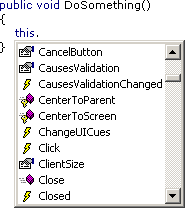
... VS.Net 200x would offer something like this:
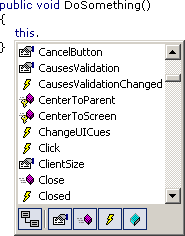
Hiding inherited members...
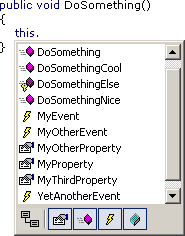
...or showing only certain kinds of members (e.g. only events)...
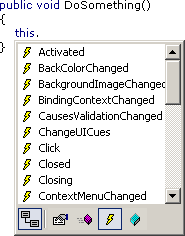
...would be really nice features (and of course something like this is still on my wish list).
-
C# Project File Quote Madness
When looking at a ".csproj" file, a developer's first reaction is "cool, it's XML, I can read and write it". It may be missing the "<?xml ... ?>" processing instruction, but who cares - you can Load() it into a System.Xml.XmlDocument, so everything's fine.
As long as you intend to only read from the ".csproj" file, that's the end of the story. But if you actually want to write to a ".csproj" file (not such a good idea anyway), be prepared for an unpleasant surprise. If you Save() the XmlDocument to a file, and one of the of the gazillion attributes contains a quote, the saved project file is virtually worthless.
An example: Say you put echo "Hello World!" into your post build step. If you load the resulting project file into an XmlDocument and save it back to a file, you'll get something like this:
... PostBuildEvent="echo "Hello World!"" ...
Looks ok, right? Not to VS.Net. Because VS.Net expects this:
... PostBuildEvent = 'echo "Hello World!"' ...
So when you load the project file back into VS.Net, the next time the post build step is performed, VS.Net tries to execute "echo "Hello World"", which of course fails with a lot of noise (remember that "&" has a special meaning on the command line). XmlDocument is smart enough to read and understand the original ".csproj" file (the single quotes are valid XML after all), but when saving to a file, it uses double quotes to surround the attribute value and escapes quote characters inside the value if necessary.
The fact that VS.Net is not able to read the file makes me wonder what kind of XML parser is used inside VS.Net - did somebody have the stupid idea to write one from scratch?
Before somebody tells me that I'm not supposed to manipulate the ".csproj" file, here's a way to make VS.Net look stupid without any external help:
Put echo "Hello 'World'!" into the post build step. VS.Net writes the following into the project file:
... PostBuildEvent = "echo "Hello 'World'!"" ...
Oops... attribute value surrounded by double quotes, escaped quotes inside... that means trouble. If you build the project immediately after setting the post build step, "Hello 'World'!" appears in the build output as expected. But if you (re)load the project, BLAM! "Post-Build Event failed".
-
Documentation Patterns
Keith writes about documentation - or the lack thereof. Even though writing documentation inside C# source files brings immediate benefits (e.g. tooltips when using intellisense) and is generally a good idea for any non-trivial library, a lot of code is written without proper documentation. An amazing fact is the huge difference between the number of people who have heard about NDoc and the number of people who have actually tried it (let alone use it on a regulary basis). C'mon, spend the 15 minutes of your life to install and try it. I tend to be rather impatient when trying new tools, and even I got quick results that did convince me to spend a little more time getting to know the different options.
On the non-technical side, there's the problem that good developers are not necessarily good authors (note that I'm not speaking about very good developers). So even if IDE support for writing documentation gets better and better (maybe something like this?), some people feel that they would have to spend too much time to write useful documentation.
Let's forget about that extensive seven-part hands-on tutorial for your library that you would write if you were a fast writer so could squeeze it into the typical tight schedule (did I just hear somebody saying "I don't read these anyway, just gimme the reference docs, some short samples and I'll get started myself"?).
What really gets on my nerves is a library without the minimal online documentation for intellisense while typing and a help file for browsing through the library to get a "feel" for the overall structure. Every public method or property should be described in one or two sentences. If this is not possible, the method or property either a) does something absolutely incomprehensible amazing in one single step, or b) it sucks. While a) may be fascinating, not being able to write the short summary usually means b), i.e. identifies bad structure in the code.
What about "self-describing" method or property names? What else to write e.g. about a method "BuildCache" rather than "Builds the cache"? If you look at such a method and think about it just a bit longer, you'll come up with at least one more fact (no implementation details, I think we'll all agree on that), that may be trivial at first sight (e.g. what cache?), but can be a help for future users (or for yourself in a couple of weeks). If a method has parameters, it's a good idea to mention the most important one or two, e.g. "Builds the foo cache from the specified bar" - this helps getting a rough idea about the method. By the way, keep in mind that online documentation is not necessarily read in a particular order.
But what if you still have problems finding the right words for even a short description? Well, simply look at the .NET framework documentation and
steal sentencesget inspiration from there. A lot of bread-and-butter stuff can be documented using simple "patterns" you'll find there. An example: Before switching to .NET, I used to have many different ways to document a flag. Now I always begin with "Gets or sets a value indicating whether ..." for boolean properties. This may not be the best way to do it, but people are so used to it from the Microsoft docs, that they feel right at home.Conclusion: Reading other people's documentation with open eyes (to detect the patterns used over and over again to achieve consistency) is an important step to writing documentation with less effort.
Update 2006-09-28: Fixed some broken links
-
One Reason why I use Hungarian Notation
While I adjusted my coding style for "everything publicly visible" to match the Microsoft guidelines, I still use Hungarian Notation internally (in a simplified form). One can argue whether or not it increases the readability of code, resulting in long discussions about the pros and cons.
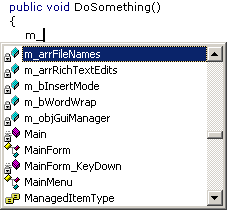
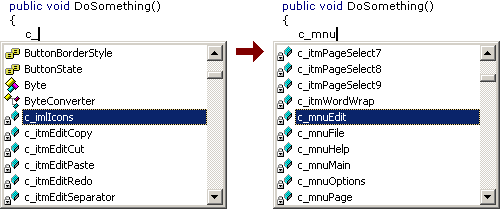
One feature of HN I really love (and just don't want to give up) is how well it works in conjunction with Intellisense.
Example 1: Member variables ("m_" prefix):
Example 2: Controls ("c_" prefix):
-
ExtractXml: Including Examples in Your API Documentation
When using an API it's always nice to have some examples showing how the different classes and their methods and properties are actually used. Examples usually come in two flavors:
- Full projects (more or less) ready to compile
- Code snippets in the documentation (e.g. generated by NDoc)
Ok, I have to admit that I tend to ignore the full projects. When I need an example to understand something, I'm often looking for quick answers - not easy to get in an example project sometimes showing several concepts at once.
The small examples usually consist of maybe only a few lines of code, that in many cases are not ready to be compiled (at least not without adding some more code). But often these examples are exactly what is required to get quick help, getting straight to the point.
Unfortunately for the API developer, sample code inside the <example> tag of the XML Doc comments is a pain to create and maintain.
- The code has to be tested.
A missing semicolon in an example is definitely not the best way to convince the API users of the quality of the documentation. And if the code shows something that simply is not possible (e.g. a feature that was planned, but later cut from the release), people get really upset. - The code has to reflect the current state of the API.
As the work on the API continues, sample code copied and pasted into your documentation has to be updated over and over again.
With a large number of examples, the only real solution is to take sample code from actually working code (e.g. from some of the NUnit tests for the API) and to automatically insert these code snippets into the doc comments.
The <include> tag of the XML doc comments allows the inclusion of XML fragments stored in an external XML file. I wrote a small command line tool (ExtractXml) that generates an XML file from a ".cs" file. Read more about it here.
-
ExtractXml: Including Examples in Your API Documentation
When using an API it's always nice to have some examples showing how the different classes and their methods and properties are actually used. Examples usually come in two flavors:
- Full projects (more or less) ready to compile
- Code snippets in the documentation (e.g. generated by NDoc)
Ok, I have to admit that I tend to ignore the full projects. When I need an example to understand something, I'm often looking for quick answers - not easy to get in an example project sometimes showing several concepts at once.
The small examples usually consist of maybe only a few lines of code, that in many cases are not ready to be compiled (at least not without adding some more code). But often these examples are exactly what is required to get quick help, getting straight to the point.
Unfortunately for the API developer, sample code inside the <example> tag of the XML Doc comments is a pain to create and maintain.
- The code has to be tested.
A missing semicolon in an example is definitely not the best way to convince the API users of the quality of the documentation. And if the code shows something that simply is not possible (e.g. a feature that was planned, but later cut from the release), people get really upset. - The code has to reflect the current state of the API.
As the work on the API continues, sample code copied and pasted into your documentation has to be updated over and over again.
With a large number of examples, the only real solution is to take sample code from actually working code (e.g. from some of the NUnit tests for the API) and to automatically insert these code snippets into the doc comments.
The <include> tag of the XML doc comments allows the inclusion of XML fragments stored in an external XML file. I wrote a small command line tool (ExtractXml, download here) that generates an XML file from a ".cs" file. It's pretty much of a quick hack without much planning, but it's good enough for my own work.
This is how it works: the ".cs" file is decorated with "////" comments containing XML processing instructions and tags:
//// <?xml version="1.0" encoding="utf-16" ?>
//// <Documentation><!--
using System;
using System.Diagnostics;
namespace ExtractXml
{
    /// <summary>
    /// Summary description for Example.
    /// </summary>
    public class Example
    {
        /// <summary>
        /// Does something really cool.
        /// </summary>
        public void DoSomething()
        {
            //// -->
            //// <Example name="HowToAddStrings">
            //// <example>
            //// <b>How add two strings:</b>
            //// <code>
            //// <![CDATA[
            string str1="Hello ";
            string str2="World";
            string str3=str1+str2;
            //// ]]></code>
            //// </example>
            //// </Example><!--
            Debug.WriteLine(str3);
        }
    }
}
//// --></Documentation>
The tool is called like this:
ExtractXml inputFile.cs outputFile.xml
It removes the "////" comments, loads the resulting text into an XML document (detecting errors in the XML), removes the XML "<!-- ... -->" comments and saves the result:
<?xml version="1.0" encoding="utf-16"?>
<Documentation>
<Example name="HowToAddStrings">
<example>
<b>How add two strings:</b>
<code>
<![CDATA[
string str1="Hello ";
string str2="World";
string str3=str1+str2;
]]></code>
</example>
</Example>
</Documentation>
In your API code you reference the example like this:
/// ...
/// <include file="Example.xml" path="Documentation/Example[@name='HowToAddStrings']/*"/>
/// ...
Note that you are completely free regarding the structure of the XML tags, as long as the result is a valid XML document.
Download
The download contains the executable (for .NET Framework 1.1) and the source (project file for VS.Net 2003).
Recommended Links
- XML Comments Let You Build Documentation Directly From Your Visual Studio .NET Source Files (MSDN Magazine, June 2002)
- <include> (C# programmer's reference)
-
Part 2: My First Computer - The "CoCo"
(continued from part 1, "How it all began")
My First Computer - The "CoCo"
So in May 1983 a green screen showing 32x16 black characters appeared on the TV screen in my room. From this day on, I was completely hooked. At first, my father tried to learn BASIC, too, but after some time he lost interest in programming and became what could be best described as an "advanced user". Programming turned out to be very frustrating. With about 5 days of programming experience I tried to write a "Space Invaders" clone - the first of my many software development disasters.What became pretty clear after rather short time was that the "TRS-80 Color Computer" was a rare thing in Germany. It was only sold in Tandy stores, definitely not to be found in every town. One day we were told by word-of-mouth that a newspaper shop in Cologne (about 25km from Bonn) sold imported US magazines exclusively covering the Color Computer: "Hot CoCo" and "The Rainbow". That was a turning point, because the program listings where the first "large" programs I could use as programming examples. My father, being a fast typist, did the monotoneous work of typing in the listings line by line, page by page. After playing around with e.g. a game typed in from a magazine for some time, I began modifying the code. I learned a lot reading other people's code, but still it was pretty tough.
It was a strange situation. More and more people around me started using computers, but no one was seriously into programming. To them, I was the "guy who could really program", but I knew how limited my abilities were. I started project after project, few of them were actually finished. Loss of interest, or code I could not understand myself after a few days - there were many reasons. One of the few projects I did actually finish was the inevitable "Lunar Lander":

Note that the game used a black/white graphics mode (256x192 Pixels). The colors blue and green are in fact produced by the TV set, depending on the pattern of vertical black and white lines. This trick didn't really work too well on the PAL system used in Europe; in the US, with its NTSC system, a lot more colours could be produced.
I also attempted to learn assembly language using a book about the 6809 processor - but I simply had too little information about the computer itself to do anything useful. At least I learned the absolute basics (e.g. binary and hexadecial numbers).
In 1984 I had the opportunity to take a Pascal course. Coming from a completely self-taught BASIC background, without any education about algorithms and data structures, I was pretty much shocked. It was so hard for me to write code without GOTOs. The implementation of the Pascal compiler running on a Philips P2000 machine wasn't too exciting; everything was slow and I didn't really see any advantage over the BASIC of my CoCo. I finished the course to get a certificate, but couldn't envision myself programming in Pascal.
In fall 1984 it became pretty clear that the CoCo was some kind of a dead-end. The Commodory C64, after dropping in price significantly, became really popular, and games for the C64 showed what this computer could do, pushing the limit more and more. But I wanted a computer that would be easy to write programs on, and that definitely wasn't the case on the C64 (at least compared to my CoCo). To my rescue came a new computer that got a lot of hype in the magazines: the Schneider CPC 464, the German version of the Amstrad CPC 464. With a monitor showing 80x25 characters included, that machine was pretty hot. It lacked the hardware sprites and the sound capabilities of the C64, but that didn't matter to me. I wanted such a computer so badly, that I cannot count how often I sat on my bed reading every bit of information I could get my hands on over and over again. Fortunately my father got equally excited, so Christmas 1984 a CPC 464 was standing next to the christmas tree.
(To be continued in part 3: "My Second Computer - Codename Arnold")
-
Part 1: How it all Began
In fall of 1982 the local department store began selling strange looking typewriters connected to TV sets - so-called "home computers". Interesting, but not really lighting a burning desire in me to get one of these machines. Sure, I saw that they could be used to play video games, but for a video game, the price was incredibly high. The presentation of the machines wasn't too clever as well. Nobody could really demonstrate anything useful on the computers and the "information" printed on glossy paper didn't generate this "I have to get this" feeling, either. At that time, the computers were either switched off or would run game software from modules, so no chance to watch somebody typing the typical
10 PRINT "Hello"
20 GOTO 10
to impress everybody else (especially parents and salesmen) standing behind.
In January 1983 German television started broadcasting the "Computer Club". I watched it a couple of times, but this was all a bit too much for me. At age 13, being just an average kid, without anybody around me knowing anything about computers, I just didn't understand what they were talking about on TV. What I needed was somebody giving me an introduction, just for the first, very small steps.
Arund easter 1983 I spent two weeks at my uncle's house, visiting the youngest of three cousins. At that time the oldest cousin served his (mandatory) military service in the German army. When he came back for the weekend, he showed me what he had bought: a ZX81 computer. Simple, but affordable. I watched him writing small BASIC programs for a whole weekend, tried to write some code on my own and I now knew that this was something I was really interested in.
My parents weren't too excited though, remembering all too well the money spent on the model railway that was catching dust, never really being used. But my father slowly got interested in computers, too. So the research for the "right computer to buy" began. The ZX81 was not seriously considered, as its limits were already too obvious. The TI99/4a and the VIC20 couldn't convince us, either. Technically, the C64 was an attractive machine (really nice looking graphics), but it did cost around 1400,- DM (714 EUR), which was a lot of money back then. The computer my father eventually bought was a TRS-80 Color Computer (around 800,- DM). The manual was perfect for beginners, even though it was written in English, and the "Extended Color BASIC" had commands for drawing lines and circles (the C64 BASIC did not).
(continued in part 2: "My First Computer")
-
Getting rid of the 'File' Concept for Source Code?
Frans writes: After the recent sourcecode control debate I started thinking: why on earth are we still using the 'file' as the base unit to store sourcecode in? The whole 'file' concept is pretty bad and limiting when it comes to sourcecode control, code reuse and overall code management. Much better would it be if we could work with a code repository as the container for our sourcecode which would work with sourcecode elements like we know, e.g.: namespaces, classes, assemblies, resource objects etc. etc.
Well, I must admit that I'm torn back and forth.
- I agree that moving away from files could lead to interesting developments, maybe even getting rid of the text-only nature of source code. I'm not only speaking about (gimmicky?) features like photos and drawings inside source code. It's also about getting rid of the need to "serialize" every bit of meta information into stone age raw text.
- On the other hand, it's just too easy to write or at least use lots of nice little tools outside the IDE that work exactly because of the concept of source code being a bunch of files. And then there's the fear to lose the many workarounds possible with files if things don't work like they should. In case your IDE just won't let you do anything after installing some other software, at least you can copy your source files to some other place and continue your work.
I honestly don't know. I just can't decide what is better. Maybe it's just the fear to put source "into something I cannot look into using Notepad". Maybe I'm already too traditional. But then I remember the first time I had to trust a new thing called clipboard that text I would "cut" would re-appear using "paste"... so maybe it's time for a different approach.
- I agree that moving away from files could lead to interesting developments, maybe even getting rid of the text-only nature of source code. I'm not only speaking about (gimmicky?) features like photos and drawings inside source code. It's also about getting rid of the need to "serialize" every bit of meta information into stone age raw text.